1. Giriş
Thank you for choosing the Pisichen 27-inch 4K UHD Touchscreen Monitor with Webcam. This manual provides essential information for the safe and efficient operation of your new monitor. Please read it thoroughly before use and retain it for future reference.
2. Güvenlik Bilgileri
- Güç Kaynağı: Yalnızca monitörle birlikte verilen güç adaptörünü kullanın. Güç prizinin voltaj gereksinimlerini karşıladığından emin olun.tage gereksinimleri.
- Havalandırma: Havalandırma açıklıklarını kapatmayın. Monitörün etrafında yeterli hava akışı için yeterli boşluk bırakın.
- Sıvıya Maruz Kalma: Monitörü sıvılardan uzak tutun. Yağmura veya neme maruz bırakmayın.
- Temizlik: Disconnect the power cable before cleaning. Use a soft, dry cloth. Avoid abrasive cleaners.
- Atama: Düşmesini önlemek için monitörü sabit ve düz bir yüzeye yerleştirin.
- Servis: Monitörün bakımını kendiniz yapmaya çalışmayın. Tüm bakım işlemlerini yetkili personele yaptırın.
3. Paket İçeriği
Lütfen paketi açtıktan sonra içeriğini kontrol edin. Herhangi bir ürün eksik veya hasarlıysa, satıcınızla iletişime geçin.
- Pisichen 27-inch 4K UHD Touchscreen Monitor
- Monitör Sehpası (Taban ve Kol)
- Güç Adaptörü
- HDMI Kablosu
- USB-B to USB-A Cable (for Touch Function)
- Kullanıcı Kılavuzu
4. Ürün Bittiview
4.1 Temel Özellikler
- Ultra HD 4K Touchscreen Display: 27-inch 4K Ultra HD screen with vibrant colors, sharp details, and wide viewing angles. Features a responsive 10-point touchscreen for intuitive control.
- Built-in High-Definition Webkam: Entegre webcam for video calls, online meetings, and streaming, reducing desk clutter.
- Çok Yönlü Bağlantı: Multiple ports including HDMI, DisplayPort, and USB-C for easy connections to various devices. Supports both touch and traditional input.
- Optimized for Productivity and Creativity: Large 4K touch display for precise control and streamlined workflows, ideal for graphic designers, content creators, and multitasking.
- Sleek and Functional Design: Modern design with an adjustable stand for optimal viewing angles and comfort during extended use.
4.2 Monitör Bağlantı Noktaları
The monitor features various ports for connecting to your devices. Refer to the image below for port identification.
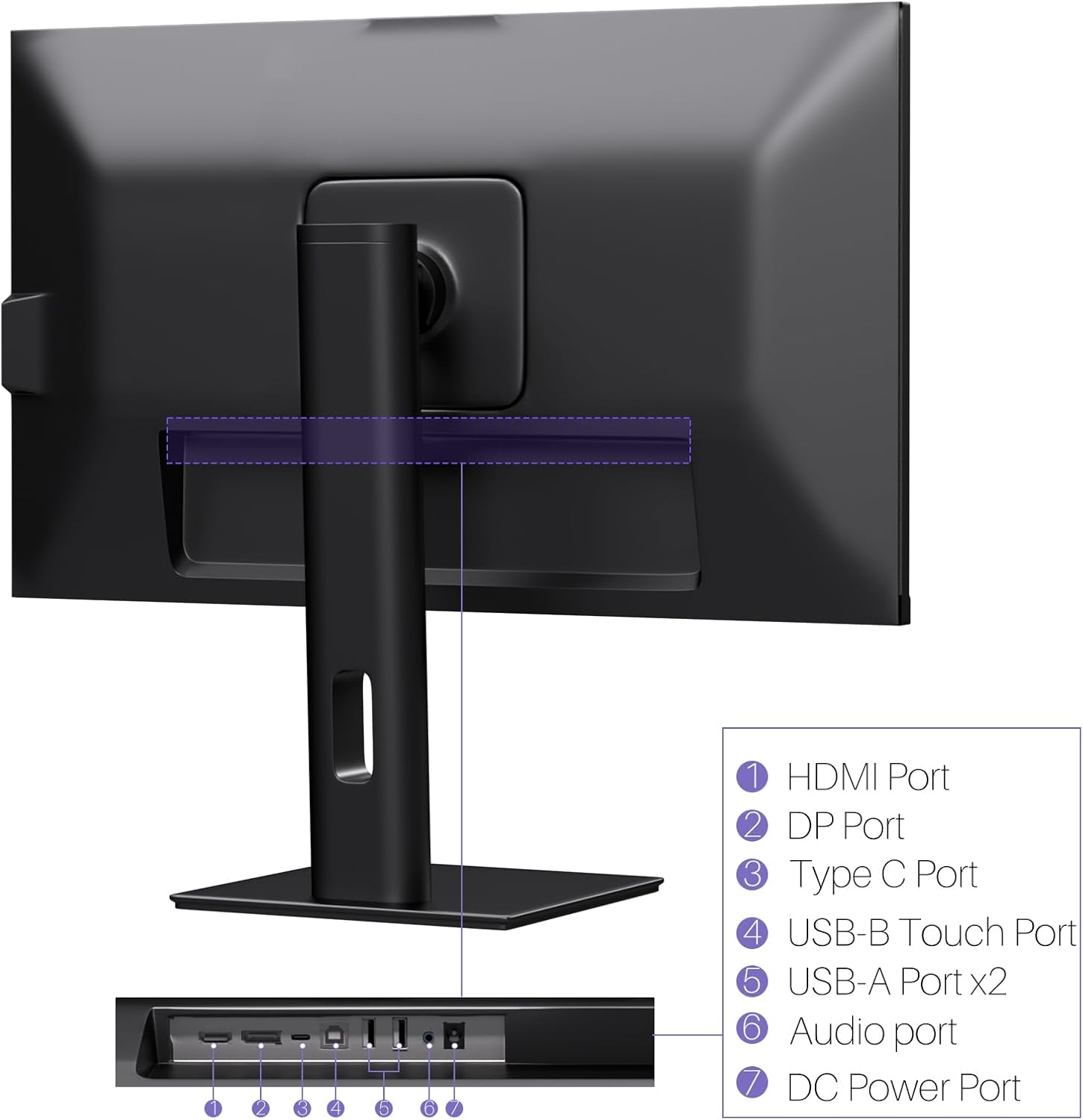
Resim: Arka view of the monitor displaying the HDMI, DP, Type-C, USB-B Touch, USB-A, Audio, and DC Power ports.
- HDMI Bağlantı Noktası: Connects to devices via HDMI cable for video and audio input.
- DP Bağlantı Noktası: Connects to devices via DisplayPort cable for video and audio input.
- C Tipi Bağlantı Noktası: Connects to devices via USB-C cable for video, audio, and power delivery. (Requires USB-C port on signal device to support DisplayPort Alternate Mode for touch functionality).
- USB-B Touch Port: Connects to your computer via USB-B to USB-A cable to enable touchscreen functionality.
- USB-A Bağlantı Noktası (x2): USB çevre birimlerini bağlamak için.
- Ses Bağlantı Noktası: Harici ses aygıtlarını bağlamak için.
- DC Güç Bağlantı Noktası: Güç adaptörüne bağlanır.
5. Kurulum Talimatları
5.1 Standın Montajı
- Monitör ve stand bileşenlerini ambalajından dikkatlice çıkarın.
- Attach the stand arm to the monitor's VESA mounting points.
- Secure the stand base to the arm using the provided screws.
- Ensure all connections are tight and the monitor is stable.
5.2 Cihaza Bağlanma
The monitor supports various connection types. Choose the appropriate cable for your device.

Image: Connection diagrams illustrating how to connect the monitor as a secondary display (HDMI/DP + DC), a touchscreen monitor (HDMI/DP + USB-B + DC), or via USB-C (USB-C + DC).
- For Video and Audio (Non-Touch): Connect an HDMI or DisplayPort cable from your computer to the corresponding port on the monitor.
- For Video, Audio, and Touch (Windows PC): Connect an HDMI or DisplayPort cable for video/audio. Additionally, connect the USB-B to USB-A cable from the monitor's USB-B Touch Port to a USB-A port on your computer.
- For Video, Audio, and Touch (USB-C Compatible Device): Connect a USB-C cable from your device to the monitor's Type-C port. Ensure your device's USB-C port supports DisplayPort Alternate Mode for touch functionality.
5.3 Güç Bağlantısı
- Connect the power adapter to the monitor's DC Power Port.
- Güç adaptörünü duvar prizine takın.
6. Kullanım Talimatları
6.1 Güç Açma/Kapatma
Monitörü açmak veya kapatmak için monitör üzerinde bulunan güç düğmesine basın.
6.2 Ekran Üstü Görüntüleme (OSD) Menüsü
Use the control buttons (typically located on the back or bottom of the monitor) to navigate the OSD menu. This menu allows you to adjust settings such as brightness, contrast, color temperature, input source, and other display parameters.
6.3 Dokunmatik Ekran İşlevselliği
The monitor features a 10-point multi-touch screen. Ensure the USB-B to USB-A cable (or USB-C cable for compatible devices) is connected to enable touch functionality.
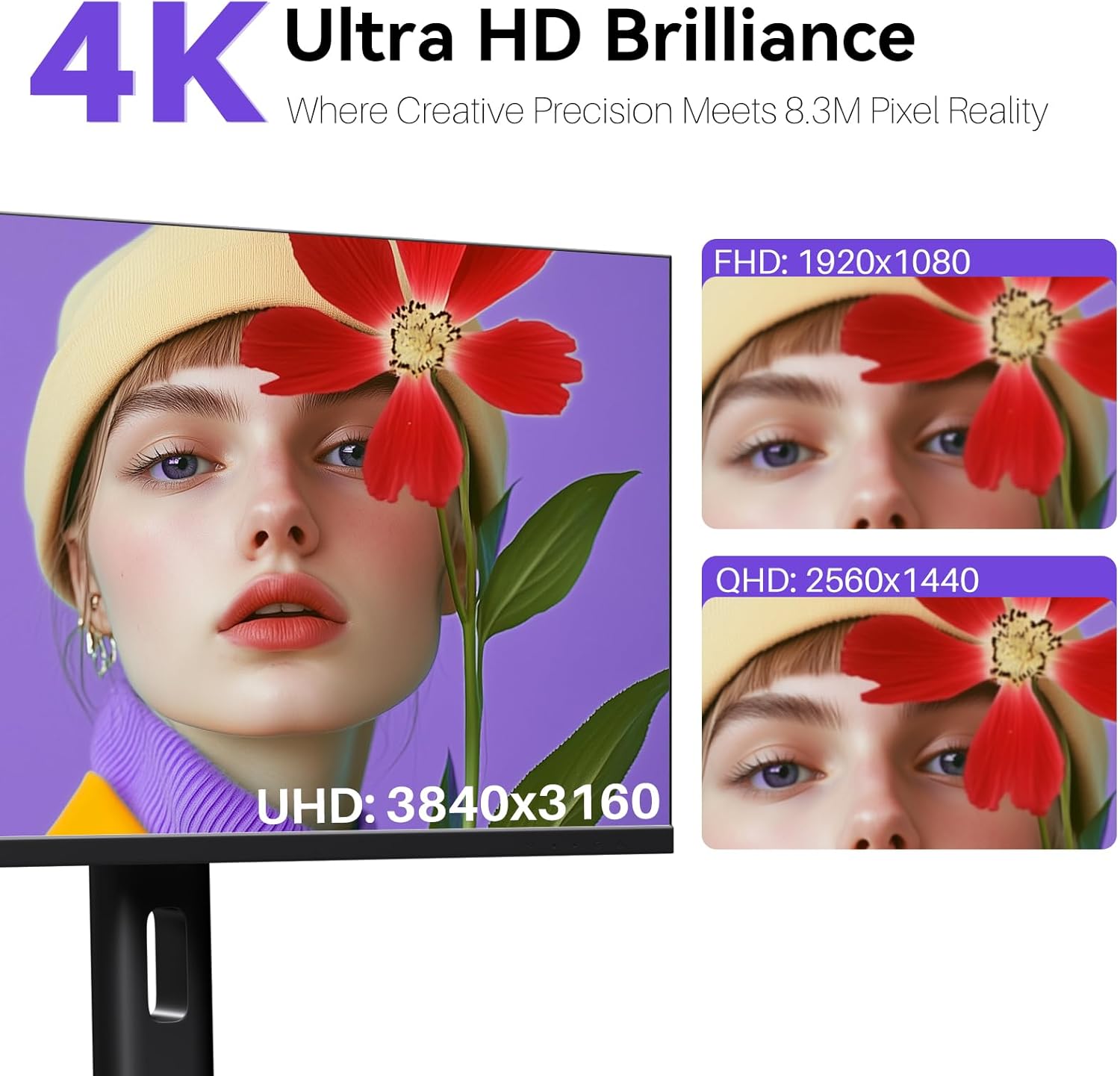
Image: A user's hand interacting with the monitor screen, highlighting the responsive 10-point touch experience.
- Basic Touch: Tap to click, swipe to scroll.
- Çoklu Dokunmatik Hareketler: Use two fingers to zoom in/out, rotate, or pan, depending on the application.
- Touch Calibration (Windows Only): If the cursor does not align with your touch, calibration may be required. Go to Control Panel > Hardware and Sound > Tablet PC Settings > Calibrate. Follow the on-screen prompts.
6.4 Using the Built-in Webkam
Entegre webcam is automatically detected by most operating systems and video conferencing applications. No additional drivers are typically required.

Image: The monitor displaying a video conference call, showcasing its integrated webcam for seamless communication.
- Tercih ettiğiniz video konferans yazılımını açın (örneğin, Zoom, Microsoft Teams, Skype).
- Select the integrated webcam as your video input device in the application's settings.
6.5 Adjusting Display Resolution
To set the resolution of the monitor (Windows):
- Right-click on your desktop and select "Display Settings."
- Find your monitor (if multiple displays are connected).
- Under "Display resolution," select the recommended resolution of 3840 x 2160.
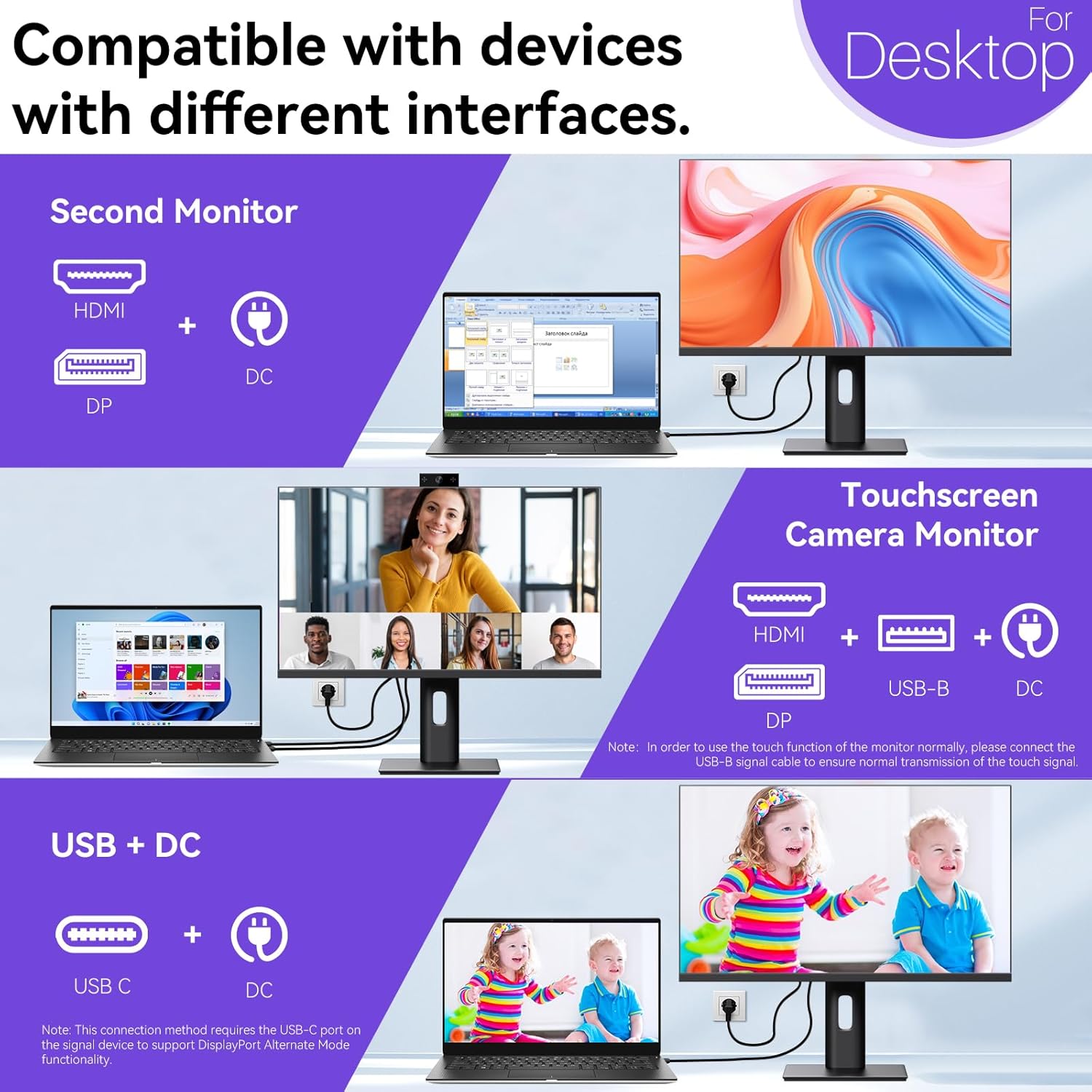
Image: A visual comparison demonstrating the superior clarity of 4K UHD (3840x2160) compared to FHD (1920x1080) and QHD (2560x1440) resolutions.
7. Bakım
- Ekranın Temizlenmesi: Ekranı yumuşak, tiftiksiz bir bezle nazikçe silin. İnatçı lekeler için hafifçe silin.ampBezi su veya ekrana özel bir temizleme solüsyonuyla silin. Sıvıyı doğrudan ekrana püskürtmeyin.
- C'yi Temizlemeasing: Monitörü temizlemek için yumuşak ve kuru bir bez kullanın.asing.
- Depolamak: Monitörü uzun süre saklayacaksanız, güç kaynağından ayırın, orijinal ambalajına koyun ve serin, kuru bir yerde saklayın.
8. Sorun Giderme
If you encounter issues with your monitor, refer to the following troubleshooting guide. For problems not listed, please contact customer support.
| Sorun | Olası Neden | Çözüm |
|---|---|---|
| Ekranda görüntü yok | Güç kablosu çıkarıldı; Video kablosu çıkarıldı; Yanlış giriş kaynağı seçildi. | Ensure power cable is securely connected. Check video cable (HDMI/DP/USB-C) connections. Select correct input source via OSD menu. |
| Dokunmatik ekran yanıt vermiyor | USB-B cable not connected; USB-C port not supporting DisplayPort Alternate Mode; Device incompatibility (e.g., iPhone). | Ensure the USB-B to USB-A cable is connected from the monitor to your computer. If using USB-C, verify your device's USB-C port supports DisplayPort Alternate Mode. Note: Touch function is not supported when connected to an iPhone due to iOS system restrictions. |
| Cursor moves incorrectly (Windows) | Touchscreen calibration required. | Perform touchscreen calibration: Go to Control Panel > Hardware and Sound > Tablet PC Settings > Calibrate. |
| Webkamera algılanmadı | USB connection issue; Software settings. | Ensure all necessary USB cables are connected. Check your application's settings to select the correct webkam. |
9. Özellikler
| Özellik | Detay |
|---|---|
| Marka | Pisichen |
| Model Numarası | 27INTSCMR-4K |
| Ekran Boyutu | 27 inç |
| Çözünürlük | 3840 x 2160 Piksel (4K UHD 2160p) |
| En Boy Oranı | 16:9 |
| Görüntü parlaklığı | 400 Candela |
| Ekran Yüzeyi Açıklaması | Parlak |
| Ürün Boyutları | 14.37 x 24.21 x 16.54 inç |
| Ürün Ağırlığı | 16.59 pound |
| Üretici | Shenzhen Konowa Elektronik A.Ş. |
| Bağlantı | HDMI, DisplayPort, USB-C, USB-B (for touch), USB-A (x2), Audio Port |
10. Garanti ve Destek
This product comes with a manufacturer's warranty. Please refer to the warranty card included in your package for specific terms and conditions. For technical support or inquiries, please contact Pisichen customer service at destek_2308@163.com. When contacting support, please provide your model number and a detailed description of the issue, including any relevant pictures or videos.


