1. Giriş
Thank you for choosing the GooDee AC321 Video Projector. This manual provides essential information for setting up, operating, and maintaining your device to ensure optimal performance and longevity. Please read this manual thoroughly before using the projector.

Image: The GooDee AC321 Video Projector, a compact device with a lens on the front, resting on its adjustable stand.
2. Kutuda Neler Var?
Tüm öğelerin ambalajda mevcut olduğunu doğrulayın:
- GooDee AC321 Projector
- Güç Kablosu
- HDMI Kablosu
- Uzaktan kumanda
- Kullanım Kılavuzu (bu belge)

Image: A visual representation of the items included with the GooDee AC321 projector: the projector unit, remote control, power cable, lens cover, and a 90-degree HDMI cable.
3. Kurulum
3.1 Güç Bağlantısı
- Güç kablosunu projektörün güç giriş portuna bağlayın.
- Güç kablosunun diğer ucunu uygun bir elektrik prizine takın.
- Cihazı açmak için projektördeki veya uzaktan kumandadaki güç düğmesine basın.
3.2 Placement and Positioning
The GooDee AC321 features a flexible hovering stand, allowing for versatile placement options:
- Tabletop Projection: Place the projector on a flat surface and adjust the stand to direct the image onto a wall or screen.
- Tavan Projeksiyonu: The projector can be tilted upwards to project onto a ceiling, ideal for comfortable viewuzanarak.
- Tripod Montajı: Utilize the 1/4-inch screw holes at the bottom of the projector to mount it on a tripod for stable and precise positioning.

Image: The GooDee AC321 projector demonstrating its flexible stand, capable of adjusting the projection angle up to 120 degrees for various viewing positions, including ceiling projection.
3.3 Initial Power On and Focus
Upon powering on, the projector will automatically perform autofocus and keystone correction to provide a clear and rectangular image. Further adjustments can be made via the remote control.
Video: A demonstration of the GooDee Mini Projector's initial setup, showing the power-on sequence, automatic focus adjustment, and the main user interface with various streaming apps.
4. Kullanım Talimatları
4.1 Gezinme ve Kullanıcı Arayüzü
The GooDee AC321 runs on Movin 2.0 OS, providing a smart TV experience with pre-installed streaming applications. Use the included remote control to navigate the interface:
- Yön Tuşu: Use the arrow buttons to move between apps and menu options.
- Tamam Düğmesi: Bir öğeyi seçin veya bir eylemi onaylayın.
- Ana menü tuşu: Ana ekrana dönün.
- Geri Düğmesi: Önceki ekrana geri dönün.
- Ses Düğmeleri: Ses çıkış seviyesini ayarlayın.
- Özel Uygulama Düğmeleri: Quickly access Netflix, YouTube, and Prime Video.

Image: The GooDee AC321 projector's home screen, showcasing a variety of pre-installed streaming applications like Netflix, YouTube, and Prime Video, ready for selection.
4.2 App Access and Streaming
The projector comes pre-licensed with major streaming platforms. Connect to your Wi-Fi network to access over 10,000 streaming channels and a built-in app store for additional content.
4.3 Ekran Yansıtma
The GooDee AC321 supports various casting protocols including DLNA, AirPlay, and Miracast, allowing seamless screen mirroring from iOS, Android, and Windows devices.

Image: The GooDee AC321 projector casting content from a mobile device to a large screen, illustrating its screen mirroring capabilities across different operating systems.
5. Bağlantı
Projeksiyon cihazı birden fazla bağlantı seçeneği sunuyor:
- HDMI: Connect to computers, gaming consoles, TV boxes, or DVD players.
- USB BAĞLANTI: USB depolama aygıtlarından doğrudan medya oynatın.
- 3.5 mm Ses Jakı: Harici hoparlör veya kulaklık bağlayın.
- Kablosuz 6: Yüksek hızlı kablosuz internet ve yayın akışı için.
- Bluetooth 5.4: For stable connection to external audio devices like speakers or headphones.
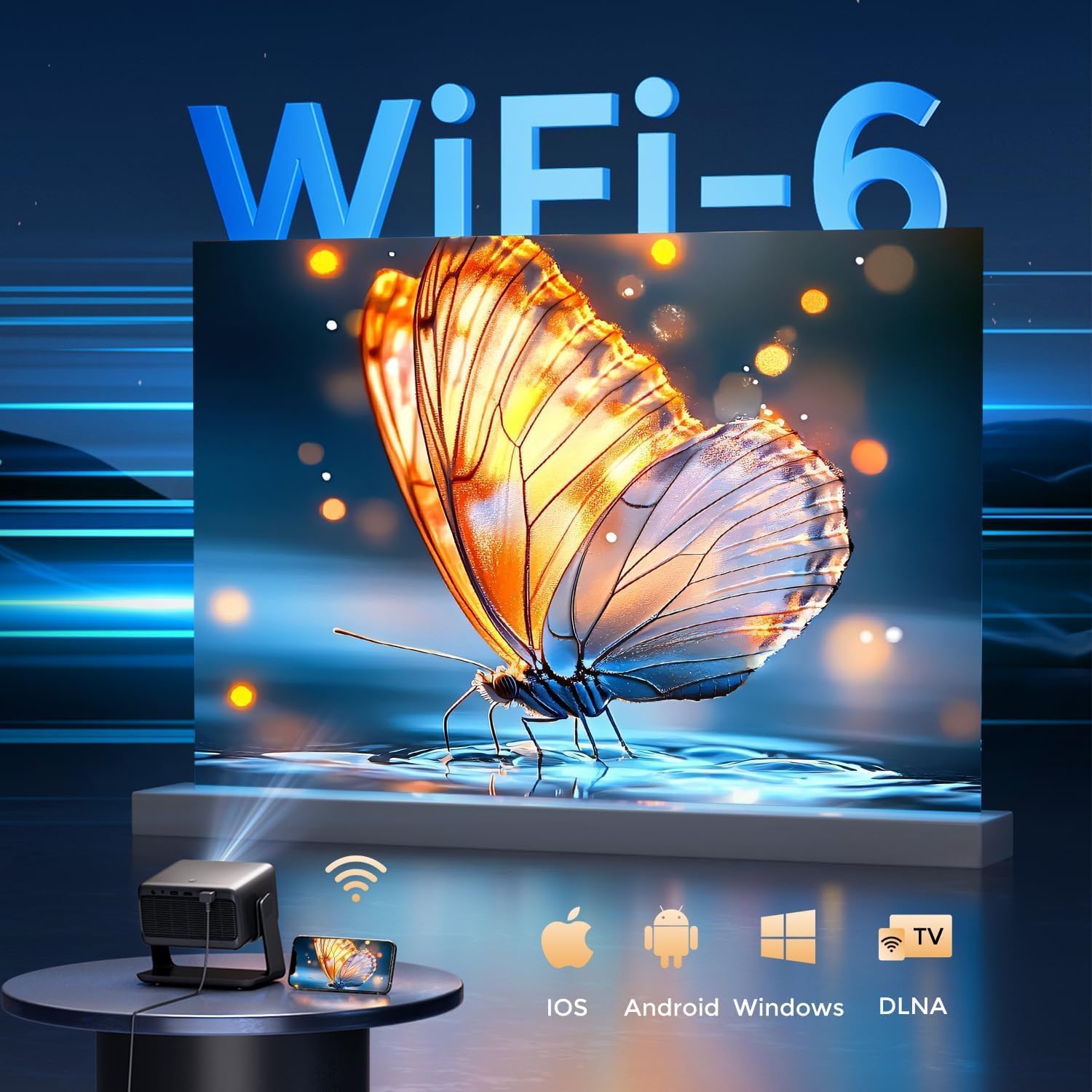
Image: The rear panel of the GooDee AC321 projector, highlighting its connectivity ports including a 3.5mm audio jack, USB port, HDMI input, and power connector.
6. Ekran ve Ses Özellikleri
6.1 Görsel Performans
Experience an immersive visual feast with the following display capabilities:
- Yerel Çözünürlük: 1080p (1920 x 1080) for sharp and clear images.
- 4K Video Kod Çözme: Supports 4K video input for smooth playback of high-definition content.
- Parlaklık: 1200 ANSI lumens ensures clear picture quality even in ambient light conditions.
- AI Image Quality Optimization: Utilizes deep learning algorithms to analyze and optimize picture pixels in real-time, enhancing HDR10+ color and 25000:1 contrast ratio.
- Large Screen Zooming: Project images from 60 to 200 inches, with adjustable zoom from 50-100%.
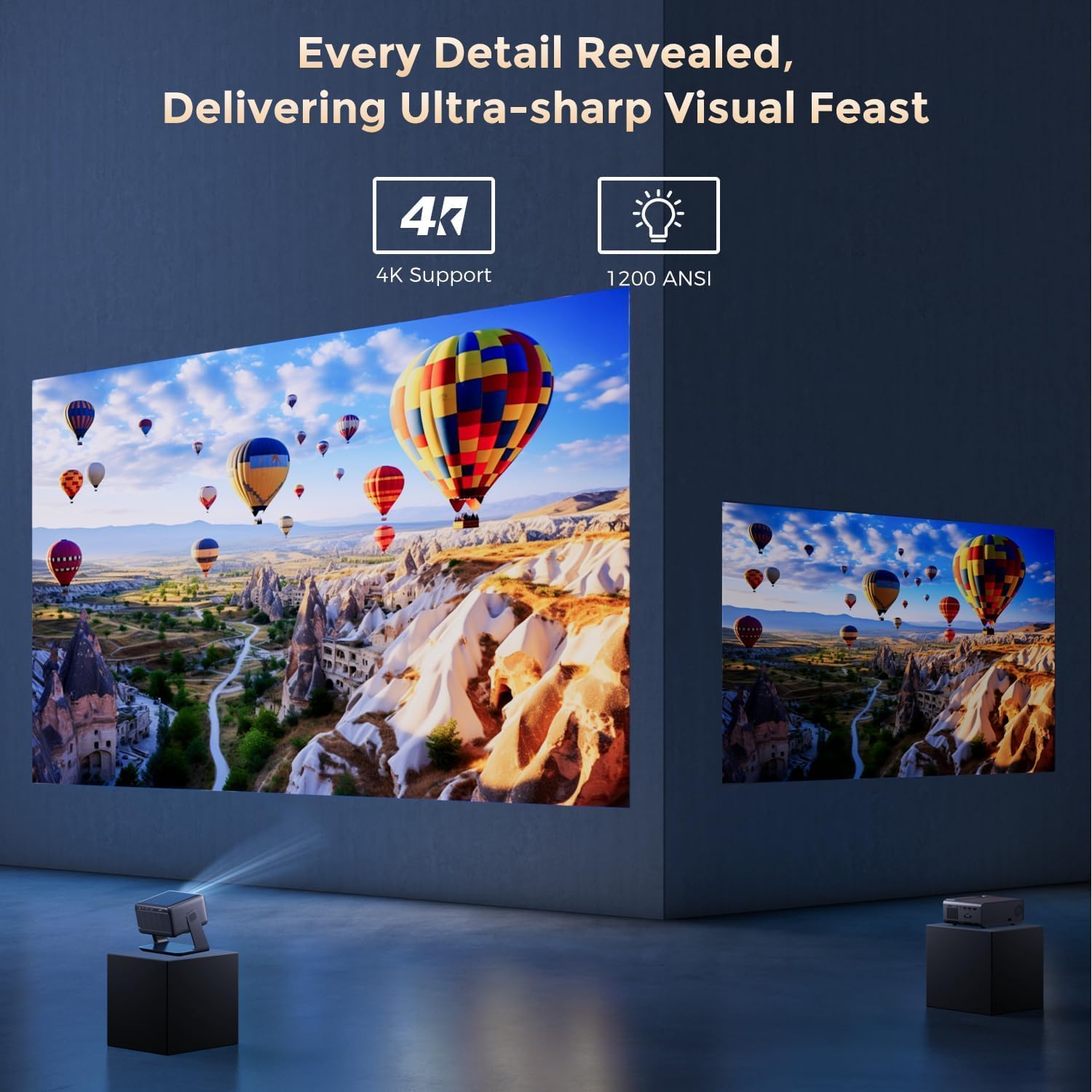
Image: The GooDee AC321 projector showcasing its visual capabilities with a bright, detailed image, emphasizing 4K support and 1200 ANSI lumens for superior clarity.
6.2 Ses Deneyimi
The projector is equipped with built-in features for an immersive audio experience:
- Dolby Ses: Integrated Dolby Audio speakers provide rich and immersive sound.
- Bluetooth 5.4: Connect wirelessly to external Bluetooth speakers or soundbars for enhanced audio.
7. Gelişmiş Özellikler
The GooDee AC321 incorporates intelligent features for effortless setup and optimal viewTürkçe:
- Otomatik odaklama: Automatically adjusts the image clarity in seconds.
- Otomatik Çarpıklık Düzeltme: Intelligently corrects vertical and horizontal trapezoidal distortion, ensuring a perfectly rectangular image even from an angled projection.
- Otomatik Ekran Hizalama: Automatically fits the projected image to your screen.
- Otomatik Engellerden Kaçınma: Projeksiyon yolundaki engelleri algılar ve bunlardan kaçınmak için projeksiyonu ayarlar.

Resim: Şeffaf view of the GooDee AC321 projector, illustrating its AI 3D ToF Technology for automatic keystone correction, obstacle avoidance, focus, and screen fitting.
Video: A demonstration of the GooDee Mini Smart Projector's automatic keystone correction and focus features, showing how the image quickly adjusts to a perfect rectangle and sharp clarity.
8. Özellikler
| Özellik | Tanım |
|---|---|
| Model Numarası | AC321 |
| Marka | İyiDee |
| Ekran Çözünürlüğü | 1920 x 1080 (Orijinal) |
| Video Kod Çözme | 4K Desteklenir |
| Parlaklık | 1200 ANSI Lümenleri |
| Bağlantı Teknolojisi | 3.5mm Jack, Bluetooth 5.4, HDMI, USB, Wi-Fi 6 |
| Özel Özellikler | Auto Focus, Auto Keystone, Auto Screen Alignment, Auto Obstacle Avoidance, Built-In Cooling System, Built-In Speaker, Smart TV OS (Movin 2.0), Dolby Audio |
| Ürün Ağırlığı | 4.66 pound |
| Ürün Boyutları | 8.1 x 6.1 x 7.1 inç |
| Anma Gücü | 65W |
9. Bakım
To ensure the longevity and optimal performance of your GooDee AC321 projector, follow these maintenance guidelines:
- Lensin Temizlenmesi: Optik lensler için özel olarak tasarlanmış, yumuşak ve tüy bırakmayan bir bez kullanın. Tozu veya lekeleri gidermek için lensi nazikçe silin. Aşındırıcı malzemeler veya sert kimyasallar kullanmaktan kaçının.
- Cleaning the Vents: Regularly check and clean the air intake and exhaust vents to prevent dust buildup, which can hinder cooling and affect performance. Use a soft brush or compressed air.
- Depolamak: When not in use for extended periods, store the projector in a cool, dry place, away from direct sunlight and extreme temperatures. Use the provided lens cover to protect the lens.
- Gücü Düzgün Bir Şekilde Kapatın: Always power off the projector using the designated power button and allow it to complete its shutdown cycle before unplugging.
10. Sorun Giderme
If you encounter any issues with your GooDee AC321 projector, refer to the following common troubleshooting steps:
- Hiçbir resmi:
- Güç kablosunun güvenli bir şekilde takılı olduğundan ve projektörün açık olduğundan emin olun.
- Check the input source (HDMI, USB) and ensure it is correctly selected.
- Verify that the connected device (laptop, console) is powered on and outputting a signal.
- Ses Yok:
- Hem projektörün hem de bağlı kaynak cihazın ses seviyesini ayarlayın.
- Harici hoparlör kullanıyorsanız, bunların Bluetooth veya 3.5 mm ses jakı aracılığıyla doğru şekilde bağlandığından emin olun.
- Check the audio output settings on the connected source device.
- Bulanık görüntü:
- Allow the auto-focus function to complete its cycle.
- Projeksiyon merceğinin temiz olduğundan emin olun.
- Adjust the projector's distance from the screen/wall.
- Görüntü bozuk (yamuk şeklinde):
- Allow the auto-keystone correction to complete.
- Manually adjust keystone settings via the remote control if needed.
- Wi-Fi/Bluetooth Bağlantı Sorunları:
- Projektörün Wi-Fi yönlendiriciniz veya Bluetooth cihazınızın menzili içinde olduğundan emin olun.
- Projeksiyon cihazını ve yönlendiricinizi/Bluetooth cihazınızı yeniden başlatın.
- Wi-Fi şifresini ve ağ ayarlarını kontrol edin.
11. Garanti ve Destek
The GooDee AC321 Video Projector comes with a 12 ay garanti. For any product-related inquiries, technical assistance, or warranty claims, please contact GooDee customer support.
GooDee offers 24/7 Canlı Sohbet Desteği to assist you with any issues. You can also visit the official GooDee website for more information and to register your product for warranty activation.
- Webalan: www.top-goodee.com
- Müşteri Hizmetleri: Lütfen resmi web sitesinde verilen iletişim bilgilerine bakın. websitenizde veya ürün ambalajınızda.


