giriiş
The ShanWan Wireless Controller is a versatile gaming peripheral designed for use across multiple platforms, including PC, iPhone, Android, Nintendo Switch, and Steam. It offers tri-mode connectivity (Bluetooth, 2.4G wireless, and USB-C wired) to ensure a seamless gaming experience. This manual provides detailed instructions for setup, operation, maintenance, and troubleshooting to help you maximize your controller's performance.
Note: This controller is not compatible with Xbox or PlayStation 4/5 consoles.
Paket İçeriği
- ShanWan Wireless Controller
- USB-C Şarj Kablosu
- 2.4G Kablosuz Dongle
- Kullanım Kılavuzu (bu belge)
Kontrolör Bittiview
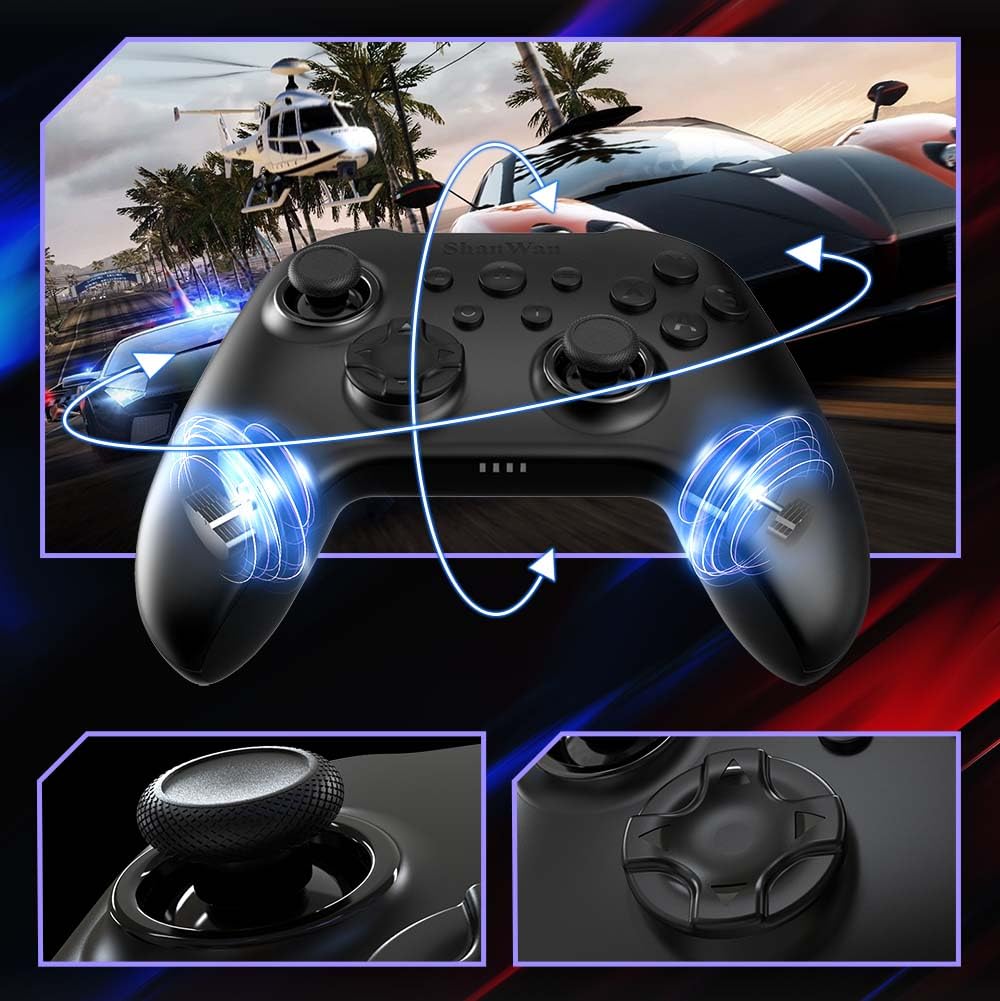
Resim: Ön view of the ShanWan Wireless Controller, showcasing its ergonomic design, dual joysticks, D-pad, and face buttons (A, B, X, Y).
Resim: Geri view of the ShanWan Wireless Controller, highlighting the mode switch for different platforms (X, D, S).
Temel Özellikler:
- Hall Etkili Joystickler: Designed for precision with no dead zones and anti-drift capabilities.
- Durable Gel Buttons: Conductive gel buttons tested for 1 million clicks for long-lasting performance.
- 6 Eksenli Jiroskop: Provides precise motion sensing for immersive gameplay.
- Çift Titreşim Motorları: Delivers strong and subtle haptic feedback for an enhanced gaming experience.
- Turbo Fonksiyonu: Allows for rapid, repeated button presses.
Kurmak
1. Kontrol Cihazının Şarj Edilmesi
Before initial use, fully charge the controller using the provided USB-C cable. Connect the USB-C end to the controller and the USB-A end to a power source (e.g., computer USB port, USB wall adapter). The charging indicator lights will show charging status and turn off when fully charged.
2. Cihazlara Bağlanma
The ShanWan Wireless Controller supports three connection modes: Bluetooth, 2.4G Wireless, and USB-C Wired. Ensure the mode switch on the back of the controller is set to the appropriate platform before attempting to connect.

Resim: Visual representation of the controller's tri-mode connectivity, illustrating Bluetooth, 2.4G wireless, and USB-C wired options.
Mode Switch Settings:
- 'S' Mode: Nintendo Switch için.
- 'X' Mode: For PC (X-input), Android.
- 'D' Mode: For PC (D-input), iOS.
Bluetooth Bağlantısı:
- Set the mode switch on the back of the controller to the desired platform ('S', 'X', or 'D').
- Press and hold the pairing button (usually a small button on the top or back) until the indicator lights flash rapidly.
- On your device (PC, iPhone, Android, Switch), go to Bluetooth settings and search for new devices.
- Select "ShanWan Controller" or a similar name from the list to pair.
- Eşleştirme tamamlandığında, kontrol cihazındaki gösterge ışıkları sabit yanacaktır.
2.4G Wireless Connection (for PC/Switch):
- Set the mode switch on the back of the controller to 'X' (for PC) or 'S' (for Switch).
- Insert the 2.4G wireless dongle into a USB port on your PC or Switch dock.
- Press the Home button on the controller to power it on. It should automatically connect to the dongle.
- The indicator lights will become solid once connected.
USB-C Kablolu Bağlantı:
- Connect the USB-C cable to the controller and the other end to your PC or Switch dock.
- The controller will automatically be recognized as a wired device.
- No specific mode switch setting is required for wired connection, but setting it to the correct platform mode ('X' for PC, 'S' for Switch) is recommended for optimal compatibility.
Kullanım Talimatları
Güç Açma/Kapatma:
- Güç Açık: Press the Home button once.
- Kapat: Press and hold the Home button for 3-5 seconds, or the controller will automatically power off after a period of inactivity.
Hareket kontrolü:
The built-in 6-axis gyroscope provides motion control capabilities, particularly useful for games on Nintendo Switch or other compatible platforms. Ensure the game supports motion controls for this feature to function.
Titreşimli geribildirim:
The dual vibration motors provide haptic feedback during gameplay. The intensity of the vibration can often be adjusted through game settings or the Gamepad Space app.
Turbo Fonksiyonu:
To activate the Turbo function for a specific button:
- Press and hold the button you wish to set to Turbo.
- While holding the button, press the Turbo button (refer to controller layout for location).
- The button will now repeatedly register presses as long as it is held down.
To deactivate Turbo for a button, repeat the process.
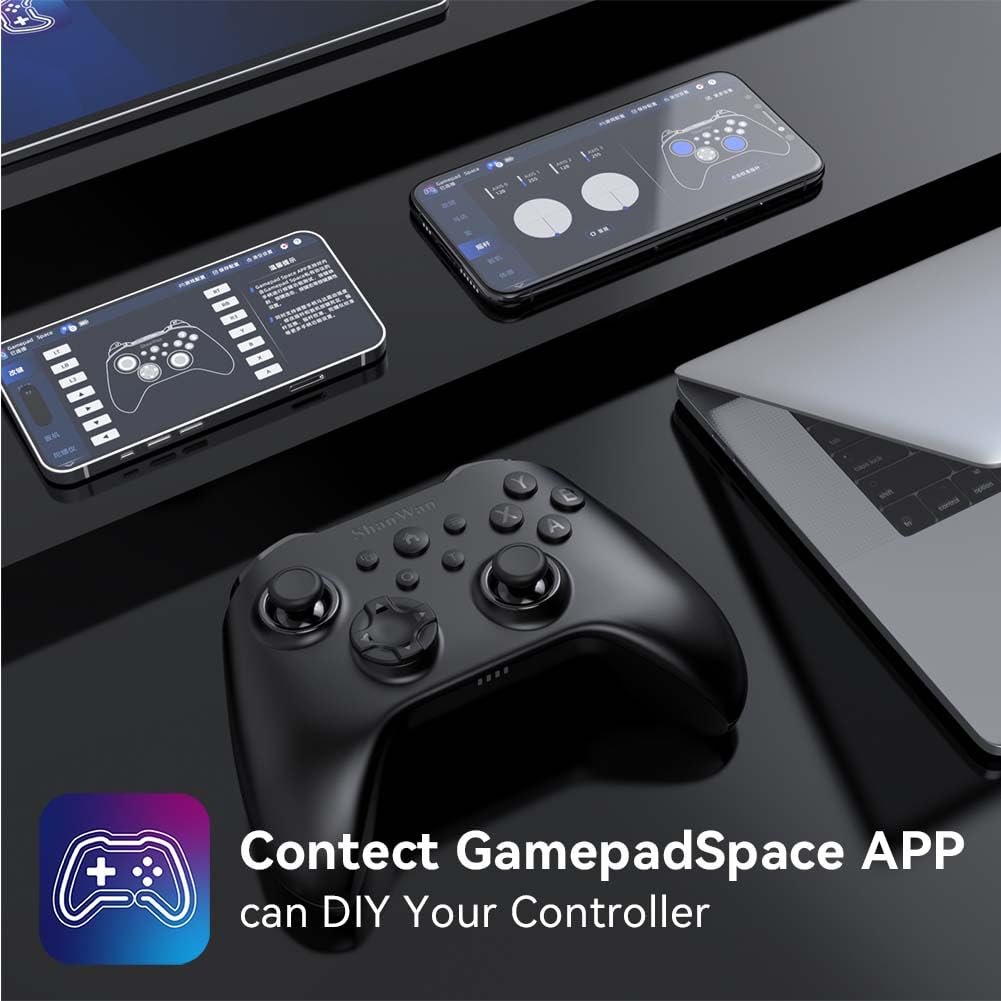
Software Customization (Gamepad Space App):
Enhance your gaming experience by customizing controller settings using the Gamepad Space mobile application.

Resim: A ShanWan controller alongside smartphones displaying the Gamepad Space app, illustrating options for calibration and on-the-fly adjustments.
- Download the "Gamepad Space" app from your mobile device's app store.
- Connect your controller to your mobile device via Bluetooth.
- Uygulama içinde şunları yapabilirsiniz:
- Ürün yazılımını yükselt.
- Kumanda kolu ve tetik ölü bölgelerini ayarlayın.
- Titreşim yoğunluğunu özelleştirin.
- Test düğmeleri.
Bakım
- Temizlik: Kumandayı temizlemek için yumuşak ve kuru bir bez kullanın. Sert kimyasallar veya aşındırıcı malzemeler kullanmaktan kaçının.
- Depolamak: Kontrol cihazını serin, kuru ve doğrudan güneş ışığından ve aşırı sıcaklıklardan uzak bir yerde saklayın.
- Pil Bakım: Pil ömrünü uzatmak için kumandanın pilini sık sık tamamen boşaltmaktan kaçının. Sürekli kullanılmasa bile düzenli olarak şarj edin.
Sorun giderme
Kontrol Cihazı Bağlanmıyor:
- Kontrol cihazının şarjlı olduğundan emin olun.
- Verify the mode switch on the back of the controller is set correctly for your platform (S, X, or D).
- Bluetooth bağlantısı için cihazınızın Bluetooth özelliğinin açık olduğundan ve kumandanın eşleştirme modunda olduğundan emin olun.
- For 2.4G wireless, ensure the dongle is properly inserted and the controller is in the correct mode.
- Hem kontrol cihazını hem de cihazınızı yeniden başlatmayı deneyin.
Giriş Gecikmesi veya Bağlantı Kesilmeleri:
- Yakınlarda güçlü elektromanyetik girişim kaynaklarının olmadığından emin olun.
- Move closer to your device for a stronger wireless signal.
- Ensure the controller's battery is not low.
- Consider using a wired USB-C connection for the most stable experience.
Joystick Drift or Unresponsive Buttons:
- Calibrate the joysticks and test buttons using the Gamepad Space app.
- Ensure the controller's firmware is up to date via the Gamepad Space app.
- Düğmelerin ve kumanda kollarının etrafını temizleyerek kalıntıları giderin.
Özellikler
| Örnek | B0FS13DT2B |
| Bağlantı Teknolojisi | Bluetooth, 2.4G Kablosuz, USB-C Kablolu |
| Uyumlu Cihazlar | Android, iOS, Nintendo Switch, Nintendo Switch 2, PC |
| Denetleyici Türü | Oyun kumandası |
| Düğme Miktarı | 12 |
| Özel Özellikler | Hall Effect Joysticks, 6-Axis Gyroscope, Dual Vibration, Turbo Function, Software Customization |
| Güç Kaynağı | Pil ile çalışır |
| Ürün Ağırlığı | 300 Gram |
| Ürün Boyutları (D x G x Y) | 2.5" x 4" x 6" |
Garanti ve Destek
ShanWan products are designed for reliability and performance. For specific warranty information, please refer to the documentation included with your purchase or visit the official ShanWan support website. If you encounter any issues not covered in this manual, please contact ShanWan customer support for assistance.
Çevrimiçi destek: Visit the ShanWan Store on Amazon


