giriiş
This manual provides comprehensive instructions for the INPHIC Tri-Mode Wireless Mouse, Model B0FQCFSHPQ. It covers setup, operation, maintenance, and troubleshooting to ensure optimal performance and user experience. Please read this manual thoroughly before using the product.
Ürün Bittiview
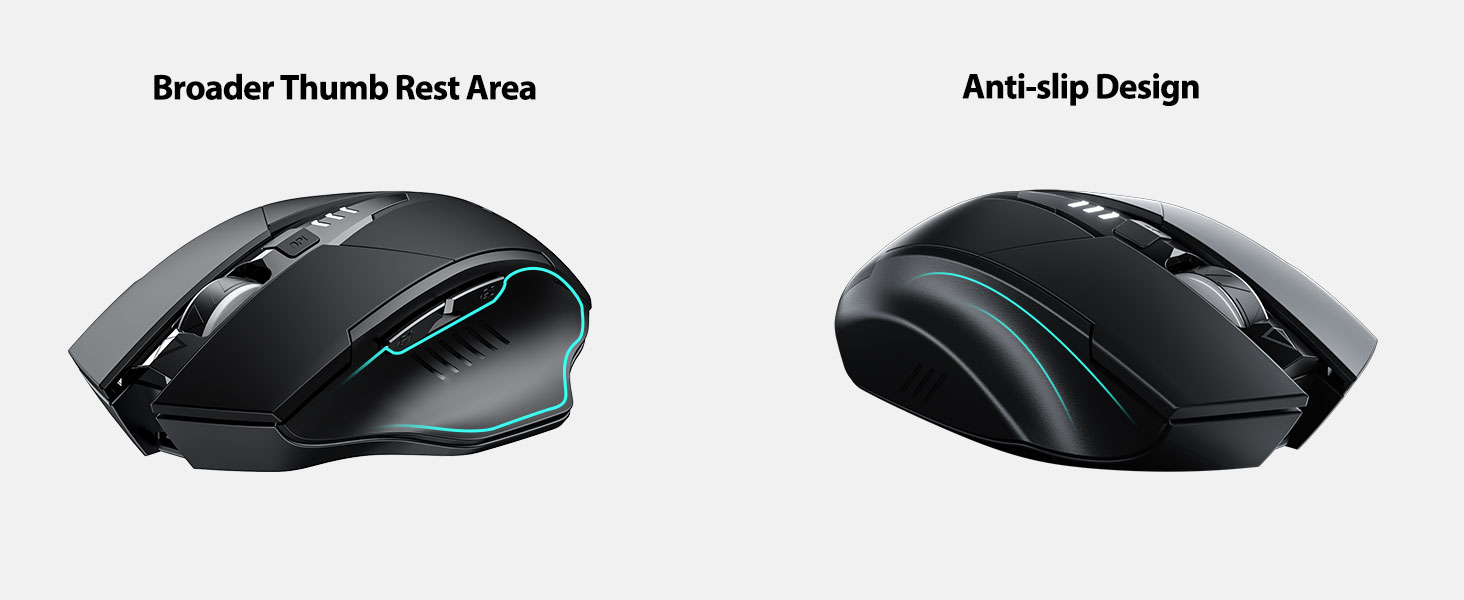
The INPHIC Tri-Mode Wireless Mouse offers versatile connectivity options (Bluetooth 5.0, Bluetooth 4.0, and 2.4G USB) and an ergonomic design for comfortable use. Key features include a visible battery indicator, silent click buttons, and adjustable DPI settings.
Paket İçeriği
- INPHIC Tri-Mode Wireless Mouse
- USB Alıcı (farenin içinde saklanır)
- USB-C Şarj Kablosu
- Kullanım Kılavuzu (bu belge)
Fare Bileşenleri

- Sol/Sağ Tıklama Düğmeleri: Sessiz çalışma.
- Kaydırma tekerleği: Dikey kaydırma için.
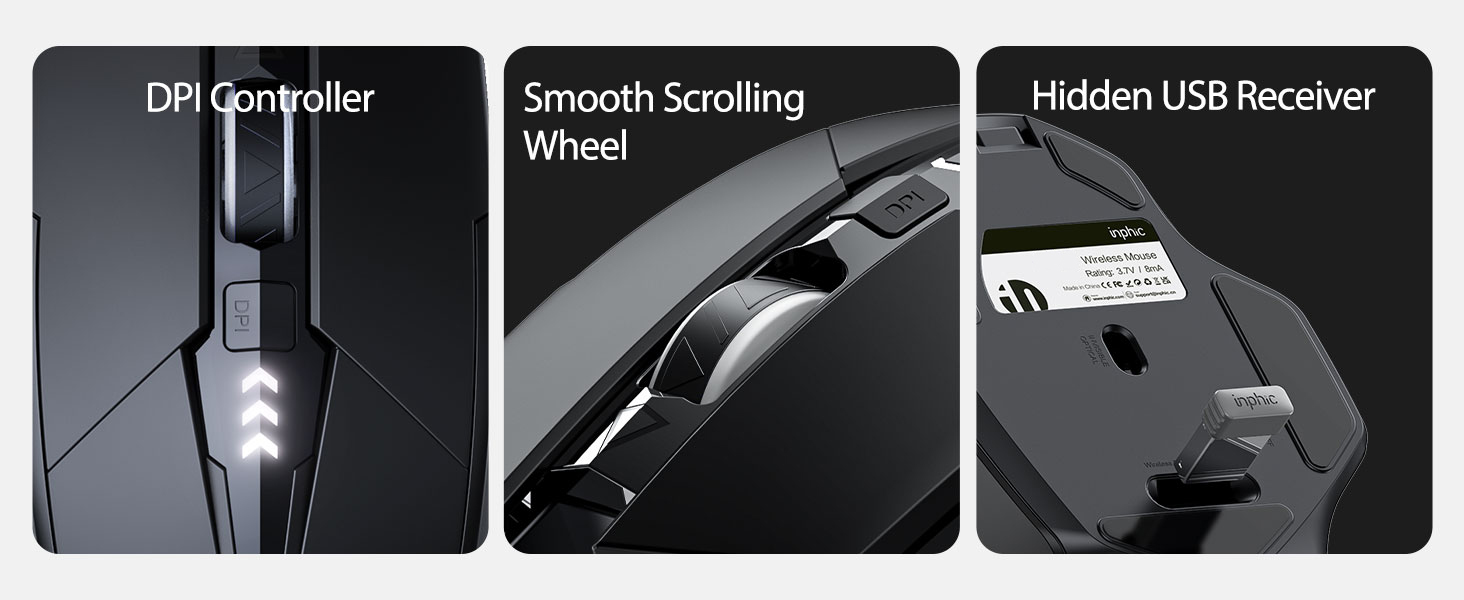
- DPI Düğmesi: Adjusts cursor speed (800/1200/1600/2000/2400 DPI).
- Forward/Backward Buttons (Side): Gezinme için web tarayıcılar veya file kaşifler.
- Pil Göstergesi: LED lights on top display remaining battery level.
- Connection Type Switch (Bottom): Toggles between 2.4G USB, Bluetooth 4.0, and Bluetooth 5.0 modes.
- Power Switch (Bottom): Açma / kapama düğmesi.
- USB Receiver Slot (Bottom): 2.4G USB alıcısını saklar.
- Charging Port (Front): Dahili pili şarj etmek için USB-C bağlantı noktası.
Kurmak
İlk Şarj
Before first use, fully charge the mouse for approximately 1 hour. Connect the USB-C charging cable to the mouse's charging port and to a USB power source (e.g., computer USB port, USB wall adapter).

Fareyi Bağlama
The mouse supports three connection modes: 2.4G USB, Bluetooth 4.0, and Bluetooth 5.0. Use the switch on the bottom of the mouse to select your desired mode.
2.4G USB Bağlantısı
- Locate the USB receiver stored in the slot on the bottom of the mouse.
- USB alıcısını bilgisayarınızdaki uygun bir USB bağlantı noktasına takın.
- Switch the connection mode on the bottom of the mouse to "2.4G".
- Turn on the mouse using the power switch. The mouse should connect automatically.
Bluetooth Connection (BT 4.0 / BT 5.0)
- Switch the connection mode on the bottom of the mouse to "BT 4.0" or "BT 5.0".
- Güç anahtarını kullanarak fareyi açın.
- On your device (laptop, tablet, etc.), open Bluetooth settings.
- Arama new Bluetooth devices. The mouse should appear as "INPHIC Mouse" or similar.
- Eşleştirmek istediğiniz fareyi seçin.
- Eşleştirme işlemi tamamlandıktan sonra fare kullanıma hazırdır.
Not: Bluetooth 5.0 is compatible with Windows 8/10 (not Windows 7 or XP), Android, and Mac OS systems. iOS systems (iPad and iPhone) require iOS 14 or later for Bluetooth 5.0 compatibility.
Kullanım Talimatları
Güç Açık/Kapalı
Use the ON/OFF switch located on the bottom of the mouse to power the device. To conserve battery, turn off the mouse when not in use for extended periods.
Bağlantı Modlarını Değiştirme
The mode switch button on the bottom of the mouse allows you to cycle between 2.4G USB, Bluetooth 4.0, and Bluetooth 5.0 connections. This enables seamless switching between multiple paired devices.

DPI (İmleç Hızı) Ayarı
Press the DPI button located on the top of the mouse, below the scroll wheel, to cycle through 5 adjustable DPI levels: 800, 1200, 1600, 2000, and 2400. This allows you to customize cursor sensitivity to your preference.

Pil Göstergesi
The mouse features a visible battery indicator on its top surface. LED lights illuminate to show the remaining battery power, providing a clear visual cue for when recharging is needed.

Otomatik Uyku Modu
To conserve power, the mouse will automatically enter sleep mode after 5 minutes of inactivity. To wake the mouse, simply click any button.
Bakım
Temizlik
Wipe the mouse with a soft, dry cloth. For stubborn dirt, a slightly damp cloth can be used, ensuring no moisture enters the internal components. Avoid harsh chemicals or abrasive cleaners.
Pil Bakımı
- Recharge the mouse when the battery indicator shows low power.
- Pilinizin ömrünü uzatmak için sık sık tamamen boşaltmaktan kaçının.
- Uzun süre kullanılmayacaksa fareyi serin ve kuru bir yerde saklayın.
Sorun giderme
| Sorun | Olası Neden | Çözüm |
|---|---|---|
| Fare yanıt vermiyor |
|
|
| İmleç hareketi düzensiz veya yavaş |
|
|
| Bluetooth bağlantı sorunları |
|
|
Özellikler
| Özellik | Detay |
|---|---|
| Örnek | B0FQCFSHPQ |
| Bağlantı Teknolojisi | Bluetooth 5.0 / Bluetooth 4.0 / 2.4G USB Wireless |
| DPI Seviyeleri | 800 / 1200 / 1600 / 2000 / 2400 (Adjustable) |
| Düğmeler | 6 (Sol, Sağ, Kaydırma Tekerleği, DPI, İleri, Geri) |
| Pil Türü | Rechargeable (400mAh built-in) |
| Şarj Portu | USB-C |
| Çalışma Mesafesi | 10 metreye (33 feet) kadar |
| Ürün Boyutları | 4.7 x 3.1 x 0.04 inç |
| Ürün Ağırlığı | 3.36 ons |
| Uyumluluk | Windows 7/8/10/XP, Vista, Mac OS. Bluetooth 5.0: Windows 8/10, Android, Mac OS, iOS 14+ (iPad/iPhone). 2.4G USB: Any USB-enabled device. |

Garanti ve Destek
INPHIC ürünleri güvenilirlik ve performans için tasarlanmıştır. Garanti bilgileri ve teknik destek için lütfen resmi INPHIC web sitesine başvurun. websiteye gidin veya doğrudan müşteri hizmetleriyle iletişime geçin.
- Üretici: INPHIC
- Satıcı: YingFeiTe (on Amazon)
- İade politikasi: Refer to Amazon's current return policy.
- Destek İletişim: Yardım için lütfen şu adresi ziyaret edin: INPHIC Mağazası Amazon'da veya üreticinin resmi webalan.
Önemli Güvenlik Bilgileri
- Fareyi aşırı sıcaklıklara veya neme maruz bırakmayın.
- Fareyi düşürmekten veya sert darbelere maruz bırakmaktan kaçının.
- Do not attempt to disassemble or repair the mouse yourself. This may void the warranty.
- Çocukların erişemeyeceği yerde saklayınız.
Ürün Videosu
Video Açıklaması: An official product video from INPHIC demonstrating the features and usage of the INPHIC Bluetooth Mouse. It shows the mouse being unboxed, its various components, connection methods, and ergonomic design in action.


