1. Güvenlik Bilgileri
Read all safety information before using your device to ensure safe and proper use. Keep this manual for future reference.
- Cihazı aşırı sıcaklıklara sahip ortamlarda kullanmayın.
- Cihazı suya veya aşırı neme maruz bırakmaktan kaçının.
- Use only OPPO-approved chargers, batteries, and accessories.
- Cihazı kendi başınıza sökmeye, onarmaya veya değiştirmeye çalışmayın.
- Cihazı kullanırken tıbbi implantlardan güvenli bir mesafede durun.
- Cihazı ve pilini yerel yönetmeliklere uygun şekilde sorumlu bir şekilde atın.
2. Paket İçeriği
Ürün paketinizin aşağıdaki öğeleri içerdiğinden emin olun:
- OPPO Reno 14 F 5G CPH2743 Akıllı Telefon
- USB C Tipi Kablo
- Güç Adaptörü
- SIM İtici Aracı
- Hızlı Başlangıç Kılavuzu
- Safety Guide (this document)
- Koruyucu Kılıf (bölgeye göre değişiklik gösterebilir)
3. Cihaz Bittiview
Familiarize yourself with the physical features of your OPPO Reno 14 F 5G CPH2743.
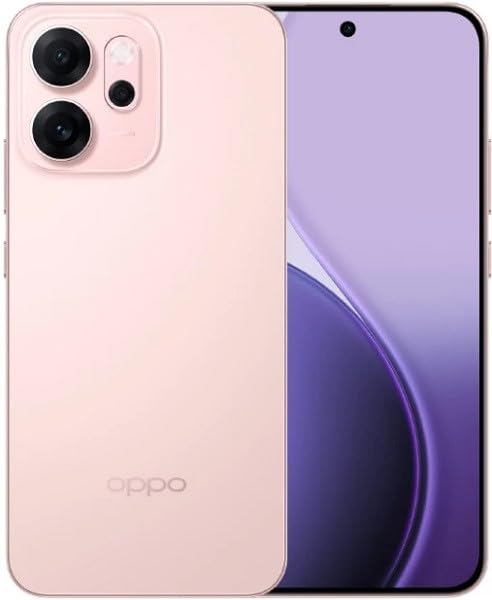
Şekil 3.1: Ön ve arka view of the OPPO Reno 14 F 5G CPH2743 smartphone. This image displays the device in its glossy pink finish, highlighting the screen, camera module, and side buttons.
- Ön Kamera: Ekranın en üstünde yer almaktadır.
- Kulaklık: For calls, located above the display.
- Ses Düğmeleri: On the left side, for adjusting media and call volume.
- Güç Düğmesi: On the right side, for turning the device on/off and locking/unlocking the screen.
- SIM Kart Tepsisi: Located on the side, requires the SIM ejector tool to open.
- USB Tip-C Bağlantı Noktası: Alt kısımda ise şarj ve veri aktarımı için.
- Konuşmacı: At the bottom, for audio output.
- Mikrofon: At the bottom, for voice input.
- Arka Kamera Modülü: On the back, contains multiple lenses and flash.
4. Kurulum
4.1. SIM Kartların Takılması
- Cihazınızın yan tarafında bulunan SIM kart tepsisini bulun.
- SIM kart çıkarma aracını tepsinin yanındaki küçük deliğe yerleştirin ve tepsi dışarı çıkana kadar sıkıca bastırın.
- Nano-SIM kartlarınızı tepsideki belirlenmiş yuvalara, altın renkli kontakların aşağı bakacak şekilde yerleştirin. Bu cihaz çift SIM özelliğini desteklemektedir.
- Tepsiyi yerine oturana kadar dikkatlice tekrar cihaza yerleştirin.
4.2. Açma/Kapama
- Açmak İçin: Press and hold the Power button on the right side until the OPPO logo appears.
- Kapatmak İçin: Press and hold the Power button, then tap "Power off" on the screen. Alternatively, swipe down from the top of the screen to open the notification panel, then tap the power icon and select "Power off".
- Yeniden başlatmak: Güç düğmesini basılı tutun, ardından ekranda "Yeniden Başlat" seçeneğine dokunun.
4.3. İlk Yapılandırma
Cihazınızı ilk açtığınızda, kurulum için ekrandaki yönergeleri izleyin:
- Dilinizi ve bölgenizi seçin.
- Bir Wi-Fi ağına bağlanın.
- Review and accept the End User License Agreement.
- Google hesabınızla giriş yapın veya yeni bir hesap oluşturun.
- Ekran kilidi (PIN, desen, şifre, parmak izi, yüz tanıma) ayarlarını yapın.
- Önceki bir cihazdan verileri geri yükleyin (isteğe bağlı).
- İstenildiği şekilde diğer ayarları yapılandırın.
5. Cihazınızın Çalıştırılması
5.1. Temel Gezinme
- Musluk: Bir uygulamayı açmak, bir öğe seçmek veya bir düğmeye basmak için ekrana bir kez dokunun.
- Dokun ve tut: Ek seçeneklere erişmek veya öğeyi taşımak için öğeye basılı tutun.
- Tokatlamak: Ekranda kaydırmak, ekranlar arasında geçiş yapmak veya bildirimleri kapatmak için parmağınızı ekran üzerinde sürükleyin.
- Tutam: Fotoğraflarda, haritalarda veya diğer görsellerde yakınlaştırmak veya uzaklaştırmak için iki parmağınızı kullanın. web sayfalar.
5.2. Arama Yapma
- Açın Telefon uygulama.
- Dokunun Tuş takımı simge.
- Enter the phone number or select a contact from your İletişim liste.
- Dokunun Arama Aramayı başlatmak için kullanılan düğme.
5.3. Mesaj Gönderme
- Açın Mesajlar uygulama.
- Dokunun Sohbete başla or Yeni mesaj simge.
- Alıcının telefon numarasını girin veya kişiler arasından seçim yapın.
- Metin alanına mesajınızı yazın.
- Dokunun Göndermek düğme.
5.4. İnternet Bağlantısı
- Wifi: Git Ayarlar > Wi-FiWi-Fi'yi açın ve bağlanmak istediğiniz ağı seçin.
- Mobil veri: Git Ayarlar > Mobil Ağ, and ensure "Mobile data" is enabled.
5.5. Kamera Fonksiyonları
Açın Kamera app to capture photos and videos.
- Dokunun Kepenk Fotoğraf çekmek için düğmeye basın.
- Swipe left or right to switch between camera modes (e.g., Photo, Video, Portrait, Night).
- Dokunun Kamerayı Değiştir Ön ve arka kameralar arasında geçiş yapmak için kullanılan simge.
5.6. Uygulamalar
- Uygulamaları Yükle: Kullanın Google Play Mağazası to download and install new applications.
- Uygulamaları Yönet: Git Ayarlar > Uygulamalar > Uygulama yönetimi ile view, uninstall, or force stop applications.
6. Bakım
6.1. Cihazınızı Temizleme
- Cihazın ekranını ve gövdesini yumuşak, tüy bırakmayan bir bezle nazikçe silin.
- Sert kimyasallar, aşındırıcı temizleyiciler veya basınçlı hava kullanmaktan kaçının.
- Ensure no liquid enters ports or openings.
6.2. Yazılım Güncellemeleri
Regularly check for and install software updates to improve device performance, security, and introduce new features.
- Git Ayarlar > Cihaz hakkında > Güncel (or similar path depending on ColorOS version).
- Follow the on-screen instructions to download and install any available updates. Ensure your device is sufficiently charged and connected to Wi-Fi before updating.
6.3. Pil Bakımı
- Pilini sık sık tamamen boşaltmaktan kaçının. Şarj seviyesi çok düşmeden önce şarj edin.
- Do not expose the device to extreme heat or cold, as this can degrade battery life.
- Use the original charger and cable for optimal charging performance and safety.
- If the device will not be used for an extended period, charge it to about 50% before storing.
7. Sorun Giderme
Bu bölümde cihazınızda karşılaşabileceğiniz yaygın sorunlar ele alınmaktadır.
| Sorun | Çözüm |
|---|---|
| Cihaz açılmıyor. | Ensure the battery is charged. Connect the charger and wait a few minutes before attempting to power on. If unresponsive, perform a force restart by holding the Power button and Volume Up button simultaneously for about 10 seconds. |
| Wi-Fi'ye bağlanılamıyor. | Check if Wi-Fi is enabled in Settings. Restart your router and the phone. Forget the network and try reconnecting. Ensure you are entering the correct password. |
| Zayıf ağ sinyali veya hizmet yok. | Check if SIM cards are properly inserted. Try restarting the device. Ensure "Mobile data" is enabled in Settings. If the issue persists, contact your network provider. |
| Uygulamalar çöküyor veya donuyor. | Clear the cache and data for the problematic app (Settings > Apps > App management > [App Name] > Storage usage). Update the app to the latest version. If the issue continues, uninstall and reinstall the app. |
| Pil çabuk bitiyor. | Check battery usage in Settings to identify power-hungry apps. Reduce screen brightness, disable unnecessary features like GPS or Bluetooth when not in use. Close background apps. |
8. Özellikler
OPPO Reno 14 F 5G CPH2743'ün temel teknik özellikleri.
| Özellik | Detay |
|---|---|
| Model Adı | Oppo Reno 14 F 5G CPH2743 |
| Marka | Karşıt |
| Bellek Depolama Kapasitesi | 256 GB |
| Kurulu RAM Bellek Boyutu | 12 GB |
| Hücresel Teknoloji | 5G |
| Bağlantı Teknolojisi | 5G, 4G, 3G, 2G |
| SIM Kart Yuvası Sayısı | Çift SIM |
| Form Faktörü | Arduvaz |
| Renk | Pembe |
9. Garanti ve Destek
Your OPPO Reno 14 F 5G CPH2743 is covered by a limited warranty. The specific terms and conditions of the warranty may vary by region and retailer.
- Garanti Bilgileri: Refer to the warranty card included in your product package or visit the official OPPO webAyrıntılı garanti koşulları için lütfen siteyi ziyaret edin.
- Teknik Destek: For technical assistance, troubleshooting beyond this manual, or service requests, please contact OPPO customer support. Contact details can typically be found on the official OPPO website or in the "Support" section of your device's settings.
- Çevrimiçi Kaynaklar: Resmi OPPO'yu ziyaret edin webalan (www.oppo.com) for FAQs, software downloads, and additional support resources.


