1. Giriş
Welcome to the user manual for your new XIAOMI Redmi 15C smartphone. This guide provides essential information to help you get started, operate, maintain, and troubleshoot your device. Please read this manual carefully to ensure optimal performance and longevity of your smartphone.
Temel Özellikler:
- Massive 6000mAh (typ) battery with 33W fast charging support.
- Immersive 6.9-inch display with up to 120Hz refresh rate.
- Powerful octa-core processor for smooth performance.
- 50MP AI dual camera system for high-quality photos.
- Sleek and refined design.
2. Kurulum Kılavuzu
2.1 Kutuda Neler Var?
Upon unboxing your Redmi 15C, verify that the following items are included:
- XIAOMI Redmi 15C Akıllı Telefon
- USB kablosu
- SIM Çıkarma Aracı (bölgeye göre değişiklik gösterebilir)
- Hızlı Başlangıç Kılavuzu (bu belge)
Note: A charger is not included with this device and must be purchased separately. For optimal charging, use a 33W compatible charger.
2.2 SIM Kartın Takılması
- Cihazınızın yan tarafında bulunan SIM kart tepsisini bulun.
- SIM kart çıkarma aracını tepsinin yanındaki küçük deliğe yerleştirin ve tepsi dışarı çıkana kadar sıkıca bastırın.
- Nano-SIM kartınızı/kartlarınızı ve/veya microSD kartınızı altın renkli kontaklar aşağı bakacak şekilde tepsiye yerleştirin. Doğru hizalandıklarından emin olun.
- Tepsiyi cihazla aynı hizaya gelene kadar dikkatlice yuvaya geri itin.
2.3 İlk Güç Açma ve Kurulum
- XIAOMI logosu görünene kadar Güç düğmesini basılı tutun.
- Ekranda beliren yönergeleri izleyerek dilinizi, bölgenizi seçin, Wi-Fi'ye bağlanın ve Google hesabınızı kurun.
- You will be guided through setting up security features like a PIN, pattern, fingerprint, or face unlock.
2.4 Cihazı Şarj Etme
İlk kullanımdan önce cihazınızı tam şarj etmeniz önerilir.
- USB kablosunu telefonunuzun şarj portuna bağlayın.
- Connect the other end of the USB cable to a compatible 33W power adapter (sold separately) and plug it into a power outlet.
- Ekranda şarj göstergesi belirecektir.
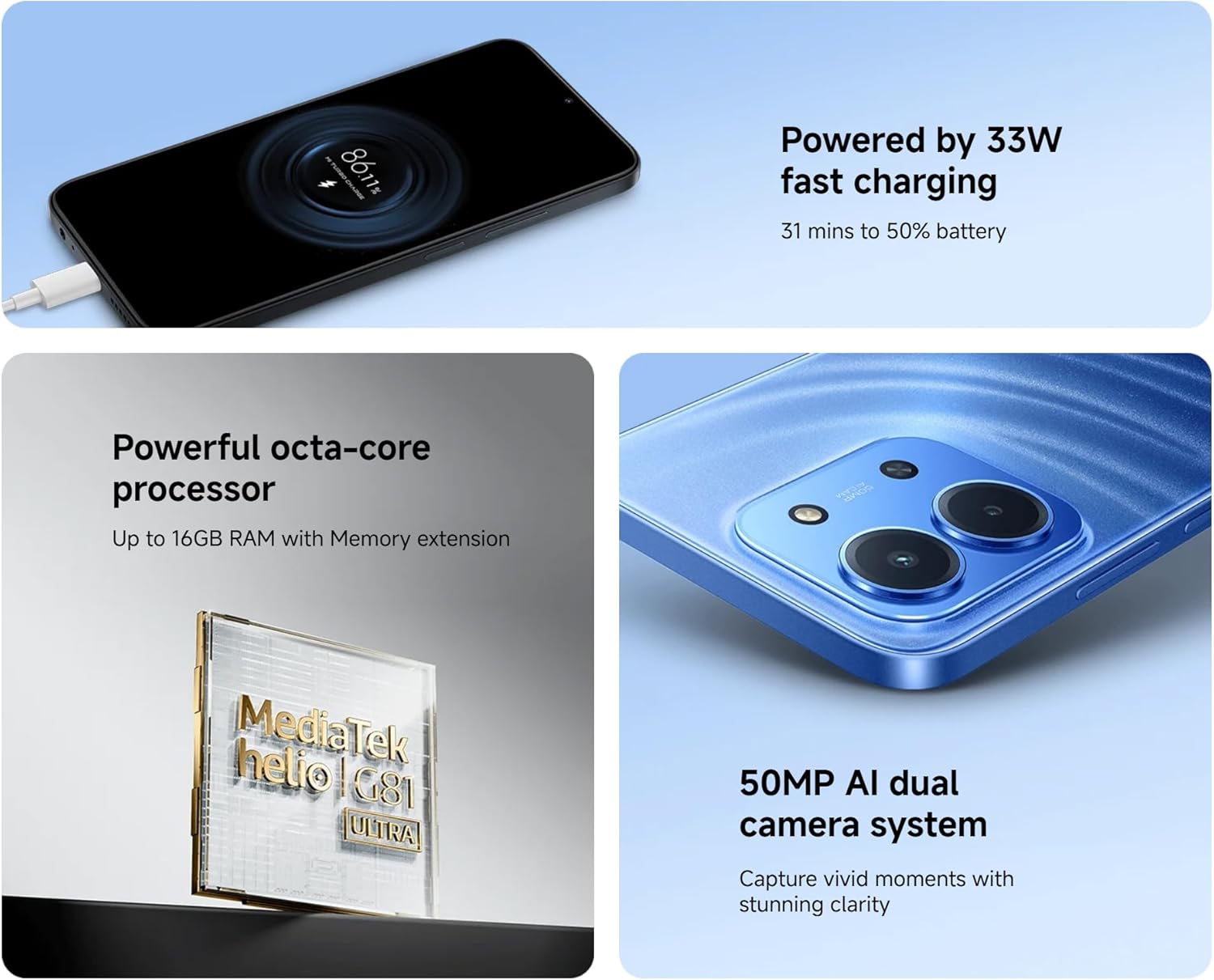
Image: The Redmi 15C connected to a charger, displaying a charging animation indicating 33W fast charging capability.
3. Cihazınızın Çalıştırılması
3.1 Temel Gezinme
- Dokunmatik Ekran Hareketleri: Swipe, tap, pinch-to-zoom are standard.
- Güç Düğmesi: Ekranı uyandırmak/uyku moduna geçirmek için basın. Kapatmak veya yeniden başlatmak için basılı tutun.
- Ses Düğmeleri: Medya sesini, arama sesini veya zil sesi seviyesini ayarlayın.
3.2 Arama Yapma ve Mesaj Gönderme
- Open the 'Phone' app to dial numbers or select contacts.
- Open the 'Messages' app to compose and send SMS/MMS messages.
3.3 Kamera Kullanımı
Your Redmi 15C features a 50MP AI dual camera system.
- 'Kamera' uygulamasını açın.
- İstediğiniz modu (Fotoğraf, Portre, Video vb.) seçin.
- Fotoğraf çekmek veya video kaydını başlatmak/durdurmak için deklanşör düğmesine dokunun.

Resim: Yakın çekim view of the XIAOMI Redmi 15C's dual camera module, highlighting its 50MP AI capabilities.
3.4 Ekran Özellikleri
The 6.9-inch immersive display offers a smooth visual experience with up to a 120Hz refresh rate.
- Adjust display settings (brightness, color scheme, refresh rate) in 'Settings > Display'.
- AdaptiveSync technology automatically adjusts the refresh rate for optimal viewing and battery efficiency.

Image: The XIAOMI Redmi 15C's large 6.9-inch display, showcasing its immersive viewDeneyim.
3.5 Pil Yönetimi
6000 mAh pil, uzun süreli kullanım sağlar. Pil ömrünü optimize etmek için:
- Use 'Battery Saver' mode when needed.
- Ekran parlaklığını ve ekran zaman aşımını azaltın.
- Arka planda çalışan, kullanılmayan uygulamaları kapatın.
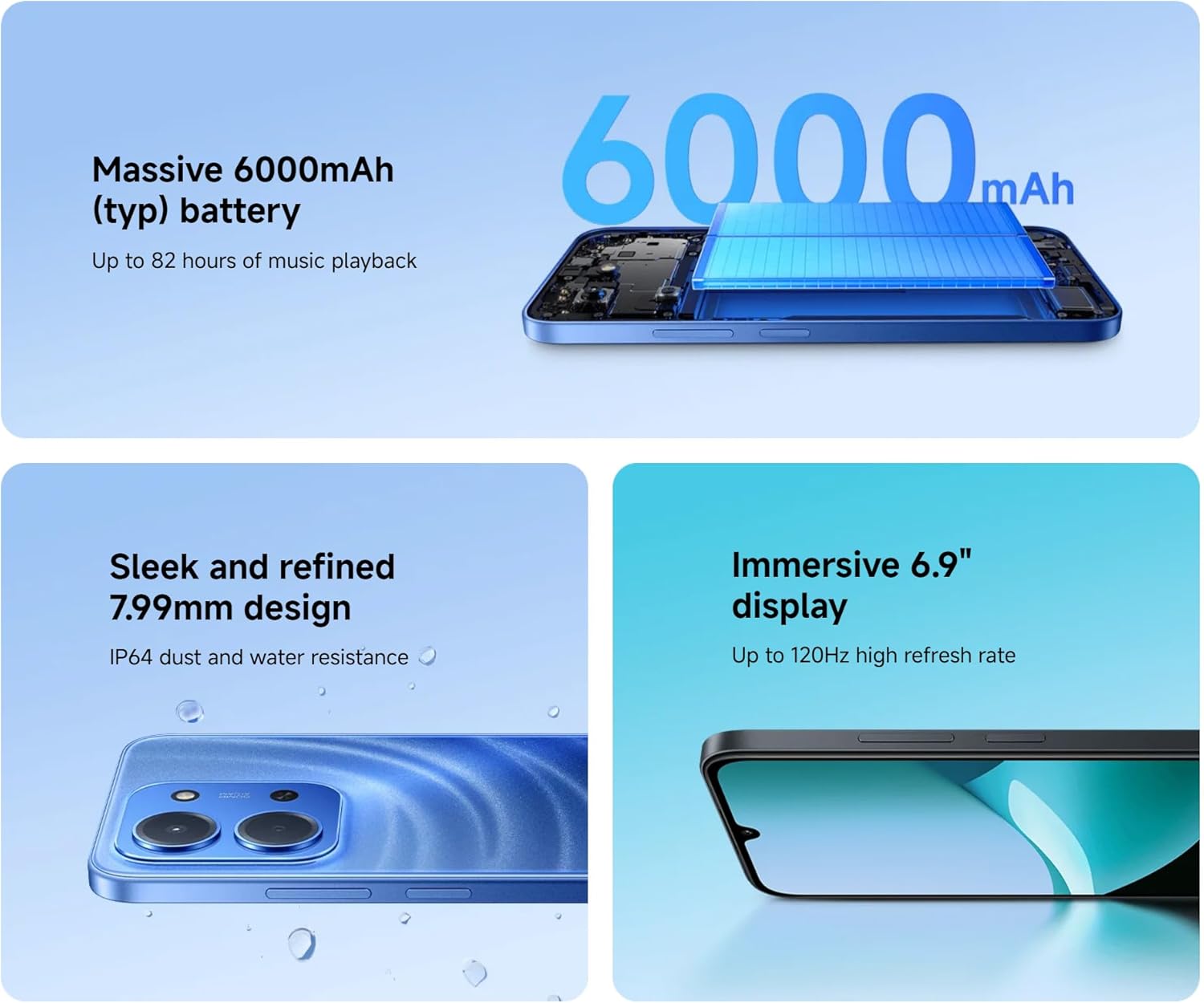
Image: An illustration of the XIAOMI Redmi 15C's internal structure, highlighting its massive 6000mAh battery.
3.6 İşlemci Performansı
The powerful octa-core processor ensures smooth multitasking and efficient app performance.

Image: A visual representation of the MediaTek Helio G81-Ultra octa-core processor, emphasizing its power and efficiency.
3.7 Google Gemini Integration
The Redmi 15C integrates with Google Gemini, your AI assistant from Google, to enhance productivity and creativity. Use Gemini for writing, brainstorming, learning, and more.
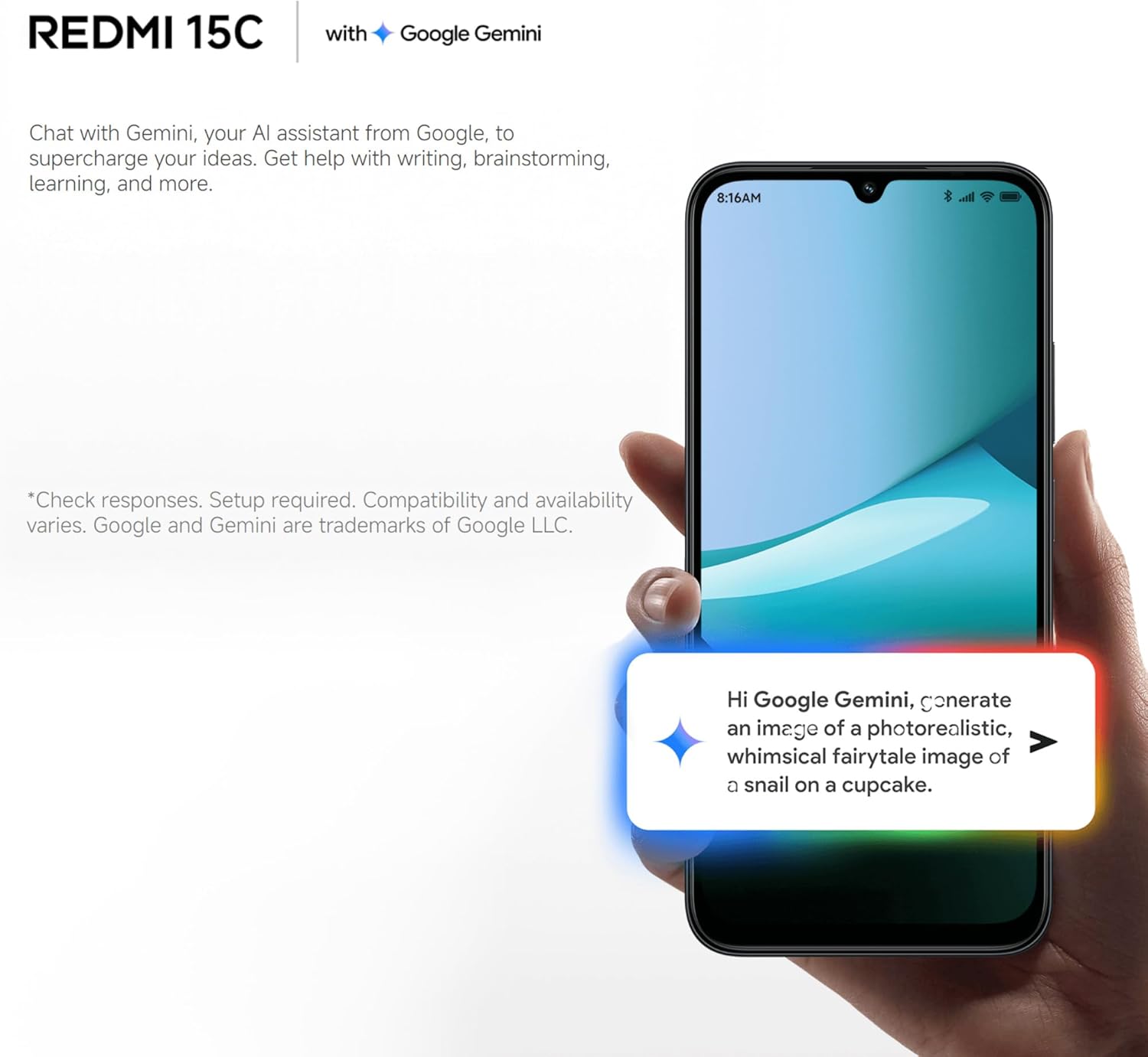
Image: A Redmi 15C displaying a chat interface with Google Gemini, demonstrating its AI capabilities.
4. Bakım
4.1 Cihazınızı Temizleme
- Ekranı ve gövdeyi silmek için yumuşak, tiftiksiz bir bez kullanın.
- Sert kimyasallar, aşındırıcı temizleyiciler veya basınçlı hava kullanmaktan kaçının.
- Bağlantı noktalarını toz ve kalıntılardan uzak tutun.
4.2 Yazılım Güncellemeleri
Regularly check for and install system updates to ensure your device has the latest features, security patches, and performance improvements. Go to 'Settings > About phone > MIUI version' to check for updates.
4.3 Pil Bakımı
- Pil ömrünü azaltabileceğinden aşırı sıcaklıklardan kaçının.
- Telefonunuzu tam şarj olduktan sonra uzun süre şarjda bırakmayın.
- Use only original or certified compatible chargers and cables.
4.4 Depolama Yönetimi
To maintain optimal performance, regularly manage your device's storage:
- Gereksizleri sil files, fotoğraflar ve videolar.
- Kullanılmayan uygulamaları kaldırın.
- Uygulamalar için önbellek verilerini temizle.
5. Sorun Giderme
Bu bölümde, Redmi 15C'nizle karşılaşabileceğiniz yaygın sorunlar ele alınmaktadır.
| Sorun | Olası Çözüm |
|---|---|
| Cihaz açılmıyor | Ensure the battery is charged. Connect to a charger for at least 30 minutes. If it still doesn't turn on, try a forced restart by holding the Power button for 10-15 seconds. |
| Slow performance / Apps freezing | Close background apps. Clear app caches. Restart the device. Check for system updates. If issues persist, consider a factory reset (back up data first). |
| Pil çabuk bitiyor | Reduce screen brightness. Disable unused features like GPS, Bluetooth, Wi-Fi when not needed. Check battery usage in settings to identify power-hungry apps. |
| Cannot connect to Wi-Fi / Mobile Data | Toggle Wi-Fi/Mobile Data off and on. Restart the device. Forget the Wi-Fi network and reconnect. Ensure SIM card is properly inserted and activated. |
| Kamera çalışmıyor | Restart the device. Clear the Camera app's cache and data in 'Settings > Apps'. Ensure no other app is using the camera. |
5.1 Fabrika Ayarlarına Sıfırlama (Son Çare)
Sürekli yazılım sorunları yaşıyorsanız, fabrika ayarlarına sıfırlama işlemi sorunu çözebilir. Warning: This will erase all data on your device. Back up all important information before proceeding.
- Go to 'Settings > About phone > Factory reset'.
- Sıfırlamayı onaylamak için ekrandaki talimatları izleyin.
6. Özellikler
Below are the detailed technical specifications for the XIAOMI Redmi 15C:
| Özellik | Şartname |
|---|---|
| Model Adı | Redmi 15C |
| İşletim Sistemi | Hyper OS 2 |
| İşlemci | MediaTek Helio Octa-core (20 GHz CPU speed) |
| Veri deposu | 4 GB |
| Depolama Kapasitesi | 256 GB |
| Ekran Boyutu | 6.9 inç |
| Ekran Çözünürlüğü | 720x1560 |
| Yenileme Hızı | 120 Hz |
| Pil Kapasitesi | 6000 mAh |
| Şarj etme | 33W Fast Charging compatible |
| Arka Kamera | 50 MP AI Dual Camera |
| Bağlantı | 4G LTE, Wi-Fi, Bluetooth, GPS |
| Boyutlar | 0.82x8.1x17.3 cm |
| Ağırlık | 200 gr |
| Özel Özellikler | Dual SIM, International Functionality, Wi-Fi Hotspot, Integrated GPS |
7. Garanti ve Destek
For detailed warranty information, please refer to the warranty card included with your product or visit the official XIAOMI website. XIAOMI provides customer support for product inquiries, technical assistance, and service requests.
You can find support resources, FAQs, and contact information on the official XIAOMI support page. Please have your device's model number and purchase details ready when contacting support.
Verilen verilerde herhangi bir resmi ürün videosu bulunamadı.


