1. Ürün Bittiview
The NETUM Q900 is a robust handheld mobile computer designed for demanding environments such as warehousing, logistics, and asset tracking. It integrates an Android 14 operating system with a high-performance barcode scanning engine, offering reliable data capture and processing capabilities.

Şekil 1.1: Ön ve arka view of the NETUM Q900 device, showcasing its ergonomic design and integrated scanner.
Temel Özellikler:
- Yüksek Performans: Powered by an octa-core MT8781 processor and Android 14, with 4GB RAM and 64GB storage (expandable).
- Sürükleyici Ekran: 5.99-inch HD IPS touchscreen with multi-touch support.
- Advanced Barcode Scanning: Equipped with a Honeywell HS7 scan engine for 1D and 2D barcodes.
- Industrial-Grade Rugged Design: IP67 rated for water and dust resistance, drop-tested from 1.5 meters.
- Küresel Bağlantı: Supports global 4G LTE (dual SIM), Wi-Fi 5 (dual band), Bluetooth 5.2, and full GNSS.
- Uzun Pil Ömrü: 5000mAh battery providing up to 13.5 hours of operation, with quick charging via USB-C or optional docking cradle.
- Modular Expansion: Optional modules include UHF RFID, NFC, fingerprint reader, and a scan handle.
2. Kurulum Kılavuzu
2.1. Paket İçeriği
Paketinizde aşağıdaki öğelerin bulunduğunu doğrulayın:
- NETUM Q900 Mobile Computer
- USB-C Şarj Kablosu
- Güç Adaptörü
- Hızlı Başlangıç Kılavuzu
- (Optional) Docking Cradle, Hand Strap, other modules
2.2. Pilin Takılması ve Şarj Edilmesi
- Cihazın arkasındaki pil bölmesi kapağını bulun.
- Open the cover and insert the 5000mAh battery, ensuring the contacts align correctly.
- Pil bölmesi kapağını güvenli bir şekilde yerine takın.
- Connect the USB-C cable to the device's charging port and the power adapter. Plug the adapter into a wall outlet.
- Allow the device to charge fully before first use. A full charge typically takes less than 4 hours.

Şekil 2.1: Illustration of the 5000mAh battery, highlighting its long-lasting power for extended use.
2.3. İlk Güç Açma ve Temel Yapılandırma
- Cihaz titreşene ve ekran açılana kadar Güç düğmesini basılı tutun.
- Follow the on-screen prompts to complete the initial Android 14 setup, including language selection, Wi-Fi connection, and Google account setup.
- Ensure the device is connected to a stable Wi-Fi network or has a 4G LTE connection for updates and application downloads.
3. Kullanım Talimatları
3.1. Dokunmatik Ekran Navigasyonu
The Q900 features a responsive 5.99-inch HD IPS touchscreen. Navigate the Android interface using standard touch gestures: tap, swipe, pinch-to-zoom, and long-press.
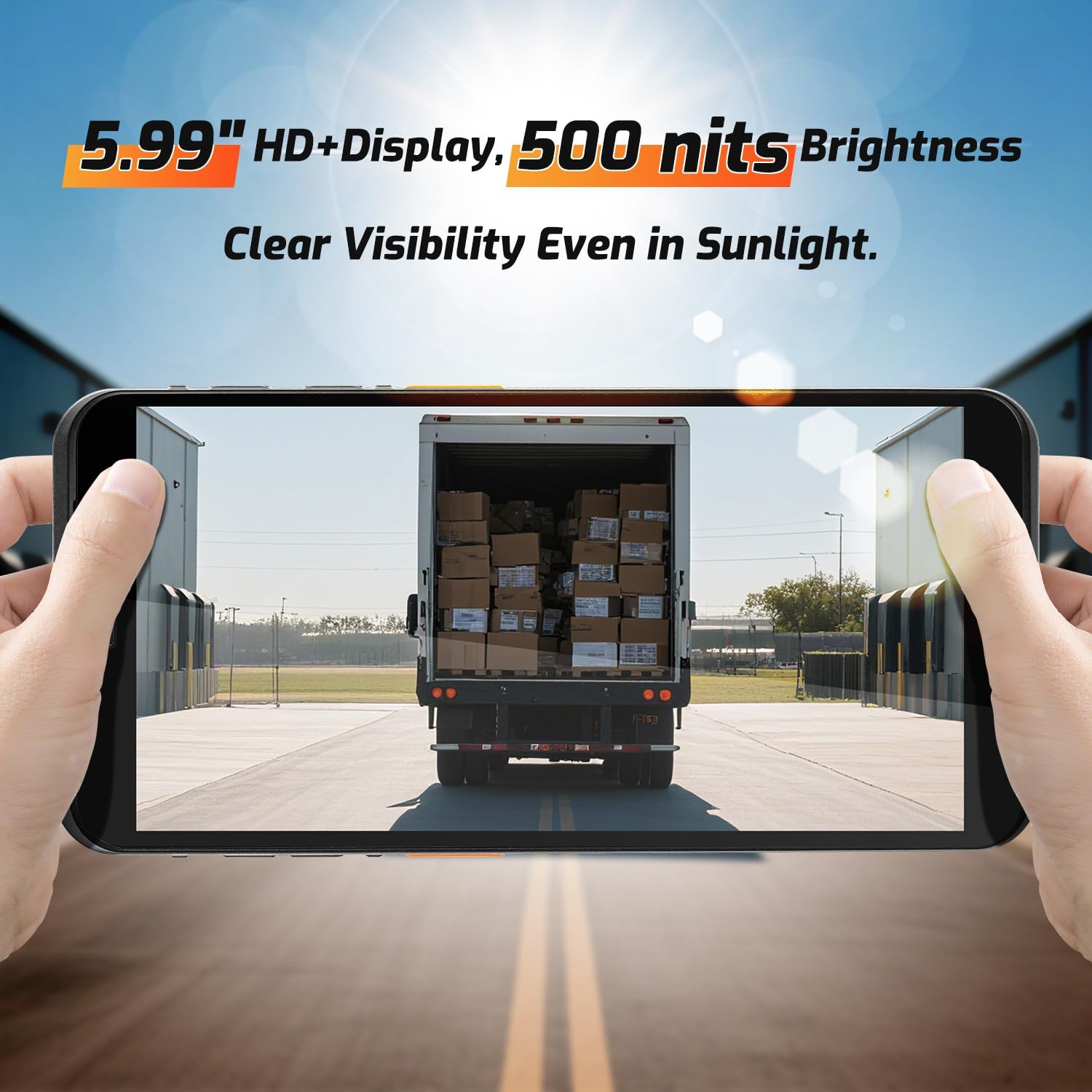
Şekil 3.1: The 5.99-inch HD+ display offers clear visibility even in bright sunlight, enhancing outdoor usability.
3.2. Barkod Tarama
The integrated Honeywell HS7 scan engine allows for rapid and accurate capture of 1D and 2D barcodes.
- Open the scanning application or an application that supports barcode input.
- Cihazın üst kısmında bulunan tarayıcı penceresini barkoda doğru çevirin.
- Press one of the dedicated scan buttons (typically on the side of the device) to activate the laser/imager.
- Ensure the barcode is within the scanning range (approximately 5cm to 2m+ for long-range scanning) and centered in the aiming pattern.
- A successful scan will typically be indicated by an audible beep and/or a visual confirmation on the screen.

Şekil 3.2: The Honeywell HS7 engine efficiently scans various barcode types, including damaged or difficult-to-read codes.
Video 3.1: Demonstration of the NETUM Q900's barcode scanning capabilities, including long-range scanning and DPM code recognition.
3.3. Kamera Kullanımı
The Q900 is equipped with an 8MP front camera and a 13MP rear camera for documentation and image capture.
- Ana ekrandan veya uygulama çekmecesinden Kamera uygulamasını açın.
- Select between front and rear cameras as needed.
- Tap the screen to focus and press the shutter button to capture photos or videos.

Şekil 3.3: Location of the 8MP front camera, 13MP rear camera, and NFC module on the NETUM Q900.
3.4. NFC İşlevselliği
The device supports NFC for short-range wireless communication, enabling applications like contactless payments, data exchange, and access control.
- Ensure NFC is enabled in the device settings (Settings > Connected devices > Connection preferences > NFC).
- Hold the device near an NFC tag or compatible reader to initiate communication.
- Follow on-screen prompts for specific NFC applications.
4. Bakım
4.1. Cihazın Temizlenmesi
- Yumuşak, tiftiksiz bir bez kullanın ve hafifçe kurulayın.ampened with water or a mild screen cleaner to wipe the display and exterior.
- Sert kimyasallar, aşındırıcı temizleyiciler veya aerosol spreyler kullanmaktan kaçının.
- Şarj etmeden veya aksesuarları bağlamadan önce tüm bağlantı noktalarının kuru olduğundan emin olun.
4.2. Pil Bakımı
- Pil ömrünü uzatmak için aşırı sıcaklıklardan kaçının.
- If the device will not be used for an extended period, charge the battery to about 50% before storage.
- The battery is user-replaceable; refer to Section 2.2 for installation instructions.
4.3. Yazılım Güncellemeleri
En iyi performansı, güvenliği ve yeni özelliklere erişimi sağlamak için yazılım güncellemelerini düzenli olarak kontrol edin ve yükleyin.
- Ayarlar > Sistem > Sistem güncellemesi'ne gidin.
- Mevcut güncellemeleri indirmek ve yüklemek için ekrandaki talimatları izleyin.
- Ensure the device has sufficient battery charge and a stable internet connection during updates.
5. Sorun Giderme
| Sorun | Olası Neden | Çözüm |
|---|---|---|
| Cihaz açılmıyor. | Pil zayıf; pil arızalı; güç düğmesi sorunu. | Charge the device for at least 30 minutes. Ensure battery is correctly installed. Contact support if issue persists. |
| Barkod okuyucu çalışmıyor. | Scanner application not open; barcode damaged; incorrect scanning distance. | Open the scanning application. Ensure barcode is clean and within optimal range. Check scanner settings. |
| Wi-Fi'ye bağlanılamıyor. | Yanlış parola; kapsama alanı dışında; yönlendirici sorunu. | Verify Wi-Fi password. Move closer to the router. Restart the router and device. |
| Dokunmatik ekran yanıt vermiyor. | Software glitch; physical damage; wet screen. | Restart the device. Ensure screen is dry and clean. If damaged, contact support. |
6. Özellikler
| Özellik | Detay |
|---|---|
| Model Numarası | PDA Q900 |
| İşletim Sistemi | Android 14 |
| İşlemci | Octa-core MT8781 |
| Veri deposu | 4 GB |
| Depolamak | 64GB (expandable via microSD up to 1TB) |
| Görüntülemek | 5.99" HD IPS Touchscreen |
| Barkod Motoru | Honeywell HS7 (1D/2D Scanning) |
| Arka Kamera | 13 MP |
| Ön Kamera | 8 MP |
| Pil | 5000mAh (up to 13.5 hours working time) |
| Bağlantı | 4G LTE (Dual SIM), Wi-Fi 5 (Dual Band), Bluetooth 5.2, GNSS (GPS, GLONASS, Galileo, Beidou), NFC |
| Dayanıklılık Derecesi | IP67 (Water and Dust Resistant), 1.5m Drop-tested |
| Boyutlar | 0.71 x 2.6 x 6.61 inç (18 x 66 x 168 mm) |
| Ürün Ağırlığı | 12.3 ons (348 gram) |
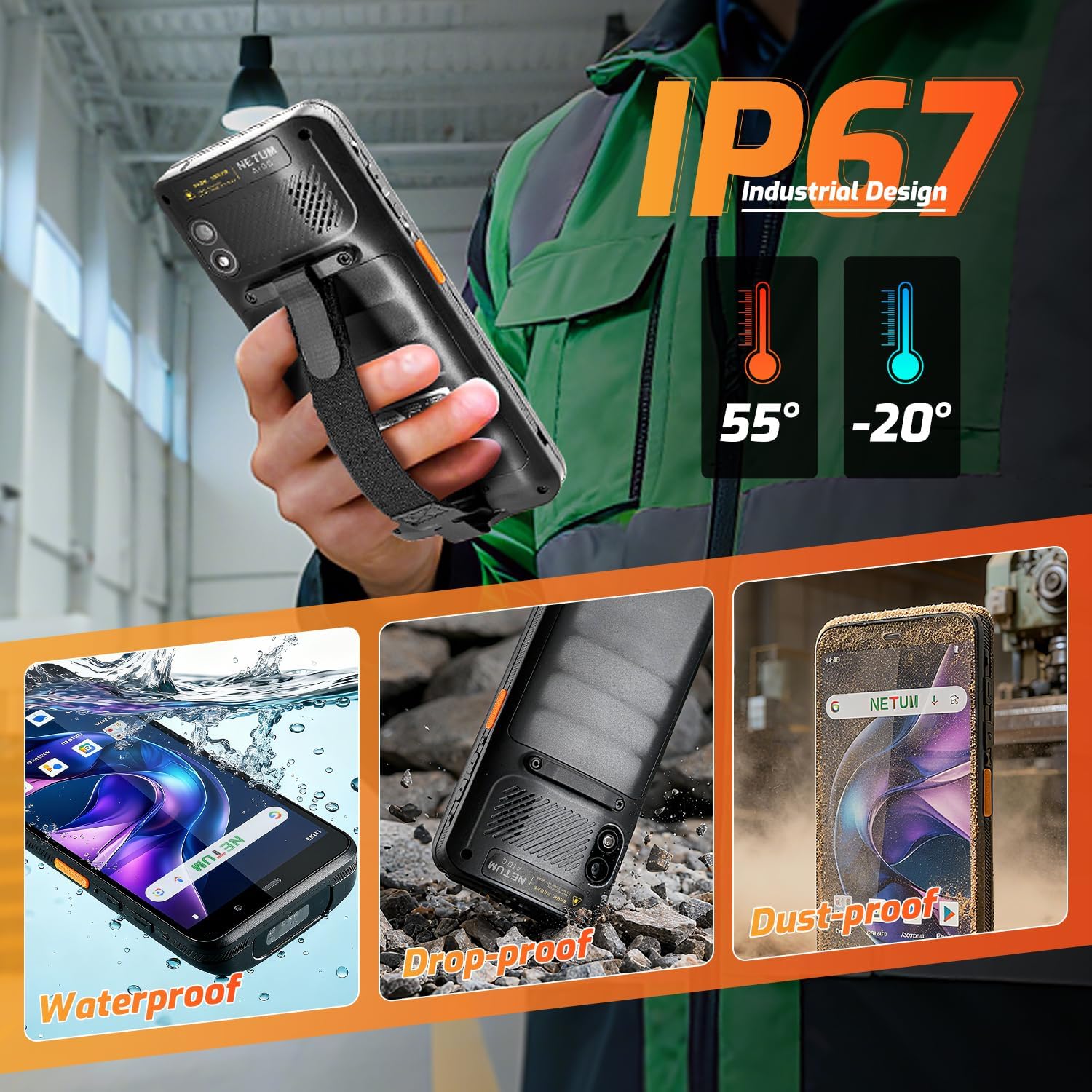
Şekil 6.1: The NETUM Q900's IP67 rating ensures protection against water, dust, and drops, making it suitable for harsh environments.
7. Garanti ve Destek
NETUM ürünleri güvenilirlik ve performans için tasarlanmıştır. Garanti bilgileri, teknik destek veya servis talepleri için lütfen ürününüzle birlikte verilen garanti kartına bakın veya resmi NETUM web sitesini ziyaret edin. webalan.
Garanti kapsamındaki talepleriniz için satın alma belgenizi saklayın.


