giriiş
This guide serves as a comprehensive resource for users of Adobe Photoshop Lightroom 2025, designed to help both beginners and experienced photographers master the software. It provides step-by-step instructions to navigate Lightroom Classic and Lightroom Mobile, covering essential techniques for photo organization, editing, and enhancement. The manual is updated to include the latest features and interface improvements of the 2025 version, ensuring a smooth and intuitive workflow.
The goal of this manual is to empower users to transform everyday snapshots into captivating works of art, offering insights into color correction, lighting adjustments, clarity enhancement, and the creative application of presets and filters.
Getting Started with Adobe Lightroom
To begin using Adobe Lightroom, ensure you have a valid Adobe Creative Cloud subscription and the Lightroom application installed on your device (desktop or mobile). This section outlines the initial steps to set up your environment and import your first set of images.
1. Installation and Account Setup
- İndirin ve Kurun: Access the Adobe Creative Cloud desktop app and download Adobe Lightroom Classic or Lightroom (Cloud-based) to your computer. For mobile, download the Lightroom app from your device's app store.
- Kayıt olmak: Launch the application and sign in with your Adobe ID. If you do not have one, follow the prompts to create a new account.
- Syncing (Optional): For cloud-based Lightroom, ensure syncing is enabled to access your photos across all devices.
2. Importing Photos
Importing images is the first step to begin editing. Lightroom supports various file formats, including RAW, JPEG, and TIFF.
- Cihazı Bağla: Connect your camera, memory card, or external drive to your computer.
- Open Import Dialog: In Lightroom Classic, click the "Import..." button in the Library module. In Lightroom (Cloud-based), click the "+" icon.
- Kaynak Seç: Choose the source from which you want to import photos.
- Hedef Seçin: Specify where the photos will be stored on your computer or in the cloud.
- Apply Presets (Optional): You can apply initial develop presets or metadata during import.
- Initiate Import: Click "Import" to transfer the selected images into your Lightroom catalog.
Operating Lightroom: Core Functions
This section details the primary functions of Adobe Lightroom, focusing on organizing, editing, and exporting your photographs.
1. Organizing Your Photo Library
Efficient organization is crucial for managing large photo collections. Lightroom offers powerful tools for cataloging and searching your images.
- Catalogs and Collections: Understand the difference between a catalog (database of your photos) and collections (virtual groupings of photos).
- Keywords and Metadata: Apply keywords, ratings, and flags to images for easy searching and filtering.
- Klasörler: Manage the physical location of your image files on your hard drive.
- Smart Collections: Create dynamic collections based on specific criteria (e.g., all 5-star photos taken in 2024).
2. Editing and Enhancing Photos
The Develop module (Lightroom Classic) or Edit panel (Lightroom Cloud) is where you make adjustments to your images. Lightroom uses non-destructive editing, meaning your original files are never altered.
| Panel Name | Birincil İşlev |
|---|---|
| Temel Panel | Adjust exposure, contrast, highlights, shadows, whites, blacks, presence (clarity, vibrance, saturation). |
| Ton Eğrisi | Fine-tune tonal range and contrast with more precision. |
| HSL/Color | Adjust hue, saturation, and luminance of individual colors. |
| Detay | Sharpening and noise reduction. |
| Lens Corrections | Correct optical distortions, chromatic aberration, and vignetting. |
| Dönüştürmek | Correct perspective and straighten images. |
| Ön Ayarlar | Apply pre-defined sets of adjustments for quick styling. |
Uç: Experiment with local adjustment tools like the Adjustment Brush, Radial Filter, and Graduated Filter for precise edits on specific areas of your image.
3. Exporting Your Work
Once your editing is complete, you will need to export your images for sharing or printing.
- Ayarları Dışa Aktar: Seçmek file format (JPEG, TIFF, DNG), quality, dimensions, and resolution.
- Watermarking: Add a watermark to protect your images.
- Output Sharpening: Apply sharpening optimized for screen or print.
- Export Location: Select the folder where your exported images will be saved.
Bakım ve En İyi Uygulamalar
Regular maintenance ensures the smooth operation of Lightroom and the safety of your photo library.
- Catalog Backup: Configure Lightroom to regularly back up your catalog file. Bu file contains all your edits and organizational data.
- Image Backup: Implement a robust backup strategy for your actual image files. This could involve external hard drives, cloud storage, or a combination.
- Optimize Catalog: Periodically optimize your Lightroom catalog for better performance via File > Optimize Catalog.
- Yazılımı Güncel Tutun: Ensure your Adobe Lightroom application is always updated to the latest version to benefit from new features and bug fixes.
Yaygın Sorunların Giderilmesi
Encountering issues with software is common. Here are solutions to some frequently asked questions and problems.
- Lightroom is Slow:
- Increase Camera Raw Cache size in Preferences.
- Ensure sufficient RAM and a fast hard drive.
- Optimize your catalog regularly.
- Update graphics card drivers.
- Missing Photos:
- Check if the folder containing the photos has been moved or renamed outside of Lightroom.
- Use the "Find Missing Photos" feature in the Library module.
- Sync Issues (Lightroom Cloud):
- İnternet bağlantınızı doğrulayın.
- Check your Creative Cloud storage limit.
- Pause and resume syncing.
Kılavuz Özellikleri
This section provides details about the physical and publication specifications of this user guide.
- ASIN: B0FFTBNK66
- Yayımcı: Bağımsız olarak yayınlandı
- Yayın Tarihi: 26 Haziran 2025
- Dil: İngilizce
- Baskı Uzunluğu: 262 sayfa
- ISBN-13: 979-8289809698
- Ürün Ağırlığı: 1.37 pound
- Boyutlar: 8.5 x 0.6 x 11 inç
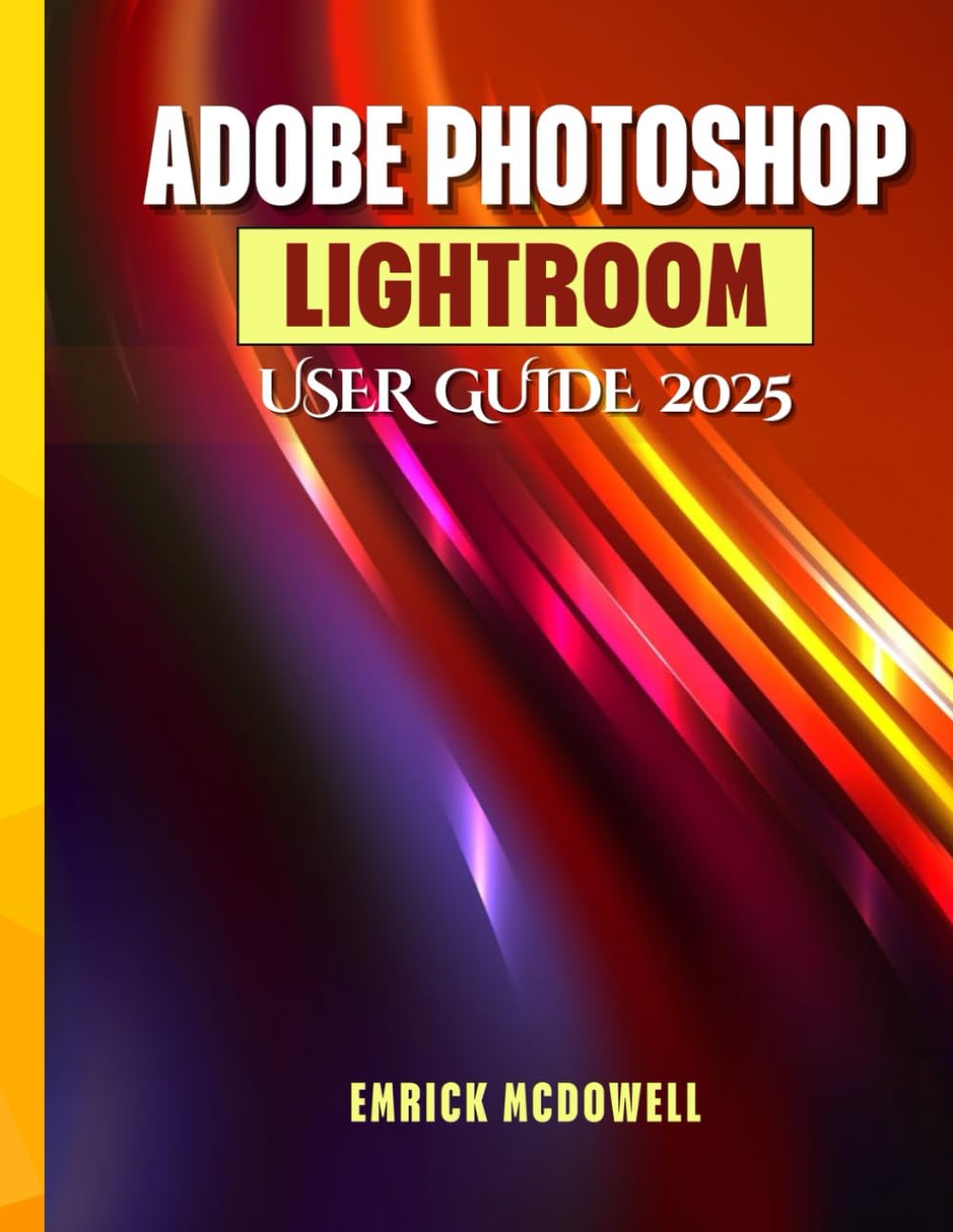
Image: Front cover of the Adobe Photoshop Lightroom User Guide 2025. The cover features the title prominently.

Image: Back cover of the Adobe Photoshop Lightroom User Guide 2025. It features a yellow and orange geometric pattern with the ISBN barcode at the bottom right.
Ek Kaynaklar ve Destek
For further assistance with Adobe Lightroom software, please refer to the official Adobe support channels.
- Adobe Help Center: helpx.adobe.com/support/lightroom.html
- Adobe Community Forums: İpuçları ve çözümler için diğer kullanıcılar ve uzmanlarla etkileşim kurun.
- Official Adobe Tutorials: Access video tutorials and guides directly from Adobe.
This user guide is an independent publication and is not affiliated with or endorsed by Adobe Inc. For software-specific warranty or licensing information, please consult Adobe's official documentation.


