1. Giriş
This manual provides detailed instructions for the setup, operation, maintenance, and troubleshooting of your GMKtec G10 Mini PC. Please read this manual thoroughly before using the device to ensure proper functionality and longevity.
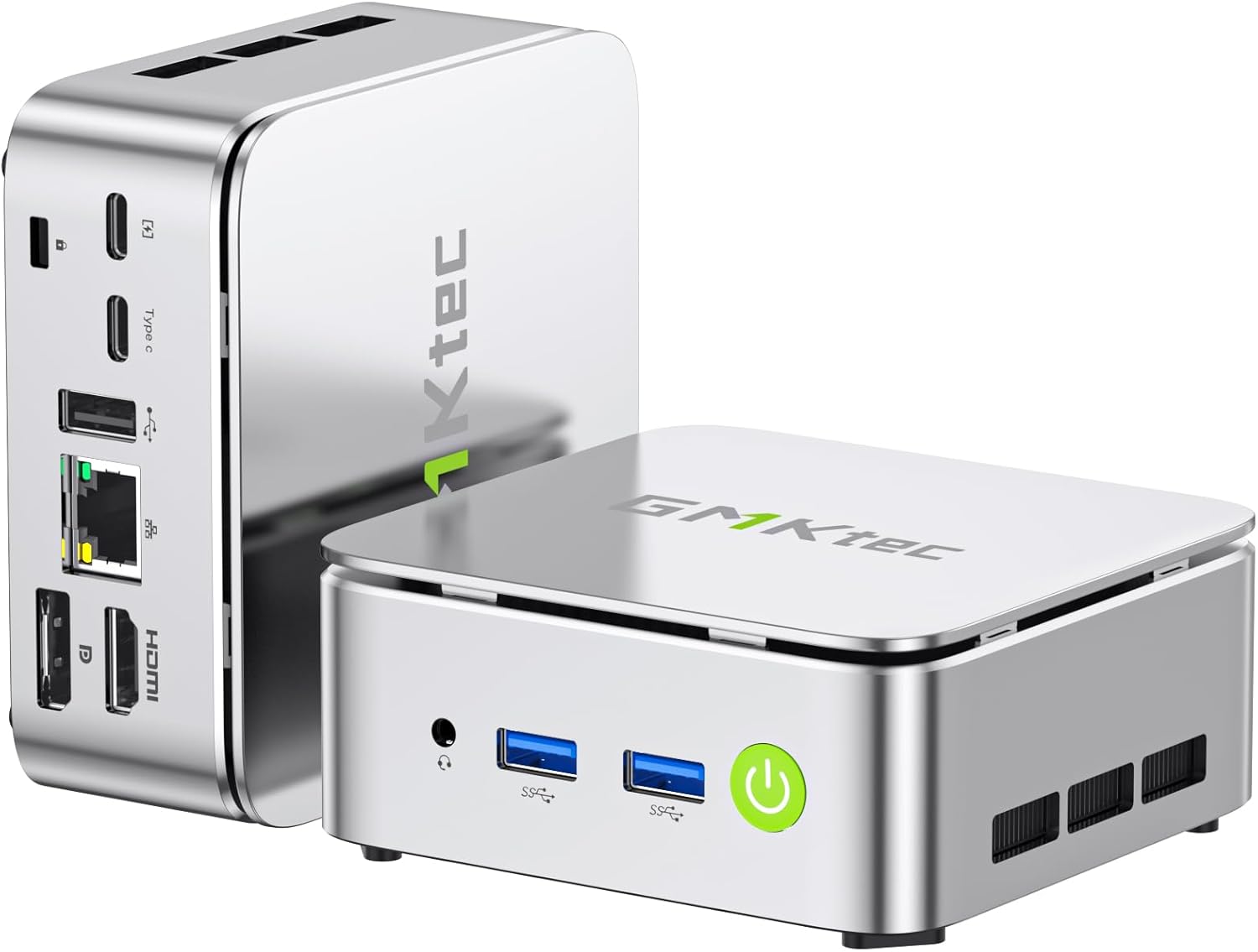
Figure 1: GMKtec G10 Mini PC, showcasinkompakt tasarımı ve çeşitli bağlantı noktaları sayesinde.
2. Kutuda Neler Var?
Aşağıda listelenen tüm öğelerin paketinizde bulunduğunu doğrulayın:
- GMKtec Nucbox G10 Mini PC Ryzen 5 3500U Mini PC Computer
- HDMI Kablosu
- Tip-C Güç Kaynağı
- VESA Montajı
- Kullanım Kılavuzu (bu belge)
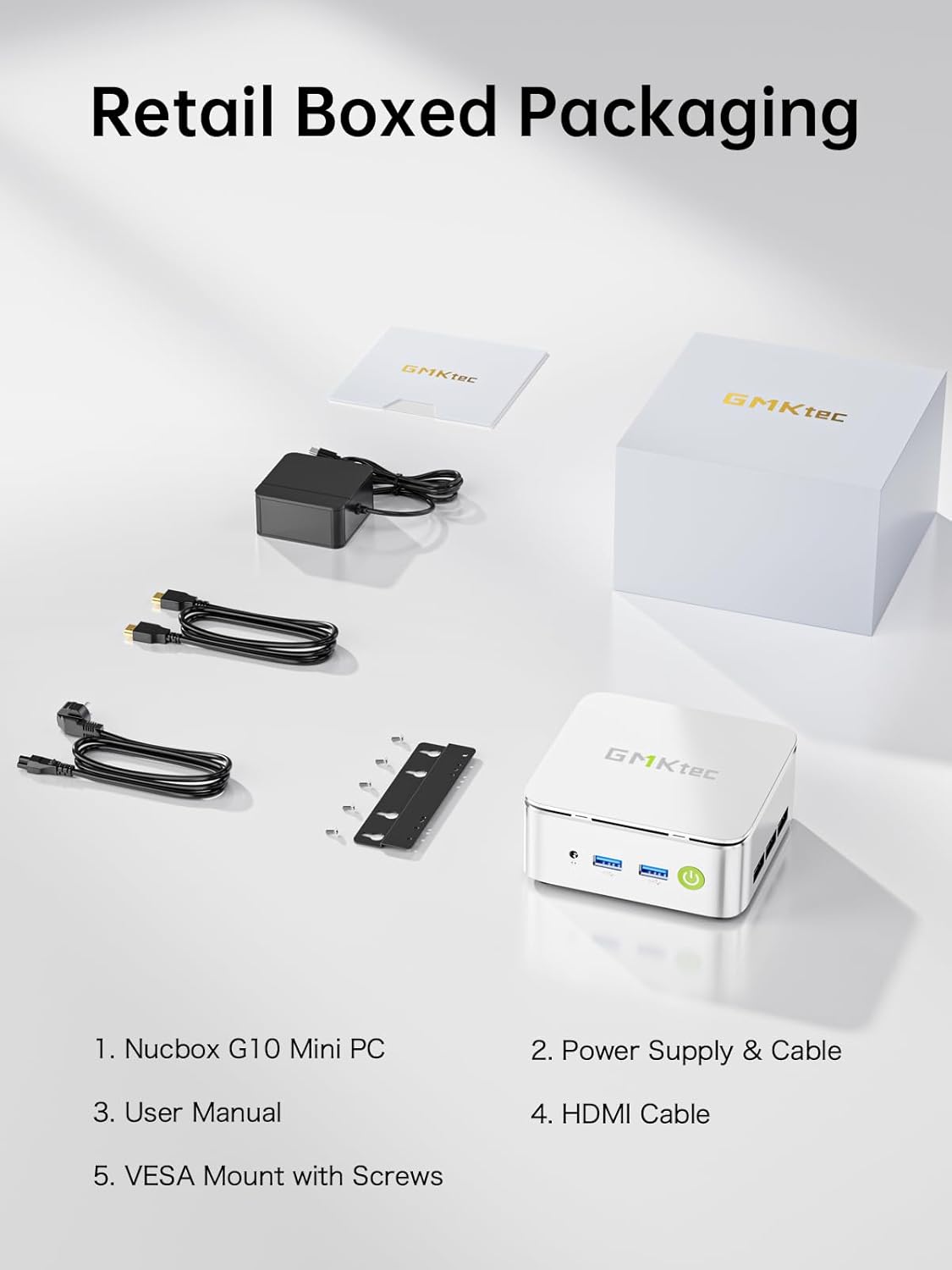
Figure 2: Package contents including the Mini PC, power supply, HDMI cable, VESA mount, and user manual.
3. Ürün Özellikleri
The GMKtec G10 Mini PC is equipped with the following technical specifications:
| Özellik | Şartname |
|---|---|
| İşlemci | AMD Ryzen 5 3500U (4C/8T, up to 3.7GHz) |
| Grafikler | AMD Radeon Vega 8 Graphics (up to 1200MHz) |
| Veri deposu | 16GB Dual-channel DDR4 (2x8GB), expandable up to 32GB |
| Depolamak | 1TB M.2 PCIe 3.0 SSD, expandable up to 2x8TB SSDs with dual M.2 2280 PCIe 3.0 slots |
| Görüntü Çıktısı | Triple 4K@60Hz via HDMI 2.1 TMDS, DisplayPort 1.4, and USB-C |
| Ağ oluşturma | 2.5GbE RJ45 LAN port, WiFi 5, Bluetooth 5.2 |
| Limanlar | 2x USB 3.2 Gen1, 1x USB 2.0, 1x USB-C (Full-Function: PD/DP/Data), 1x DisplayPort, 1x HDMI, 1x 3.5mm audio jack |
| İşletim Sistemi | Windows 11 Pro (preinstalled) |
| Boyutlar (UxGxY) | 3.86 x 1.65 x 4.06 inç |
| Ağırlık | 2.35 pound |
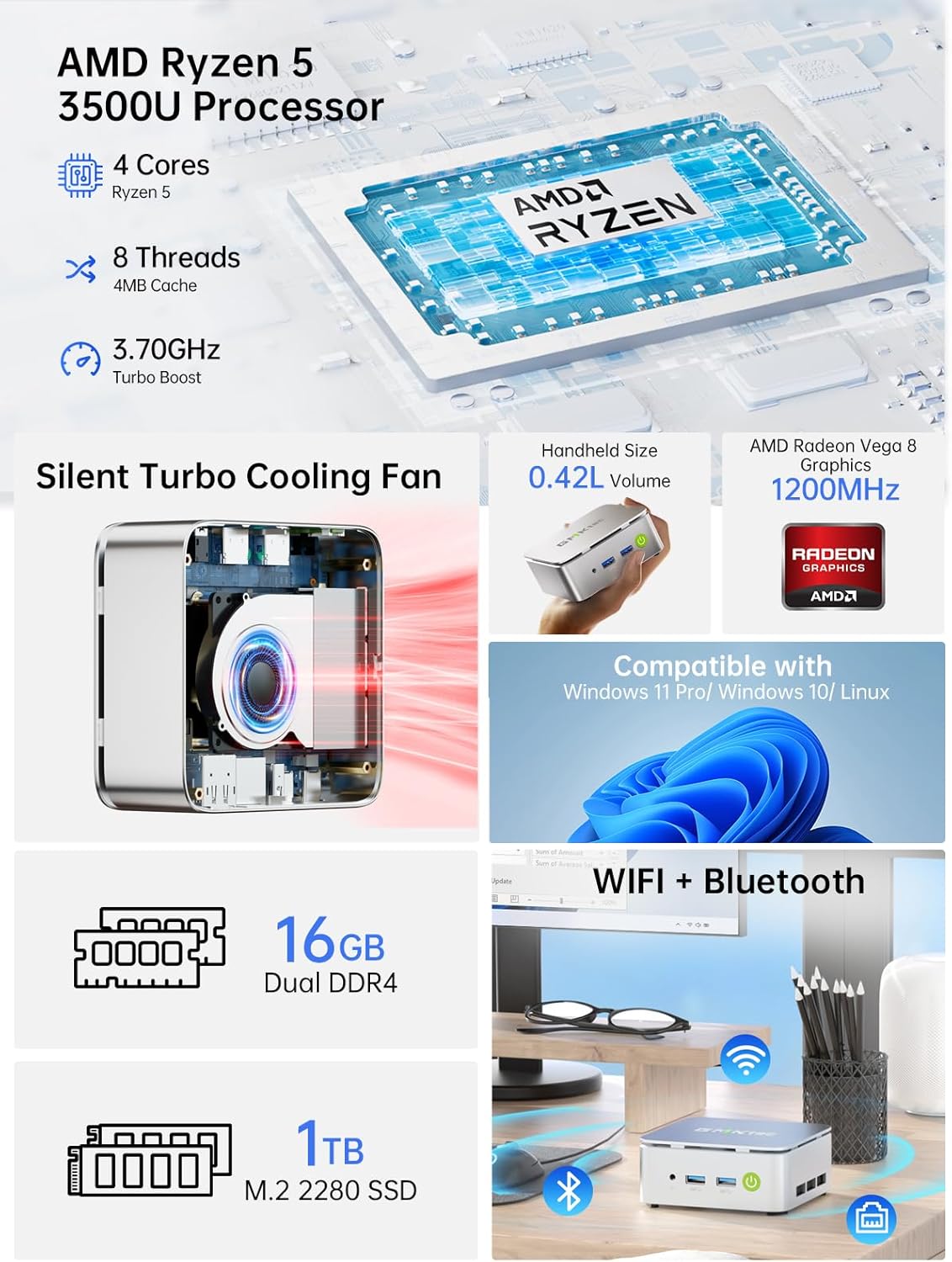
Şekil 3: Üzeriview of the GMKtec G10's core components and features.

Figure 4: Memory and storage expansion capabilities of the G10 Mini PC.
4. Kurulum Kılavuzu
4.1 Çevre Birimlerini Bağlama
Mini PC'nizi açmadan önce gerekli tüm çevre birimlerini bağlayın:
- Görüntülemek: Connect your monitor(s) using the HDMI, DisplayPort, or USB-C port. The G10 supports up to three 4K@60Hz displays simultaneously.
- Klavye ve Fare: Connect your USB keyboard and mouse to the available USB 3.2 Gen1 or USB 2.0 ports. Wireless peripherals can be connected via Bluetooth 5.2.
- Ağ: For a wired connection, connect an Ethernet cable to the 2.5GbE RJ45 LAN port. For wireless, ensure your WiFi network is available.
- Ses: Gerekirse hoparlörleri veya kulaklıkları 3.5 mm ses jakına bağlayın.

Şekil 5: Ayrıntılı view of the G10 Mini PC's rich interface ports.
4.2 Açma
- Connect the Type-C power supply to the USB-C (PD Only) port on the Mini PC and then to a power outlet.
- Mini bilgisayarın ön tarafında bulunan güç düğmesine basın. Güç gösterge ışığı yanacaktır.
- The system will boot into Windows 11 Pro. Follow the on-screen instructions for initial setup if it's your first time using the device.
4.3 VESA Montajı (İsteğe bağlı)
The GMKtec G10 Mini PC can be mounted to the back of a compatible monitor using the included VESA mount:
- Attach the VESA mount bracket to the back of your monitor using the provided screws. Ensure the mount is securely fastened to the VESA holes on your monitor.
- Slide the Mini PC onto the VESA mount bracket until it clicks into place.
- Ensure all cables are connected securely after mounting.
5. Kullanım Talimatları
5.1 Temel İşlemler
- Güç Açma/Kapatma: Press the power button once to turn on. To turn off, use the Windows shutdown option or press and hold the power button for 5 seconds.
- Tekrar başlat: Use the restart option within the Windows operating system.
- Uyku modu: Press the power button briefly while the PC is on to enter sleep mode. Press it again to wake the PC.
5.2 Ekran Yapılandırması
To configure multiple displays or adjust resolution:
- Right-click on the desktop and select "Display settings" (Windows 11).
- From here, you can detect, arrange, and set the resolution for your connected monitors.

Şekil 6: Ör.ample of a triple screen HD display setup with the G10 Mini PC.
5.3 Ağ Bağlantısı
- Kablolu (Ethernet): Once the Ethernet cable is connected, the system should automatically establish a network connection.
- Kablosuz (WiFi): Click the network icon in the system tray, select your desired WiFi network, enter the password, and connect.
- Bluetooth: To pair Bluetooth devices, go to "Settings" > "Bluetooth & devices" and follow the on-screen instructions.

Figure 7: Wireless connectivity options: WiFi 5 and Bluetooth 5.2.
6. Bakım
6.1 Temizlik
- Mini PC'nizin dışını düzenli olarak yumuşak ve kuru bir bezle temizleyin.
- Cihazın üzerine doğrudan sıvı temizleyici veya aerosol püskürtmeyin.
- Ensure ventilation openings are clear of dust and debris to maintain optimal airflow.
6.2 Yazılım Güncellemeleri
Keep your operating system and drivers updated to ensure optimal performance and security. Windows Update will typically handle OS updates automatically.
6.3 Depolama Genişletmesi
The GMKtec G10 Mini PC supports storage expansion. You can add or upgrade M.2 2280 PCIe 3.0 SSDs. Refer to the internal structure diagram for component location.

Figure 8: Internal structure of the G10 Mini PC, highlighting key components.
6.4 Soğutma Sistemi
The G10 Mini PC features an efficient cooling system designed for quiet operation. While the fan noise is minimal during normal use, it may increase under heavy load. Ensure proper ventilation around the device.

Figure 9: Noise level comparison for the G10 Mini PC's silent cooling system.
7. Sorun Giderme
| Sorun | Olası Neden | Çözüm |
|---|---|---|
| No power/PC won't turn on | Power cable not connected; faulty power adapter; power outlet issue. | Ensure power cable is securely connected to the PC and outlet. Try a different power outlet. Contact support if issue persists. |
| Monitörde görüntü yok | Monitor not connected; incorrect input source selected on monitor; faulty cable. | Check display cable connections. Ensure monitor is set to the correct input (HDMI, DP, USB-C). Try a different cable or monitor. |
| Kablolu internet bağlantısı yok. | Ethernet kablosu gevşek; yönlendirici/modem sorunu; ağ sürücüsü sorunu. | Check Ethernet cable connection. Restart router/modem. Check network adapter status in Device Manager. |
| İnternet bağlantısı yok (kablosuz) | WiFi disabled; incorrect password; router too far; WiFi driver issue. | Ensure WiFi is enabled. Re-enter WiFi password. Move closer to router. Update WiFi drivers. |
| Sistem yavaş veya yanıt vermiyor. | Too many applications running; insufficient RAM/storage; overheating. | Close unnecessary applications. Check disk space. Ensure proper ventilation. Consider RAM/SSD upgrade if frequently slow. |
8. Garanti ve Destek
GMKtec provides a full 1 yıllık garanti from the purchase date, covering all hardware faults due to workmanship. For technical assistance or warranty claims, please contact our professional after-sales team.
- E-posta Desteği: destek@gmktec.com
- Çevrimiçi destek: Ziyaret edin GMKtec Store on Amazon and navigate to the "Ask a Product Question" section.
- Ömür Boyu Teknik Destek: GMKtec offers lifetime technical support for its products.


