1. Ürün Bittiview
The Thunderobot Storm 15 4050 is a high-performance gaming laptop designed for demanding applications and immersive gaming experiences. It features a 15.6-inch Full HD display with a 165Hz refresh rate, an Intel Core i7-13620H processor, and NVIDIA GeForce RTX 4050 graphics. This laptop is equipped with 32GB DDR4 RAM and a 1TB PCIe M.2 SSD for fast boot times and efficient multitasking.
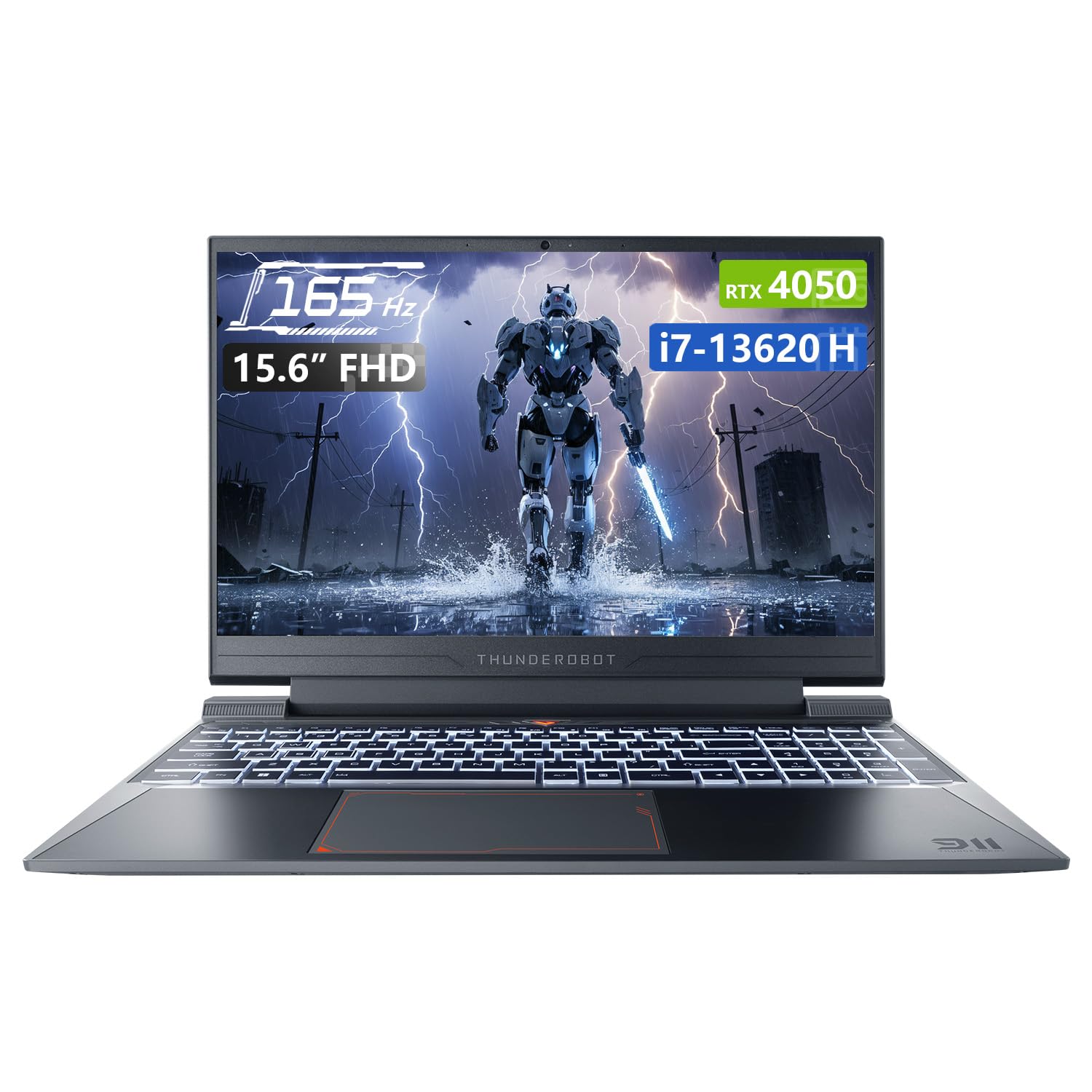
Image: Thunderobot Storm 15 4050 Gaming Laptop, front view with screen on.
Temel Özellikler:
- High-Speed Memory & Storage: 32GB DDR4 RAM and 1TB PCIe M.2 SSD for quick boot times and seamless multitasking.
- Güçlü Performans: Intel Core i7-13620H processor and NVIDIA GeForce RTX 4050 GPU for fast processing and stunning visuals.
- 165Hz FHD Display: 15.6-inch screen with a 165Hz refresh rate for ultra-smooth motion and clear visuals.
- Verimli Soğutma Sistemi: Frost Cooling System with dual heat pipes, an 80-blade turbine fan, and 126 copper fins for stable performance.
- Bağlantı: USB-A, USB-C, HDMI, RJ-45, and Wi-Fi for comprehensive peripheral support.
- Arkadan Aydınlatmalı Klavye: RGB backlit keyboard with a numeric pad for enhanced usability.

Image: Diagram illustrating the performance capabilities of the RTX 4050 GPU and Intel Core i7-13620H CPU.
2. Kurulum Kılavuzu
2.1 Kutudan Çıkarma ve İlk Çalıştırma
- Dizüstü bilgisayarınızı ve tüm aksesuarlarını dikkatlice ambalajından çıkarın.
- Güç adaptörünü dizüstü bilgisayarın güç giriş portuna ve ardından bir elektrik prizine bağlayın.
- Dizüstü bilgisayarın kapağını açın ve genellikle klavyenin üstünde veya yan tarafında bulunan güç düğmesine basın.
- Windows 11 Home'un ilk kurulumunu tamamlamak için ekrandaki yönergeleri izleyin.
2.2 Çevre Birimlerini Bağlama
The Thunderobot Storm 15 offers various ports for connecting external devices.

Image: Diagram showing the various ports and slots on the Thunderobot Storm 15 laptop.
- USB Cihazları: Connect external mice, keyboards, or storage devices to the available USB 3.1 Type-A or USB 3.1 Gen 2 Type-C ports.
- Harici Ekran: Harici bir monitör veya televizyon bağlamak için HDMI bağlantı noktasını kullanın.
- Ağ bağlantısı: For a stable wired internet connection, plug an Ethernet cable into the RJ-45 Ethernet port.
- Ses: Connect headphones or external speakers to the 3.5mm Combo Audio Jack.
3. Kullanım Talimatları
3.1 Güç Yönetimi
- Güç Açık: Güç düğmesine basın.
- Uyku modu: Kapağı kapatın veya Windows Başlat menüsünden 'Uyku'yu seçin.
- Kapat: Windows Başlat menüsünden 'Kapat' seçeneğini seçin.
- Tekrar başlat: Windows Başlat menüsünden 'Yeniden Başlat'ı seçin.
3.2 Klavye İşlevleri
The laptop features a full-size backlit keyboard with a numeric pad.

Resim: Yakın çekim view of the Thunderobot Storm 15's full-size backlit keyboard.
- Arka Işık Kontrolü: Use the dedicated function keys (Fn + [key]) to adjust keyboard backlight brightness or toggle it on/off.
- Sayısal Tampon: The integrated numeric pad allows for efficient data entry.
- Fonksiyon Tuşları: Utilize the Fn key in combination with F1-F12 for various system controls like volume, screen brightness, and Wi-Fi toggle.
3.3 Ekran Ayarları
The 15.6-inch FHD display supports a 165Hz refresh rate.

Image: The 15.6-inch FHD 165Hz display of the Thunderobot Storm 15 laptop.
- Yenileme Hızı: To ensure optimal gaming performance, verify the display refresh rate is set to 165Hz in Windows Display Settings.
- Parlaklık: Adjust screen brightness using the dedicated function keys or through Windows Display Settings.
3.4 Ses Ayarları
The laptop features professional sound certification and high-specification speakers.

Image: Laptop displaying sound waves, indicating wide range audio capabilities.
- Ses Kontrolü: Adjust volume using the function keys or the Windows volume mixer.
- Harici Ses: Connect headphones or external speakers to the 3.5mm combo jack for private listening or enhanced audio output.
3.5 Using the Control Center
The Control Center software allows you to customize performance modes, fan speed, and lighting settings.

Image: Screenshots of the Thunderobot Control Center interface, showing performance modes, fan adjustment, and lighting settings.
- Performans Modları: Switch between 'Berserk mode' (full performance), 'Game mode' (speed and smooth), and 'Audio and video office' (battery life optimized) based on your needs.
- Fan Ayarı: Manually adjust fan speeds for optimal cooling or quieter operation.
- Aydınlatma Ayarları: Customize the RGB keyboard backlight effects and colors.
- Not: System mode switching in Control Center requires the device to be connected to a power source.
4. Bakım
4.1 Dizüstü Bilgisayarı Temizleme
- Ekran: Hafifçe yumuşak, tüy bırakmayan bir bez kullanın.ampSu veya ekran temizleyici ile temizleyin. Sert kimyasallardan kaçının.
- Klavye ve Şasi: Use a soft cloth to wipe surfaces. A can of compressed air can remove dust from between keys and vents.
- Havalandırmalar: Regularly check and clean the cooling vents to prevent dust buildup, which can hinder airflow and lead to overheating.

Image: Diagram illustrating the highly efficient air cooling system of the Thunderobot Storm 15.
4.2 Yazılım ve Sürücü Güncellemeleri
- Windows Güncellemeleri: Sistemin istikrarını ve güvenliğini sağlamak için Windows güncellemelerini düzenli olarak kontrol edin ve yükleyin.
- Sürücü Güncellemeleri: Keep graphics drivers (NVIDIA) and other system drivers updated for optimal performance and compatibility. Visit the Thunderobot support website veya NVIDIA'nın resmi webEn son sürücüler için site.
4.3 Pil Bakımı
- Akünün sık sık tamamen boşalmasından kaçının.
- Uzun süre kullanılmayacaksa dizüstü bilgisayarınızı serin ve kuru bir yerde saklayın.
- For prolonged use while plugged in, consider using battery management software (if available) to limit charging to 80% to extend battery lifespan.
5. Sorun Giderme
5.1 No Power / Does Not Turn On
- Güç adaptörünün hem dizüstü bilgisayara hem de çalışan bir elektrik prizine güvenli bir şekilde bağlandığından emin olun.
- Başka bir cihazı takarak elektrik prizinin çalışır durumda olduğunu doğrulayın.
- Pil tamamen boşalmışsa, bilgisayarı açmadan önce en az 15-30 dakika şarj olmasına izin verin.
5.2 Ekran Sorunları
- Boş ekran: Try connecting an external monitor to check if the issue is with the laptop's display or the graphics card.
- Titreyen/Bozuk Görüntü: Update your graphics drivers. Adjust the display refresh rate in Windows settings.
- Karartma Ekranı: Adjust brightness using function keys or Windows settings.
5.3 Performans Gecikmesi
- Check the Control Center to ensure the laptop is in an appropriate performance mode (e.g., 'Game mode' or 'Berserk mode') when running demanding applications.
- Gereksiz arka plan uygulamalarını kapatın.
- Ensure the cooling vents are clear and the laptop is not overheating.
- Sürücüleri, özellikle de grafik sürücülerini güncelleyin.
5.4 Ses Sorunları
- Check volume levels in Windows and ensure speakers are not muted.
- Verify that the correct audio output device is selected in Windows Sound Settings.
- Update audio drivers.
- If using external audio devices, ensure they are properly connected.
6. Özellikler
| Özellik | Şartname |
|---|---|
| Model Adı | Fırtına 15 |
| Ekran Boyutu | 15.6 inç |
| Ekran Çözünürlüğü | 1920 x 1080 piksel (FHD) |
| Maksimum Ekran Çözünürlüğü | 1920x1080 Piksel |
| İşlemci | Intel Core i7-13620H (4.9 GHz) |
| Veri deposu | 32 GB DDR4 (3200 MHz) |
| Sabit Sürücü | 1 TB PCIe M.2 SSD |
| Grafik Eş İşlemcisi | NVIDIA GeForce RTX 4050 Dizüstü Bilgisayar GPU'su |
| İşletim Sistemi | Windows 11 Ev |
| Kablosuz Tip | 801.11ac (Wi-Fi) |
| USB 3.0 Bağlantı Noktaları | 3 |
| Özel Özellik | Arkadan Aydınlatmalı Klavye, Sayısal Tuş Takımı |
| Ürün Ağırlığı | 12 pound |
| Ürün Boyutları | 14.12 x 10.14 x 0.94 inç |
7. Garanti ve Destek
Her Thunderobot dizüstü bilgisayar şunları içerir: 12 ay garantiUzman desteği, kapsamlı teşhis ve gerekirse onarım için orijinal yedek parçalar sunuyoruz. Ayrıca, 90 günlük garanti Garanti kapsamındaki tüm yedek parçalarda ücretsiz teslimat sağlanarak, sorunsuz onarımlar garanti altına alınır. Tam memnuniyetiniz bizim taahhüdümüzdür.

Image: Graphic detailing Thunderobot's warranty and service commitment.
For technical support, warranty claims, or further assistance, please visit the official Thunderobot support websitesine gidin veya müşteri hizmetleriyle iletişime geçin.


