giriiş
Thank you for choosing the Maxfree Dual Portable Monitor M4. This manual provides essential information for setting up, operating, and maintaining your new dual monitor system. Please read this manual thoroughly before use to ensure optimal performance and longevity of your device.
Ürün Bittiview
The Maxfree Dual Portable Monitor M4 is designed to expand your workspace with two 15.6-inch 1080P FHD IPS displays. Its folding design enhances portability, making it ideal for travel and various work environments.

Image: The Maxfree Dual Portable Monitor M4, featuring two 15.6-inch screens in an open, stacked configuration, ready for use.
Temel Özellikler:
- Dual 15.6-inch 1080P FHD IPS Displays
- Plug & Play USB-C Connectivity
- Folding Design for Portability
- Matte Screen with Anti-glare, No Flicker, and Eye Care Functions
- % 100 sRGB Renk Gamı
- Multiple Display Modes and 330° Rotation
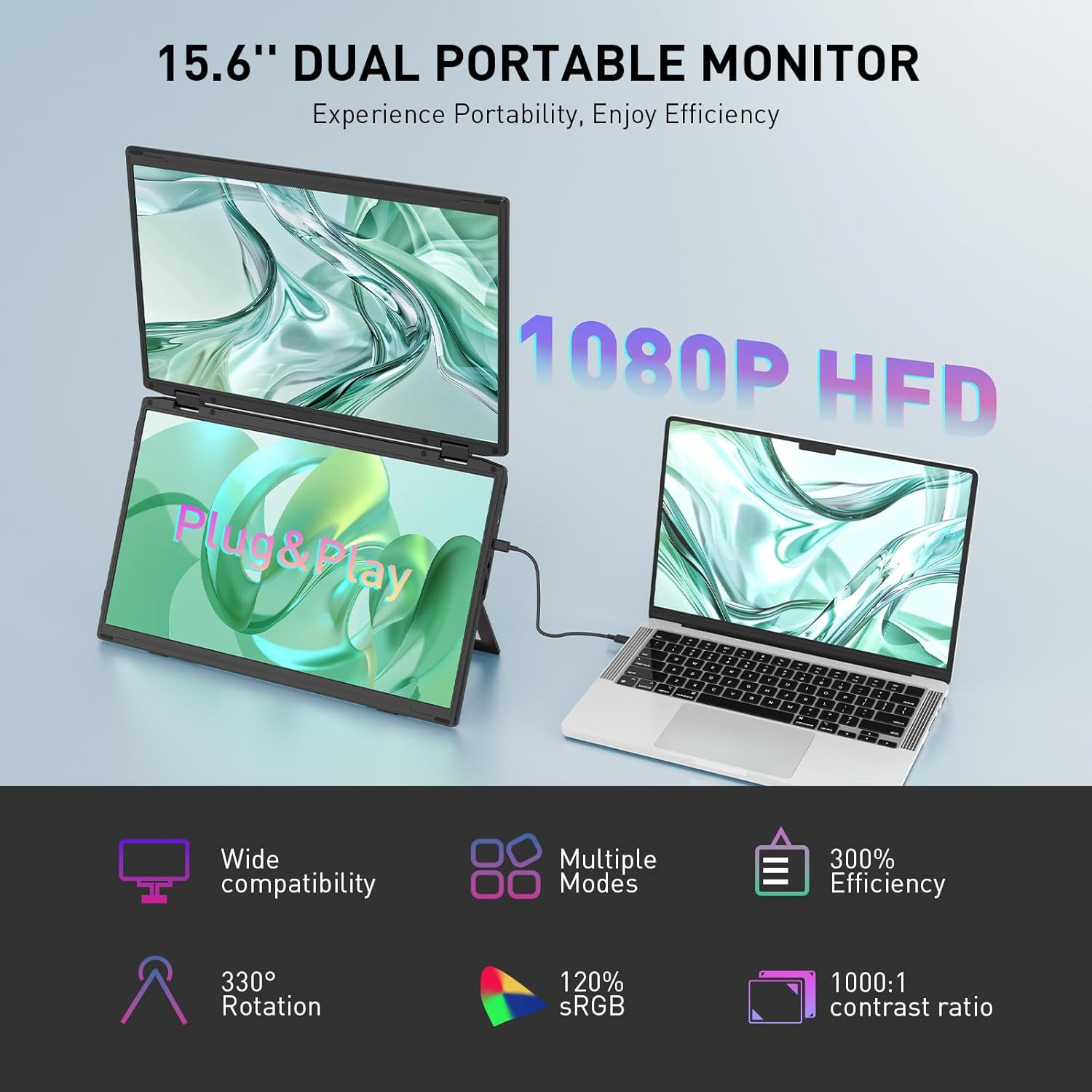
Image: The Maxfree Dual Portable Monitor M4 connected to a laptop, illustrating its plug-and-play functionality and various display modes.
Kurulum Talimatları
- Monitörü Paketinden Çıkarın: Monitörü ve tüm aksesuarlarını ambalajından dikkatlice çıkarın.
- Monitörü konumlandırın: Monitörü sabit, düz bir yüzeye yerleştirin. Entegre standı istediğiniz konuma ayarlayın. viewaçı.
- Connect to Power (Recommended): For optimal performance, connect the monitor to a power source using the provided USB-C power adapter (if included) or a compatible USB-C port on your device that supports power delivery.
- Cihaza Bağlan:
- USB-C Bağlantısı: Connect one end of the provided USB-C cable to the monitor's USB-C port and the other end to a full-featured USB-C port on your laptop or PC. This single cable can transmit video, audio, and power.
- HDMI + USB-A Connection (if applicable): If your device does not have a full-featured USB-C port, you may need to use an HDMI cable for video and a USB-A to USB-C cable for power and touch functionality (if supported by your model). Refer to your device's manual for specific port requirements.
- Güç Açık: Press the power button on the monitor. Your device should automatically detect and extend the display.
- Ekran Ayarlarını Yapın: On your computer, navigate to Display Settings to configure the dual monitors (e.g., extend, duplicate, arrange displays).
Kullanım Talimatları
Görüntüleme Modları:
The Maxfree Dual Portable Monitor supports various display modes to enhance productivity:
- Genişletilmiş Mod: Expands your desktop across both screens, providing a larger workspace. This is ideal for multitasking.
- Kopya Modu: Mirrors your primary display onto the portable monitors. Useful for presentations or sharing content.
- Dikey Düzen: The unique vertical stacking design minimizes scrolling and page switching, reducing eye and neck fatigue, especially for document review or coding.
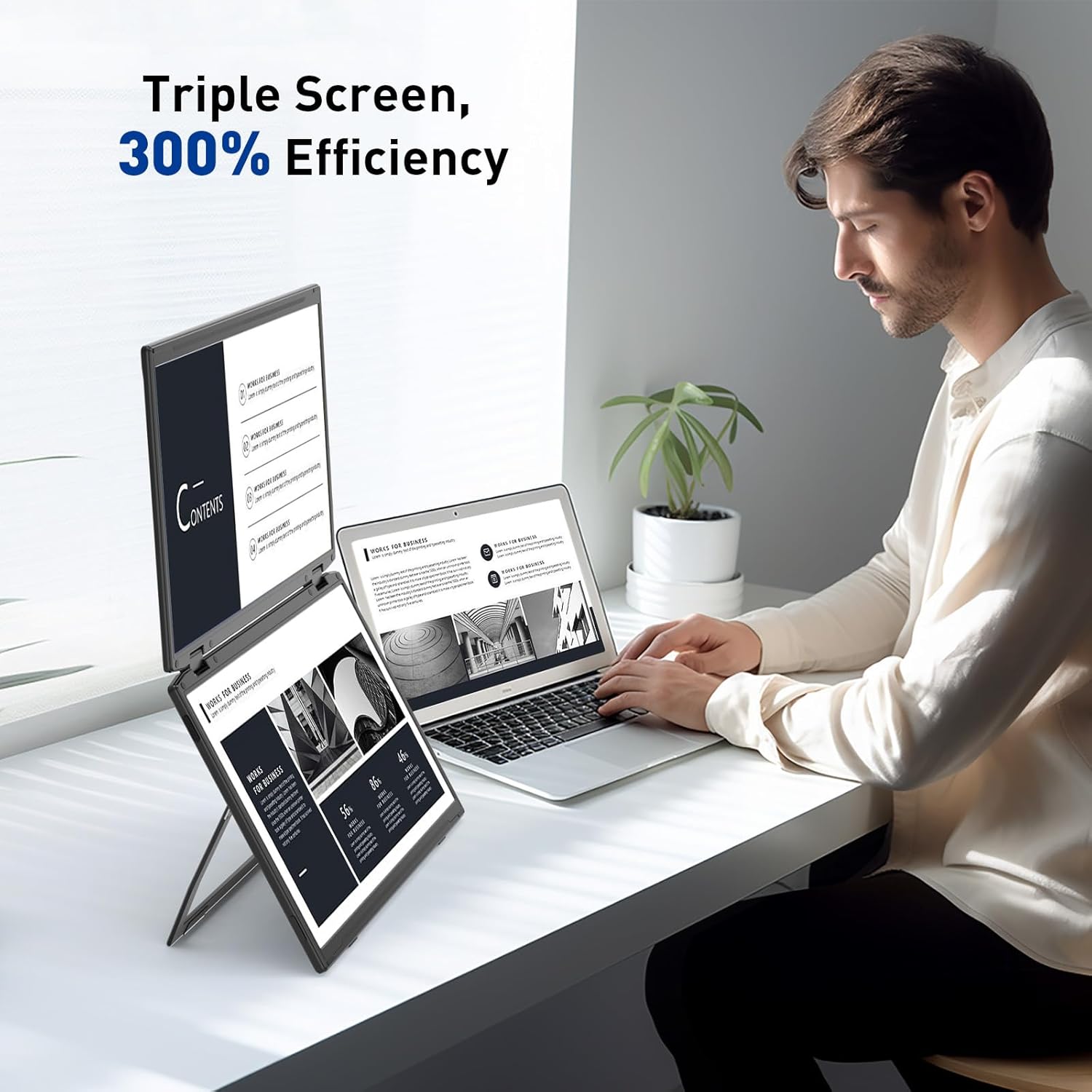
Image: A user demonstrating the Maxfree Dual Portable Monitor M4 in a vertical stacked setup, illustrating how it creates an efficient triple-screen workspace.
Ekran Görüntüsü (OSD) Menüsü:
Use the buttons on the side of the monitor to access and navigate the OSD menu. This menu allows you to adjust settings such as:
- Parlaklık ve Kontrast
- Color Settings (e.g., sRGB, color temperature)
- Giriş Kaynağı Seçimi
- En Boy Oranı
- Volume (if applicable)
Refer to the on-screen prompts for specific button functions (e.g., Menu, Up, Down, Exit).
Özellikler
| Özellik | Detay |
|---|---|
| Ekran Boyutu | Çift 15.6 İnç |
| Çözünürlük | 1920 x 1080 (FHD 1080p) |
| Panel Tipi | IPS |
| En Boy Oranı | 16:9 |
| Ekran Yüzeyi | Mat |
| Görüntü parlaklığı | 300 Candela |
| Renk Gamı | %100 sRGB |
| Bağlantı | USB-C (Full-featured), HDMI (if applicable) |
| Toplam USB Bağlantı Noktaları | 1 (USB-C for main connection) |
| Cilttage | 5 Volt |
| Ürün Boyutları | 0.5 x 14 x 9 inç |
| Ürün Ağırlığı | 3.5 pound |
| Model Numarası | M4 |
Sorun giderme
- Görüntü yok:
- USB-C kablosunun hem monitöre hem de cihazınıza güvenli bir şekilde bağlı olduğundan emin olun.
- Cihazınızın USB-C bağlantı noktasının video çıkışını (DisplayPort Alternatif Modu) desteklediğinden emin olun.
- Connect the monitor to an external power source if your device cannot provide sufficient power.
- Check your computer's display settings to ensure the external monitor is detected and enabled.
- Titreyen Ekran:
- Ensure the cable connections are secure.
- Farklı bir USB-C kablosu deneyin.
- Reduce the display resolution or refresh rate on your computer.
- Image Quality Issues (Blurry, Incorrect Colors):
- Adjust the brightness, contrast, and color settings via the OSD menu.
- Ensure your computer's display resolution matches the monitor's native resolution (1920x1080).
- Monitör Açılmıyor:
- Confirm the power cable is properly connected and the power outlet is functional.
- Güç düğmesine sıkıca basın.
Bakım
- Ekranın Temizlenmesi: Ekranı yumuşak, tiftiksiz bir bezle nazikçe silin. İnatçı lekeler için hafifçe silin.ampBezi su veya ekran temizleme solüsyonuyla yıkayın. Sert kimyasallardan veya aşındırıcı malzemelerden kaçının.
- C'yi Temizlemeasing: Monitörün yüzeyini silmek için yumuşak, kuru bir bez kullanın.asing.
- Depolamak: When not in use, fold the monitor and store it in a cool, dry place, preferably in its original packaging or a protective case to prevent damage.
- Aşırı Koşullardan Kaçının: Monitörü aşırı sıcaklıklara, neme veya doğrudan güneş ışığına maruz bırakmayın.
Garanti ve Destek
For warranty information, technical support, or service inquiries, please refer to the warranty card included with your product or visit the official Maxfree webalan.
Üretici: Shenzhen Baijiayoupu Technology CO., Ltd.


