giriiş
Thank you for choosing the Rapoo 9390M Wireless Multi-Mode Keyboard and Mouse Combo. This ultra-slim set offers versatile connectivity options, including 2.4 GHz wireless and Bluetooth 4.0/5.0, allowing seamless switching between multiple devices. Designed for efficiency and comfort, this combo features a full-size QWERTZ keyboard with multimedia keys and an ambidextrous optical mouse.
This manual provides essential information for setting up, operating, and maintaining your new Rapoo 9390M combo. Please read it carefully before use.
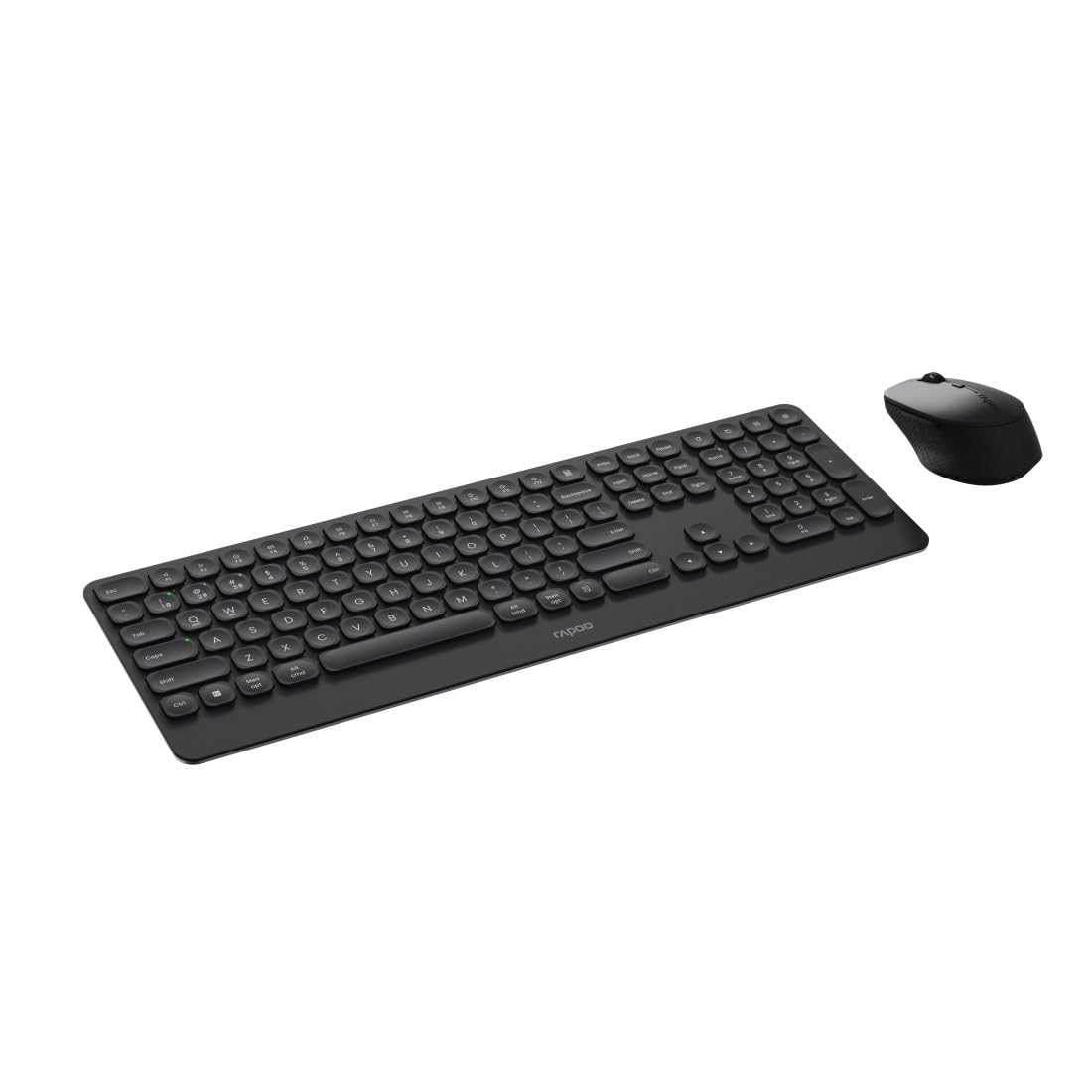
Image: The Rapoo 9390M wireless keyboard and mouse combo, showcasing its sleek design and full QWERTZ layout.
Kurmak
1. Pil Kurulumu
The Rapoo 9390M combo requires batteries for operation. Ensure correct polarity when inserting.
- Klavye: Requires 2 x AAA alkaline batteries.
- Fare: Requires 1 x AA alkaline battery.
Batteries are included in the package.

Resim: Yan profile of the Rapoo 9390M keyboard and mouse, illustrating their ultra-slim design. Battery compartments are typically located on the underside of each device.
2. Cihazların Bağlanması
The Rapoo 9390M supports multi-mode connectivity: 2.4 GHz wireless via USB receiver and Bluetooth 4.0/5.0.
2.1. 2.4 GHz Kablosuz Bağlantı
- Insert the USB receiver into an available USB Type-A port on your computer or device.
- Klavye ve fareyi ilgili güç anahtarlarını kullanarak açın.
- The devices should automatically connect to your computer.
2.2. Bluetooth Bağlantısı
The keyboard can pair with up to 3 Bluetooth devices, and the mouse with up to 2.
Klavyenin Bluetooth Eşleştirilmesi:
- Klavyeyi açın.
- Basılı tutun Fn + 1, Fn + 2, veya Fn + 3 for 3 seconds to select a Bluetooth channel. The indicator light will flash slowly.
- Open Bluetooth settings on your device (PC, laptop, tablet, TV).
- Arama "Rapoo BT3.0 Keyboard" or "Rapoo BT5.0 Keyboard" and select to pair.
- Eşleştirme işlemi tamamlandığında gösterge ışığı yanıp sönmeyi durduracaktır.
Fare Bluetooth Eşleştirme:
- Fareyi açın.
- Press the Bluetooth pairing button on the underside of the mouse. The indicator light will flash slowly.
- Cihazınızda Bluetooth ayarlarını açın.
- Arama "Rapoo BT3.0 Mouse" or "Rapoo BT5.0 Mouse" and select to pair.
- Eşleştirme işlemi tamamlandığında gösterge ışığı yanıp sönmeyi durduracaktır.
Kullanım Talimatları
1. Bağlı Cihazlar Arasında Geçiş Yapma
The Rapoo 9390M allows you to switch between multiple connected devices (up to 4 for keyboard, 3 for mouse, including 2.4 GHz).
- Klavye: Basmak Fn + 1, Fn + 2, Fn + 3 (Bluetooth cihazları için) veya Fn + 4 (for 2.4 GHz USB receiver) to switch between paired devices.
- Fare: Press the mode switch button on the underside of the mouse to cycle between Bluetooth 1, Bluetooth 2, and 2.4 GHz modes.
2. Klavye İşlevleri
The keyboard features a full QWERTZ layout with 110 keys, including a numeric keypad and dedicated function keys.
- Multimedya Tuşları: Use the function keys (F1-F12) in combination with the Fn key to access multimedia controls (e.g., volume, play/pause, browser).
- Browser Buttons: Dedicated keys for browser functions may be present.

Resim: Yukarıdan aşağıya view of the Rapoo 9390M keyboard and mouse, highlighting the QWERTZ key layout and mouse button configuration.
3. Fare İşlevleri
The optical mouse features 5 buttons, including a scroll wheel, and adjustable DPI.
- DPI Ayarı: The mouse supports a DPI range of up to 2400. A dedicated DPI button (often located near the scroll wheel) allows you to cycle through different sensitivity levels.
- Çok Yönlü Tasarım: The mouse is designed for comfortable use by both right-handed and left-handed users.
Bakım
1. Temizlik
To ensure optimal performance and longevity, keep your keyboard and mouse clean.
- Yumuşak, tiftiksiz bir bez kullanın ve hafifçe kurulayın.ampsu veya hafif bir temizleme solüsyonu ile sonlandırıldı.
- Avoid harsh chemicals, abrasive cleaners, or excessive moisture.
- Klavyede, tuşların arasında biriken toz ve kalıntıları temizlemek için basınçlı hava kullanın.
2. Pil Değişimi
When the battery indicator light flashes or performance degrades, it's time to replace the batteries.
- Open the battery compartment on the underside of the keyboard (2x AAA) and mouse (1x AA).
- Eski pilleri çıkarın ve yerel yönetmeliklere uygun şekilde, sorumlu bir biçimde imha edin.
- Insert new alkaline batteries, ensuring correct polarity.
- Pil bölmesini sıkıca kapatın.
Sorun giderme
Bağlantı Sorunları
- No connection (2.4 GHz): Ensure the USB receiver is securely plugged into a working USB port. Try a different USB port. Ensure the keyboard and mouse are powered on.
- Bağlantı yok (Bluetooth): Ensure Bluetooth is enabled on your device. Re-initiate the pairing process as described in the Setup section. Ensure the keyboard/mouse is in Bluetooth mode and not 2.4 GHz mode.
- Aralıklı bağlantı: Move the devices closer to the receiver/device. Avoid placing the devices near other wireless interference sources (e.g., Wi-Fi routers, other wireless peripherals).
Input Not Registering / Lag
- Check batteries: Low batteries can cause performance issues. Replace them if necessary.
- Modları değiştir: Ensure the keyboard and mouse are set to the correct connection mode (2.4 GHz or Bluetooth) for the device you are using.
- Cihazları yeniden başlatın: Turn off and on the keyboard, mouse, and your computer/device.
Özellikler
| Özellik | Tanım |
|---|---|
| Örnek | 9390M |
| Bağlantı | 2.4 GHz RF (USB Type-A receiver), Bluetooth 4.0, Bluetooth 5.0 |
| Klavye Düzeni | QWERTZ (Almanca) |
| Klavye Tuşları | 110 keys, Scissor mechanism, Laser engraved keycaps |
| Klavye Özellikleri | Multimedia keys, Browser buttons, Ultra-slim design, Aluminum base |
| Fare Sensörü | Optik |
| Fare DPI'ı | 2400 DPI'a kadar |
| Fare Düğmeleri | 5 buttons (including scroll wheel) |
| Fare Tasarımı | Ambidextrous, High-quality plastic |
| Çalışma Aralığı | 10 metreye kadar |
| İşletim Sistemi Uyumluluğu | Windows XP / Vista / 7/8 / 10 / 11 |
| Güç Kaynağı | Battery powered (Alkaline) |
| Piller Dahil | Yes (2x AAA for keyboard, 1x AA for mouse) |
| Klavyenin Boyutları (G x D x Y) | 42.6x14.3x2 cm |
| Klavye Ağırlığı | 409 gr |
| Mouse Dimensions (W x D x H) | 6.6x10.4x3.7 cm |
| Fare Ağırlığı | 60 gr |
Garanti ve Destek
For warranty information and technical support, please refer to the warranty card included in your product packaging or visit the official Rapoo webSite. Satın alma belgenizi garanti talepleriniz için saklayın.


