1. Giriş
The Machenike G3V2 Bluetooth Controller is a versatile gaming peripheral designed for multi-platform compatibility, including Switch, iOS, Android, and Windows PC. It features Hall Effect joysticks and triggers, customizable buttons, RGB lighting, and a dedicated charging station for an enhanced gaming experience.
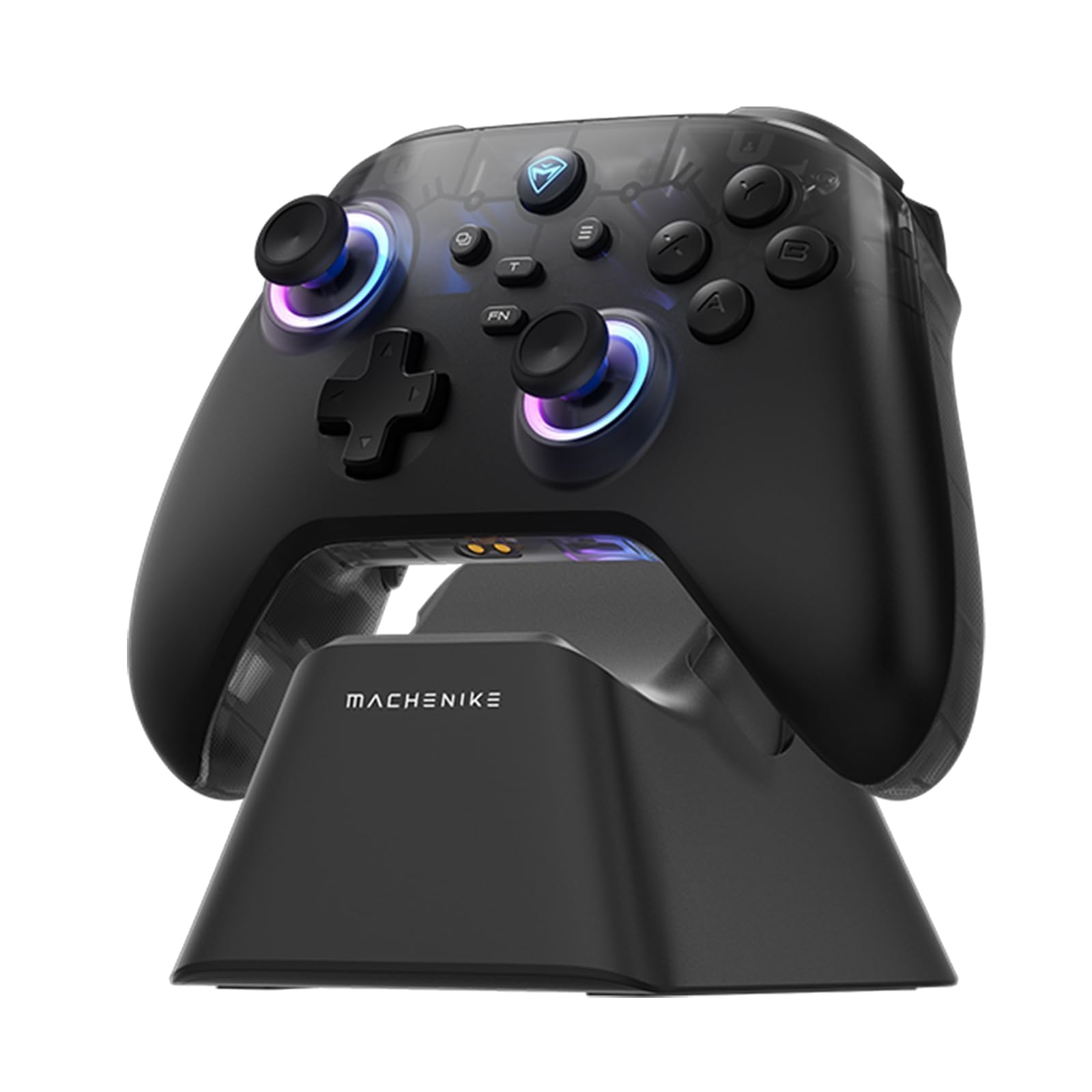
Image: The Machenike G3V2 Bluetooth Controller, showcasing its ergonomic design and vibrant RGB lighting around the joysticks.
2. Temel Özellikler
- Lightning-Fast 1000Hz Responsiveness: Equipped with ultra-high gaming responsiveness for instant command capture and millisecond-level feedback.
- Convenient Charging Dock: Includes a dedicated charging dock for efficient and fast recharging via USB-C, protecting the controller and ensuring optimal performance.
- Dual Hall-Effect Joysticks and Triggers: Features newly upgraded Hall-Effect sensing joysticks and high-precision trigger buttons for superior control and durability, eliminating drift.
- Customizable Force Adjustable Stick Tension: Unique force adjustment feature allows customization of joystick feedback from lightweight to precise, adapting to various game needs.
- Fast Charging & Extended Playtime: Built-in 1000mAh high-capacity battery provides extended playtime with fast-charging technology.
- Çoklu Platform Desteği: Compatible with Switch/Switch 2, iOS, Android, and Windows PC.
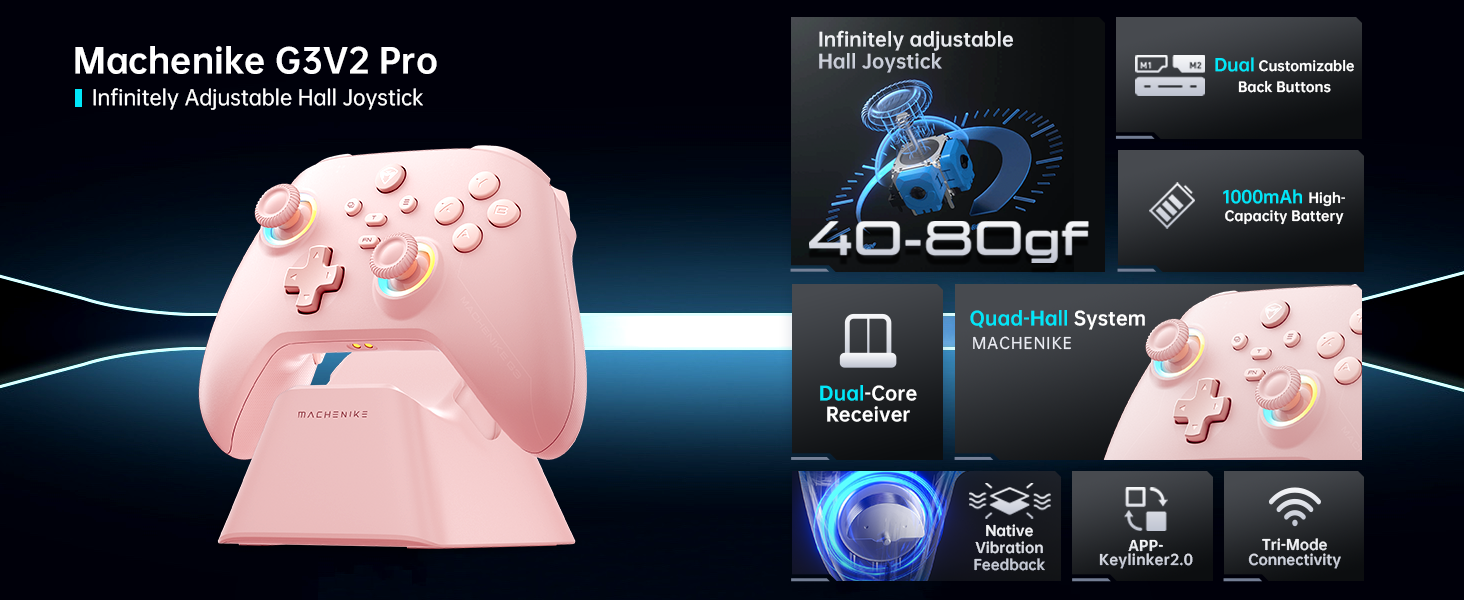
Resim: Bir overview of the Machenike G3V2 controller's key features, including its Hall Effect joysticks, customizable back buttons, and connectivity options.
3. Kurulum ve Bağlantı
3.1 Connecting to Nintendo Switch (Bluetooth Mode)
- Ensure your controller is charged.
- Denetleyicide, düğmesini basılı tutun Y + Home buttons simultaneously until the indicator light flashes rapidly, changing from slow to fast flashing. This puts the controller into Switch pairing mode.
- Nintendo Switch'inizde, Ana Menü'ye gidin.
- Select the 'Controllers' icon, then choose 'Change Grip/Order'.
- Wait for the controller to connect automatically. Once connected, the controller will vibrate, and its icon will appear on the Switch screen.
- Basın A Onaylamak için kontrol cihazındaki düğmeye basın.
- To toggle between Switch and Xbox button layouts (A/B, X/Y swap), press FN + A.
Video: A tutorial demonstrating how to connect the Machenike G3V2 controller to a Nintendo Switch console via Bluetooth mode, including button presses and on-screen confirmation.
3.2 Connecting to PC/iOS/Android (Bluetooth/Wired/2.4G)
The Machenike G3V2 controller supports multiple connection modes for various platforms:
- Bluetooth: For iOS, Android, and some PC setups. Activate Bluetooth on your device and search for 'Machenike G3V2' to pair.
- 2.4G Kablosuz: Use the included USB dongle for PC and other compatible devices. Plug the dongle into your device, then power on the controller.
- Kablolu: Connect the controller directly to your PC or compatible device using a USB-C cable.
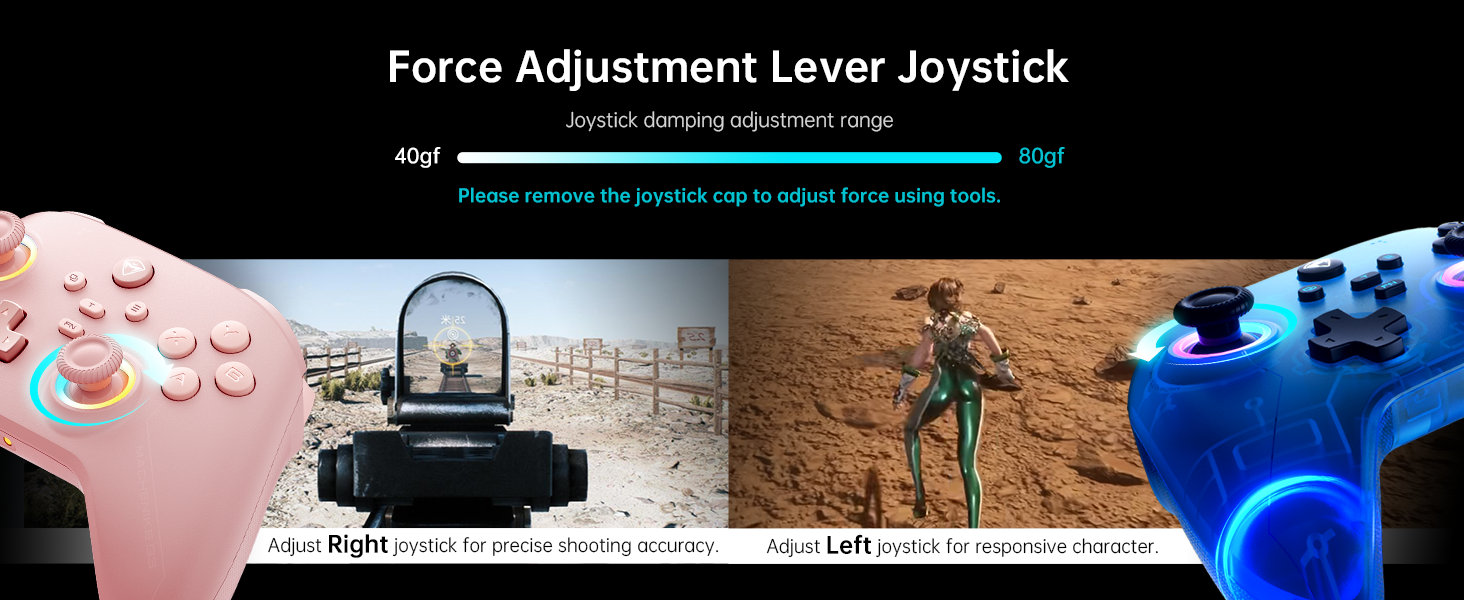
Image: The Machenike G3V2 controller highlighting its ergonomic design, anti-slip grip, and responsive triggers for comfortable and precise control.
4. Çalıştırma ve Özelleştirme
4.1 Programlanabilir Geri Düğmeleri (M1/M2)
The controller features two customizable back buttons (M1 and M2) that can be assigned to single keys or complex macros. This is particularly useful for games requiring quick actions or combos.
- To Assign a Single Key:
a. basın ve basılı tutun FN + M1 (or M2) simultaneously until the joystick light ring glows with a soft blue breathing effect, indicating recording mode.
b. Press the desired button you wish to assign (e.g., 'A' button).
c. Basın M1 (or M2) once to save the assignment. The light ring will flash three times, confirming successful saving. - To Clear an Assignment:
a. basın ve basılı tutun FN + M1 (or M2) simultaneously to enter recording mode.
b. Without pressing any other button, press M1 (or M2) again to save a blank input. The light ring will flash three times, clearing the previous assignment. - To Record a Macro (Multiple Keys):
a. basın ve basılı tutun FN + M1 (or M2) simultaneously to enter recording mode.
b. Press the sequence of keys you want to record (e.g., A, B, X, Y, RB, LB). The timing between key presses will be recorded.
c. Basın M1 (or M2) once to save the macro. The light ring will flash three times.
Video: A detailed guide on how to set up and record keystroke macros using the programmable back buttons (M1/M2) on the Machenike G3V2 controller.
4.2 Joystick ve Tetik Kalibrasyonu
Calibration helps maintain accuracy and prevent drift in joysticks and triggers. This can be done whether the controller is off or connected.
- Kumanda Kolu Kalibrasyonu:
A. tuşunu basılı tutun B + Back + Home buttons simultaneously until the blue LED starts flashing.
b. Move both joysticks in full circles (about three rotations) slowly and steadily.
c. tuşuna basın Başlangıç button to save. The controller will power off, indicating successful calibration. - Tetik Kalibrasyonu:
A. tuşunu basılı tutun Y + Back + Home buttons simultaneously until the red LED starts flashing.
b. Press both triggers normally all the way down three times. Ensure gentle but full pressure.
c. tuşuna basın Başlangıç button to save. The controller will power off, indicating successful calibration.
After calibration, reconnect the controller to your device to test the new settings. Always use normal, gentle pressure during calibration for accurate results.
Video: A guide on how to calibrate the joysticks and triggers of the Machenike G3V2 controller to ensure optimal performance and accuracy.
4.3 RGB Aydınlatma
The controller features dynamic RGB lighting around the joysticks. Specific controls for changing lighting modes or colors can often be found in the Keylinker 2.0 mobile application or through dedicated button combinations (refer to the app for advanced customization).
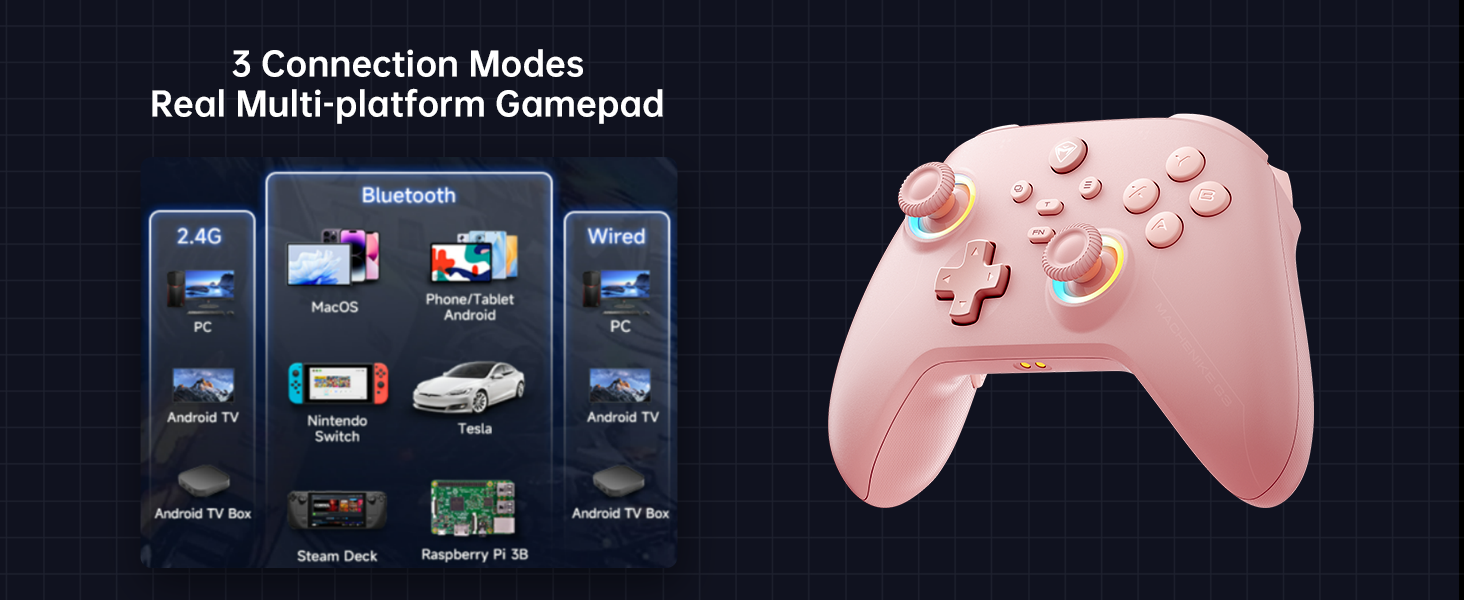
Image: The Machenike G3V2 controller illustrating its 4-level native vibration feedback, providing immersive experiences for various game genres.
5. Şarj Etme
The Machenike G3V2 controller comes with a 1000mAh high-capacity battery and a dedicated charging dock.
- Şarj İstasyonunun Kullanımı: Simply place the controller onto the dedicated charging dock. The built-in USB-C port on the dock facilitates quick recharging.
- Doğrudan USB-C Şarjı: You can also charge the controller directly using a USB-C cable connected to a power source.
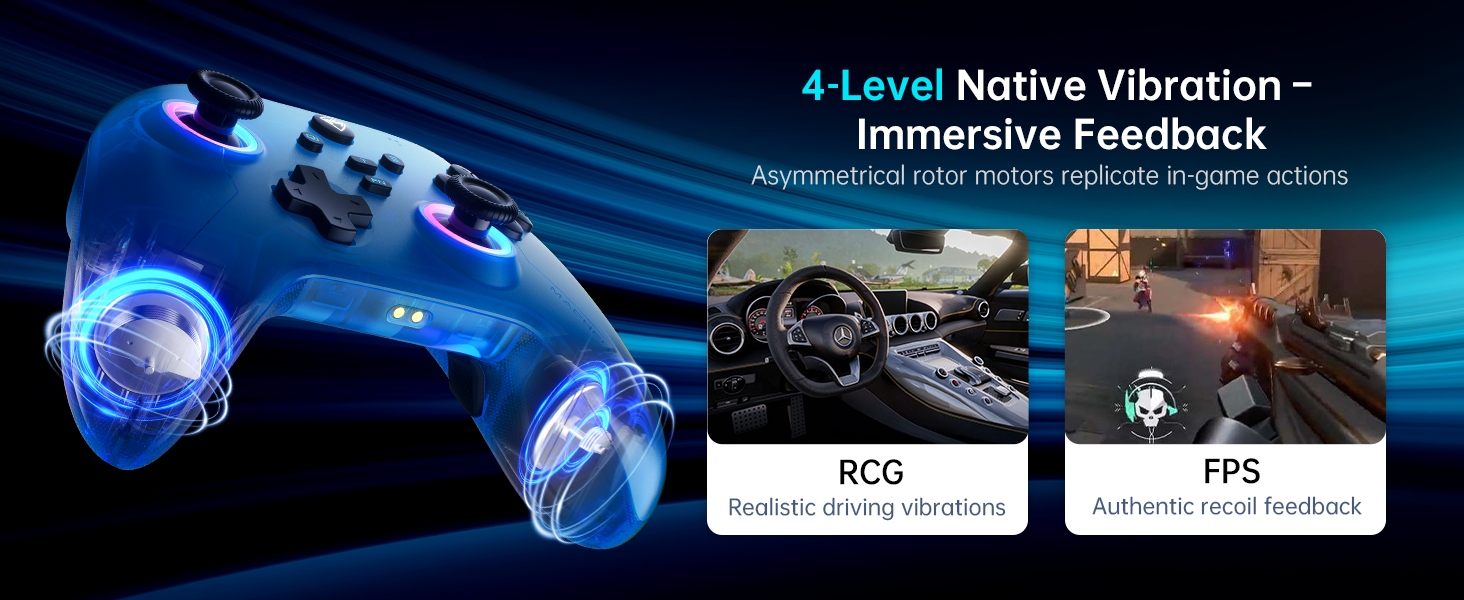
Image: The Machenike G3V2 controller resting on its dedicated charging dock, ready for an instant power boost.
6. Uyumluluk
- Desteklenen Platformlar: Nintendo Switch, Switch 2, iOS, Android, Windows PC.
- Şunlarla Uyumlu Değil: Xbox, PlayStation, or GeForce Now.
- For other game platforms not explicitly mentioned, please consult customer service before purchase.
7. Bakım
- Temizlik: Kumandayı temizlemek için yumuşak ve kuru bir bez kullanın. Sert kimyasallar veya aşındırıcı malzemeler kullanmaktan kaçının.
- Depolamak: Kontrol cihazını serin, kuru ve doğrudan güneş ışığından ve aşırı sıcaklıklardan uzak bir yerde saklayın.
- Pil Bakım: Pil ömrünü uzatmak için, kontrol cihazını sık sık tamamen boşaltmaktan kaçının. Uzun süre kullanılmasa bile düzenli olarak şarj edin.
8. Sorun Giderme
- Kontrol Cihazı Bağlanmıyor:
- Ensure the controller is fully charged.
- Verify the correct pairing mode is activated for your device (e.g., Y+Home for Switch).
- On your device, try forgetting the controller from Bluetooth settings and re-pairing.
- For PC, try connecting via the 2.4G dongle or wired connection. - Joystick Drift or Inaccuracy:
- Perform joystick calibration as described in Section 4.2. - Trigger Issues:
- Perform trigger calibration as described in Section 4.2. - Yanıt Vermeyen Düğmeler:
- Ensure the controller is properly connected.
- Check if any programmable back buttons (M1/M2) have unintended assignments (clear them if necessary).
- Reconnect the controller. - Şarj Sorunları:
- Ensure the charging dock or USB-C cable is properly connected.
- Try a different USB-C cable or power adapter.
9. Özellikler
| Özellik | Detay |
|---|---|
| Model Numarası | PE-Upgrade |
| ASIN | B0F93RPT5H |
| Üretici | Makineli tüfek |
| Ürün Ağırlığı | 0.529 ons |
| Paket Boyutları | 6.93 x 6.46 x 3.23 inç |
| Piller | 1 Lityum Polimer pil (dahil) |
| Bağlantı | Bluetooth, 2.4G Kablosuz, Kablolu (USB-C) |
| Anket Oranı | 1000Hz |
| Joystick'ler | Hall Effect, Adjustable Tension (40-80gf) |
| Tetikleyiciler | Hall Effect, 255 Levels, Millimeter Precision |
| Programlanabilir Düğmeler | 2 Back Buttons (M1, M2) |
| Titreşim | 4-Level Native Vibration Feedback |
10. Garanti ve Destek
Machenike products are designed for durability and performance. For warranty information, technical support, or service inquiries, please refer to the official Machenike webSite üzerinden satın alabilir veya doğrudan müşteri hizmetleriyle iletişime geçebilirsiniz. Garanti talepleriniz için satın alma fişinizi saklayın.
Çevrimiçi kaynaklar ve SSS'ler ayrıca şu adreste de bulunabilir: Machenike Store on Amazon.


