1. Giriş
Thank you for choosing the AOC Gaming 25G4SRE monitor. This manual provides essential information for setting up, operating, and maintaining your monitor. Please read it carefully before using the product to ensure proper functionality and safety. The AOC 25G4SRE is designed for competitive gaming, offering an ultra-fast 300 Hz refresh rate (overclockable to 310 Hz), a 1 ms GtG response time, and a fast IPS panel for smooth, tear-free visuals. With 0.3 ms MPRT, low input lag, and HDR10 support, every image is sharp and responsive. It features an eSports base, FlickerFree technology, and an integrated USB hub for seamless connectivity.
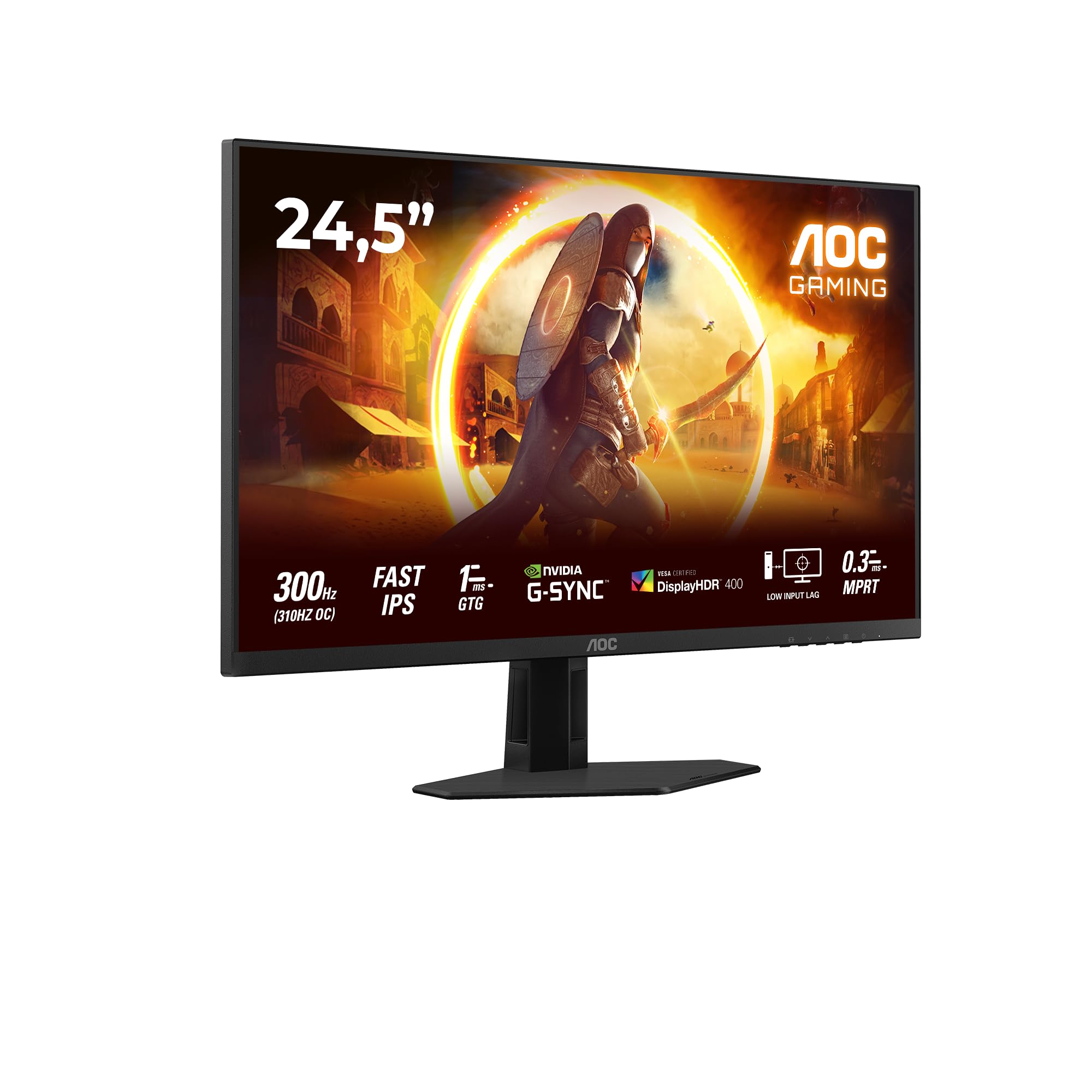
Şekil 1.1: Ön view of the AOC Gaming 25G4SRE monitor.
2. Güvenlik Bilgileri
Please observe the following safety precautions to prevent damage to the monitor and ensure your personal safety:
- Monitörü dengesiz bir araba, sehpa veya masa üzerine koymayın.
- Havalandırma açıklıklarını kapatmayın.
- Monitörü su yakınında kullanmayın.
- Güç kablosunun üzerine ağır nesneler koymayın.
- Yalnızca monitörle birlikte verilen güç adaptörünü kullanın.
- Unplug the monitor from the wall outlet if it will not be used for an extended period.
- Tüm bakımları yetkili servis personeline yaptırın.
3. Paket İçeriği
Verify that all items are present in your package. If any items are missing or damaged, contact your dealer immediately.
- AOC Gaming 25G4SRE Monitor
- Monitör Standı (Taban ve Boyun)
- Güç kablosu
- HDMI Kablosu
- DisplayPort Kablosu
- Hızlı Başlangıç Kılavuzu
4. Kurulum
4.1 Standın Montajı
- Çizilmeleri önlemek için monitörü dikkatlice yumuşak ve temiz bir yüzeye yüzü aşağı bakacak şekilde yerleştirin.
- Standın boyun kısmını monitör paneline takın.
- Verilen vidaları kullanarak stand tabanını boyun kısmına sabitleyin.
4.2 Monitörü Bağlama
Monitörü uygun kabloları kullanarak bilgisayarınıza ve güç kaynağınıza bağlayın.
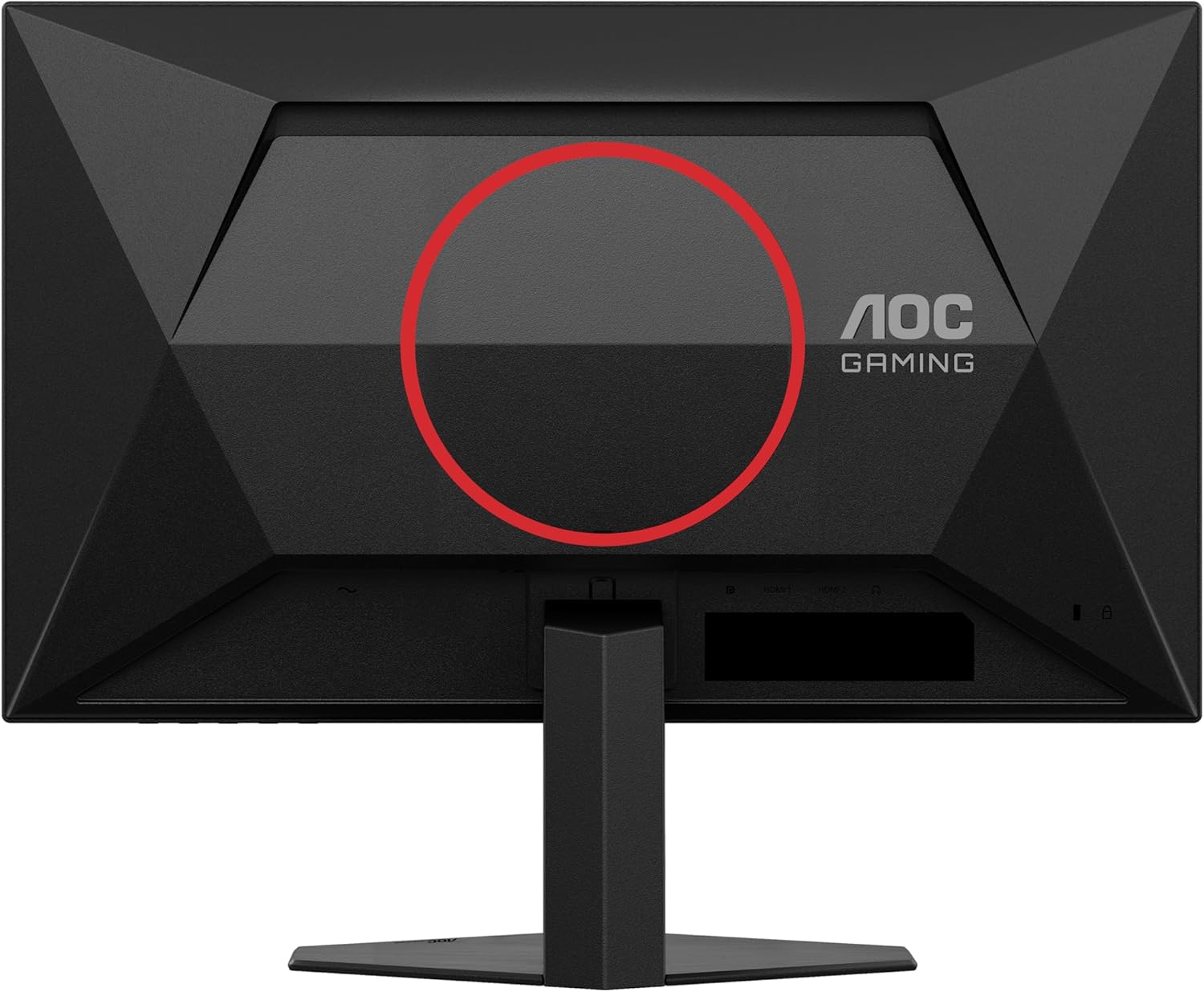
Şekil 4.1: Arka view of the monitor, showing the stand attachment area and port locations.

Figure 4.2: Diagram illustrating the HDMI, DisplayPort, and Headphone Out ports.
- Güç Bağlantısı: Güç kablosunu monitörün güç girişine ve ardından bir duvar prizine bağlayın.
- Video Bağlantısı:
- For optimal performance, use the DisplayPort cable to connect the monitor to your computer's graphics card.
- Alternatively, use an HDMI cable to connect to an HDMI port on your computer. The monitor supports 2 x HDMI 2.0 inputs.
- Ses Bağlantısı: Connect headphones or external speakers to the Headphone Out port if desired.
5. Monitörü Çalıştırma
5.1 Güç Açma/Kapatma
Monitörü açmak veya kapatmak için monitörün sağ alt köşesinde bulunan güç düğmesine basın.
5.2 Ekran Üstü Görüntüleme (OSD) Menüsü
Use the buttons on the bottom bezel of the monitor to navigate the OSD menu. The OSD allows you to adjust various settings such as brightness, contrast, color temperature, input source, and gaming features.

Şekil 5.1: Ör.ample of the On-Screen Display (OSD) menu for monitor settings.
5.3 Temel Özellikler ve Ayarlar
- High Refresh Rate (300Hz/310Hz OC): Experience ultra-smooth gameplay. Ensure your graphics card and connection cable (DisplayPort recommended) support this refresh rate. You can enable overclocking to 310Hz via the OSD menu.
- Hızlı IPS Panel: Enjoy wide viewing angles up to 178 degrees with consistent color and clarity from almost any perspective.
- NVIDIA G-Sync Uyumlu: Synchronizes the monitor's refresh rate with your NVIDIA GPU to eliminate screen tearing and stuttering for a fluid gaming experience. Enable this feature in your graphics card control panel.
- VESA Certified DisplayHDR 400: Provides enhanced dynamic range for improved colors and contrast, delivering a more vivid visual experience. Activate HDR in your operating system display settings.
- Düşük Giriş Gecikmesi: Minimizes the delay between your input devices and the display, ensuring quick response times in fast-paced games.
- Rapid Response Time (1ms GtG / 0.3ms MPRT): Reduces motion blur and ghosting for crystal-clear images during fast-moving scenes.
- Titreşimsiz Teknoloji: Uzun süreli kullanımda göz yorgunluğunu en aza indirmek için ekran titremesini azaltır.
- Düşük Mavi Işık Modu: Reduces harmful blue light emissions to decrease eye fatigue and improve viewing comfort. This can be enabled through the OSD menu.

Figure 5.2: Visual comparison demonstrating the fluidity of 300Hz refresh rate over 60Hz.

Figure 5.3: Illustration of wide viewing angles provided by the Fast IPS panel technology.

Figure 5.4: Visual representation of NVIDIA G-Sync compatibility for tear-free gaming.

Figure 5.5: Comparison showing the visual improvement with DisplayHDR 400 enabled.

Figure 5.6: Illustration demonstrating the benefit of low input lag for responsive gaming.

Figure 5.7: Visual comparison highlighting the difference between 0.3ms MPRT and 4ms response times.

Figure 5.8: Comparison showing the absence of flicker on a FlickerFree monitor versus a conventional one.
6. Bakım
6.1 Monitörün Temizlenmesi
- Temizlemeden önce mutlaka monitörün fişini çekin.
- Hafifçe yumuşak, tüy bırakmayan bir bez kullanın.ampSu veya yumuşak, aşındırıcı olmayan bir ekran temizleyicisi ile temizleyin.
- Do not use alcohol, ammonia, or abrasive cleaners, as they may damage the screen or casing.
- Çizilmeyi önlemek için ekranı nazikçe silin.
6.2 Genel Bakım
- Monitörü doğrudan güneş ışığına veya aşırı sıcaklıklara maruz bırakmaktan kaçının.
- Keep the monitor away from sources of heat and moisture.
- Monitörün veya kablolarının üzerine ağır nesneler koymayın.
7. Sorun Giderme
Monitörünüzde sorunlarla karşılaşırsanız, aşağıdaki yaygın sorunlara ve çözümlere bakın:
| Sorun | Olası Çözüm |
|---|---|
| Ekranda görüntü yok | Ensure the power cable is securely connected. Check if the video cable (HDMI/DisplayPort) is properly connected to both the monitor and the computer. Select the correct input source via the OSD menu. |
| Görüntü bulanık veya bozuk | Adjust the resolution and refresh rate settings on your computer to match the monitor's native resolution (1920x1080) and desired refresh rate. Check the video cable for damage. |
| Ekran titriyor | Ensure FlickerFree technology is enabled in the OSD. Check for loose cable connections. Update your graphics card drivers. |
| Kulaklıktan ses gelmiyor | Ensure headphones are fully plugged into the Headphone Out port. Check audio output settings on your computer. Adjust volume levels on both the monitor and computer. |
| G-Sync not working | Ensure you are using a DisplayPort cable. Verify G-Sync is enabled in the NVIDIA Control Panel. Update graphics card drivers. |
8. Özellikler
Detailed technical specifications for the AOC Gaming 25G4SRE monitor:
| Özellik | Detay |
|---|---|
| Marka | AOC |
| Model Numarası | 25G4SRE |
| Ekran Boyutu | 25 İnç (62.2 cm) |
| Çözünürlük | FHD 1080p (1920 x 1080) |
| En Boy Oranı | 16:9 |
| Yenileme Hızı | 300 Hz (310 Hz Overclock) |
| Tepki Süresi | 1 ms GtG, 0.3 ms MPRT |
| Panel Tipi | Neredeyse IPS |
| HDR Desteği | VESA Sertifikalı DisplayHDR 400 |
| Uyarlanabilir Senkronizasyon | NVIDIA G-Sync Uyumlu |
| Bağlantı | 2 x HDMI 2.0, 1 x DisplayPort 1.4, Headphone Out |
| Özel Özellikler | Frameless, FlickerFree, Low Blue Light, Low Input Lag |
| Ürün Boyutları | 19.4D x 56G x 43.8Y cm |
| Üretici | AOC Uluslararası |
| Menşei ülke | Çin |
For more detailed product information, please refer to the official product information sheet:

Figure 8.1: Product Information Sheet (English) for AOC 25G4SRE.
You can also find the EPREL registration details Burada.
9. Garanti ve Destek
AOC International provides comprehensive support for your monitor.
9.1 Garanti Bilgileri
- Minimum Guarantee Offered by Supplier: 3 Yıl
- Yedek Parçaların Minimum Garanti Edilen Bulunabilirliği: 7 Yıl
- Minimum Garantili Ürün Desteği: 8 Yıl
Garanti talepleri için lütfen satın alma belgenizi saklayın.
9.2 Müşteri Desteği
For technical assistance, warranty inquiries, or other support needs, please contact AOC Customer Service:
- Webalan: https://eu.aoc.com
- E-posta: kevin.yang@tpv-tech.com
- Telefon: +31 (0)20 504 6962


