1. Ürün Bittiview
The Amazon Basics Multi-Touch Trackpad is a wireless input device designed for Windows PCs, offering enhanced navigation and control through multi-touch gestures. It features dual device connectivity and a rechargeable battery for convenience.
Temel Özellikler:
- Çoklu Dokunmatik Hareketler: Supports up to four-finger gestures for intuitive control.
- Çift Cihaz Kontrolü: Connects to two devices via Bluetooth with easy switching.
- Integrated Buttons: Built-in left and right mouse button functionality.
- İnce Tasarım: Portable and sleek with colored indicator lights for enhanced functionality.
- Şarj Edilebilir Pil: Equipped with a lithium battery, rechargeable via USB-C.
- Uyumluluk: Designed for Windows OS. Not compatible with macOS, Chrome OS, or Linux.

Resim 1.1: Üst view of the Amazon Basics Multi-Touch Trackpad.
2. Kurulum ve Kurulum
2.1 Paket İçeriği
Tüm öğelerin mevcut olduğundan emin olun:
- Amazon Basics Multi-Touch Trackpad
- USB-C Şarj Kablosu
- Kullanım Kılavuzu (bu belge)
2.2 Charging the Trackpad
- Locate the USB-C port on the trackpad.
- Connect the provided USB-C cable to the trackpad and the other end to a USB power source (e.g., computer USB port, USB wall adapter).
- The indicator light will show charging status. A full charge typically takes [X] hours (Note: Specific charging time not provided in source data, user should refer to product packaging or quick start guide for exact duration).
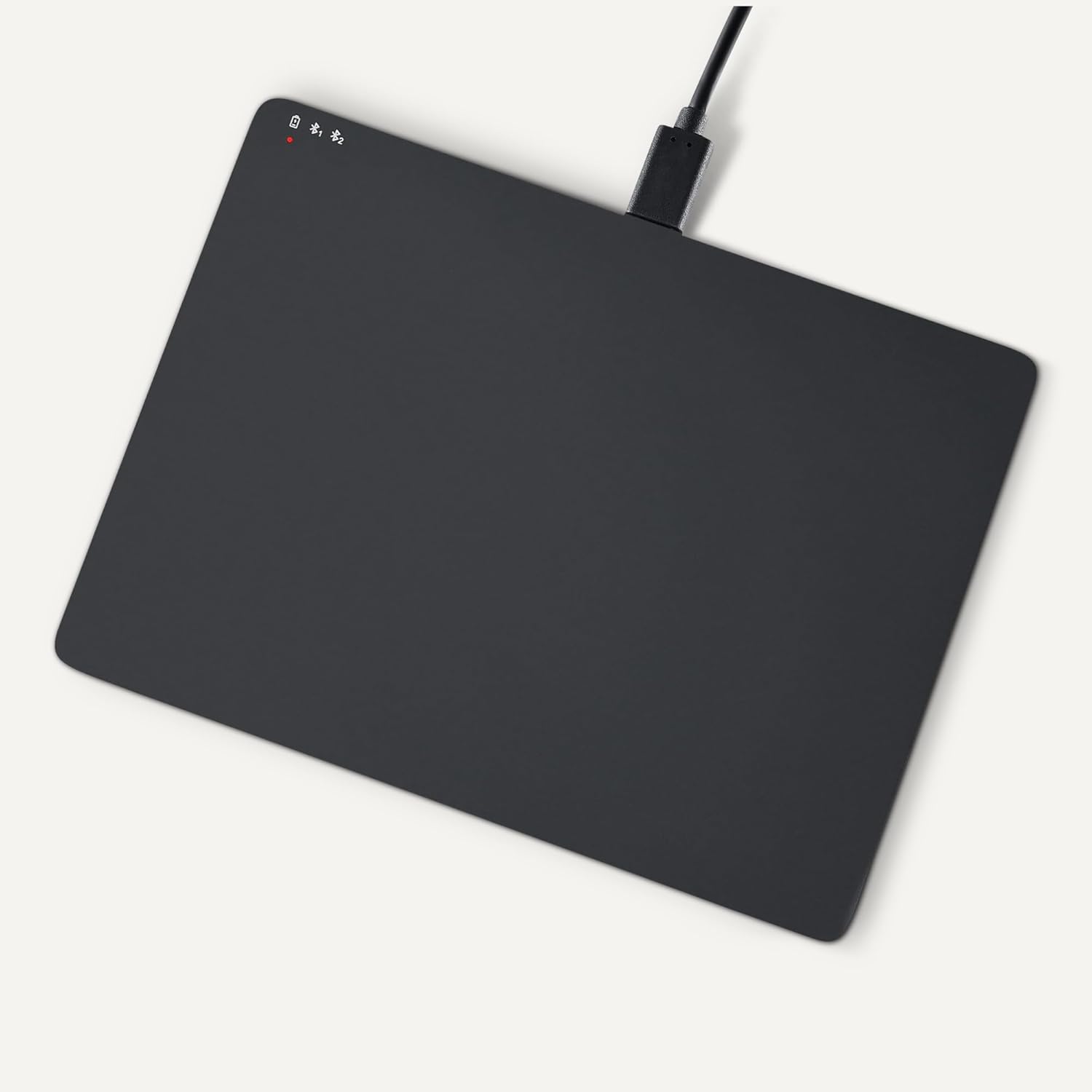
Image 2.1: Trackpad connected for charging via USB-C.
2.3 Açma/Kapatma
Locate the power switch on the side of the trackpad. Slide it to the "ON" position to power on, and "OFF" to power off.

Resim 2.2: Yan view illustrating the power switch and USB-C port.
2.4 Bluetooth Eşleştirme
- Ensure the trackpad is powered on.
- Windows PC'nizde şuraya gidin: Ayarlar > Cihazlar > Bluetooth ve diğer cihazlar.
- Turn on Bluetooth and click "Add Bluetooth or other device".
- Select "Bluetooth" from the options.
- The trackpad should appear in the list of available devices (e.g., "Amazon Basics Trackpad"). Select it to pair.
- Follow any on-screen prompts to complete the pairing process. The indicator light on the trackpad will confirm successful connection.
3. Operating the Trackpad
3.1 Temel Gezinme
- İmleci Taşı: Slide one finger across the trackpad surface.
- Sol tık: Press down on the lower-left area of the trackpad or tap with one finger.
- Sağ tık: Press down on the lower-right area of the trackpad or tap with two fingers (if configured in Windows settings).
3.2 Multi-Touch Gestures (Windows OS)
The trackpad supports various multi-touch gestures for enhanced productivity. These gestures are typically configured within Windows settings (Settings > Devices > Touchpad).
- Taslak: Place two fingers on the trackpad and slide them up or down to scroll vertically, or left or right to scroll horizontally.
- Yakınlaştır/Uzaklaştır: Place two fingers on the trackpad and pinch them together to zoom out, or spread them apart to zoom in.
- Show All Open Windows (Task View): Swipe three fingers upwards.
- Masaüstünü göster: Swipe three fingers downwards.
- Switch Between Open Windows: Swipe three fingers left or right.
- Açık eylem Merkezi: Tap with four fingers.
- Masaüstü Bilgisayarları Değiştir: Swipe four fingers left or right.
Note: Gesture functionality may vary based on your Windows version and specific settings. Refer to your Windows documentation for detailed customization options.
3.3 Dual Device Control
The trackpad can be paired with two different devices. To switch between connected devices:
- Ensure both devices are paired with the trackpad.
- Press the mode switch button located on the trackpad (refer to Image 2.2 for location).
- The indicator light will change to show which device is currently active.
4. Bakım ve Özen
- Temizlik: Use a soft, dry, lint-free cloth to clean the trackpad surface. For stubborn marks, slightly dampBezi suyla yıkayın. Sert kimyasallardan veya aşındırıcı malzemelerden kaçının.
- Depolamak: When not in use for extended periods, power off the trackpad to conserve battery life. Store in a cool, dry place.
- Pil Bakım: To prolong battery life, avoid fully discharging the trackpad frequently. Recharge when the low battery indicator appears.
- Sıvılardan Kaçının: Keep the trackpad away from liquids and excessive moisture.
5. Sorun Giderme
| Sorun | Olası Neden | Çözüm |
|---|---|---|
| Trackpad does not power on. | Pil boşalmış. | Charge the trackpad using the provided USB-C cable. |
| Trackpad does not connect via Bluetooth. |
|
|
| Gestures are not working or inconsistent. |
|
|
| Trackpad is unresponsive. |
|
|
Bu çözümleri denedikten sonra sorun devam ederse, lütfen Garanti ve Destek bölümüne bakın.
6. Özellikler
| Özellik | Detay |
|---|---|
| Marka | Amazon Temelleri |
| Model Numarası | TK053 |
| Bağlantı | Bluetooth |
| Boyutlar (UxGxY) | 6.39 x 4.78 x 0.42 inç |
| Ürün Ağırlığı | 9.2 ons (261.2 Gram) |
| Renk | Siyah |
| Pil | 1 Lityum İyon pil (dahil) |
| Şarj Portu | USB-C |
| Uyumluluk | Windows OS (Not compatible with macOS, Chrome OS, or Linux) |
| UPC | 840324434217 |
7. Garanti ve Destek
Garanti bilgileri ve müşteri desteği için lütfen resmi Amazon Basics sayfasına bakın. website or the documentation included with your purchase. You can typically find support resources, FAQs, and contact information on the product's dedicated page on Amazon.com.
Çevrimiçi destek: Amazon Basics Mağazasını ziyaret edin


