giriiş
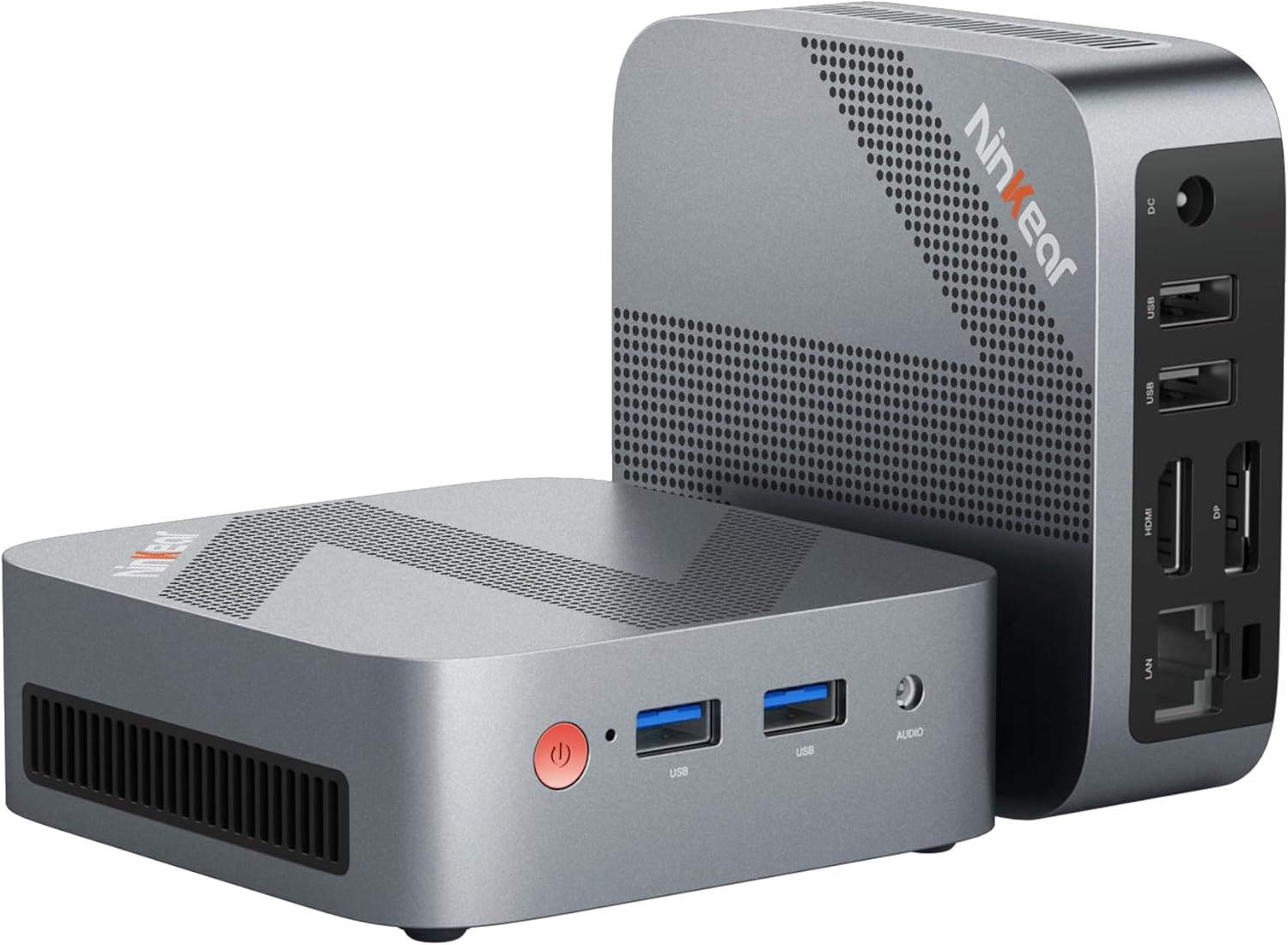
Figure 0.1: Ninkear Mini PC W-11. This compact and powerful mini PC is designed for various computing needs, from office work to multimedia entertainment.
This comprehensive user manual provides detailed instructions for the Ninkear Mini PC W-11 (MBOX 11 Mini PC). It covers initial setup, daily operation, maintenance, troubleshooting common issues, and full technical specifications. Please read this manual carefully to ensure proper use and to maximize the performance and longevity of your Ninkear Mini PC for office, home, and multimedia applications.
1. Kurulum
1.1 Kutudan Çıkarma ve Paket İçeriği
Carefully unpack all components from the box. Ensure all items listed below are present. If any item is missing or damaged, please contact customer support.

Figure 1.1: Package Contents. The box includes the Ninkear Mini PC, a user manual, a charging cable, an HDMI cable, and a fixed bracket for mounting.
- Ninkear Mini PC (MBOX 11)
- Kullanıcı Kılavuzu
- Güç Adaptörü/Şarj Kablosu
- HDMI Kablosu
- Fixed Bracket (for VESA mounting)
1.2 Fiziksel Bağlantılar
Before powering on, connect all necessary peripherals to the Mini PC. Refer to the diagrams below for port identification.

Figure 1.2: Front and Rear Ports of the Ninkear Mini PC. The front features USB 3.0 ports and an audio jack, while the rear includes LAN, HDMI, DisplayPort, USB 2.0, and DC power input.

Figure 1.3: Multi-purpose Port Diagram. This diagram illustrates the layout and function of each port on the Ninkear Mini PC, including power, USB 3.0, headphone/MIC jack on the front, and RJ45, DP, HDMI, USB 2.0, and DC on the back.
- Ekrana Bağlan: Use the provided HDMI cable to connect the Mini PC's HDMI port to your monitor or TV. The device also supports DisplayPort (DP) for alternative display connections.
- Çevre Birimlerini Bağlayın:
- Klavye ve Fare: Connect your USB keyboard and mouse to the available USB 3.0 ports on the front or USB 2.0 ports on the rear.
- Ses: Connect headphones or speakers to the 3.5mm audio jack on the front.
- Ağ: For a wired connection, connect an Ethernet cable to the RJ45 LAN port on the rear.
- Güç Bağlantısı: Connect the power adapter to the DC input port on the rear of the Mini PC, then plug the adapter into a power outlet.
1.3 İlk Önyükleme ve İlk Yapılandırma
Once all connections are secure, press the power button on the front of the Mini PC. The device comes with Windows 11 pre-installed and ready for immediate use. Follow the on-screen prompts to complete the initial Windows setup, including language, region, network connection, and user account creation.
2. Çalıştırma
2.1 Temel İşlemler
- Güç Açık: Cihazın önündeki güç düğmesine basın.
- Kapat: From the Windows operating system, click the Start button, then select Power > Shut down. Alternatively, you can press and hold the power button for a few seconds to force a shutdown (not recommended for regular use).
- Tekrar başlat: From the Windows operating system, click the Start button, then select Power > Restart.
2.2 Çift Ekran Kurulumu
The Ninkear Mini PC supports dual 4K@60Hz display output via its HDMI 2.0 and DisplayPort (DP) interfaces, allowing for enhanced multitasking and productivity.

Figure 2.1: 4K Dual Display Setup. The Mini PC can connect to two monitors simultaneously via HDMI and DisplayPort, supporting 4K resolution at 60Hz for an extended desktop experience.
- Ana monitörünüzü HDMI bağlantı noktasına bağlayın.
- Connect your secondary monitor to the DisplayPort (DP).
- Once both monitors are connected and powered on, Windows should automatically detect them.
- To configure display settings (extend, duplicate, or show only on one screen), right-click on the desktop, select "Display settings," and adjust as needed.
2.3 Connectivity (Wi-Fi, Bluetooth, Ethernet)
The Mini PC offers versatile connectivity options for your network and wireless devices.

Figure 2.2: Multiple Connection Options. The Mini PC supports high-speed Ethernet (RJ45-1000M), WiFi 2.4/5.0 GHz, and Bluetooth 5.0 for comprehensive connectivity.
- Wifi: The Mini PC supports Wi-Fi 5 (802.11ac) for fast wireless internet access. To connect, click the Wi-Fi icon in the system tray, select your network, enter the password, and click Connect.
- Bluetooth: With Bluetooth 5.0, you can connect wireless peripherals suchs as keyboards, mice, headphones, and speakers. Go to Windows Settings > Bluetooth & devices to pair new devices.
- Ethernet: For a stable and high-speed wired network connection, plug an Ethernet cable into the RJ45 port. The Mini PC supports Gigabit Ethernet (1000M).
2.4 Depolama Genişletmesi
The Ninkear Mini PC comes with a 512 GB M.2 SSD. For additional storage, you can upgrade the M.2 NVMe PCIe3.0 SSD or M.2 SATA SSD up to 2 TB.

Figure 2.3: Efficient and High-Capacity Storage. The Mini PC features 16GB DDR4 RAM and a 512GB M.2 SSD, with the SSD being upgradeable up to 2TB.
Consult a qualified technician or refer to detailed upgrade guides if you plan to expand the internal storage to avoid damaging the device.
3. Bakım
3.1 Temizlik
To maintain optimal performance and extend the lifespan of your Mini PC, regular cleaning is recommended.
- Dış: Use a soft, dry, lint-free cloth to wipe the exterior surfaces. For stubborn smudges, slightly dampBezi suyla veya yumuşak, aşındırıcı olmayan bir temizleyiciyle silin.
- Limanlar: Use compressed air to gently clear dust from the USB, HDMI, DP, and other ports. Avoid inserting any objects into the ports.
- Havalandırma: Ensure the ventilation holes are clear of dust and obstructions to allow for proper airflow and cooling.
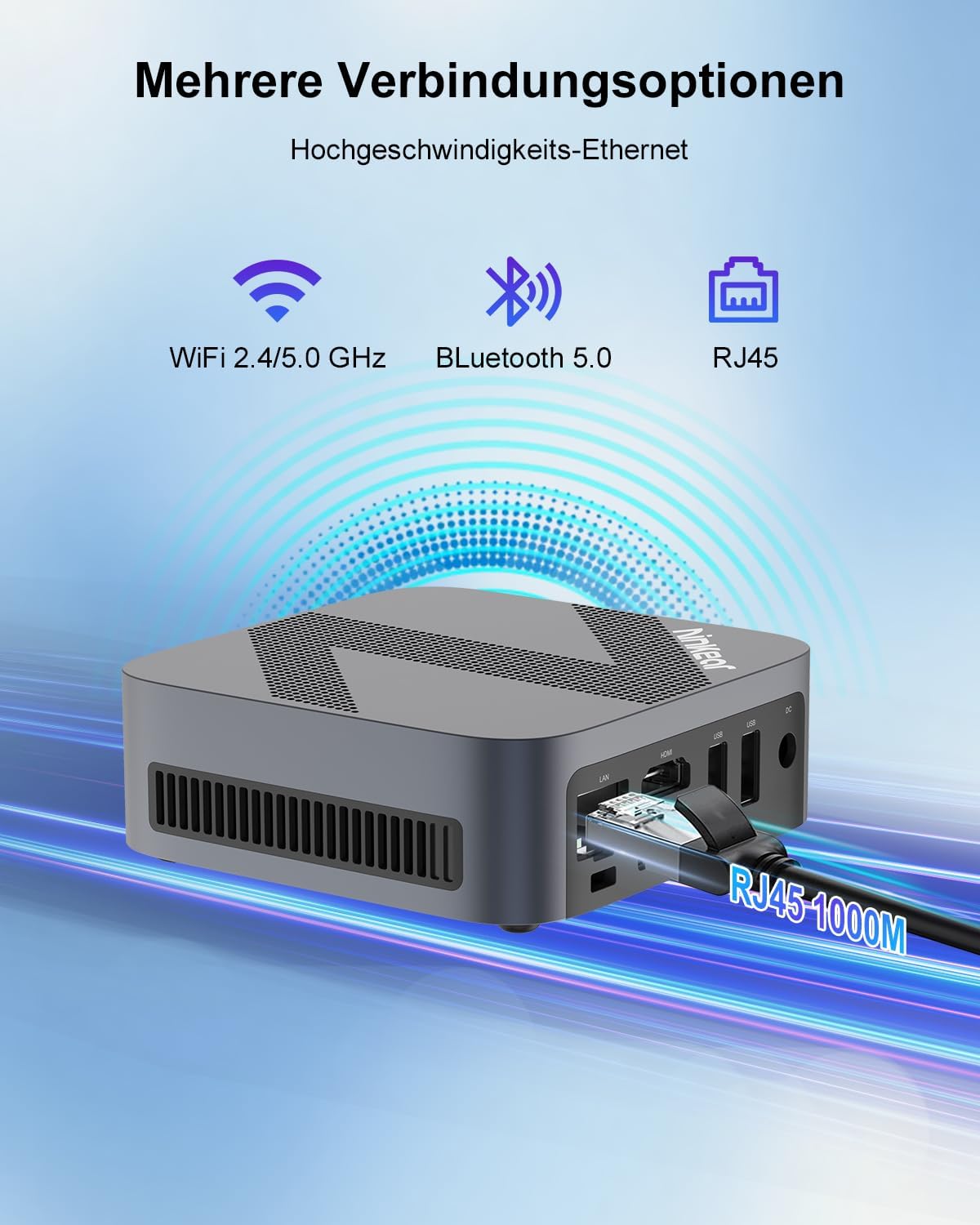
Figure 3.1: Powerful Cooling System. The Mini PC utilizes a copper pipe and aluminum heatsink design for efficient heat dissipation, ensuring quiet operation and low power consumption.
3.2 Yazılım Güncellemeleri
Sistem kararlılığını, güvenliğini ve en iyi performansı sağlamak için işletim sisteminizi ve sürücülerinizi düzenli olarak güncelleyin.
- Windows Güncellemeleri: Go to Windows Settings > Windows Update and check for available updates.
- Sürücü Güncellemeleri: While Windows Update often handles driver updates, you may occasionally need to check the Ninkear official website for the latest drivers for specific components if you encounter issues.
3.3 Depolama Yönetimi
To maintain the health and performance of your SSD, avoid filling it to full capacity. Periodically clean up unnecessary files ve uygulamaları.
- Disk Temizleme: Geçici dosyaları kaldırmak için Windows'un yerleşik Disk Temizleme aracını kullanın. files and other non-essential data.
- Uninstall Programs: Remove programs you no longer use from Windows Settings > Apps > Installed apps.
4. Sorun Giderme
This section addresses common issues you might encounter with your Ninkear Mini PC. If the problem persists, please refer to the Warranty and Support section.
4.1 Güç Yok
- Güç Bağlantısını Kontrol Edin: Güç adaptörünün hem Mini PC'ye hem de çalışan bir elektrik prizine güvenli bir şekilde bağlandığından emin olun.
- Test Çıkışı: Try plugging another device into the same power outlet to confirm it is functional.
- Güç Düğmesi: Ensure you are pressing the power button firmly.
4.2 Görüntü Çıkışı Yok
- Kablo bağlantısı: Verify that the HDMI or DisplayPort cable is securely connected to both the Mini PC and the monitor.
- Monitör Girişi: Ensure your monitor is set to the correct input source (e.g., HDMI 1, DP).
- Başka bir ekran/kablo ile test edin: If possible, try connecting the Mini PC to a different monitor or using a different HDMI/DP cable to rule out display or cable issues.
- Tekrar başlat: Power cycle the Mini PC and the monitor.
4.3 Wi-Fi veya Bluetooth Bağlantı Sorunları
- Enable Wi-Fi/Bluetooth: Windows ayarlarında Wi-Fi ve Bluetooth'un etkin olduğundan emin olun.
- Sürücü Kontrolü: Verify that the Wi-Fi and Bluetooth drivers are installed and up to date in Device Manager.
- Router/Device Proximity: Move closer to your Wi-Fi router or Bluetooth device.
- Restart Router/Mini PC: Restart your Wi-Fi router and the Mini PC.
4.4 System Performance Issues (Slowdown, Lag)
- Kullanılmayan Uygulamaları Kapat: Arka planda çalışan ve kullanılmayan tüm uygulamaları kapatın.
- Görev Yöneticisini kontrol edin: Open Task Manager (Ctrl+Shift+Esc) to identify processes consuming high CPU, RAM, or disk resources.
- Disk Alanı: SSD'de yeterli boş alan olduğundan emin olun.
- Kötü Amaçlı Yazılım Taraması: Run a full system scan with antivirus software.
- Soğutma: Mini PC'nin yeterli havalandırmaya sahip olduğundan ve aşırı ısınmadığından emin olun.
5. Özellikler
Below are the detailed technical specifications for the Ninkear Mini PC W-11 (MBOX 11 Mini PC).
| Özellik | Şartname |
|---|---|
| Marka | Ninkear |
| Model/Seri | MBOX 11 |
| Model Numarası | MBOX 11 Mini PC |
| Renk | Gri |
| Ürün Boyutları | 9.9x9.9x3.3 cm |
| Ürün Ağırlığı | 240 gr |
| İşlemci Markası | Akıllı |
| İşlemci Türü | Celeron N150 (4 Cores, 4 Threads) |
| İşlemci Hızı | 3.6 GHz'e kadar |
| RAM Boyutu | 16 GB |
| Bellek Teknolojisi | DDR4, SO-DIMM |
| Max Supported Storage | 2 TB (M.2 NVMe PCIe3.0 SSD or M.2 SATA SSD) |
| Hard Drive Size (Included) | 512 GB |
| Sabit Disk Teknolojisi | SSD |
| Grafik Eş İşlemcisi | Intel UHD Grafikler |
| Grafik Arayüzü | Entegre |
| Bağlantı Türü | Bluetooth 5.0, Wi-Fi 5 (WLAN) |
| HDMI Arayüzleri | 1 (HDMI 2.0) |
| DisplayPort Interfaces | 1 |
| USB Bağlantı Noktaları | 2x USB 3.0 (ön), 2x USB 2.0 (arka) |
| Ethernet | RJ45 (Gigabit) |
| Ses Jakı | 1x 3.5mm Headphone/MIC Jack |
| İşletim Sistemi | Windows 11 (W11 OS) |
| Batteries (Internal) | 1 C Battery required (included) |
| Lityum Pil Kapasitesi | 6 Watt-saat |
| Lityum Pil Ağırlığı | 10 gram |
| Number of Lithium-Ion Cells | 1 |
Not: Teknik özellikler önceden haber verilmeksizin değiştirilebilir.
6. Garanti ve Destek
Ninkear is committed to providing high-quality products and excellent customer service.
6.1 Garanti Bilgileri
If you purchase the product and experience a failure due to product defects within 1 year, please contact Ninkear customer support. You will need to provide your order number, a video or photo of the defect, and a detailed description of the issue.
6.2 Müşteri Desteği
For any questions, technical assistance, or warranty claims, please contact the Ninkear Official Store or the designated customer service center. They will guide you through the repair process or provide further assistance.
Daha fazla bilgi için şu adresi ziyaret edin: Ninkear Store on Amazon.


