1. Giriş
Thank you for choosing the EvoFox Deathray v2 Pro Gaming Keyboard. This manual provides detailed instructions for setting up, operating, and maintaining your new gaming keyboard. Please read this manual carefully to ensure optimal performance and longevity of your device.
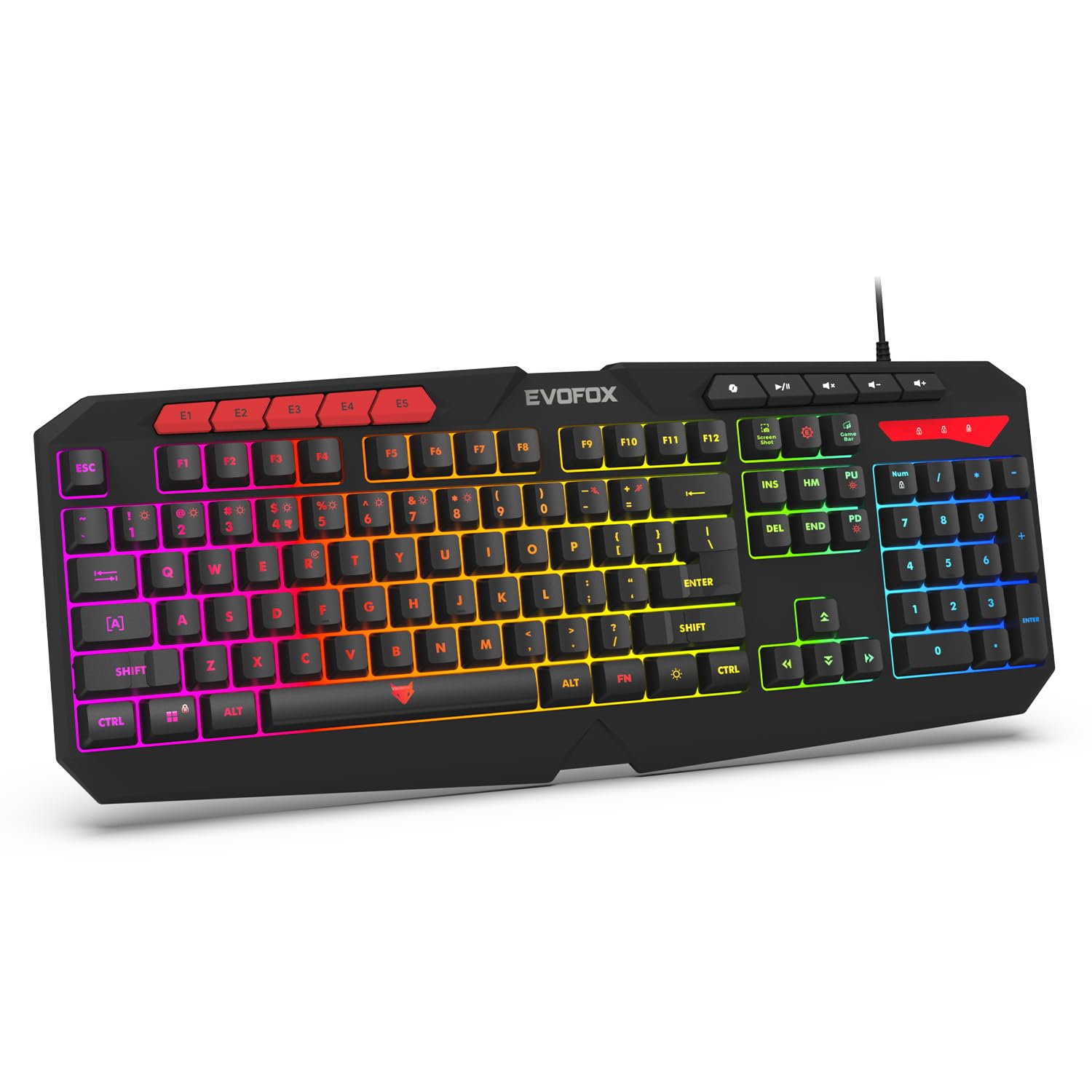
Image 1.1: EvoFox Deathray v2 Pro Gaming Keyboard overview.
2. Paket İçeriği
- EvoFox Deathray v2 Pro Gaming Keyboard
- Kullanıcı Kılavuzu
3. Kurulum Talimatları
3.1 Klavyenin Bağlanması
- Unpack the EvoFox Deathray v2 Pro Gaming Keyboard from its packaging.
- Bilgisayarınızda (PC veya Dizüstü) kullanılabilir bir USB portu bulun.
- Klavyenin USB konektörünü USB bağlantı noktasına takın.
- The keyboard will automatically install the necessary drivers. This process may take a few moments.
- Once installed, the RGB backlighting will illuminate, indicating the keyboard is ready for use.
The keyboard features a durable 1.8m braided cable for reliable connectivity.

Image 3.1: Keyboard with durable braided cable and soft membrane keys.
4. Kullanım Talimatları
4.1 RGB Arka Aydınlatma Özelleştirmesi
The EvoFox Deathray v2 Pro features 6-zone customizable RGB backlighting with 8 dynamic lighting modes. You can personalize your gaming setup for an immersive experience.
- Aydınlatma Modlarını Değiştirme: Use the dedicated lighting control keys (often indicated by a sun or lightbulb icon, or through a combination with the Fn key) to cycle through the 8 available dynamic lighting modes.
- Özel Aydınlatma: Refer to the keyboard's software (if available, check the official EvoFox website) for advanced custom lighting profiles and per-key RGB customization.

Resim 4.1: Klavye gösterimiasing 6-zone RGB backlighting with 7 lighting presets and 1 custom lighting option.

Image 4.2: Comparison illustrating the difference between RGB lighting with full color customization per zone and standard rainbow lighting with fixed color zones.
4.2 Programlanabilir Makro Tuşu
The keyboard includes 5 programmable macro keys (E1-E5) to streamline your gameplay with customizable macros for lightning-fast responses. These keys allow you to record and assign complex sequences of commands to a single key press.
- Makro Kaydı: Typically, macro recording is initiated by a dedicated macro recording key (often labeled 'MR' or similar, or accessed via Fn key combination). Follow the on-screen prompts or software instructions to record your desired key sequence.
- Assigning Macros: Once recorded, assign the macro to one of the programmable macro keys (E1-E5) using the keyboard's software.

Image 4.3: Highlight of the 5 programmable macro keys (E1-E5) for executing complex commands.
4.3 Özel Fonksiyon Tuşları
Access essential tools quickly with dedicated shortcuts for Screenshot, Macro Recording, and Xbox Game Bar. These functions are typically accessed via specific keys or Fn key combinations.
- Screenshot Key: Captures a screenshot of your display.
- Macro Recording Key: Initiates macro recording.
- Xbox Game Bar Key: Opens the Xbox Game Bar interface for gaming features.
- Yardımcı Pilot Anahtarı: Activates the Copilot feature (if supported by your operating system).

Image 4.4: Illustration of special function keys for Screenshot, Macro Recording, Xbox Game Bar, and Copilot.
4.4 Hayalet Tuş Engelleme
The keyboard features 19 anti-ghosting keys, ensuring flawless input during high-stakes moments. This technology allows multiple key presses to be registered simultaneously and accurately, preventing missed commands.

Image 4.5: Keyboard layout highlighting the 19 anti-ghosting keys for precise, uninterrupted gameplay.
4.5 Ergonomic Full-Size Layout
Designed for comfort during extended gaming sessions, the keyboard features an ergonomic full-size layout with soft and silent membrane keys. This design aims to provide precision without sacrificing ease of use.
5. Bakım
5.1 Klavyeyi Temizleme
- Temizlemeden önce klavyeyi bilgisayarınızdan ayırın.
- Yumuşak, tiftiksiz bir bez kullanın ve hafifçe kurulayın.ampKlavyenin yüzeyini silmek için su veya hafif bir temizleme solüsyonu kullanın.
- Tuşlar arasındaki toz ve pislikleri temizlemek için basınçlı hava kullanın.
- Klavye yüzeyine ve tuş üzerindeki yazılara zarar verebileceğinden, sert kimyasallar, aşındırıcı temizleyiciler veya çözücüler kullanmaktan kaçının.
- Klavyeyi bilgisayarınıza tekrar bağlamadan önce tamamen kuru olduğundan emin olun.
6. Sorun Giderme
6.1 Klavye Yanıt Vermiyor
- USB Bağlantısını Kontrol Edin: USB kablosunun bilgisayarınızdaki çalışan bir USB bağlantı noktasına güvenli bir şekilde takılı olduğundan emin olun. Farklı bir USB bağlantı noktası deneyin.
- Bilgisayarı yeniden başlat: Bazen basit bir yeniden başlatma bağlantı sorunlarını çözebilir.
- Sürücü Yeniden Yükleme: If the issue persists, try uninstalling the keyboard drivers from your computer's Device Manager and then reconnecting the keyboard to allow for automatic reinstallation.
6.2 RGB Arka Aydınlatma Çalışmıyor
- Parlaklık Ayarlarını Kontrol Edin: Ensure the brightness level is not set to minimum or off. Use the dedicated lighting control keys to adjust brightness.
- Döngü Modları: Cycle through different RGB modes to see if any mode activates.
- Yazılım Kontrolü: Özel bir profesyonel kullanıyorsanızfiles, ensure the keyboard software is running and configured correctly.
6.3 Makro Tuşları Çalışmıyor
- Yazılım Yapılandırması: Verify that macros are correctly recorded and assigned to the desired keys within the keyboard's software.
- Çalışmakta Olan Yazılım: Ensure the keyboard's macro software (if applicable) is running in the background.
7. Özellikler
| Özellik | Şartname |
|---|---|
| Marka | EvoFox |
| Örnek | 498 |
| Ürün Boyutları | 44.7x17.2x2.6 cm |
| Ürün Ağırlığı | 565 gr |
| Donanım Platformu | Pencereler |
| Uyumlu Cihazlar | Dizüstü Bilgisayar |
| Özel Özellikler | Compact Design, Silent Membrane Keyboard, True Prims RGB |
| Klavye Açıklaması | Oyun |
| Bağlayıcı Türü | USB |
| Malzeme | ABS Plastik |
| Menşei ülke | Çin |
8. Garanti ve Destek
8.1 Garanti Bilgileri
The EvoFox Deathray v2 Pro Gaming Keyboard typically comes with a 1 yıllık sınırlı garanti Satın alma tarihinden itibaren geçerlidir. Bu garanti, üretim hatalarını kapsar ve ürünün normal kullanımda tasarlandığı gibi çalışmasını sağlar. Garanti talepleriniz için lütfen satın alma belgenizi saklayın.
8.2 Müşteri Desteği
For technical assistance, warranty claims, or any product-related inquiries, please contact EvoFox customer support through their official website or the contact information provided with your product packaging. You may also refer to the Amkette helpline mentioned in some product documentation.


