giriiş
This manual provides essential information for the setup, operation, maintenance, and troubleshooting of your Onn 22 inch 1080P 100 Hz FHD LED Monitor. Please read this guide thoroughly before using the product to ensure optimal performance and safety.
The Onn 22 inch FHD LED Monitor is designed for a variety of applications, offering a vivid 1920x1080 resolution, a 100Hz refresh rate, and a 6.5ms response time for efficient performance. Its slim profile and T-shaped base are ideal for saving desk space.
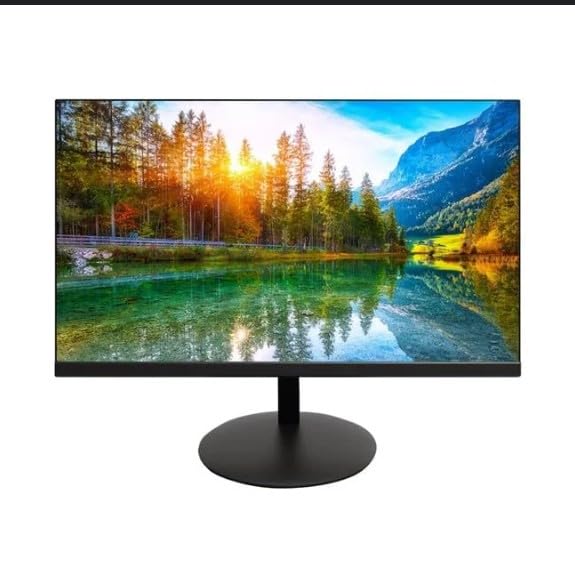
The image shows the Onn 22 inch FHD LED Monitor, highlighting its 100Hz refresh rate and 1080p resolution. The monitor features a slim design and a T-shaped base.
Kurulum Talimatları
- Paketin açılması: Carefully remove the monitor and all accessories from the packaging. Ensure all components are present: monitor, T-shaped base, HDMI cable, and power adapter.
- Standın Montajı: Attach the T-shaped base to the monitor. The design is screw-less for easy assembly. Ensure it is securely fastened.
- Bir Cihaza Bağlanma:
The monitor supports both HDMI and VGA inputs. Connect the provided HDMI cable from your computer's HDMI output to the HDMI IN port on the monitor. Alternatively, use a VGA cable for VGA input.

This image displays the rear panel of the Onn monitor, illustrating the available input ports: HDMI IN, VGA IN, and the DC 12V power input. These ports are essential for connecting the monitor to a computer or other devices.
- Güç Bağlantısı: Connect the power adapter to the DC 12V input port on the monitor, then plug the adapter into a power outlet.
- Monitörü Ayarlama: The monitor is capable of swivel, tilt, rotation, and height adjustment. Adjust the screen to your preferred viewErgonomik konfor için açı.
- Çift Monitör Kurulumu: This monitor is suitable for a fully functioning dual monitor setup. Connect a second monitor using the appropriate cables and configure your operating system's display settings.
Kullanım Talimatları
- Güç Açma/Kapatma: Monitörü açmak veya kapatmak için genellikle monitörün altında veya arkasında bulunan güç düğmesine basın.
- Giriş Seçimi: If the monitor does not automatically detect the input source, use the On-Screen Display (OSD) menu buttons to manually select between HDMI and VGA inputs.
- OSD Menü Gezintisi: Use the physical buttons on the monitor (typically on the back or bottom edge) to navigate the OSD menu. This allows you to adjust settings such as brightness, contrast, color temperature, and input source.
- Çözünürlük ve Yenileme Hızı: The monitor supports a native resolution of 1920x1080 at a 100Hz refresh rate. Ensure your computer's display settings are configured to these specifications for the best visual experience.
- Uyarlanabilir Senkronizasyon: The monitor features Adaptive Sync for gaming, which helps to reduce screen tearing and stuttering. Ensure this feature is enabled in your graphics card settings if supported.
Bakım
- Ekranın Temizlenmesi: Ekranı yumuşak, tiftiksiz bir bezle nazikçe silin. İnatçı lekeler için hafifçe silin.ampen the cloth with water or a non-abrasive, monitor-specific cleaning solution. Avoid spraying liquids directly onto the screen.
- C'yi Temizlemeasing: Monitörü temizlemek için yumuşak ve kuru bir bez kullanın.asing. Do not use strong detergents or solvents, as they may damage the finish.
- Havalandırma: Aşırı ısınmayı önlemek için monitörün havalandırma deliklerinin kapatılmadığından emin olun.
- Depolamak: Monitörü uzun süre kullanılmadığı zamanlarda, doğrudan güneş ışığından ve aşırı sıcaklıklardan uzak, serin ve kuru bir yerde saklayın.
Sorun giderme
- Güç Yok:
- Güç kablosunun hem monitöre hem de elektrik prizine güvenli bir şekilde bağlı olup olmadığını kontrol edin.
- Elektrik prizinin düzgün çalıştığını doğrulayın.
- Sinyal yok:
- Ensure the video cable (HDMI or VGA) is firmly connected to both the monitor and the computer.
- Monitörün OSD menüsünü kullanarak doğru giriş kaynağını seçin.
- Bilgisayarınızın açık olduğundan ve uyku modunda olmadığından emin olun.
- Ekran Titremesi veya Görüntü Kalitesinin Düşük Olması:
- Video kablosunda hasar veya gevşek bağlantı olup olmadığını kontrol edin.
- Adjust the resolution and refresh rate settings on your computer to match the monitor's specifications (1920x1080, 100Hz).
- OSD menüsü aracılığıyla monitör ayarlarını fabrika varsayılanlarına sıfırlayın.
- Yanıt Vermeyen Düğmeler:
- Unplug the monitor from the power outlet, wait for 30 seconds, and then plug it back in.
If problems persist, please refer to the support information provided in the "Support and Warranty" section.
Özellikler
| Marka | Onn |
| Model Numarası | 100140681 |
| Model Adı | OTTO |
| Ekran Boyutu | 21.5 inç |
| Görüntü Türü | LED, LCD |
| Çözünürlük | 1920 x 1080 (FHD 1080p) |
| Yenileme Hızı | 100 Hz |
| Tepki Süresi | 6.5 Milisaniye |
| Donanım Arayüzü | HDMI, VGA |
| Özel Özellikler | Yükseklik Ayarı |
| ViewAçı | 160 Derece |
| En Boy Oranı | 16:9 |
| Ürün Boyutları | 49.2 x 20 x 37.2 cm; 3.24 kg |
Destek ve Garanti
For technical support, product inquiries, or warranty information, please visit the official Onn support websitesine gidin veya müşteri hizmetleriyle iletişime geçin.
- Resmi Destek Webalan: onnsupport.ca
- Garanti: Specific warranty details may vary by region and purchase date. Please refer to the documentation included with your product or visit the support webEn güncel garanti bilgileri için siteyi ziyaret edin.


