Ürün Bittiview
The ASprink 2410 Bluetooth Shipping Label Printer is a versatile and compact thermal label printer designed for small businesses and personal use. It offers both wireless (Bluetooth) and wired (USB) connectivity, supporting a wide range of operating systems and shipping platforms. This printer utilizes advanced thermal technology, eliminating the need for toner or ink, ensuring clean and efficient printing.
Temel özellikler şunlardır:
- Kablosuz Yazdırma: Compatible with Android, iOS, Mac, and Windows (7 and higher) via Bluetooth. Requires the "Labelife" app for mobile devices.
- USB Bağlantısı: Supports PC, Mac OS, Chrome OS, and Linux via USB cable. Linux systems only support USB connection.
- Geniş Uyumluluk: Works with major shipping platforms like UPS, eBay, Amazon, Etsy, Shopify, PayPal, Poshmark, Square, BigCommerce, Mercari, Wix, and more.
- Çok Yönlü Etiket Desteği: Accommodates thermal labels with widths from 1 inch to 4.6 inches, suitable for shipping labels, warehouse labels, market labels, logo labels, thank you labels, and address labels.
- Hızlı ve Net Baskı: Achieves printing speeds of up to 150 mm/s (over 72 labels per minute for 4x6 labels) with 203 DPI resolution for clear output.
- Kompakt ve Taşınabilir: Measuring just 2.9" x 6.6" x 2.6" and weighing 0.97 pounds, it's designed for space-saving and on-the-go printing.
Kutuda Neler Var?
Upon opening your ASprink 2410 printer package, you will find the following items:
- 1 x ASprink 2410 Label Printer
- 1 x Kullanım Kılavuzu
- 1 x Power Adapter & Cable
- 1 x USB Kablosu
- 10 x Sheets 4"x6" Test Labels

Image: All components included in the ASprink 2410 printer package.
Kurulum Kılavuzu
1. Güç Bağlantısı
- Güç adaptörünü yazıcıya bağlayın.
- Insert the power cord plug into a suitable electrical outlet.
- Press and hold the power button on the printer to turn it on.
Note: It is recommended to use the ORIGINAL POWER ADAPTER. Printing errors or blurs may occur if a non-original power adapter is used.
2. Kağıt Yükleme
- Place the paper in front of the printer's paper feed slot.
- Ensure that the printable side of the media faces up. The print head is in the top cover, so the printing side (label side) must face up for content to be printed; otherwise, it will result in blank printing.
- Adjust the Paper Gripper until its spacing matches the paper width.
- Insert the paper flat until the printer automatically loads the paper.

Image: The ASprink 2410 printer with a label partially fed, demonstrating paper loading.

Image: The printer's adjustable paper guides, illustrating support for label widths from 1 to 4.6 inches.
3. Driver and Software Installation (for Computer)
For PC, Mac OS, Chrome OS, and Linux, you can connect the thermal printer via USB cable. Linux only works with USB connection, not Bluetooth.
- Aç şunu web tarayıcıya gidin ve pm2410.etikethayatı.cc.
- Search and download the required driver for your operating system (Windows, macOS, Linux, ChromeOS).
- Download the Labelife editing software (recommended for Windows/Mac). For mobile devices (iOS/Android), download the "Labelife" app from your respective app store.
- Double-click the downloaded driver installation package and follow the on-screen prompts to complete the installation.
- After installation, verify the connection: Open "Devices and Printers" in your Control Panel. The printer model (e.g., PM-2410-BT) should be highlighted, indicating a successful connection.
- To test the connection, right-click on the printer icon, go to "Printer properties," and click on "Print Test Page."
For a visual guide on driver and software installation, please refer to the video below.
Kullanım Talimatları
1. Printing via Computer (using Labelife Software)
- Double-click to install and open the Labelife editing software. Ensure your printer is connected and shows "Connected" in the software.
- Select "PDF Printing" from the menu.
- Choose "PDF File" and select the desired PDF file (e.g., shipping label) from your computer to import it.
- Click on "Print" and check the corresponding print settings.
- In the print settings, click on "Properties" to access the printer driver settings page.
- Select the paper type as "gap paper" and set the gap size to 2. Click "Apply" and "OK".
- Set the label size to 4.00" x 6.00" (101.6 x 152.4mm) or your desired custom size.
- Check other print settings, such as the number of copies, orientation (Portrait/Landscape), and scaling (e.g., "Fit" or "Actual size").
- After finalizing the settings, click "Print".
- Once printing is complete, you can tear off the label from the top.
Important Note: Please adjust the page size according to the label dimensions when downloading the PDF file. To ensure print quality, it is recommended to open PDF files using Adobe and Preview yazılım.
Video: Step-by-step guide on how to print shipping labels via computer using the ASprink 2410 printer.
2. Printing via Mobile Device (Bluetooth)
The ASprink 2410 label printer is compatible with Android and iOS systems via Bluetooth. You need to download the "Labelife" app from your device's app store.
- Mobil cihazınızda Bluetooth'un etkinleştirildiğinden emin olun.
- Open the "Labelife" app.
- Pair your device with the ASprink 2410 printer within the app.
- Select the label you wish to print from the app or create a new one using the app's editing features.
- Adjust print settings as needed within the app (e.g., copies, size, orientation).
- Yazdırma işlemini uygulamadan başlatın.

Image: The ASprink 2410 printer demonstrating Bluetooth direct connection for PC, Android, iOS, Windows, Mac OS, and Chrome OS.

Image: Universal compatibility of the ASprink 2410 printer with multiple platforms, including Amazon, Etsy, Shopify, PayPal, and various shipping carriers.
Bakım
The ASprink 2410 is a thermal printer, meaning it does not use ink or toner. This simplifies maintenance significantly.
- Temizlik: Regularly wipe the exterior of the printer with a soft, dry cloth. For the print head, use a specialized thermal printer cleaning pen or isopropyl alcohol on a cotton swab to gently clean any residue. Ensure the printer is off and unplugged before cleaning.
- Kağıt Depolama: Store thermal labels in a cool, dry place away from direct sunlight and heat to prevent premature fading or damage to the thermal coating.
- Engellerden Kaçının: Ensure no foreign objects are inserted into the paper feed slot or any other openings.
Sorun giderme
If you encounter issues with your ASprink 2410 printer, consider the following common troubleshooting steps:
- Yazıcı Yanıt Vermiyor: Check if the power adapter is securely connected and the printer is turned on. Ensure the USB cable (if used) is properly connected to both the printer and the computer. For Bluetooth, verify that Bluetooth is enabled on your device and the printer is paired correctly in the Labelife app.
- Blank Prints: Ensure the thermal labels are loaded with the printable side facing up. The print head is on the top cover, so the label side must be oriented correctly.
- Poor Print Quality (Faded/Blurry): Clean the print head as described in the Maintenance section. Ensure you are using high-quality thermal labels. Check print settings in your software (e.g., intensity, print speed, DPI).
- Kağıt Sıkışmaları: Ensure the paper is loaded flat and the paper grippers are adjusted correctly to the label width. Remove any jammed paper carefully by pulling it straight out.
- Sürücü Sorunları: Reinstall the printer driver from the official Labelife webalan (pm2410.etikethayatı.cc) if you suspect driver corruption or incompatibility.
For further assistance, please refer to the "Guides & FAQ" or "Manuals" sections on the Labelife website, or contact ASprink customer support.
Özellikler
| Özellik | Detay |
|---|---|
| Marka | ASprink |
| Model Adı | 2410 Termal Yazıcı |
| Bağlantı Teknolojisi | Bluetooth, USB |
| Baskı Teknolojisi | Termal |
| Yazıcı Çıktısı | Tek renkli |
| Maksimum Siyah Beyaz Baskı Çözünürlüğü | 203 dpi |
| Maksimum Baskı Hızı (Siyah Beyaz) | 150 mm/s (72 ppm for 4x6 labels) |
| Maksimum Medya Boyutu | 4.6 inches (Paper Width: 1"-4.6") |
| Uyumlu Cihazlar | Smartphone, Tablets, Mac OS, Windows system, Chrome OS, Linux system |
| Ürün Boyutları | 6.6 x 2.6 x 2.9 inç |
| Ürün Ağırlığı | 1.5 pound |
| Güç Tüketimi | 1 Vat |
| Yazıcı Mürekkep Türü | Mürekkepsiz |

Image: The compact and lightweight design of the ASprink 2410 printer, with dimensions of 6.62" x 2.93" x 2.21" and a weight of 0.97 lbs.
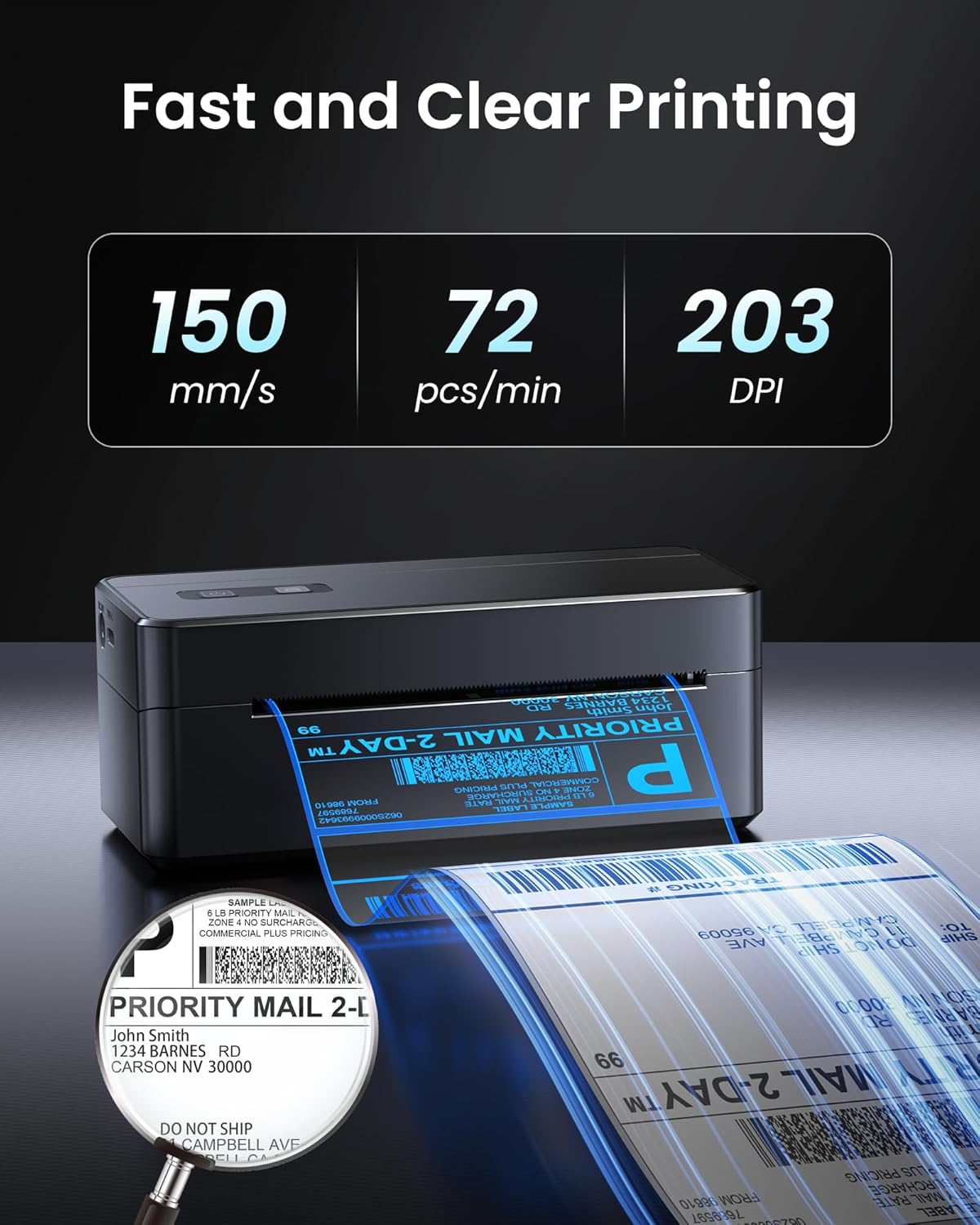
Image: Visual representation of the printer's speed (150 mm/s, 72 pcs/min) and resolution (203 DPI).
Garanti ve Destek
The ASprink 2410 Bluetooth Shipping Label Printer comes with a sınırlı garanti. For specific details regarding warranty coverage, duration, and terms, please refer to the warranty information provided in the included user manual or contact ASprink customer support directly.
For technical support, troubleshooting, or any inquiries regarding your printer, please visit the official Labelife websitede labelife.net. You can find additional guides, FAQs, and contact information there.


