1. Giriş
Thank you for choosing the Spigen ArcDock 6-in-1 Laptop Stand Hub. This versatile device combines an ergonomic laptop stand with a powerful docking station, providing essential connectivity and a comfortable workspace. This manual will guide you through the setup, operation, and maintenance of your new ArcDock.
2. Ürün Bittiview
The Spigen ArcDock is designed to enhance your productivity and comfort with its integrated 6-in-1 hub and adjustable stand features. It supports a wide range of laptops up to 15.6 inches.

Temel Özellikler:
- 6'u 1 Arada Bağlantı: Includes USB-A 3.0, USB-C 3.0, PD 100W, and 4K 60Hz HDMI.
- Güç Teslimatı: Up to 100W Power Delivery for fast charging your laptop.
- Yüksek Çözünürlüklü Ekran: Supports 4K at 60Hz via HDMI.
- Evrensel Uyumluluk: Works with MacBook Pro, MacBook Air, Dell, HP, Surface, Lenovo, and other laptops up to 15.6 inches.
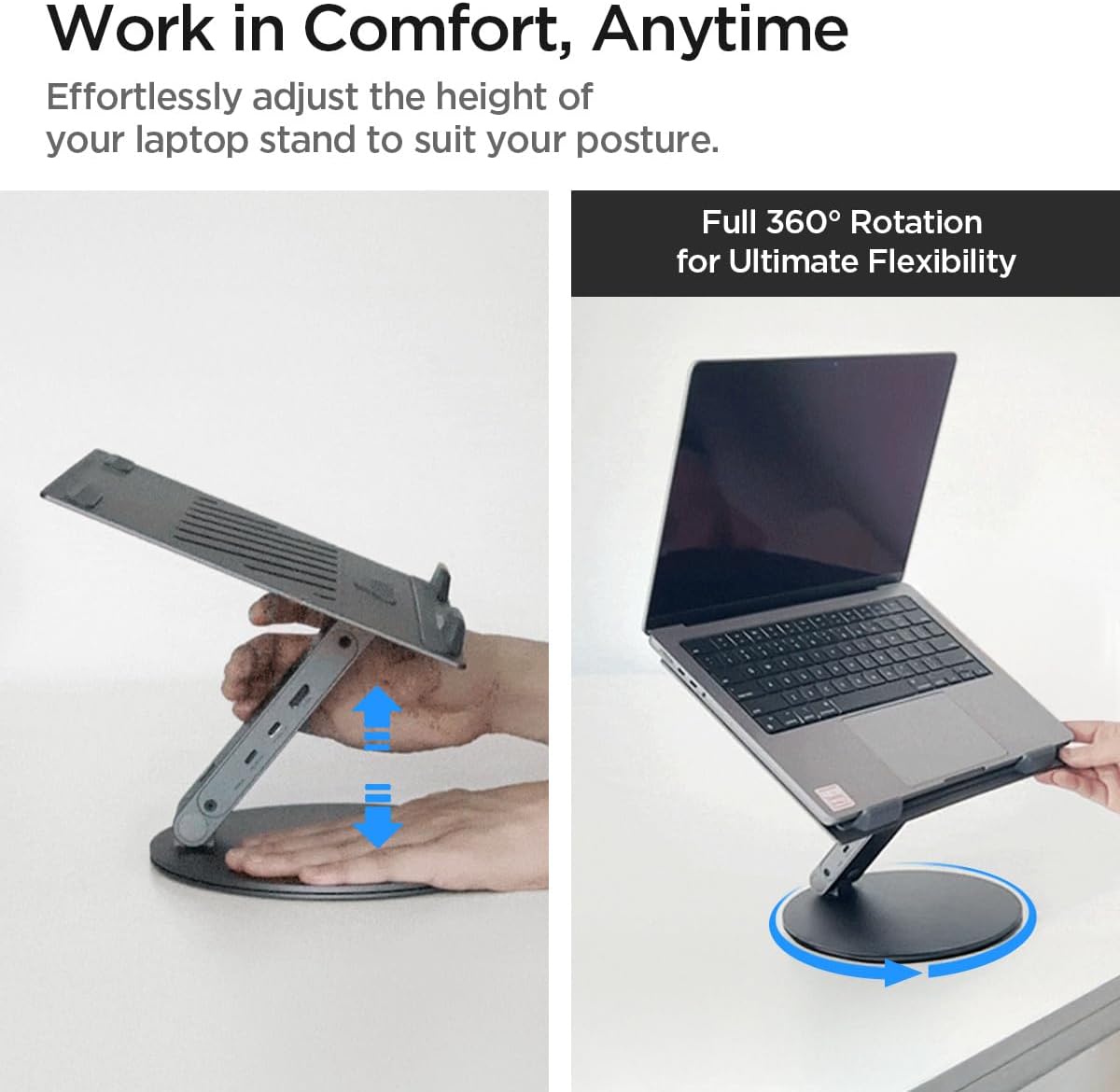
- Adjustable & Rotatable: Features adjustable height and a 360-degree rotating base for optimal viewaçıları.
- Gelişmiş Hava Akışı: Designed to improve airflow and prevent overheating.
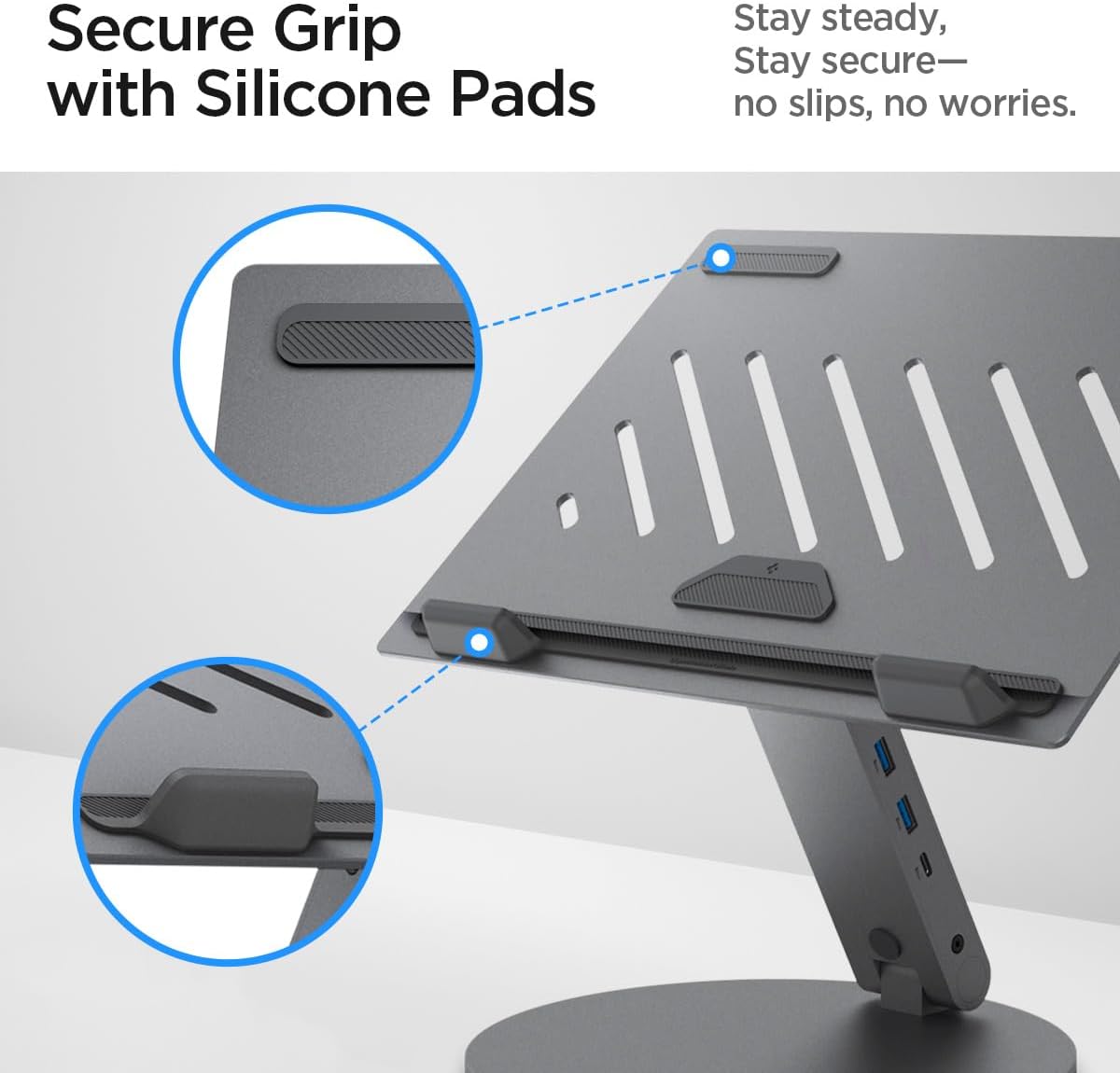
- Güvenli Tutuş: Equipped with silicone pads for stability and scratch protection.
3. Kurulum Kılavuzu
3.1. Kutudan Çıkarma ve Bileşenler
Carefully remove all components from the packaging. You should find the Spigen ArcDock Laptop Stand Hub, a USB-C to USB-C cable, and a power adapter.
3.2. Güç Bağlantısı
- Connect the provided power adapter to the 'Power' input port on the ArcDock.
- Plug the power adapter into a wall outlet. The power LED on the ArcDock will illuminate.
3.3. Dizüstü Bilgisayarınıza Bağlanma
- Use the included USB-C to USB-C cable to connect the 'USB-C (Host connection)' port on the ArcDock to a compatible USB-C port on your laptop.
- Ensure your laptop's USB-C port supports Power Delivery and video output for full functionality.
3.4. Harici Ekranların Bağlanması
The ArcDock supports up to two external displays via HDMI and DisplayPort.
- For HDMI display, connect an HDMI cable from your monitor to the 'HDMI 2.1' port on the ArcDock.
- For DisplayPort display, connect a DisplayPort cable from your monitor to the 'DisplayPort' port on the ArcDock.
- Adjust your laptop's display settings (e.g., Extend, Mirror) as needed.
3.5. USB Çevre Birimlerinin Bağlanması
Connect your USB-A and USB-C peripherals (e.g., mouse, keyboard, external hard drives) to the available USB-A 3.0 and USB-C 3.0 ports on the ArcDock.

4. Kullanım Talimatları
4.1. Ekran İşlevselliği
Once connected, your laptop should automatically detect the external displays. You can configure display settings (e.g., resolution, orientation, extended or mirrored desktop) through your operating system's display settings.
- HDMI2.1: 4K@60Hz'e kadar çözünürlüğü destekler.
- Ekran Bağlantı Noktası: 4K@60Hz'e kadar çözünürlüğü destekler.
4.2. Güç Dağıtımı (PD)
The ArcDock provides up to 100W Power Delivery through its dedicated USB-C PD port, allowing you to charge your laptop while using the hub's other features. Ensure your laptop supports USB-C PD for this function.
4.3. Veri Transferi
The USB-A 3.0 and USB-C 3.0 ports offer high-speed data transfer for connected devices like external hard drives, USB flash drives, and other peripherals.
5. Adjustments and Ergonomics
The ArcDock is designed for ergonomic comfort and flexibility.
5.1. Yükseklik Ayarı
Gently lift or lower the laptop platform to your desired height. The stand is designed to hold its position securely once adjusted.
5.2. 360 Derece Döndürme
The base of the ArcDock allows for a full 360-degree rotation, enabling you to easily share your screen or adjust your viewSehpanın tamamını hareket ettirmeden açıyı ayarlama.
6. Bakım ve Onarım
To ensure the longevity and optimal performance of your Spigen ArcDock, follow these care instructions:
- Temizlik: Use a soft, dry cloth to wipe down the surface of the stand. Avoid abrasive cleaners or solvents.
- Depolamak: When not in use, store the ArcDock in a cool, dry place.
- Aşırı Yüklemeden Kaçının: Do not place items heavier than the recommended weight limit on the stand.
- Silikon Pedler: The silicone pads provide a secure grip. Keep them clean and free from dust or debris to maintain their effectiveness.

7. Sorun Giderme
If you encounter any issues with your Spigen ArcDock, please refer to the following common solutions:
- Harici Monitörde Görüntü Yok:
- Ensure the USB-C host connection cable is securely plugged into both the ArcDock and your laptop.
- Verify that your laptop's USB-C port supports video output (DisplayPort Alt Mode).
- Check the display cable connections (HDMI/DisplayPort) to the ArcDock and the monitor.
- Confirm the external monitor is powered on and set to the correct input source.
- For some graphics cards that only support 3 monitors, you may need to turn off the host screen.
- macOS does not support MST (Multi-Stream Transport); external monitors will display the same content.
- Dizüstü Bilgisayar Şarj Olmuyor:
- Ensure the power adapter is correctly connected to the ArcDock and a working power outlet.
- Verify that your laptop's USB-C port supports Power Delivery (PD).
- USB Aygıtları Tanınmıyor veya Veri Aktarımı Yavaş:
- Ensure USB devices are properly connected to the ArcDock's USB ports.
- Try connecting the device directly to your laptop to rule out device-specific issues.
- Disconnect and reconnect the ArcDock from your laptop.
8. Teknik Özellikler
| Marka | Spigen |
| Model Numarası | AMP08885 |
| Renk | Uzay Grisi |
| Malzeme | Alüminyum |
| Ürün Boyutları | 29.6x21.7x4 cm |
| Ürün Ağırlığı | 1.33 kilo |
| Uyumlu Cihazlar | MacBook Pro, MacBook Air, Dell, HP, Surface, Lenovo (up to 15.6" Laptops) |
| Özel Özellikler | Foldable, Adjustable Height, 360 Rotating Base |
| USB-A Bağlantı Noktaları | 2x USB-A 3.0 |
| USB-C Bağlantı Noktaları | 1x USB-C (Host connection), 1x USB-C (PD 100W) |
| HDMI Çıkışı | 1x HDMI 2.1 (4K@60Hz) |
| DisplayPort Çıkışı | 1x DisplayPort (4K@60Hz) |
9. Garanti ve Destek
For warranty information and customer support, please refer to the documentation included with your product packaging or visit the official Spigen webalan. Garanti talepleri için satın alma makbuzunuzu saklayın.


