1. Giriş
This manual provides essential information for setting up, operating, and maintaining your CHUWI Hi10 Max 2-in-1 Windows Tablet. Please read this guide thoroughly to ensure proper use and to maximize your device's performance and longevity.
The CHUWI Hi10 Max is a versatile 2-in-1 device featuring a 12.96-inch 3K touchscreen, powered by an Intel N150 processor, 12GB LPDDR5 RAM, and a 512GB SSD. It runs on Windows 11 and includes a detachable magnetic keyboard for enhanced productivity.
2. Paket İçeriği
Ürün paketinizde tüm öğelerin mevcut olduğunu doğrulayın:
- CHUWI Hi10 Max Tablet
- Detachable Magnetic Keyboard
- Magnetic Bracket (Stand)
- Şarj Seti
- Multi-language User Manual (This document)

Image: CHUWI Hi10 Max Tablet, detachable keyboard, and magnetic stand.
3. Ürün Bittiview
3.1 Temel Özellikler
- Görüntülemek: 12.96-inch IPS Touchscreen, 2880x1920 (3K) resolution, 3:2 aspect ratio.
- İşlemci: 12th Gen Intel N150 (4 Cores/4 Threads, up to 3.6GHz).
- Hafıza: 12GB LPDDR5 RAM.
- Depolamak: 512GB SSD, expandable up to 2TB.
- İşletim Sistemi: Windows 11 Home.
- Kameralar: 8MP Rear Camera with autofocus, 5MP Front Camera.
- Bağlantı: Wi-Fi 6 (802.11ax), Bluetooth 5.2.
- Limanlar: Dual full-featured USB-C, USB 3.2 Gen1, Micro HDMI, 3.5mm Headphone Jack.
- Pil: 4800mAh, supports PD fast charging.
- Tasarım: 9mm thin, 0.78 lbs (tablet only), Metal Unibody.
- Aksesuarlar: Detachable magnetic backlit keyboard, supports MPP stylus (stylus sold separately).
3.2 Cihaz Düzeni
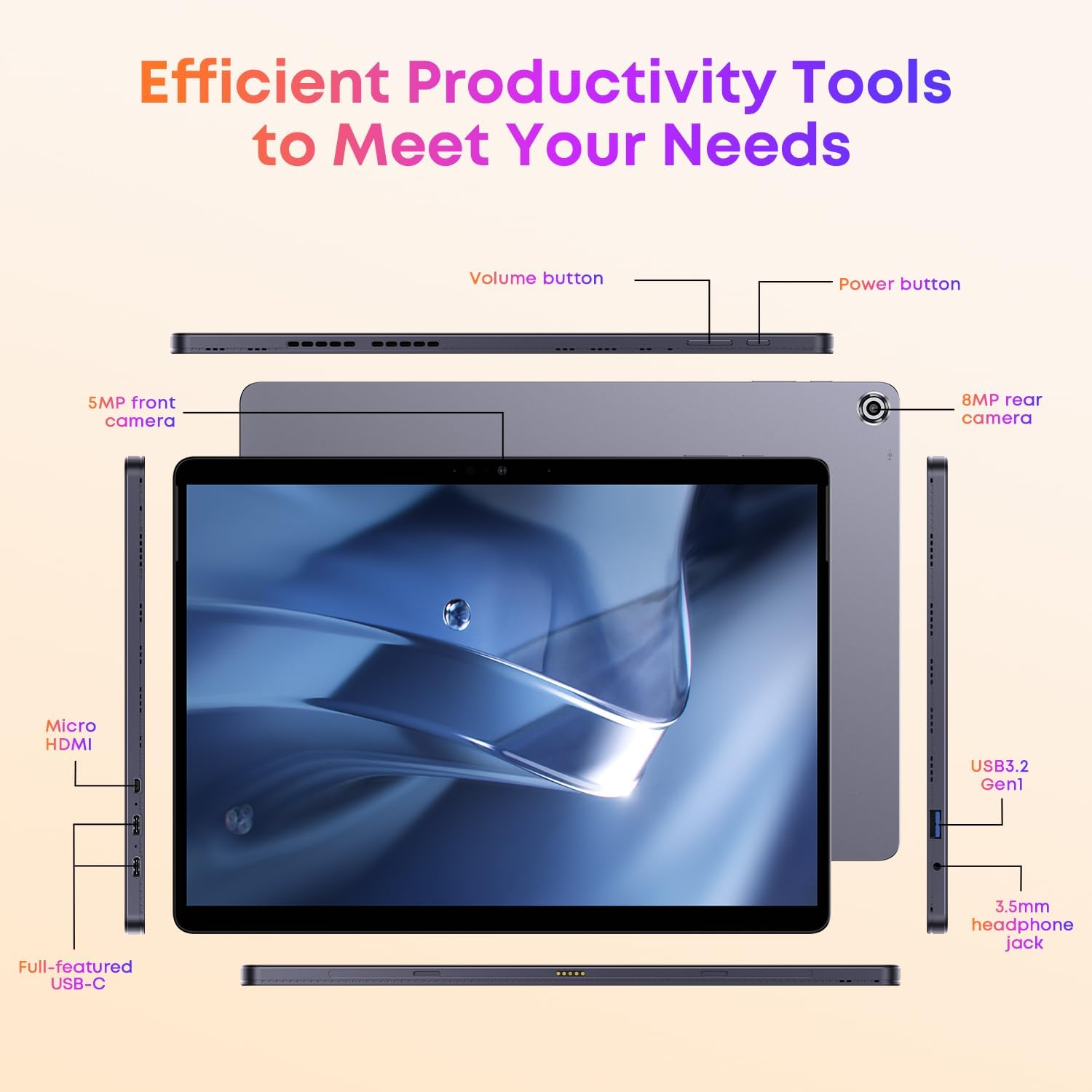
Resim: Üzeriview of the CHUWI Hi10 Max tablet's ports and buttons.
Refer to the image above for the location of the following components:
- Güç Düğmesi: Located on the top edge. Press and hold to power on/off or sleep/wake.
- Ses Düğmeleri: Located on the top edge, next to the power button, to adjust audio volume.
- 5MP Ön Kamera: Located on the top bezel when held horizontally, for video calls and selfies.
- 8MP Arka Kamera: Located on the back panel, for capturing photos and videos.
- Full-featured USB-C Ports (x2): Located on the left and right sides. Supports charging, data transfer, and video output.
- USB 3.2 Gen1 Port: Located on the right side, for connecting USB devices.
- Mikro HDMI Bağlantı Noktası: Located on the left side, for connecting to external displays.
- 3.5 mm Kulaklık Girişi: Located on the right side, for audio output.
- Keyboard Connector: Magnetic pins on the bottom edge for attaching the detachable keyboard.
4. Kurulum
4.1 İlk Şarj
Before first use, fully charge your CHUWI Hi10 Max tablet. Connect the provided charger to one of the USB-C ports on the tablet and plug it into a power outlet. The charging indicator will illuminate.
4.2 Açma/Kapatma
- Açmak İçin: Ekran ışığı yanana kadar Güç Düğmesini basılı tutun.
- Kapatmak İçin: Press and hold the Power Button, then select "Shut down" from the on-screen options. Alternatively, go to Start Menu > Power > Shut down.
- Uyku/Uyandırma: Briefly press the Power Button to put the tablet to sleep or wake it up.
4.3 Ayrılabilir Klavyenin Takılması
Align the magnetic connector on the keyboard with the corresponding pins on the bottom edge of the tablet. The keyboard will snap into place magnetically. No Bluetooth pairing is required for the keyboard to function.

Image: CHUWI Hi10 Max tablet with the detachable keyboard connected.
4.4 İlk Windows 11 Kurulumu
Upon first power-on, you will be guided through the Windows 11 setup process. Follow the on-screen instructions to:
- Bölgenizi ve klavye düzeninizi seçin.
- Bir Wi-Fi ağına bağlanın.
- Microsoft hesabınızla oturum açın veya yeni bir hesap oluşturun.
- Hızlı giriş için PIN belirleyin.
- Gizlilik ayarlarını düzenleyin.
5. Tabletinizi Çalıştırma
5.1 Dokunmatik Ekran Navigasyonu
The 12.96-inch touchscreen supports multi-touch gestures:
- Musluk: Bir öğeyi seçin veya bir uygulamayı açın.
- Bas ve basılı tut: Access context menus or drag items.
- Tokatlamak: İçerikte gezinin veya ekranlar arasında gezinin.
- Yakınlaştırmak için sıkıştırma: Görüntüleri yakınlaştırın veya uzaklaştırın ve web sayfalar.
5.2 Using the Detachable Keyboard and Touchpad
Once attached, the keyboard functions like a standard laptop keyboard. The integrated touchpad allows for precise cursor control and supports multi-touch gestures similar to the touchscreen.

Image: User operating the CHUWI Hi10 Max with its full-size detachable keyboard.
The keyboard is backlit, which can be toggled on or off using a dedicated function key (refer to keyboard markings).
5.3 Connecting to Networks (Wi-Fi & Bluetooth)
- Wifi: Go to Settings > Network & internet > Wi-Fi. Turn Wi-Fi on, select your desired network, and enter the password if required. The tablet supports Wi-Fi 6 for faster and more stable connections.
- Bluetooth: Go to Settings > Bluetooth & devices. Turn Bluetooth on, and the tablet will search for nearby devices. Select the device you wish to pair with and follow any on-screen prompts.

Image: Visual representation of Wi-Fi 6 and Bluetooth 5.2 capabilities.
5.4 Using External Displays (Micro HDMI & USB-C)
Connect your tablet to an external monitor or TV using the Micro HDMI port or one of the full-featured USB-C ports. You may need an appropriate adapter for USB-C video output. Once connected, Windows will automatically detect the display. You can configure display settings (duplicate, extend, second screen only) in Display Settings.
5.5 Kamera Çalışması
The tablet features a 5MP front camera and an 8MP rear camera. Open the "Camera" application in Windows to take photos or record videos. The rear camera includes autofocus for clearer images.
5.6 Kalem Desteği
The CHUWI Hi10 Max supports an MPP (Microsoft Pen Protocol) stylus for note-taking, drawing, and precise interaction. A stylus is not included and must be purchased separately.
6. Bakım
6.1 Cihazın Temizlenmesi
- Tabletinizin ekranını ve gövdesini temizlemek için yumuşak, tiftiksiz bir bez kullanın.
- İnatçı lekeler için hafifçeampBezi su veya ekran temizleme solüsyonuyla silin. Sert kimyasallardan kaçının.
- Temizlemeden önce cihazın kapalı ve fişinin çekilmiş olduğundan emin olun.
6.2 Pil Bakımı
- Tableti aşırı sıcaklıklara maruz bırakmaktan kaçının.
- For optimal battery longevity, try to keep the charge level between 20% and 80% when possible.
- Use only the provided charger or a compatible PD fast charger.
6.3 Yazılım Güncellemeleri
Regularly check for and install Windows updates to ensure your system has the latest security patches and performance improvements. Go to Settings > Windows Update to check for updates.
6.4 Depolama Yönetimi
Periyodik olarak yenidenview yüklü uygulamalarınız ve files to free up storage space. You can expand storage using an M.2 2280 SSD (up to 2TB) if needed.
7. Sorun Giderme
If you encounter issues with your CHUWI Hi10 Max, refer to the following common solutions:
| Sorun | Çözüm |
|---|---|
| Cihaz açılmıyor. | Pilin şarjlı olduğundan emin olun. Şarj cihazını bağlayın ve tekrar açmayı denemeden önce birkaç dakika bekleyin. |
| Ekran tepkisiz. | Tableti yeniden başlatın. Sorun devam ederse, ekranın temiz ve tozdan arındırılmış olduğundan emin olun. |
| Klavye çalışmıyor. | Ensure the keyboard is securely attached to the magnetic connector. Detach and reattach it. |
| Wi-Fi bağlantı sorunları. | Restart your Wi-Fi router and the tablet. Check Wi-Fi settings to ensure the correct network is selected and the password is entered accurately. |
| Yavaş performans. | Gereksiz uygulamaları kapatın. Windows güncellemelerini kontrol edin. Yeterli boş depolama alanı olduğundan emin olun. |
| Pil çabuk bitiyor. | Adjust screen brightness. Close background applications. Check power settings in Windows. |
7.1 Fabrika Ayarlarına Sıfırlama
If persistent issues occur, you may consider performing a factory reset. This will erase all data on your tablet and reinstall Windows. Devam etmeden önce tüm önemli verilerinizi yedekleyin.
- Go to Settings > System > Recovery.
- Under "Recovery options," click "Reset PC."
- Choose "Remove everything" to fully reset the device.
- Sıfırlamayı tamamlamak için ekrandaki talimatları izleyin.
8. Özellikler
| Özellik | Detay |
|---|---|
| Marka | ÇUVİ |
| Model Adı | Hi10 Max Set |
| İşletim Sistemi | Windows 11 |
| Ekran Boyutu | 12.96 inç |
| Ekran Çözünürlüğü | 2880 x 1920 Piksel (3K) |
| İşlemci | Intel N150 (3.6 GHz'e kadar) |
| Veri deposu | 12GB LPDDR5 |
| Sabit Sürücü | 512 GB SSD |
| Grafik Eş İşlemcisi | Intel UHD Grafikler |
| Kablosuz Tip | 802.11ax (Wi-Fi 6) |
| Bluetooth | Bluetooth 5.2 |
| Ortalama Pil Ömrü | 6 Saat |
| Ürün Ağırlığı | 1.72 pounds (tablet only) |
| Ürün Boyutları (UxGxY) | 11.3 x 8.2 x 0.35 inç |
| Arka Webkam Çözünürlüğü | 8 MP |
| Ön Webkam Çözünürlüğü | 5 MP |
| Güç Kaynağı | Pil ile çalışır |
| Piller | 1 Lityum İyon pil (dahil) |
9. Garanti ve Destek
For warranty information and technical support, please refer to the documentation included with your purchase or visit the official CHUWI webSite. Satın alma belgenizi garanti talepleriniz için saklayın.
For further assistance, you may also contact CHUWI customer service through their official channels.


