giriiş
This user manual provides comprehensive instructions for the setup, operation, and maintenance of your Kogan 55" QLED 4K 144Hz Smart AI Google TV (Model: KAQL55XQ98GSTA). Please read this manual thoroughly before using your TV to ensure proper functionality and to maximize your viewdeneyim. Bu kılavuzu ileride başvurmak üzere saklayın.

Figure 1: Kogan 55" QLED 4K 144Hz Smart AI Google TV
This image shows the Kogan 55-inch QLED 4K 144Hz Smart AI Google TV from the front, highlighting its slim bezels and the vibrant display. The Kogan logo is visible on the bottom left, and the screen displays a colorful abstract pattern, emphasizing its QLED technology.
Kurmak
Paketten Çıkarma ve İlk Kontrol
Carefully remove the TV from its packaging. Inspect the TV and all accessories for any signs of damage. If any damage is found, do not proceed with setup and contact Kogan customer support immediately.
Attaching the Stand or Wall Mounting
Your TV comes with a stand for tabletop placement. For wall mounting, a VESA-compatible wall mount (not included) is required. Refer to the wall mount's instructions for proper installation.
- Stand Kurulumu:
- Ekran hasarını önlemek için televizyonu yumuşak ve temiz bir yüzeye yüzü aşağı bakacak şekilde yerleştirin.
- Ayaklık braketlerini televizyonun altındaki vida delikleriyle hizalayın.
- Birlikte verilen vidaları kullanarak standı sabitleyin. Standın sağlam bir şekilde takıldığından emin olun.
- Duvara Montaj:
This TV supports wall mounting. Ensure you use a compatible wall mount and follow the manufacturer's instructions for safe and secure installation. Professional installation is recommended for wall mounting.
Çevre Birimlerini Bağlama
Connect your external devices such as set-top boxes, gaming consoles, or sound systems to the TV's input ports (HDMI, USB, etc.).
- HDMI Bağlantıları: Use HDMI cables for high-definition video and audio. This TV features multiple HDMI inputs.
- USB Bağlantıları: Medya oynatmak için USB cihazlarını bağlayın.
- Güç Bağlantısı: Güç kablosunu televizyonun güç girişine, ardından da duvardaki prize takın.
Kullanım Talimatları
First-Time Setup and Google TV
Upon first power-on, the TV will guide you through the initial setup process, including network connection, Google account login, and channel scanning. Google TV integrates your favorite streaming services and content into one personalized hub.

Figure 2: Google TV Interface in Use
This image depicts two individuals comfortably seated in a living room, viewing the Kogan Google TV. The TV screen displays the Google TV interface with various streaming app icons and content recommendations, illustrating the user-friendly nature of the smart TV system.

Figure 3: Detailed Google TV Home Screen
This image provides a closer look at the Google TV home screen, showcasing content recommendations like "Nine Perfect Strangers" and various app icons such as Netflix, YouTube, and Prime Video. The interface is clean and organized, making content discovery intuitive.

Figure 4: All Your Favorite Apps
This image highlights the extensive selection of streaming applications available on the Kogan Google TV. It displays numerous popular app logos, including Netflix, Prime Video, Disney+, YouTube, and Stan, emphasizing the TV's capability to serve as a comprehensive entertainment hub.
Temel Özellikler ve İşlevler
- QLED Teknolojisi: Experience mesmerizing color reproduction and vibrant visuals thanks to Quantum Dot Technology.
- 4K UHD Çözünürlük: Enjoy stunning clarity and detail with 3840 x 2160 pixel resolution.

Figure 5: Ultra HD (4K) Visual Comparison
This image visually compares Full HD and Ultra HD (4K) resolutions using a scenic view of boats on clear water. The 4K side demonstrates significantly clearer picture quality and sharper colors, illustrating the enhanced immersive viewing experience provided by 4K resolution.
- 144 Hz Değişken Yenileme Hızı (VRR): Achieve smoother and tear-free visuals, especially beneficial for fast-paced scenes and gaming.

Figure 6: 144Hz Variable Refresh Rate in Action
This image illustrates the benefit of a 144Hz Variable Refresh Rate (VRR) for gaming. It shows a split screen with a racing game, comparing the visual quality "Without 144Hz VRR" (blurry) and "With 144Hz VRR" (sharp and smooth), highlighting the enhanced gaming experience.
- Dolby Vision™: Enjoy cinematic immersion with lifelike and vibrant visuals.
- Yüksek Dinamik Aralık (HDR): Delivers brighter highlights, better contrast, and more realistic colors.
- Dahili Google Chromecast: Stream content directly from your smartphone, laptop, or tablet to your TV.
- Google Play Mağazası: Access over 400,000 movies, TV episodes, live TV, and a wide range of applications.
- Hareket Tahmini ve Hareket Telafisi (MEMC): Improves clarity and reduces blur in fast-moving scenes for smoother visuals.
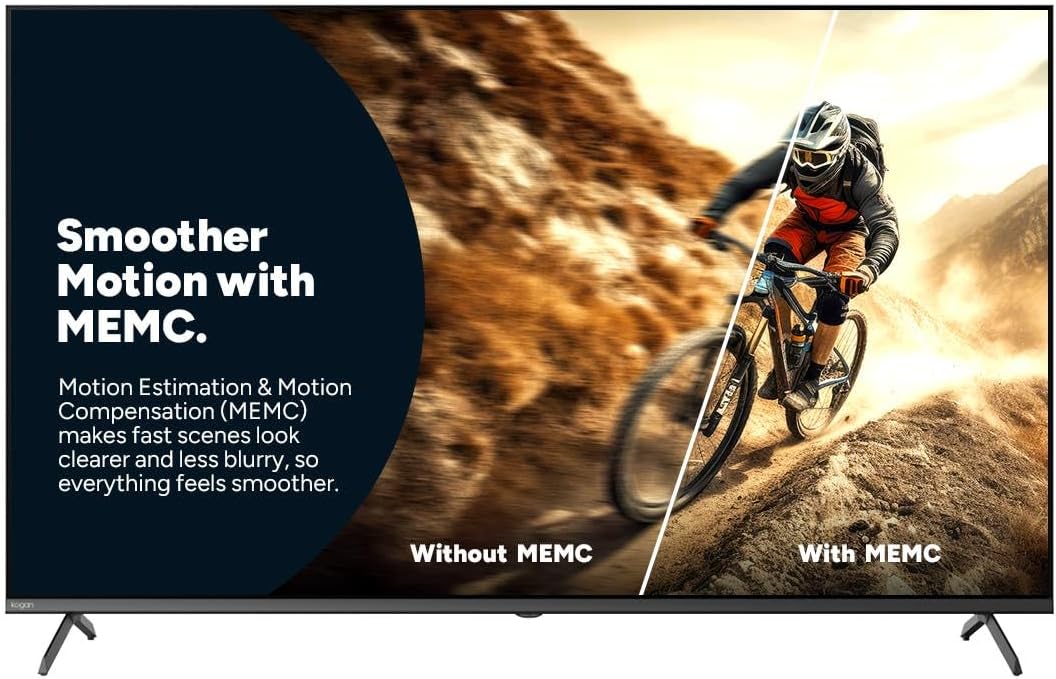
Figure 7: Smoother Motion with MEMC
This image demonstrates the effect of Motion Estimation & Motion Compensation (MEMC). It shows a split view of a cyclist in motion, comparing the visual "Without MEMC" (blurry) and "With MEMC" (clearer and smoother), illustrating how MEMC enhances the clarity of fast-paced scenes.
- Otomatik Düşük Gecikme Modu (ALLM): Automatically reduces response time for an ultra-smooth and lag-free gaming experience.
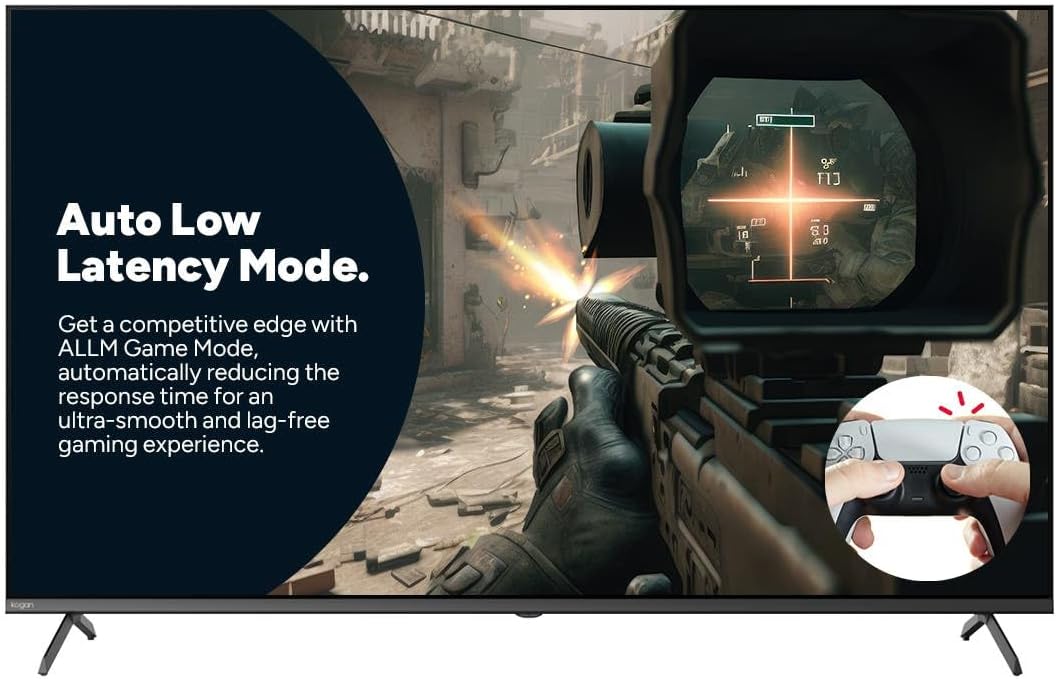
Figure 8: Auto Low Latency Mode for Gaming
This image highlights the benefits of Auto Low Latency Mode (ALLM) for gaming. It features a first-person shooter game scene, emphasizing how ALLM automatically reduces response time, providing a competitive edge with ultra-smooth and lag-free gameplay.
Uzaktan Kumanda Kullanımı
The included remote control allows you to navigate the Google TV interface, adjust settings, change channels, and control connected devices. Familiarize yourself with the button layout for optimal use.
Bakım
TV'yi temizleme
- Ekran: Ekranı yumuşak, tüy bırakmayan bir bezle nazikçe silin. İnatçı lekeler için, doğrudan ekrana değil, beze uygulanan, TV'ler için özel olarak tasarlanmış bir ekran temizleyici kullanın.
- Çerçeve: TV çerçevesini ve sehpasını yumuşak ve kuru bir bezle silin.
- Kullanmayın: TV'nizin yüzeyine zarar verebilecek aşındırıcı temizleyiciler, cilalar veya çözücüler kullanmaktan kaçının.
Genel Bakım
- Televizyonunuzun aşırı ısınmasını önlemek için çevresinde yeterli havalandırma olduğundan emin olun.
- Televizyonu doğrudan güneş ışığından, ısı kaynaklarından ve aşırı tozdan uzak tutun.
- Yıldırımlı havalarda veya uzun süre gözetimsiz bırakılacaksa televizyonun fişini prizden çekin.
Sorun giderme
If you encounter issues with your Kogan TV, refer to the following common problems and solutions. If the problem persists, contact Kogan customer support.
| Sorun | Olası Neden / Çözüm |
|---|---|
| Güç Yok | Check if the power cord is securely plugged into the TV and the wall outlet. Ensure the wall outlet has power. Try a different outlet. |
| Görüntü/Ses Yok | Verify the correct input source is selected (e.g., HDMI 1, TV). Check cable connections to external devices. Ensure volume is not muted or too low. |
| Uzaktan Kumanda Çalışmıyor | Pilleri kontrol edin ve değiştirin. Uzaktan kumanda ile televizyonun kızılötesi sensörü arasında herhangi bir engel olmadığından emin olun. |
| Kötü Görüntü Kalitesi | Anten/kablo bağlantısını kontrol edin. Görüntü ayarlarını (parlaklık, kontrast, keskinlik) yapın. Kaynak içeriğin yüksek kalitede olduğundan emin olun. |
| İnternet Bağlantısı Yok | Check Wi-Fi router and modem. Reconnect to the Wi-Fi network in TV settings. Try restarting the TV and router. |
Özellikler
| Özellik | Detay |
|---|---|
| Marka | Kogan |
| Model Adı | Kogan 55" QLED 4K 144Hz Akıllı Yapay Zekalı Google TV |
| Model Numarası | KAQL55XQ98GSTA |
| Ekran Boyutu | 55 inç |
| Ekran Teknolojisi | QLED |
| Çözünürlük | 4K (3840x2160) |
| Yenileme Hızı | 144 Hz |
| İşletim Sistemi | Google televizyon |
| RAM Boyutu | 3 GB |
| Özel Özellikler | Chromecast, Dolby Vision, HDR, MEMC, ALLM |
| Bağlantı Teknolojisi | USB,HDMI |
| Ses Girişi Uyumlu | USB,HDMI |
| Cilttage | 240 Volt |
| Ürün Ağırlığı | 18.2 kilo |
| Paket Boyutları | 134x85x14 cm |
Garanti ve Destek
For warranty information and technical support, please refer to the warranty card included with your product or visit the official Kogan website. You can also contact Kogan customer service directly for assistance with product issues or inquiries.
Kogan Support: https://www.kogan.com/au/help/


