1. Giriş
The Canon PIXMA TS3750i is a compact, affordable, and user-friendly multifunction inkjet printer designed for home and small office use. It offers versatile functionalities including printing, copying, and scanning. This printer supports wireless connectivity, enabling convenient operation from various devices, and features borderless photo printing. It is also compatible with the PIXMA Print Plan for automated ink delivery.
2. Güvenlik Bilgileri
Please read all safety instructions before using the printer to ensure safe and proper operation. Keep this manual for future reference.
- Do not place the printer in unstable locations.
- Keep the printer away from water or moisture.
- Yalnızca yazıcıyla birlikte verilen güç kablosunu kullanın.
- Do not attempt to disassemble or modify the printer.
- Temizlemeden önce veya uzun süre kullanılmayacaksa yazıcıyı elektrik prizinden çıkarın.
3. Paket İçeriği
Paketinizde aşağıdaki tüm öğelerin bulunduğunu doğrulayın:
- Canon PIXMA TS3750i Printer
- Inkjet Cartridges (initial set)
- Güç kablosu
- Kurulum CD-ROM'u (yalnızca Windows için)
- Kılavuzlar ve diğer belgeler
4. Kurulum
4.1 Paketten Çıkarma ve Yerleştirme
- Yazıcıyı ambalajından çıkarın ve tüm koruyucu bantları ve ambalaj malzemelerini çıkarın.
- Yazıcıyı, havalandırma ve çalışma için etrafında yeterli boşluk bulunan, sabit ve düz bir yüzeye yerleştirin.
4.2 Güç Bağlantısı
- Connect the supplied power cable to the printer's power input.
- Güç kablosunun diğer ucunu duvardaki prize takın.
- Yazıcıyı açmak için Güç düğmesine basın.
4.3 Mürekkep Kartuşu Takılması
- Open the printer's top cover to access the cartridge holder.
- Remove the protective tape from the ink cartridges.
- Insert the color and black ink cartridges into their respective slots until they click into place.
- Üst kapağı kapatın.
4.4 Kağıt Yükleme
- Open the paper support and pull out the paper output tray.
- Load paper (e.g., A4, photo paper) into the rear paper tray, ensuring it is aligned with the paper guides.
- Kağıt kılavuzlarını kağıdın genişliğine uyacak şekilde ayarlayın.
4.5 Software and Wireless Setup
For initial setup and to enable wireless printing, follow these steps:
- Bilgisayar için: Insert the Setup CD-ROM (Windows only) and follow the on-screen instructions to install drivers and software.
- For PC/Mac/Mobile: Canon'u ziyaret edin website for your region and download the latest drivers and the Canon PRINT Inkjet/SELPHY app.
- Follow the instructions within the software or app to connect the printer to your Wi-Fi network. The printer supports one-touch wireless connectivity for easier setup.
- For mobile devices, ensure your device is connected to the same Wi-Fi network as the printer.
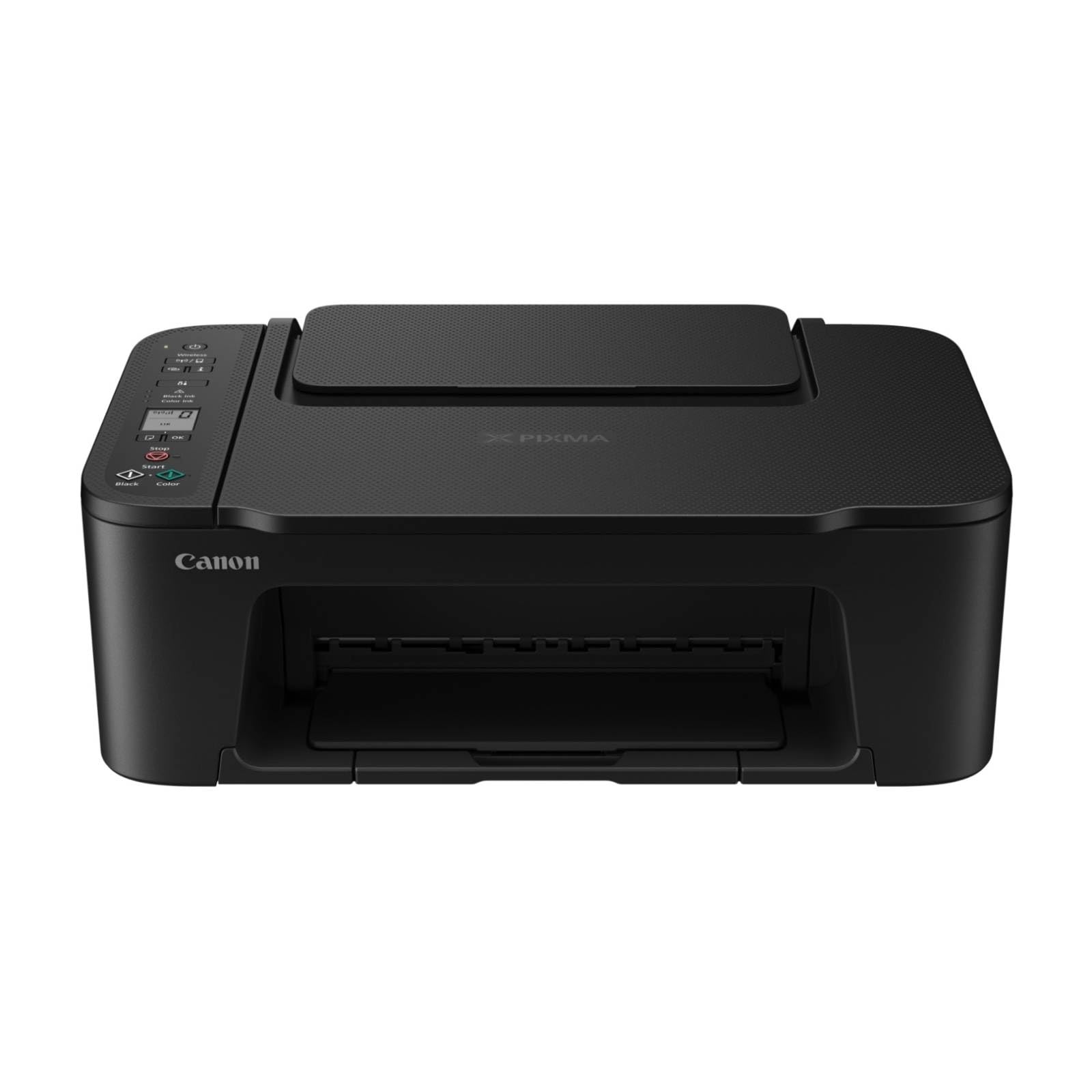
Şekil 1: Ön view of the Canon PIXMA TS3750i printer, showing its compact design and control panel.
5. Kullanım Talimatları
5.1 Belgelerin ve Fotoğrafların Yazdırılması
- Ensure the printer is powered on and connected to your device (via Wi-Fi or USB).
- Load the appropriate paper type and size into the rear paper tray.
- Open the document or photo you wish to print on your computer or mobile device.
- Uygulamanızdan yazdırma seçeneğini seçin.
- In the print dialog, select the Canon PIXMA TS3750i as your printer. Adjust settings such as paper size, media type, print quality, and borderless printing (for photos up to 12.7 x 18 cm).
- "Yazdır" seçeneğine tıklayın.
5.2 Belgelerin Kopyalanması
- Tarayıcı kapağını kaldırın.
- Belgeyi tarayıcı camının üzerine, hizalama işaretiyle hizalayacak şekilde, yüzü aşağı bakacak şekilde yerleştirin.
- Tarayıcının kapağını yavaşça kapatın.
- On the printer's control panel, press the Black button for a monochrome copy or the Color button for a color copy.
- To make multiple copies (up to 20), press the desired copy button repeatedly for the number of copies needed.
5.3 Belgeleri ve Fotoğrafları Tarama
- Ensure the printer is connected to your computer or mobile device.
- Place the document or photo face-down on the scanner glass.
- On your computer, open the scanning software (e.g., Canon IJ Scan Utility) or on your mobile device, open the Canon PRINT Inkjet/SELPHY app.
- Select the scan option and adjust settings such as document type, resolution, and destination folder.
- Tarama işlemini başlatın. Taranan görüntü, belirttiğiniz konuma kaydedilecektir.
5.4 Mobile Printing and Scanning
The Canon PIXMA TS3750i supports printing and scanning directly from smartphones and tablets using the Canon PRINT Inkjet/SELPHY app or Apple AirPrint. Ensure your mobile device and printer are connected to the same Wi-Fi network.
- Canon PRINT Inkjet/SELPHY App: Download and install the app from your device's app store. Use the app to select photos or documents for printing, or to initiate scans directly to your mobile device.
- Apple AirPrint: For iOS devices, you can print directly from AirPrint-enabled applications without installing additional drivers. Select the print option from the app and choose your PIXMA TS3750i printer.
- Wi-Fi PictBridge: Connect directly to compatible cameras for photo printing.
6. Bakım
6.1 Yazıcıyı Temizleme
- Dış: Yazıcının dışını yumuşak bir bezle silin.ampTüy bırakmayan bir bez kullanın. Aşındırıcı temizleyiciler veya çözücüler kullanmayın.
- Tarayıcı Camı: Gently clean the scanner glass with a soft, lint-free cloth moistened with a small amount of glass cleaner. Ensure no residue is left behind.
- Yazdırma Kafası: If print quality declines (e.g., streaks, faded colors), perform a print head cleaning from the printer's utility software on your computer or through the Canon PRINT Inkjet/SELPHY app.
6.2 Mürekkep Kartuşlarının Değiştirilmesi
- When an ink cartridge is low or empty, a message will appear on the printer's display or in the software.
- Open the printer's top cover. The cartridge holder will move to the replacement position.
- Boş kartuşu çıkarmak için üzerine bastırın, ardından dışarı çekin.
- Unpack the new Canon genuine ink cartridge and remove the protective tape.
- Yeni kartuşu doğru yuvaya, yerine tam oturana kadar yerleştirin.
- Close the top cover. The printer will perform an initialization process.
6.3 Kağıt Sıkışmalarını Giderme
- If a paper jam occurs, an error message will appear.
- Yazıcıyı kapatın ve güç kablosunu çıkarın.
- Carefully open the printer covers (top cover, rear cover if applicable) to locate the jammed paper.
- Gently pull the jammed paper out in the direction of the paper path. Avoid tearing the paper.
- Ensure all torn pieces of paper are removed.
- Tüm kapakları kapatın, güç kablosunu takın ve yazıcıyı açın.
7. Sorun Giderme
Refer to the following common issues and their solutions. For more detailed troubleshooting, consult the Canon support webalan.
- Printer is not turning on: Ensure the power cable is securely connected to both the printer and a working electrical outlet.
- Cannot print:
- Check if the printer is powered on and connected to your device (Wi-Fi or USB).
- Verify that ink cartridges are installed correctly and have sufficient ink.
- Ensure paper is loaded correctly in the paper tray.
- Restart your computer/mobile device and the printer.
- Check printer drivers and software for updates.
- Baskı kalitesi düşük:
- Perform a print head cleaning and nozzle check from the printer utility.
- Ensure you are using genuine Canon ink cartridges.
- Check print settings for appropriate paper type and print quality.
- Kablosuz bağlantı sorunları:
- Ensure the printer and your device are on the same Wi-Fi network.
- Restart your wireless router, printer, and device.
- Re-run the wireless setup process.
- Check for any firewall settings blocking communication.
- Kağıt sıkışması: Follow the instructions in Section 6.3 to clear any jammed paper.
8. Özellikler
| Model Adı | PIXMA TS3750i |
| Baskı Teknolojisi | Mürekkep püskürtmeli |
| Fonksiyonlar | Yazdır, Kopyala, Tara |
| Bağlantı Teknolojisi | USB, Wi-Fi |
| Maksimum Baskı Hızı (Siyah Beyaz) | 7.7 ppm |
| Maksimum Baskı Hızı (Renkli) | 4 ppm |
| Yazıcı Çıktısı | Renk |
| Dubleks Baskı | Evet |
| Maksimum Medya Boyutu | A4 |
| Levha Boyutu Desteği | A4, A5, B5, Custom (Width 89 mm - 215.9 mm, Length 127 mm - 676 mm) |
| Maksimum Giriş Kapasitesi | 60 sayfa |
| Tarayıcı Türü | Düz yataklı |
| Max Copies per Run | 20 |
| Uyumlu Cihazlar | Dizüstü bilgisayarlar, Masaüstü bilgisayarlar, Akıllı telefonlar, Tabletler |
| Özel Özellikler | Borderless printing, Lightweight, Auto Power On, Display screen |
| Ürün Boyutları (D x G x Y) | 32.7x43.5x14.5 cm |
| Ürün Ağırlığı | 4.19 kilo |
| Güç Tüketimi | 9 Vat |
9. Garanti ve Destek
This Canon PIXMA TS3750i printer comes with a standard manufacturer's warranty. Please refer to the warranty card included in your package for specific terms and conditions, including warranty period and coverage details.
For technical support, product registration, driver downloads, and additional troubleshooting resources, please visit the official Canon support webBölgeniz için ilgili siteye ulaşabilirsiniz. Orada ayrıca müşteri hizmetleri iletişim bilgilerini de bulabilirsiniz.
- Çevrimiçi destek: www.canon.com/support (Please replace with your regional Canon support link)
- Ürün kaydı: Registering your product helps Canon provide you with better service and support.


