giriiş
This user manual provides comprehensive instructions for the setup, operation, maintenance, and troubleshooting of your Thomson Streaming Stick 4K 145G. Please read this manual carefully before using the device to ensure proper functionality and to avoid damage.

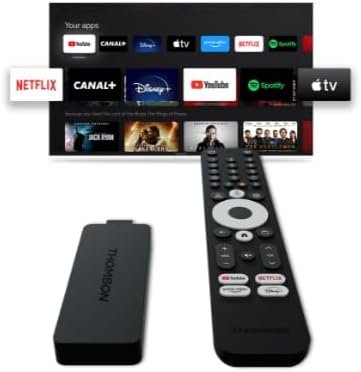
Image: The Thomson Streaming Stick 4K 145G alongside its remote control, illustrating the main components of the product.
Kutuda Neler Var?
Upon unboxing your Thomson Streaming Stick 4K 145G, please verify that all components are present:
- Thomson Streaming Stick 4K 145G
- Uzaktan kumanda
- Güç adaptörü
- USB Kablosu (güç için)
- HDMI Extender (optional, may be included)
- Hızlı Başlangıç Kılavuzu
Kurulum Kılavuzu
Follow these steps to set up your Thomson Streaming Stick 4K 145G:
- Streaming Stick'i bağlayın: Plug the Thomson Streaming Stick 4K 145G directly into an available HDMI port on your television. If space is limited, use an HDMI extender if provided.
- Gücü bağlayın: Connect the provided USB cable to the power input port on the streaming stick and then connect the other end to the power adapter. Plug the power adapter into a wall outlet.
- Televizyonu açın ve giriş seçeneğini belirleyin: Turn on your television and select the HDMI input to which the streaming stick is connected.
- İlk kurulum: The device will boot up and guide you through the initial setup process on your TV screen. This typically includes:
- Dil seçimi.
- Wi-Fi ağınıza bağlanılıyor.
- Google hesabınızla oturum açın (Google TV özellikleri ve uygulama indirmeleri için gereklidir).
- Şartları ve koşulları kabul ediyorum.
- Uzaktan Kumanda Eşleştirme: The remote control should automatically pair with the device. If not, follow the on-screen instructions or press and hold the Home and Back buttons simultaneously on the remote until pairing is complete.
Resim: Ayrıntılı view of the Thomson Streaming Stick 4K 145G, highlighting its HDMI connector for TV input and the power input port.
Kullanım Talimatları
Once set up, you can begin using your Thomson Streaming Stick 4K 145G to access various streaming services and content.
Uzaktan Kumanda Fonksiyonları
Familiarize yourself with the remote control buttons:
- Güç Düğmesi: Cihazı açar veya kapatır (bekleme moduna geçirir).
- Google Asistan Düğmesi: Arama ve kontrol için sesli komutları etkinleştirir.
- Navigation Pad (Circle): Use up, down, left, right to navigate menus.
- Tamam/Seçme Düğmesi: Seçimleri onaylar.
- Geri Düğmesi: Önceki ekrana döner.
- Ana menü tuşu: Google TV ana ekranına geri döner.
- Ses Düğmeleri (+/-): TV sesini ayarlar.
- Sessiz tuşu: Mutes TV volume.
- Uygulama Kısayol Düğmeleri: Dedicated buttons for Netflix, Disney+, YouTube, and Prime Video for quick access.

Image: The Thomson Streaming Stick 4K 145G and its remote control, showing the layout of the buttons on the remote.
Google TV'de gezinme
The Google TV interface organizes content from your streaming services into a single, personalized experience.
- Ana Ekran: Displays recommended content, installed apps, and your watchlist.
- Uygulamalar: Access all your installed applications. You can download more from the Google Play Store.
- Kütüphane: Find your purchased movies and TV shows from Google Play.
- Aramak: Use the search icon or Google Assistant button to find content by title, genre, or actor.
To stream content, simply select an app or a recommended title from the home screen. Ensure you have an active subscription for paid services.
Bakım
Proper maintenance ensures the longevity and optimal performance of your streaming stick.
- Temizlik: Use a soft, dry, lint-free cloth to clean the device and remote control. Do not use liquid cleaners or aerosols.
- Havalandırma: Ensure the streaming stick is placed in a well-ventilated area and not covered, as proper airflow prevents overheating.
- Yazılım Güncellemeleri: The device will automatically check for and install software updates. Ensure it remains connected to the internet for these updates.
- Depolamak: Uzun süre kullanılmayacaksa, cihazı serin, kuru ve doğrudan güneş ışığından uzak bir yerde saklayın.
Sorun giderme
If you encounter issues with your Thomson Streaming Stick 4K 145G, refer to the following common problems and solutions:
| Sorun | Olası Neden | Çözüm |
|---|---|---|
| Güç yok/Cihaz açılmıyor | Power adapter not connected, faulty outlet, or damaged cable. | Güç adaptörünün cihaza ve çalışan bir duvar prizine güvenli bir şekilde takılı olduğundan emin olun. Farklı bir priz deneyin. |
| Televizyonda sinyal yok. | Incorrect HDMI input selected, loose HDMI connection, or device not powered on. | Verify the TV is on the correct HDMI input. Re-seat the HDMI cable. Ensure the streaming stick has power. |
| Uzaktan kumanda yanıt vermiyor | Batteries low/dead, remote not paired, or obstruction. | Replace batteries. Re-pair the remote by holding Home and Back buttons. Ensure no obstructions between remote and device. |
| Ara belleğe alma veya düşük yayın kalitesi | Weak Wi-Fi signal, internet speed issues, or network congestion. | Move the device closer to the Wi-Fi router. Restart your router. Check your internet speed. Reduce other network activity. |
| Uygulamalar çöküyor veya donuyor | Outdated app, insufficient memory, or software glitch. | Restart the device. Check for app updates in the Google Play Store. Clear app cache (Settings > Apps > [App Name] > Clear cache). |
If the issue persists after trying these solutions, you may need to perform a factory reset (Settings > System > About > Factory reset). Note that a factory reset will erase all data and settings on the device.
Özellikler
Key technical specifications for the Thomson Streaming Stick 4K 145G:
- Model Adı: STREAMING STICK 4K THOMSON 145G
- Model Numarası: 145G
- Çözünürlük: 4K UHD
- Bağlantı: Wi-Fi, USB, Ethernet (via adapter), HDMI, IR
- Bağlantı Tipi: HDMI
- Desteklenen İnternet Hizmetleri: Netflix, Disney+, Prime Video, YouTube, Spotify (and others via Google Play Store)
- Denetleyici Tipi: Uzaktan kumanda
- Form Faktörü: TV çubuğu
- Renk: Siyah
- Ürün Ölçüleri: 1.3x9.3x3.4 cm
- Ağırlık: 460 gr
- Üretici: Thomson
- İlk Mevcut: 8 Ağustos 2024
Garanti ve Destek
For warranty information and technical support, please refer to the documentation included with your purchase or visit the official Thomson support webSite. Satın alma belgenizi garanti talepleriniz için saklayın.
Üretici: Thomson
Yazılım güncellemelerinin garantisi: Unknown (as per product data)


