giriiş
This manual provides detailed instructions for the setup, operation, maintenance, and troubleshooting of your OBSBOT Tail Air Bundle. This bundle includes the OBSBOT Tail Air 4K smart streaming PTZ camera, a SanDisk Extreme 128 GB microSDXC card, and a Pearstone Standard Series HDMI to HDMI High-Speed Ethernet Cable.
The OBSBOT Tail Air is designed to provide high-quality video capture and streaming with advanced AI tracking capabilities, making it suitable for remote work, content creation, and conference environments.
Kutuda Neler Var?
Lütfen aşağıda listelenen tüm öğelerin paketinizde mevcut olduğundan emin olun:
- 1x OBSBOT Tail Air Camera (OSB-2108-CW)
- 1x Saklama Kutusu
- 1x USB-C Male to Dual USB-C Female Splitter
- 1x USB-C Kablosu
- 1x USB-C - USB-A Adaptörü
- 1x SanDisk Extreme 128 GB microSDXC Card (SDSQXA1-128G-AN6MA)
- 1x Pearstone Standard Series HDMI to HDMI High-Speed Ethernet Cable (PEHDA106), 6'
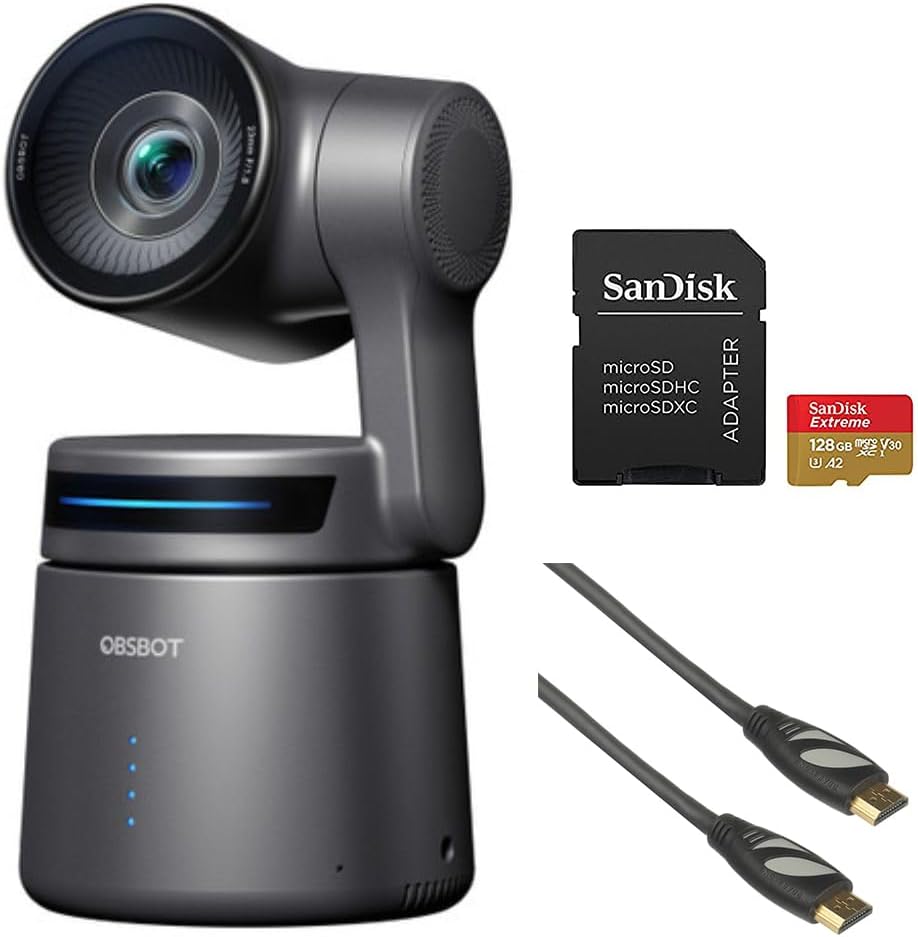
Image: Contents of the OBSBOT Tail Air Bundle, showing the camera, SanDisk Extreme 128 GB microSDXC card, and Pearstone 6' HDMI cable.
Kurmak
1. Kamera Yerleşimi
Place the OBSBOT Tail Air camera on a stable, flat surface or mount it on a compatible tripod. Ensure the camera has a clear line of sight to the area you intend to capture.
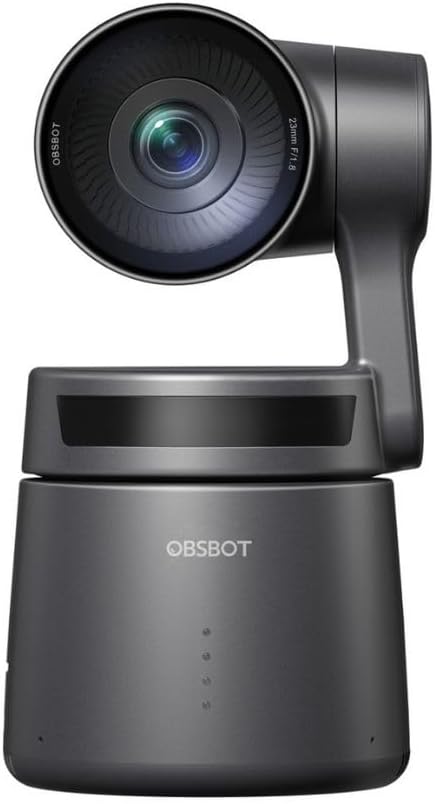
Resim: Ön view of the OBSBOT Tail Air camera, showing the lens and base.
2. Güç Bağlantısı
- USB-C kablosunu kameranın USB-C bağlantı noktasına bağlayın.
- Connect the other end of the USB-C cable to a power source (e.g., a USB wall adapter or computer USB port). Use the provided USB-C to USB-A adapter if your power source only has USB-A ports.
- The camera's indicator lights will illuminate upon successful power connection.

Image: OBSBOT Tail Air camera with its blue indicator lights active, signifying power or operational status.
3. MicroSD Kart Takılması
To enable local recording, insert the SanDisk Extreme 128 GB microSDXC card into the camera's microSD card slot. Ensure the card is inserted with the correct orientation until it clicks into place.

Image: SanDisk Extreme 128 GB microSDXC card, suitable for high-speed data storage.
4. Bağlantı Seçenekleri
The OBSBOT Tail Air offers multiple connectivity options:
- USB BAĞLANTI: Connect the camera to a computer via USB-C for use as a webkamera veya veri aktarımı için.
- HDMI: Use the Pearstone HDMI cable to connect the camera's micro-HDMI output to a display or capture card for high-quality video output.
- Ethernet/PoE: For network connectivity and Power over Ethernet (PoE), an optional adapter is required. This enables NDI|HX3 support for professional streaming setups.
- Wifi: Connect the camera to your wireless network for remote control and streaming via the OBSBOT app.

Resim: Arka view of the OBSBOT Tail Air camera, highlighting its various connectivity ports including USB-C and micro-HDMI.

Image: Pearstone Standard Series HDMI to HDMI High-Speed Ethernet Cable, 6 feet in length.
Operating the OBSBOT Tail Air
1. İlk Güç Açma
Once powered, the camera will perform a self-calibration. The lens will pan and tilt to its home position. Wait for the indicator lights to stabilize before proceeding.
2. OBSBOT App Control
For full control and advanced features, download the official OBSBOT app on your smartphone or tablet. Connect the camera to the app via Wi-Fi or USB.
- Uzaktan kumanda: Pan, tilt, and zoom the camera remotely.
- AI İzleme: Activate and manage AI human, animal, or object tracking.
- Hareket Kontrolü 2.0: Learn and utilize various hand gestures for quick control of tracking, recording, and zoom.
- Ayarlar: Adjust video resolution (up to 4K), frame rate, exposure, white balance, and other camera parameters.
3. AI Tracking Features
The Tail Air features advanced AI tracking:
- İnsan Takibi: Automatically follows a designated person, keeping them centered in the frame.
- Hayvan Takibi: Capable of tracking pets or other animals.
- Nesne Takibi: Can track specific objects, useful for demonstrations or product showcases.
To activate tracking, use the OBSBOT app or specific gesture controls.
4. Kayıt ve Yayın Akışı
- Yerel Kayıt: video footage can be recorded directly to the inserted microSD card.
- Canlı Yayın: The camera supports direct streaming to platforms via the OBSBOT app or through NDI|HX3 (with optional adapter) for professional broadcast setups.
- Ses Girişi: Utilize the 3.5mm audio input jack for external microphone connection to enhance audio quality.
Bakım
1. Temizlik
- Kamera gövdesini temizlemek için yumuşak ve kuru bir bez kullanın.
- Objektif için objektif temizleme bezi ve özel objektif temizleme solüsyonu kullanın. Aşındırıcı malzemelerden kaçının.
- Güçlü deterjanlar veya çözücüler kullanmayın.
2. Depolama
When not in use, store the camera in its provided storage case in a cool, dry place, away from direct sunlight and extreme temperatures.
3. Ürün Yazılımı Güncellemeleri
Regularly check for firmware updates via the OBSBOT app to ensure optimal performance and access to new features. Follow the app's instructions carefully during updates.
Sorun giderme
| Sorun | Olası Neden | Çözüm |
|---|---|---|
| Kamera açılmıyor. | Loose power connection; faulty cable/adapter; insufficient power source. | Check all cable connections. Try a different USB port or power adapter. Ensure power source meets camera requirements. |
| AI tracking not working. | Poor lighting; subject too far/close; camera obstruction; AI tracking not activated. | Ensure adequate lighting. Position subject within optimal range (1-5 meters). Clear any obstructions. Activate tracking via the OBSBOT app or gesture. |
| MicroSD kart tanınmıyor. | Card not inserted correctly; card corrupted; incompatible card. | Reinsert the card. Try formatting the card (this will erase data). Ensure the card is a genuine SanDisk Extreme 128 GB microSDXC or similar compatible card. |
| HDMI üzerinden görüntü çıkışı yok. | HDMI cable faulty; display input not selected; camera not in video output mode. | Check the Pearstone HDMI cable for damage. Ensure the display is set to the correct HDMI input. Verify camera settings in the OBSBOT app. |
| Uygulama bağlantı sorunları. | Wi-Fi interference; incorrect network; camera not discoverable. | Ensure camera and device are on the same Wi-Fi network. Restart both camera and app. Check for app updates. |
Özellikler
| Özellik | Detay |
|---|---|
| Örnek | OBSBOT Tail Air (OSB-2108-CW) |
| Sensör | 1/1.8" CMOS 8MP |
| Video Yakalama Çözünürlüğü | 4K'ya kadar |
| Bağlantı Teknolojisi | USB-C, Micro-HDMI, Wi-Fi, Ethernet (with optional adapter) |
| Ses Girişi | 3.5 mm jak |
| Takip | AI Human/Animal/Object Tracking |
| Kontrol | Gesture Control 2.0, OBSBOT App |
| Depolamak | MicroSDXC (SanDisk Extreme 128 GB included) |
| UPC | 810160682202 |
Garanti ve Destek
Garanti bilgileri ve teknik destek için lütfen resmi OBSBOT'a bakın. webSite üzerinden satın alabilir veya doğrudan müşteri hizmetleriyle iletişime geçebilirsiniz. Satın alma belgenizi saklayın.
OBSBOT Official Webalan: www.obsbot.com


