1. Giriş
This manual provides comprehensive instructions for the setup, operation, maintenance, and troubleshooting of your Logitech Ergo M575S Wireless Trackball Mouse. Designed for comfort and precision, the ERGO M575S minimizes movement and maximizes comfort with its sculpted ergonomic shape and thumb control. It offers smooth, precise tracking and is compatible with both PC and Mac systems.
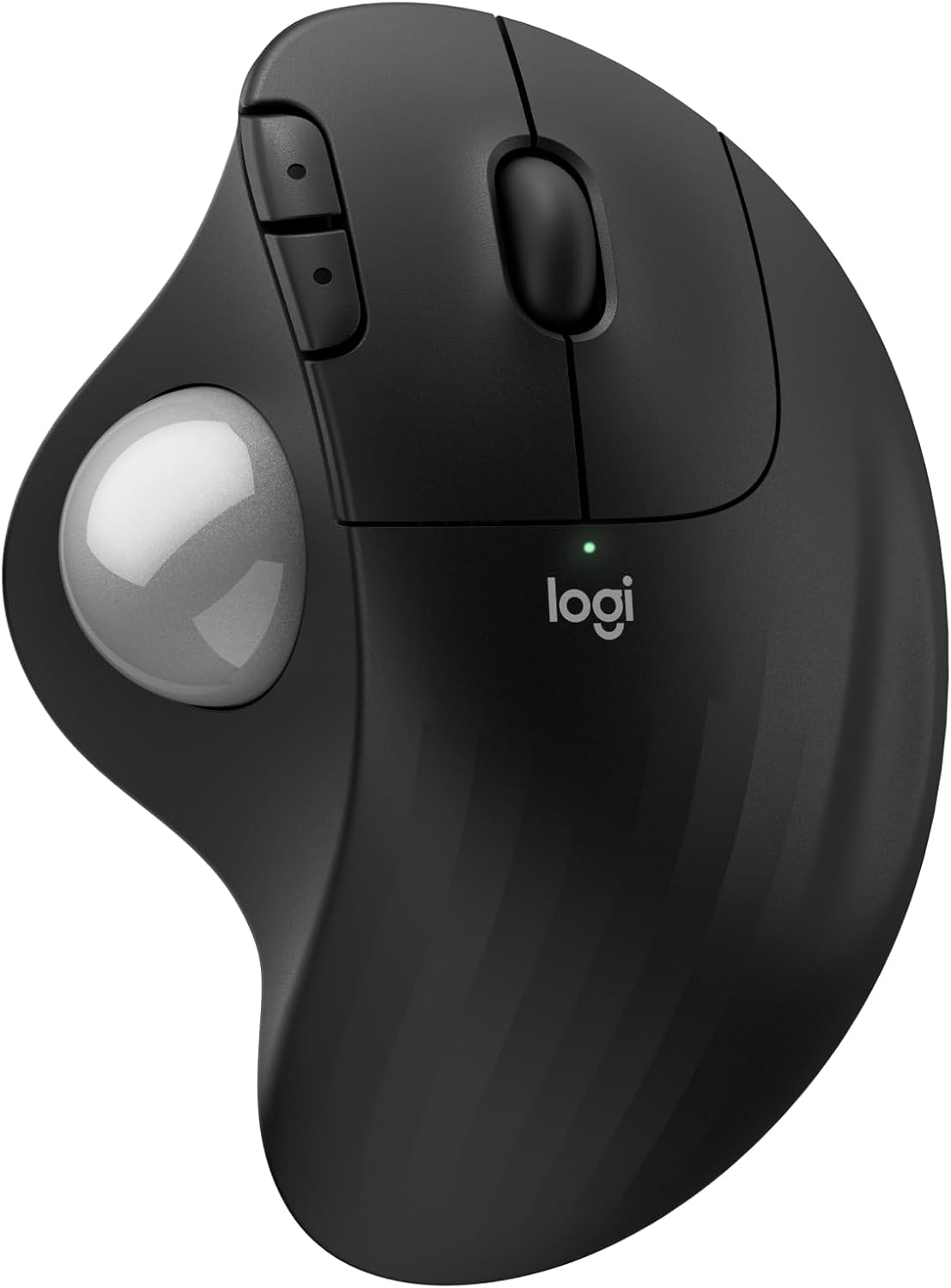
Resim: Üst view of the Logitech Ergo M575S Wireless Trackball Mouse, highlighting its ergonomic design and trackball.
Key features include 25% less muscle strain in the forearm compared to traditional mice, an improved forearm posture, customizable buttons via the Logi Options+ App, and long battery life. The mouse is also made with certified post-consumer recycled plastic, contributing to a lighter environmental footprint.
2. Kurulum
2.1. Pil Kurulumu
The Logitech Ergo M575S uses one AA battery. To install or replace the battery:
- Farenin alt tarafındaki pil bölmesini bulun.
- Pil kapağını açın.
- AA pili, doğru kutuplara (+/-) dikkat ederek takın.
- Pil kapağını sıkıca kapatın.

Resim: Alt taraf view of the mouse, illustrating the battery compartment and the slot for the Logi Bolt USB receiver.
2.2. Bağlantı Seçenekleri
The ERGO M575S offers two ways to connect to your computer:
- Logi Bolt USB Alıcısı: Plug the included Logi Bolt USB receiver into an available USB port on your computer. The mouse should connect automatically.
- Bluetooth:
- Alt kısımda bulunan güç düğmesini kullanarak fareyi açın.
- Eşleştirme modunu gösteren LED göstergesi hızla yanıp sönmeye başlayana kadar (genellikle alt veya yan tarafta bulunan) Easy-Switch düğmesine basılı tutun.
- On your computer, go to Bluetooth settings and select "Logitech ERGO M575S" from the list of available devices to pair.
For optimal performance and customization, download and install the Logi Options+ App from the official Logitech website. This software allows you to personalize button functions, adjust cursor speed, and create application-specific settings.
3. Fareyi Çalıştırma
3.1. Temel İşlevler
- Sol tık: Öğeleri seçmek ve yazılımla etkileşim kurmak için birincil düğme.
- Sağ tık: Bağlam menüleri ve ek seçenekler için ikincil düğme.
- Kaydırma tekerleği: Scroll up and down through documents and web Sayfalar. Kaydırma tekerleği aynı zamanda orta tıklama düğmesi olarak da işlev görür.
- İztopu: Use your thumb to control the cursor movement on the screen. This eliminates the need to move the entire mouse, reducing arm and wrist strain.

Image: A hand demonstrating the smooth, effortless thumb control of the trackball for precise tracking.
3.2. Özelleştirilebilir Düğmeler
The ERGO M575S features additional buttons that can be customized using the Logi Options+ App. These typically include forward and back buttons located near the thumb trackball.
- İleri/Geri Düğmeleri: By default, these navigate forward and backward in web tarayıcılar veya file kaşifler.
- Özelleştirme: Through the Logi Options+ App, you can reassign these buttons to perform various functions, such as media controls, application switching, or custom keystrokes, enhancing your workflow efficiency.

Image: A laptop displaying the Logi Options+ App interface, demonstrating how to customize the mouse buttons for personalized use.
4. Bakım
4.1. Trackball'ın Temizlenmesi
Over time, dust and debris can accumulate around the trackball, affecting its smooth operation. Regular cleaning is recommended.
- Fare topunu alt kısmından hafifçe iterek dışarı çıkarın.
- Trackball'ı temizlemek için yumuşak, tüy bırakmayan bir bez kullanın.
- Use a cotton swab or compressed air to clean the three small support bearings inside the trackball cavity. Ensure no debris remains.
- Place the trackball back into its socket, ensuring it clicks into place.
Not: Avoid using harsh chemicals or abrasive materials, as these can damage the trackball or the mouse surface.
4.2. Genel Temizlik
Farenin dışını yumuşak bir bezle silin.amp cloth as needed to keep it clean.
5. Sorun Giderme
5.1. Bağlantı Sorunları
- Fare yanıt vermiyor:
- Farenin açık olup olmadığını kontrol edin.
- Pilinin doğru takıldığından ve yeterli şarjı olduğundan emin olun. Gerekirse değiştirin.
- USB alıcı kullanıyorsanız, farklı bir USB bağlantı noktasına takmayı deneyin.
- If using Bluetooth, ensure Bluetooth is enabled on your computer and the mouse is paired. Try re-pairing the device.
- Aralıklı bağlantı:
- Move the mouse closer to the USB receiver or your computer (for Bluetooth) to reduce interference.
- Avoid placing the receiver near other electrical devices that might cause interference.
5.2. Takip Sorunları
- İmlecin düzensiz veya hiç hareket etmemesi:
- Clean the trackball and its internal support bearings as described in the Maintenance section.
- Ensure the trackball is properly seated in its socket.
- Check the surface the mouse is on; while trackballs are less sensitive to surfaces, extreme conditions might affect performance.
5.3. Button/Scroll Wheel Issues
- Düğmeler yanıt vermiyor:
- Verify that the Logi Options+ App is not causing conflicts with custom settings. Try resetting button assignments to default.
- Reinstall the Logi Options+ App if issues persist.
- Scroll wheel not working:
- Ensure no debris is lodged around the scroll wheel.
6. Özellikler
| Özellik | Detay |
|---|---|
| Marka | Logitech |
| Model Numarası | 910-007392 |
| Bağlantı Teknolojisi | Bluetooth, USB (Logi Bolt Alıcı) |
| Hareket Algılama Teknolojisi | Optik |
| DPI Aralığı | 400-2000 DPI (Adjustable via Logi Options+ App) |
| Pil Ömrü | Up to 18 months (with AA battery) |
| İşletim Sistemi Uyumluluğu | Windows, macOS |
| Ürün Ağırlığı | 7.4 ons |
| Boyutlar | 5.51 x 4.17 x 1.93 inç (Paket Boyutları) |
| Malzeme | Plastic parts made with certified post-consumer recycled plastic (Graphite: 52%, Off-White: 21%) |
7. Garanti ve Destek
For detailed warranty information regarding your Logitech Ergo M575S Wireless Trackball Mouse, please refer to the warranty card included with your product or visit the official Logitech support webalan.
Logitech provides customer support for product inquiries, technical assistance, and warranty claims.
- Çevrimiçi destek: Ziyaret etmek destek.logi.com for FAQs, troubleshooting guides, and driver downloads.
- Destek Ekibiyle İletişime Geçin: Information on contacting Logitech customer service via phone or chat can be found on their support webalan.


