1. Giriş
This manual provides essential information for the installation, operation, and maintenance of your ZOTAC Gaming GeForce RTX 3050 6GB GDDR6 Solo graphics card. This super compact graphics card is built on the NVIDIA Ampere architecture, featuring enhanced RT Cores and Tensor Cores, streaming multiprocessors, and GDDR6 memory for optimized gaming performance.

Figure 1: ZOTAC Gaming GeForce RTX 3050 6GB GDDR6 Solo Graphics Card and Retail Packaging
2. Temel Özellikler
- NVIDIA Ampere Architecture: Incorporates 2nd Gen Ray Tracing Cores and 3rd Gen Tensor Cores for advanced graphics.
- Memory: Equipped with 6GB 96-bit GDDR6 memory, operating at 14 Gbps.
- Compact Design: Features a super compact, dual-slot design that fits in 99% of available PC cases.
- Power Efficiency: PCIe Bus Powered with a 70-watt max power consumption.
- Display Support: 8K Ready, supports up to 4 displays simultaneously via 3 x DisplayPort 1.4a and 1 x HDMI 2.1 connectors.
- Software Compatibility: Supports Game Ready and NVIDIA Studio Drivers, PCI Express® Gen 4, Microsoft DirectX® 12 Ultimate, Vulkan API, OpenGL 4.6, and Windows 11 / Windows 10 64-bit.
3. Paket İçeriği
Ürün paketinizde tüm öğelerin mevcut olduğunu doğrulayın:
- ZOTAC GAMING GeForce RTX 3050 6GB GDDR6 Solo graphics card
- Kullanım Kılavuzu (bu belge)
4. Teknik Özellikler
| Şartname | Detay |
|---|---|
| Grafik Eş İşlemcisi | NVIDIA GeForce RTX 3050 |
| Bellek Boyutu | 6 GB GDDR6 |
| Bellek Veriyolu | 96 bitlik |
| Bellek Saati | 14.0 Gbps |
| Motor Takviye Saati | 1470 MHz |
| CUDA Çekirdekleri | 2304 |
| PCI Ekspres | 4.0x8 |
| Video Çıkış Arayüzü | 3 x DisplayPort 1.4a, 1 x HDMI 2.1 |
| Maksimum Ekran Çözünürlüğü | 7680x4320 |
| HDCP Desteği | 2.3 |
| Maksimum Güç Tüketimi | 70 watt |
| Önerilen PSU | 450 watt |
| Ölçüler (Uzunluk) | 150.8 mm (5.9 inç) |
| Boyutlar (Yükseklik) | 115.1 mm (4.5 inç) |
| Boyutlar (Genişlik) | 2 slot (39.2 mm / 1.5 in) |
5. Kurulum
5.1. Fiziksel Kurulum
- Gücü Kapatma ve Bağlantıyı Kesme: Bilgisayarınızın tamamen kapalı olduğundan ve prizden çıkarılmış olduğundan emin olun.
- Bilgisayar Kasasını Açın: Anakarta erişmek için bilgisayar kasanızın yan panelini çıkarın.
- PCIe Yuvasını Bulun: Identify an available PCI Express 4.0 x8 or x16 slot on your motherboard.
- Yuva Kapaklarını Çıkarın: Remove the necessary expansion slot covers from the back of your PC case that correspond to the chosen PCIe slot. This graphics card occupies two slots.
- Grafik Kartını Takın: Carefully align the graphics card with the PCIe slot and press down firmly until it is securely seated. You should hear a click from the slot's retention clip.
- Güvenli Grafik Kartı: Fasten the graphics card to the PC case using the screws from the removed slot covers.
- Gücü bağlayın: Connect the 6-pin PCIe power connector from your power supply unit (PSU) to the graphics card. A 450-watt PSU is recommended.
- Bilgisayar Kasasını Kapatın: Bilgisayar kasanızın yan panelini değiştirin.
- Ekranı Bağla: Connect your monitor(s) to the graphics card's DisplayPort or HDMI outputs.

Şekil 2: Üst view of the ZOTAC Gaming GeForce RTX 3050 Graphics Card, showing the cooling fans.

Şekil 3: Açısal view of the ZOTAC Gaming GeForce RTX 3050 Graphics Card, highlighting the 6-pin power connector.

Şekil 4: Arka view of the ZOTAC Gaming GeForce RTX 3050 Graphics Card, showing the DisplayPort and HDMI outputs.
5.2. Sürücü Kurulumu
- Güç Açık: Reconnect your computer to the power outlet and turn it on.
- Sürücüleri İndirin: Resmi NVIDIA'yı ziyaret edin webalan (www.nvidia.com/drivers) to download the latest Game Ready or Studio Drivers for your GeForce RTX 3050 graphics card.
- Sürücüleri Yükle: Sürücü kurulumunu tamamlamak için ekrandaki talimatları izleyin. İstendiğinde bilgisayarınızı yeniden başlatın.
6. Grafik Kartınızı Çalıştırma
Once installed and drivers are updated, your ZOTAC Gaming GeForce RTX 3050 is ready for use. It supports up to four displays simultaneously. Connect your monitors to the available DisplayPort 1.4a or HDMI 2.1 ports. For optimal performance in gaming, ensure your display settings match the capabilities of your monitor and graphics card.
- Single Monitor Setup: Connect your primary monitor to any available port.
- Çoklu Monitör Kurulumu: Connect additional monitors to the remaining ports. Configure display settings within your operating system (e.g., Windows Display Settings) to extend or duplicate your desktop.
- High Refresh Rate/Resolution: Utilize DisplayPort 1.4a or HDMI 2.1 for 4K 120Hz HDR or 8K 60Hz HDR experiences, if supported by your monitor.
7. Bakım
- Sürücü Güncellemeleri: NVIDIA'yı düzenli olarak kontrol edin. website for the latest driver updates to ensure optimal performance and compatibility with new games and software.
- Temizlik: Periodically clean the graphics card fans and heatsink to prevent dust buildup, which can affect cooling efficiency. Use compressed air and ensure the system is powered off before cleaning.
- Sistem Hava Akışı: Ensure your PC case has adequate airflow to help dissipate heat generated by the graphics card.
8. Sorun Giderme
- Görüntü Çıkışı Yok: Ensure the graphics card is fully seated in the PCIe slot and the power connector is securely attached. Verify that your monitor is connected to the graphics card and not the motherboard's integrated graphics ports.
- Sürücü Sorunları: If you experience display artifacts or crashes, try reinstalling the latest graphics drivers. You may need to use a driver uninstaller utility to completely remove old drivers first.
- Performans Sorunları: Check that your power supply meets the recommended 450-watt requirement. Ensure your PC case has good airflow to prevent thermal throttling. Verify game settings are appropriate for your system.
- Sistem Kararsızlığı: If your system is unstable after installation, ensure all components are properly seated and connected. Check for any BIOS/UEFI updates for your motherboard.
9. Garanti ve Destek
For customer service, technical support, or general inquiries regarding your ZOTAC Gaming GeForce RTX 3050 graphics card, please visit the dedicated support page at www.zotac.com/support.
Garanti Bilgileri: Aşağıdaki durumlarda ürün garantisi veya hizmeti uzatılmayacaktır:
- The product is repaired, modified, or altered, unless such repair, modification, or alteration is authorized in writing by ZOTAC Technology Limited.
- The serial number of the product is damaged or missing.
- The customer does not complete the product registration within 28 days of the purchase date.
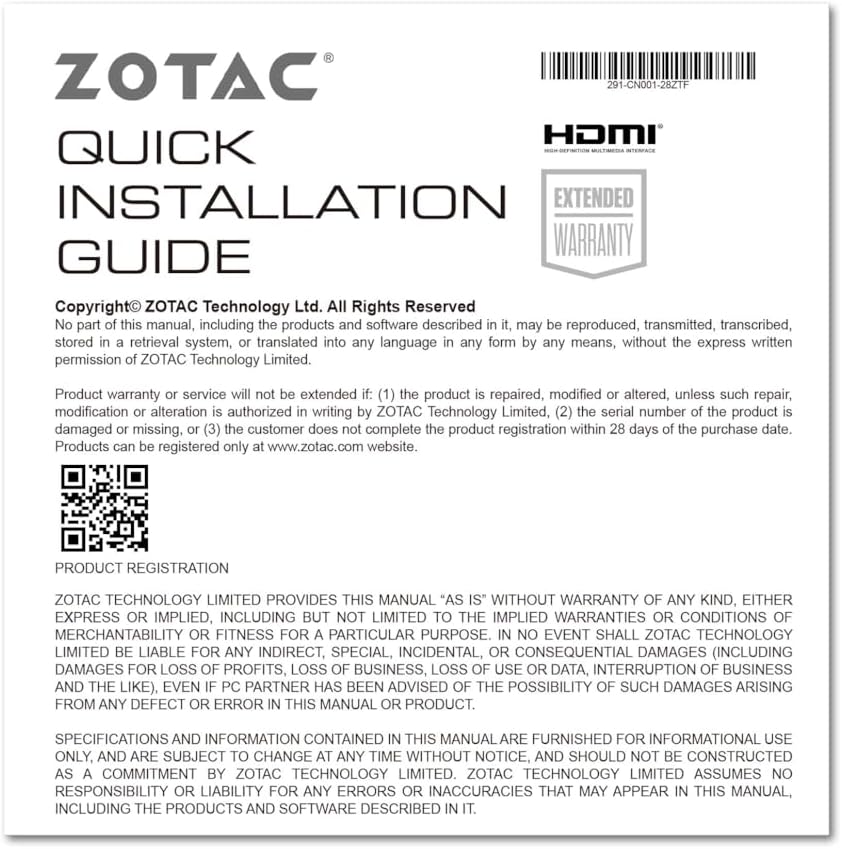
Figure 5: Excerpt from the ZOTAC Quick Installation Guide, detailing product registration and warranty terms.


