1. Giriş
The Logitech Keys-to-GO 2 is a slim, portable wireless keyboard designed for on-the-go productivity. It offers a comfortable typing experience across multiple operating systems and features a built-in protective cover.
Temel Özellikler:
- Types Beautifully: Perfectly spaced scissor keys for a roomy, comfortable typing experience.
- For Any Screen, Any OS: Compatible with Windows, Android, macOS, and ChromeOS.
- Keeps You Covered: Built-in cover protects the compact keyboard from damage.
- Ultra Portable Keyboard: Super slim, lightweight design for easy transport.
- Pair up to Three Devices: Seamlessly switch between three different devices with a single key tap.

Figure 1: Logitech Keys-to-GO 2 Portable Compact Wireless Keyboard with its cover open, showcasinince tasarımı sayesinde.
2. Kurulum ve Bağlantı
2.1. İlk Kurulum
- Klavyeyi ambalajından çıkarın.
- Ensure the pre-installed coin cell batteries are properly seated.
- Locate the On/Off switch on the keyboard and slide it to the 'On' position.
2.2. Bluetooth Eşleştirme
The Keys-to-GO 2 can connect to up to three devices simultaneously via Bluetooth. Follow these steps to pair your keyboard:
- Turn on the keyboard using the On/Off switch.
- Press and hold one of the Easy-Switch keys (labeled 1, 2, or 3) for three seconds until the LED indicator above the key starts blinking rapidly. This indicates the keyboard is in pairing mode.
- Cihazınızda (tablet, telefon veya bilgisayar) Bluetooth ayarlarına gidin.
- Select "Keys-to-GO 2" from the list of available devices.
- If prompted, enter the pairing code displayed on your screen using the Keys-to-GO 2 keyboard and press Enter.
- Once paired, the LED indicator will glow solid for a few seconds and then turn off, indicating a successful connection.
2.3. Cihazlar Arasında Geçiş Yapma
To switch between paired devices, simply press the corresponding Easy-Switch key (1, 2, or 3) for the desired device. The keyboard will automatically connect to that device.
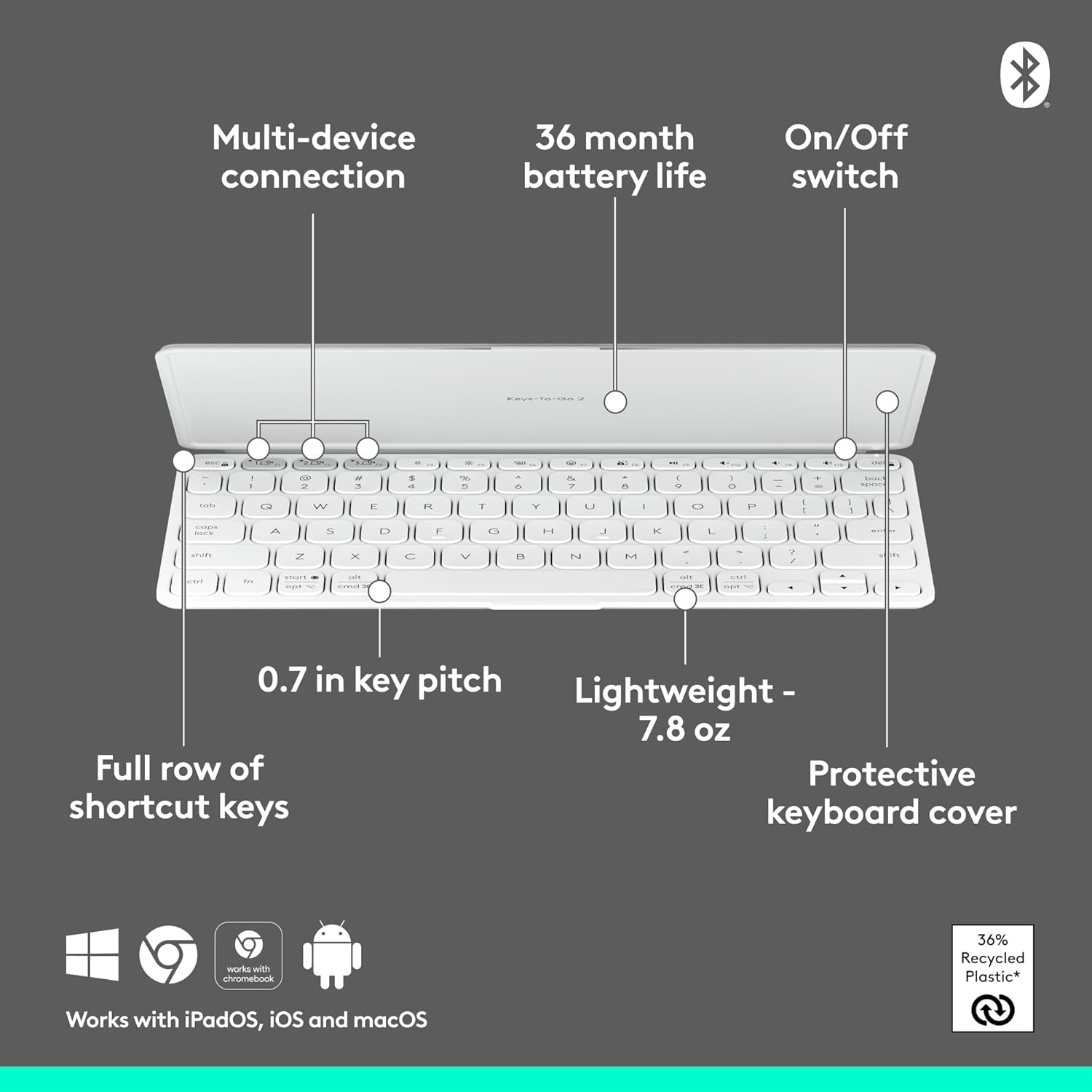
Figure 2: Diagram highlighting key features including multi-device connection and On/Off switch for easy setup.
3. Klavyenin Kullanımı
3.1. Yazma Deneyimi
The Keys-to-GO 2 features well-spaced scissor keys designed for comfortable and efficient typing. The low-profile keys provide a satisfying tactile response, making it ideal for extended use.

Figure 3: User typing comfortably on the Keys-to-GO 2 keyboard, highlighting its ergonomic design.
3.2. Kısayol Tuşları
The keyboard includes a full row of shortcut keys for quick access to various functions, such as media controls, screen brightness, and more. These keys are customizable on Windows and macOS for personalized workflow.
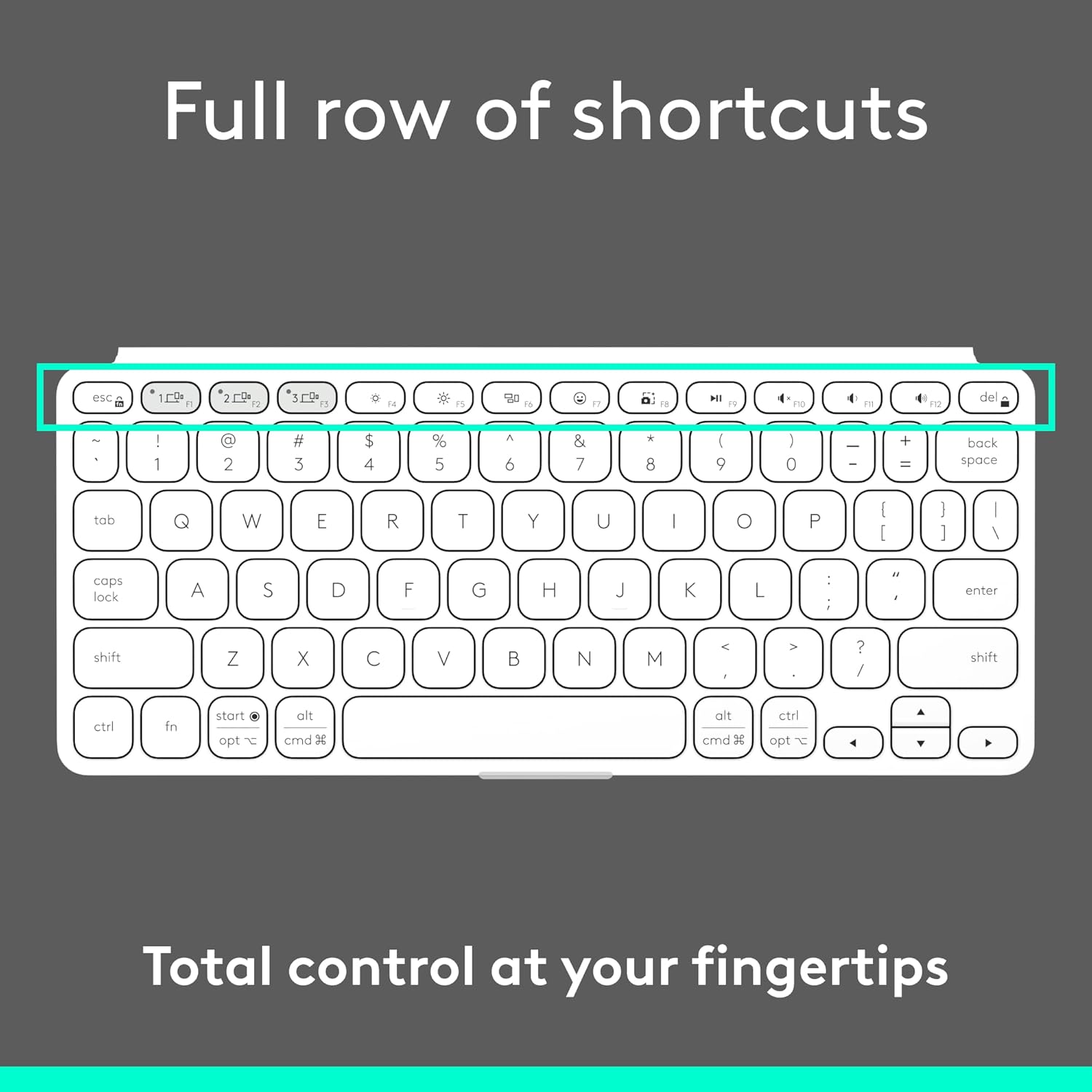
Şekil 4: Ayrıntılı view of the full row of shortcut keys on the Keys-to-GO 2, offering total control at your fingertips.
3.3. Multi-OS Compatibility
The Keys-to-GO 2 is designed to work seamlessly with a variety of operating systems, ensuring broad compatibility across your devices:
- Android
- Chrome İşletim Sistemi
- Pencereler
- iPadOS
- iOS
- macOS

Figure 5: The Keys-to-GO 2 keyboard connected to a tablet, illustrating its versatile multi-OS support.
4. Bakım
4.1. Pil Ömrü ve Değişimi
The Keys-to-GO 2 is powered by pre-installed coin cell batteries, offering up to 3 years of battery life under typical usage conditions. When the battery is low, the LED indicator will signal this. To replace the batteries:
- Locate the battery compartment on the keyboard.
- You will need a T5 screwdriver to open the battery compartment.
- Carefully remove the old coin cell batteries.
- Insert new coin cell batteries, ensuring correct polarity.
- Securely close the battery compartment using the T5 screwdriver.
Note: Battery life may vary based on usage and computing conditions.

Figure 6: The Keys-to-GO 2 is designed for long battery life, allowing for extended use without frequent battery changes.
4.2. Temizlik
Klavyenizi temizlemek için yüzeyini yumuşak bir bezle nazikçe silin.amp bez. Sert kimyasallar veya aşındırıcı malzemeler kullanmaktan kaçının.
5. Sorun Giderme
| Sorun | Olası Neden | Çözüm |
|---|---|---|
| Klavye açılmıyor. | Battery is dead or improperly seated. | Check the On/Off switch. Replace batteries if necessary, ensuring they are correctly inserted. |
| Cihazla eşleştirilemiyor. | Keyboard not in pairing mode; Bluetooth off on device; device too far. | Ensure keyboard is in pairing mode (blinking LED). Turn on Bluetooth on your device. Move keyboard closer to device. |
| Keys are unresponsive or typing errors occur. | Low battery; interference; software issue on device. | Replace batteries. Move away from other wireless devices. Restart your device. Re-pair the keyboard. |
| Klavye sık sık bağlantısı kesiliyor. | Low battery; interference; device power saving settings. | Replace batteries. Reduce interference. Check device power saving settings that might disconnect Bluetooth devices. |
6. Özellikler
- Marka: Logitech
- Modeli: Keys-To-Go 2 Universal Pale Gray
- Bağlantı Teknolojisi: Bluetooth
- İşletim Sistemi Uyumluluğu: Android, iOS, macOS, Windows, ChromeOS
- Ürün Ağırlığı: 7.8 ons (yaklaşık 222g)
- Ürün Boyutları (UxGxY): 4.13 x 0.17 x 9.84 inç
- Anahtar Sayısı: 78
- Klavye Açıklaması: Membran
- Güç Kaynağı: Pil ile Çalışır (1 Standart Dışı Pil Dahildir)
- Pil Ömrü: Up to 3 years (pre-installed coin cell batteries)
- Malzeme: Plastic (36% recycled plastic)
- Renk: Soluk gri
7. Garanti ve Destek
Garanti bilgileri ve teknik destek için lütfen resmi Logitech destek sayfasını ziyaret edin. webSite üzerinden satın alabilir veya müşteri hizmetleriyle iletişime geçebilirsiniz. Garanti talepleriniz için satın alma fişinizi saklayın.
Resmi Logitech Desteği: www.logitech.com/support


