1. Giriş
This manual provides essential information for the proper setup, operation, and maintenance of your NexiGo NG17QH 4K Portable Monitor. Please read this manual thoroughly before using the device to ensure optimal performance and to prevent damage. Keep this manual for future reference.

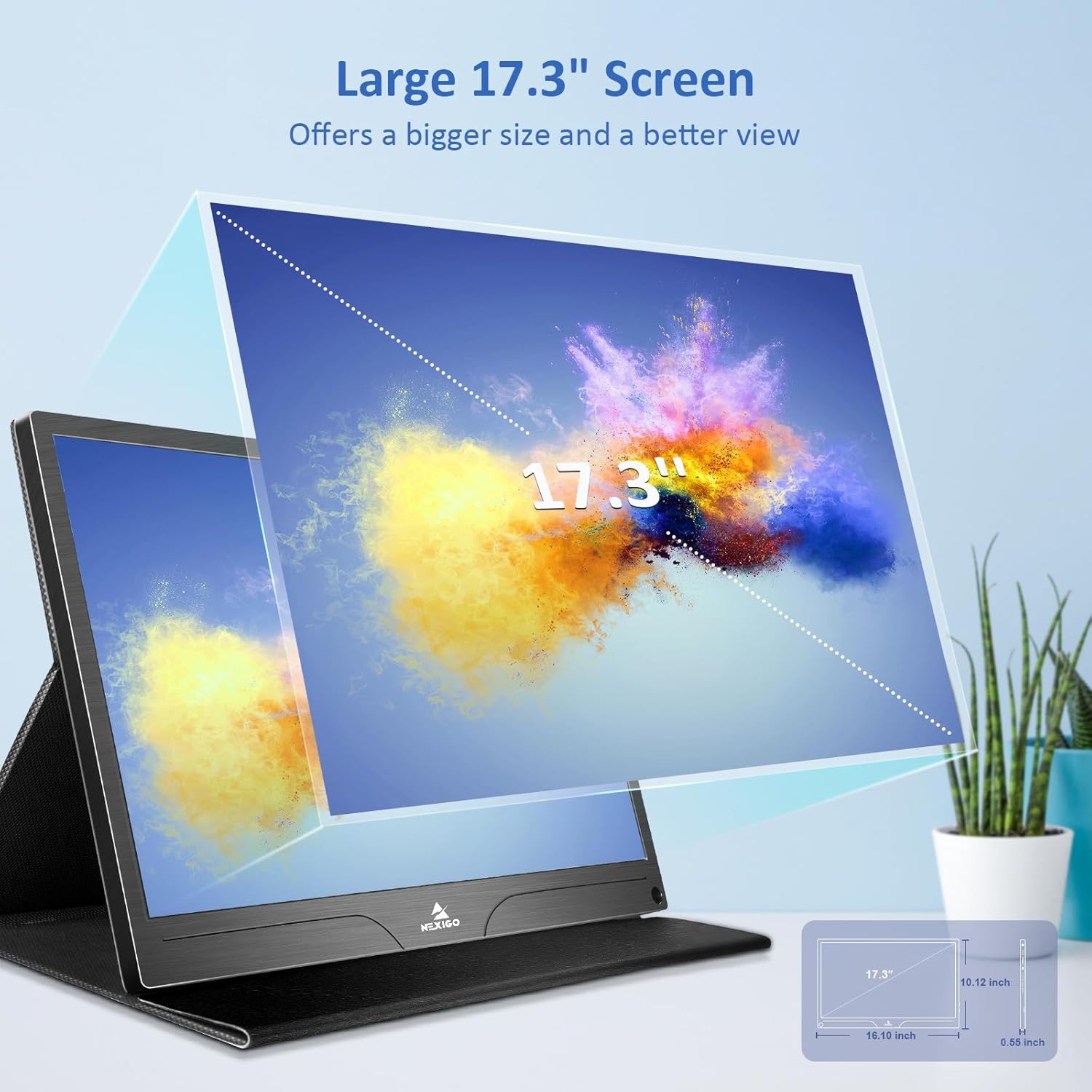
Image: The NexiGo NG17QH 4K Portable Monitor, showcasing its sleek design and smart cover.
2. Paket İçeriği
Verify that all items listed below are included in your package. If any items are missing or damaged, please contact NexiGo customer support.
- NexiGo NG17QH 4K Portable Monitor
- Smart Cover / Stand
- USB-C'den USB-C'ye Kablo
- Mini HDMI - HDMI Kablosu
- USB-A'dan USB-C'ye Güç Kablosu
- Güç Adaptörü
3. Ürün Bittiview
Familiarize yourself with the ports and controls on your NexiGo NG17QH portable monitor.
Resim: Ayrıntılı view of the monitor's ports and controls.
Bağlantı Noktaları ve Düğmeler:
- Tam Özellikli USB-C Bağlantı Noktası: Used for power, video, and audio transmission with compatible devices.
- Küçük HDMI Bağlantı Noktası: Used for video and audio transmission with HDMI-compatible devices.
- Güç Düğmesi: Press and hold to power the monitor on or off. Short press to access the OSD menu.
- Güç gösterge ışığı: Indicates the monitor's power status.
- Multi-Function Key: Used to navigate the OSD menu and adjust settings.
- OTG Interface (USB-C): Allows connection of USB peripherals like keyboards or mice when the monitor is connected via the full-featured USB-C port.
- 3.5 mm Kulaklık Girişi: Harici ses aygıtlarını bağlamak için.
4. Kurulum
Follow these steps to set up your NexiGo NG17QH portable monitor.
4.1 Monitöre Güç Verme
- Using a single USB-C cable (Full-Featured): If your device (laptop, smartphone) supports full-featured USB-C output, connect the monitor to your device using the provided USB-C to USB-C cable. This single cable can provide both power and display signal.
- Using an external power adapter: If your device does not provide sufficient power or if you are using the Mini HDMI port, connect the provided USB-A to USB-C power cable to the monitor's full-featured USB-C port and plug the USB-A end into the power adapter, then into a wall outlet.
4.2 Cihazlara Bağlanma
- Laptop/PC (USB-C): Connect the monitor to your laptop/PC using the USB-C to USB-C cable. Ensure your laptop's USB-C port supports DisplayPort Alternate Mode.
- Laptop/PC (HDMI): Connect the monitor to your laptop/PC using the Mini HDMI to HDMI cable. Ensure the monitor is powered externally via the USB-C power cable.
- Gaming Consoles (PS5, Xbox, Switch): Connect the monitor to your console using the Mini HDMI to HDMI cable. Ensure the monitor is powered externally via the USB-C power cable.
- Akıllı telefon: Connect the monitor to your smartphone using the USB-C to USB-C cable. Ensure your smartphone's USB-C port supports video output.
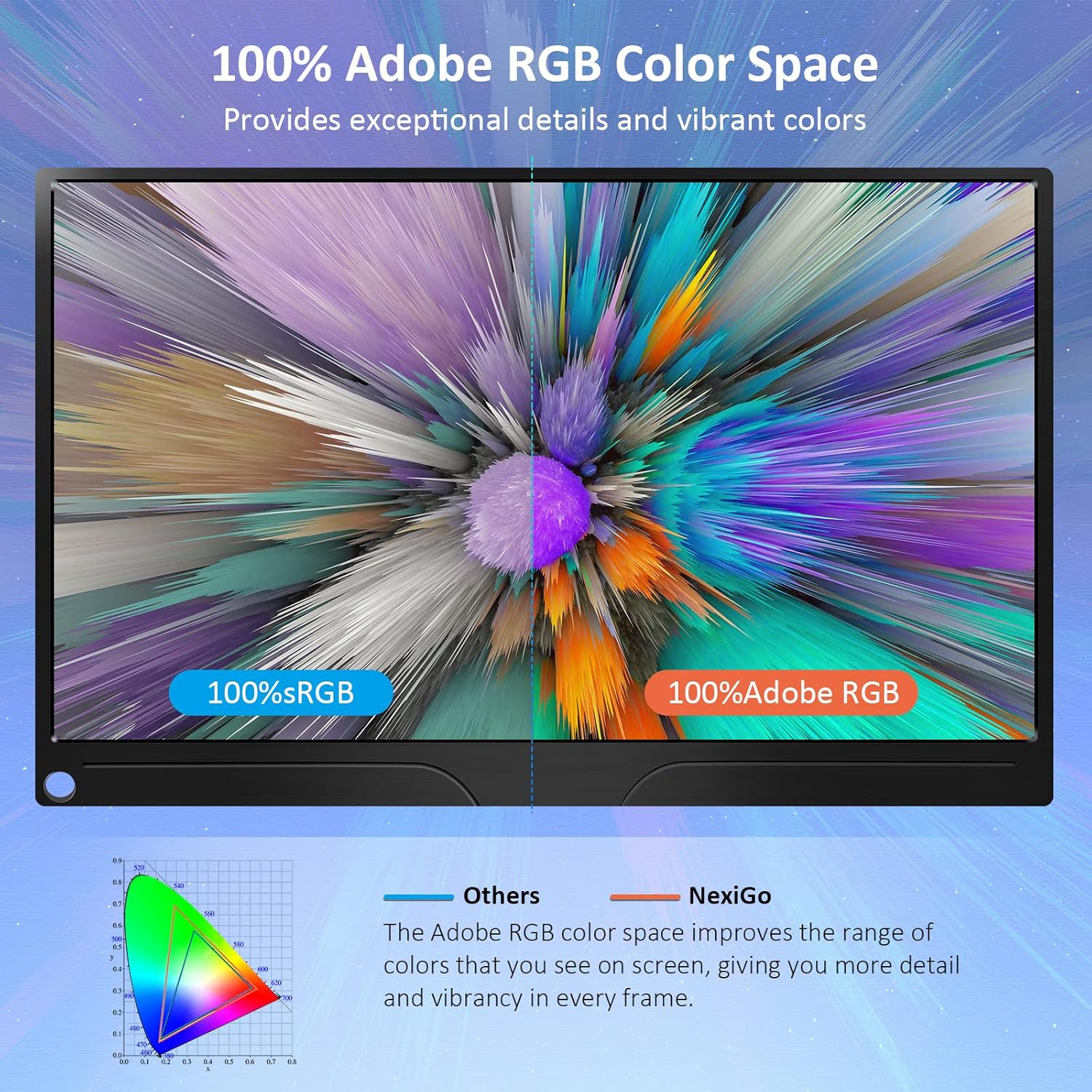
Image: The portable monitor connected to a laptop, demonstrating an extended display setup.
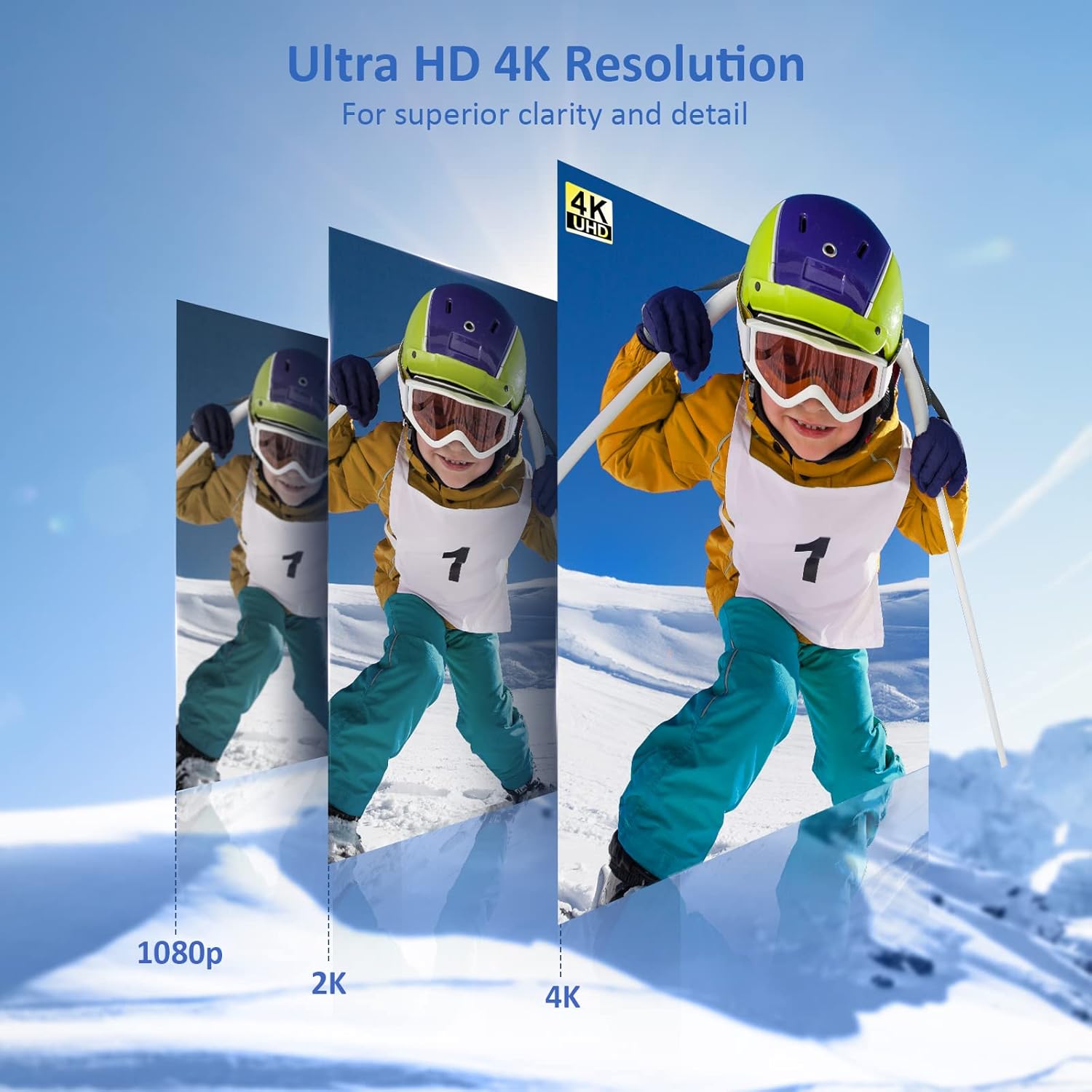
Image: The portable monitor connected to a smartphone, displaying content.
4.3 VESA Montajı
The monitor is compatible with VESA mounts (75x75mm). To mount the monitor, remove the smart cover and attach it to a compatible VESA arm or wall mount using appropriate screws (not included).
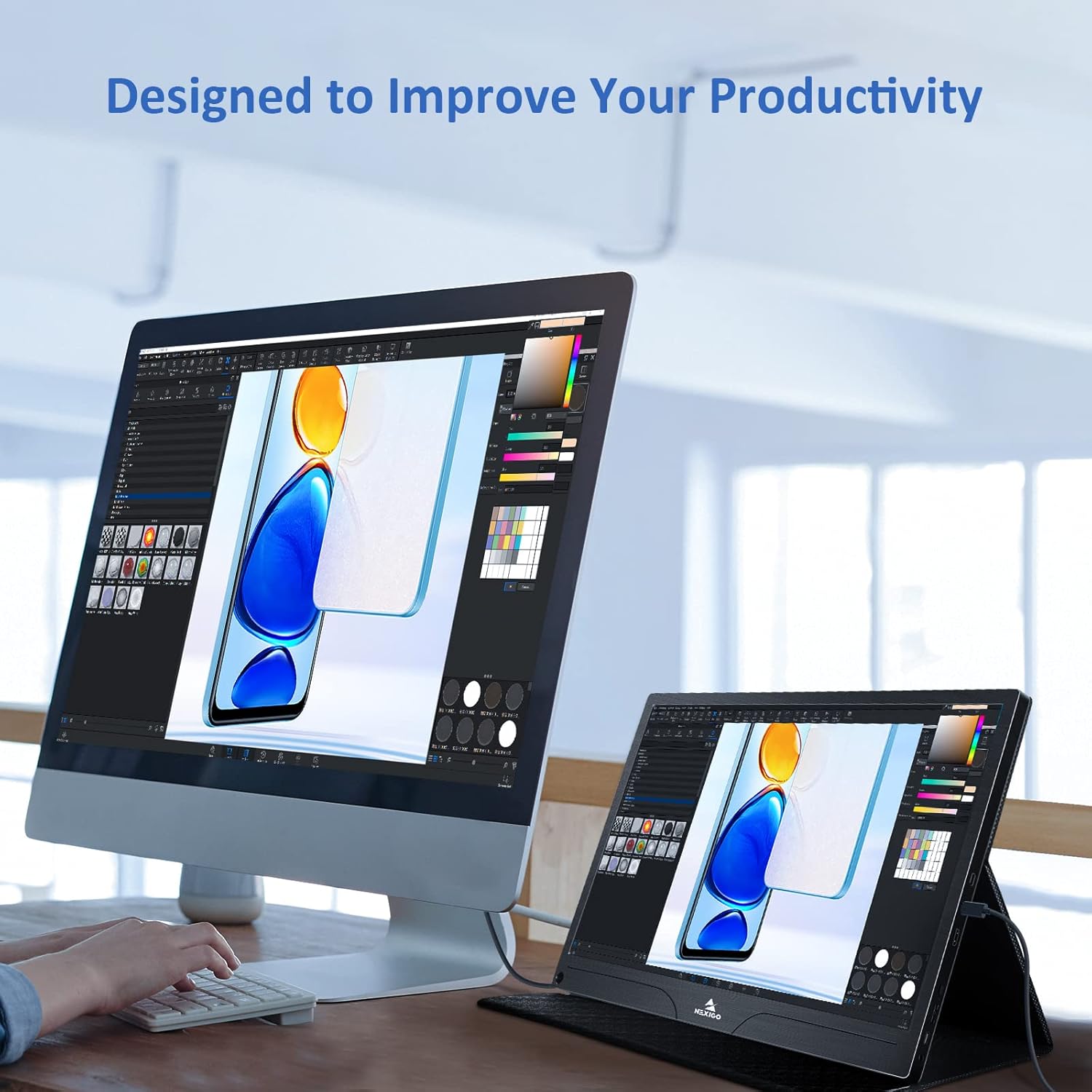
Image: The monitor mounted on a VESA-compatible desk arm.
5. Monitörü Çalıştırma
5.1 Güç Açma/Kapatma
Basılı tutun Güç Düğmesi for approximately 3 seconds to turn the monitor on or off.
5.2 Ekran Üstü Görüntüleme (OSD) Menüsü
The OSD menu allows you to adjust various display settings. Short press the Güç Düğmesi to open the OSD menu. Use the Çok İşlevli Anahtar Gezinmek ve seçenekleri seçmek için.
- Yukarı aşağı: Move the Multi-Function Key up or down to navigate through menu options.
- Girmek: Press the Multi-Function Key inward to select an option or confirm a setting.
- Çıkış: Press the Power Button to exit the current menu or the OSD.
5.3 Ekran Ayarları
- Parlaklık/Kontrast: Ekranın genel parlaklığını ve kontrastını ayarlayın.
- Renk ayarları: Renk sıcaklığını, tonunu ve doygunluğunu değiştirin.
- HDR Modu: Enable or disable High Dynamic Range for enhanced visual quality with compatible content.
- FreeSync: Enable FreeSync for smoother gaming experiences by synchronizing the monitor's refresh rate with your GPU's frame rate.
- En Boy Oranı: Adjust the display aspect ratio (e.g., 16:9, 4:3).
5.4 Ses Ayarları
Adjust the volume of the built-in dual speakers or connected headphones through the OSD menu.
6. Bakım
- Ekranın Temizlenmesi: Hafifçe yumuşak, tüy bırakmayan bir bez kullanın.ampSu veya aşındırıcı olmayan bir ekran temizleyici ile temizleyin. Sıvıyı doğrudan ekrana püskürtmeyin.
- C'yi Temizlemeasing: Monitörü silinasing with a soft, dry cloth. Avoid using harsh chemicals or solvents.
- Depolamak: When not in use, store the monitor in a cool, dry place, preferably in its original packaging or smart cover to protect it from dust and scratches.
- Aşırı Koşullardan Kaçının: Monitörü aşırı sıcaklıklara, neme veya doğrudan güneş ışığına maruz bırakmayın.
7. Sorun Giderme
Monitörünüzde sorunlarla karşılaşırsanız, yaygın sorunlar ve çözümleri için aşağıdaki tabloya bakın.
| Sorun | Olası Neden | Çözüm |
|---|---|---|
| Ekranda görüntü yok / "Sinyal Yok" mesajı | Yanlış kablo bağlantısı, yetersiz güç, yanlış giriş kaynağı. | Ensure cables are securely connected. Verify external power is supplied if needed. Check the input source setting in the OSD menu. |
| Monitör açılmıyor. | No power supply, faulty cable. | Ensure the power adapter is connected and working. Try a different USB-C cable or power source. |
| Titreyen ekran | Faulty cable, unstable power, incompatible resolution/refresh rate. | Replace the cable. Ensure stable power. Adjust the display resolution or refresh rate on your connected device. |
| Ses yok | Volume too low, incorrect audio output setting, faulty cable. | Increase volume via OSD or connected device. Ensure the monitor is selected as the audio output device on your source. Check cable connections. |
| OTG port not working | Monitor not powered via full-featured USB-C, device incompatibility. | Ensure the monitor is connected to a device via the full-featured USB-C port that supports OTG functionality. |
8. Özellikler
Detailed technical specifications for the NexiGo NG17QH 4K Portable Monitor.
| Özellik | Şartname |
|---|---|
| Model Numarası | NG17QH |
| Ekran Boyutu | 17.3 inç |
| Çözünürlük | 3840x2160 (4K UHD) |
| Panel Tipi | IPS |
| Parlaklık | 400 cd/m² |
| Renk Gamı | 100% Adobe RGB |
| En Boy Oranı | 16:9 |
| ViewAçı | 178° |
| Özellikler | FreeSync, HDR, Eye Care Screen |
| Konuşmacılar | Çift Dahili Hoparlör |
| Bağlantı | Full-Featured USB-C (x1), Mini HDMI (x1), OTG USB-C (x1), 3.5mm Audio Jack (x1) |
| VESA Uyumluluğu | 75x75 mm |
| Ürün Boyutları | 16.1 x 10.12 x 0.55 inç |
| Ürün Ağırlığı | 6.39 pound |

Image: Visual comparison of 1080p, 2K, and 4K resolutions, demonstrating the clarity of the 4K display.
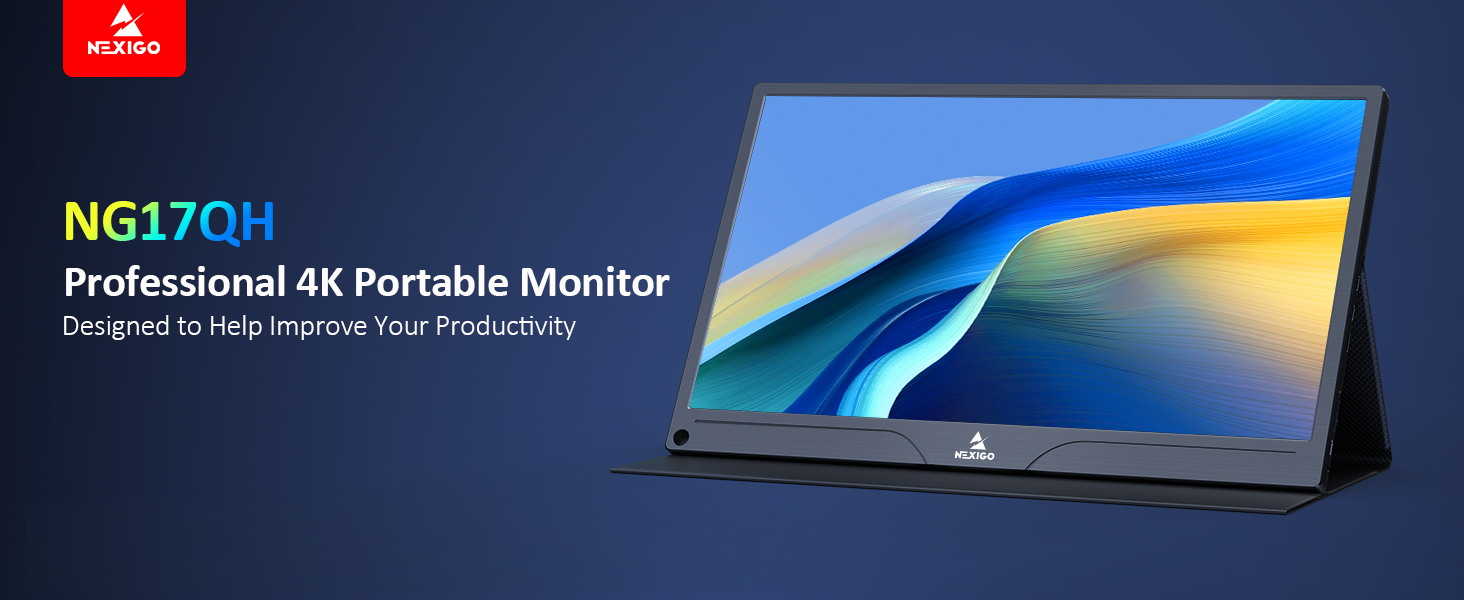
Image: A visual representation of 100% Adobe RGB color space coverage, indicating vibrant and detailed color reproduction.
9. Garanti ve Destek
Your NexiGo NG17QH Portable Monitor comes with a manufacturer's warranty. For detailed warranty information, product registration, or technical support, please visit the official NexiGo website veya doğrudan müşteri hizmetleriyle iletişime geçin. Garanti talepleri için satın alma kanıtı olarak satın alma makbuzunuzu saklayın.
NexiGo Official Webalan: www.nexigo.com


