1. Giriş
Thank you for choosing the Mecer 23.8 Inch Full HD LED Monitor. This manual provides essential information for setting up, operating, and maintaining your monitor. Please read it thoroughly before use to ensure proper functionality and longevity of your device.
This monitor features a 23.8-inch Full HD (1920 x 1080) display, offering crisp and clear visuals. It incorporates TFT LED panel technology for energy efficiency and vibrant colors, with a 16:9 aspect ratio suitable for widescreen viewing. Connectivity options include VGA and HDMI, making it compatible with various devices. Built-in speakers provide basic audio, and wide 178° viewing angles ensure comfortable use. With a 2ms response time, it is suitable for general computing and multimedia consumption.
2. Güvenlik Bilgileri
- Güç Kaynağı: Yalnızca monitörle birlikte verilen güç adaptörünü kullanın. Elektrik prizinin doğru şekilde topraklanmış olduğundan emin olun.
- Havalandırma: Havalandırma açıklıklarını kapatmayın. Aşırı ısınmayı önlemek için monitörün etrafında yeterli hava akışı sağlayacak boşluk bırakın.
- Atama: Monitörü sabit, düz bir yüzeye yerleştirin. Doğrudan güneş ışığına, ısı kaynaklarının yakınına veya aşırı tozlu veya nemli ortamlara koymaktan kaçının.
- Temizlik: Disconnect the power cord before cleaning. Use a soft, dry cloth for the screen and a slightly damp cloth for the casing. Aşındırıcı temizleyiciler veya çözücüler kullanmaktan kaçının.
- Sıvıya Maruz Kalma: Keep liquids away from the monitor. If liquid enters the monitor, disconnect power immediately and contact qualified service personnel.
- Sökme: Monitörü kendiniz sökmeye veya onarmaya çalışmayın. Tüm servis işlemlerini yetkili servis personeline yaptırın.
3. Paket İçeriği
Lütfen paket içeriğini kontrol ederek tüm öğelerin mevcut olduğundan emin olun:
- Mecer 23.8 Inch LED Monitor
- Monitör Standı (Taban ve Boyun)
- Güç Adaptörü ve Kablosu
- HDMI Kablosu
- VGA Kablosu
- Kullanım Kılavuzu (bu belge)
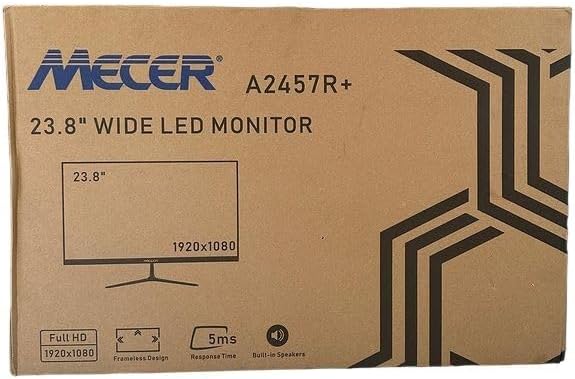
Resim 3.1: The monitor packaging box, indicating the model A2457R+ and key features like 23.8" display, Full HD 1920x1080 resolution, frameless design, 5ms response time, and built-in speakers.
4. Kurulum
4.1. Monitör Standının Montajı
- Monitör ve stand bileşenlerini ambalajından dikkatlice çıkarın.
- Sekmeleri hizalayarak ve yerine oturana kadar sıkıca bastırarak sehpa boynunu monitör paneline takın.
- Attach the stand base to the stand neck, securing it with the provided screw (usually hand-tightened).
- Montajı tamamlanmış monitörü sağlam, düz bir yüzeye yerleştirin.

Resim 4.1: Ön view of the Mecer 23.8 Inch LED Monitor with its stand assembled, ready for connection.
4.2. Bilgisayara Bağlanma
Monitör hem HDMI hem de VGA bağlantılarını desteklemektedir. Bilgisayarınız için uygun kabloyu seçin.
- HDMI Bağlantısı: Connect one end of the HDMI cable to the HDMI port on your computer's graphics card and the other end to the HDMI port on the monitor. HDMI transmits both video and audio signals.
- VGA Bağlantısı: Connect one end of the VGA cable to the VGA port on your computer's graphics card and the other end to the VGA port on the monitor. VGA transmits only video signals.

Resim 4.2: Arka view of the Mecer 23.8 Inch LED Monitor, showing the input ports including HDMI and VGA, as well as the power input.
4.3. Güç Bağlantısı
- Connect the power adapter cable to the DC IN port on the back of the monitor.
- Güç adaptörünü duvar prizine takın.
5. Kullanım Talimatları
5.1. Açma/Kapama
Press the power button, typically located on the bottom right side or rear of the monitor, to turn the monitor on or off. The power indicator light will illuminate when the monitor is on.
5.2. Giriş Kaynağı Seçimi
If you have multiple devices connected, you may need to manually select the input source. Use the monitor's control buttons (usually located near the power button) to navigate to the input selection menu and choose between HDMI or VGA.
5.3. Ekran Üstü Görüntüleme (OSD) Menüsü
The OSD menu allows you to adjust various display settings. Use the monitor's control buttons to:
- OSD menüsüne erişin.
- Navigate through menu options (e.g., Brightness, Contrast, Color Settings, Input Source).
- Adjust values or select options.
- OSD menüsünden çıkın.
Sık kullanılan ayarlanabilir ayarlar şunlardır:
- Parlaklık/Kontrast: Genel parlaklığı ve açık ile koyu alanlar arasındaki farkı ayarlayın.
- Renk ayarları: Renk sıcaklığını, RGB değerlerini ayarlayın veya önceden ayarlanmış renk modlarından birini seçin.
- En Boy Oranı: Change between 16:9, 4:3, or other available options.
- Ses: Adjust volume for the built-in speakers.
5.4. Dahili Hoparlörler
The monitor includes built-in speakers for basic audio output. If using an HDMI connection, audio will be transmitted automatically. For VGA connections, ensure your computer's audio output is configured correctly. Adjust the volume through the OSD menu or your computer's operating system.
6. Bakım
6.1. Monitörün Temizlenmesi
- Temizlemeden önce monitörün fişini mutlaka prizden çekin.
- Ekran: Ekranı yumuşak, tiftiksiz bir bezle nazikçe silin. İnatçı lekeler için hafifçe silin.ampen the cloth with water or a specialized screen cleaner (ensure it's alcohol-free and ammonia-free) and wipe carefully. Do not spray liquid directly onto the screen.
- Casing: Monitörü silmek için yumuşak, kuru bir bez kullanın.asing. Gerekirse, biraz damp bez kullanılabilir, ardından kuru bir bez kullanılabilir.
6.2. Depolama
Monitörü uzun süre saklayacaksanız, tüm kabloları çıkarın, orijinal ambalajına (mümkünse) koyun ve doğrudan güneş ışığından ve aşırı sıcaklıklardan uzakta, serin ve kuru bir yerde saklayın.
7. Sorun Giderme
Monitörünüzde sorunlarla karşılaşırsanız, aşağıdaki yaygın sorunlara ve çözümlere bakın:
- Güç Yok:
- Güç kablosunun monitöre ve duvar prizine güvenli bir şekilde bağlı olduğundan emin olun.
- Başka bir cihazı takarak elektrik prizinin çalıştığını doğrulayın.
- Güç adaptörünün düzgün çalışıp çalışmadığını kontrol edin.
- Sinyal yok:
- Ensure the video cable (HDMI or VGA) is securely connected to both the monitor and the computer.
- Verify that the correct input source is selected on the monitor (via the OSD menu).
- Check if your computer is powered on and outputting a video signal.
- Mümkünse farklı bir video kablosu deneyin.
- Görüntü bulanık veya bozuk:
- Bilgisayarınızın ekran ayarlarında monitörün çözünürlüğünün doğal çözünürlüğüne (1920 x 1080) ayarlandığından emin olun.
- Monitörün OSD ayarlarını parlaklık, kontrast ve keskinlik için düzenleyin.
- For VGA connections, use the 'Auto Adjust' function in the OSD menu if available.
- No Audio from Built-in Speakers:
- Ensure the monitor's volume is not muted or set too low in the OSD menu.
- Check your computer's audio output settings to ensure the monitor is selected as the playback device.
- If using VGA, ensure your computer's audio is routed to an external speaker system, as VGA does not carry audio.
8. Özellikler
| Özellik | Şartname |
|---|---|
| Marka | Mecer |
| Model Numarası | A2457R+ |
| Ekran Boyutu | 23.8 inç |
| Çözünürlük | 1920 x 1080 Piksel (Full HD) |
| Görüntü Türü | LED (TFT LED Panel) |
| En Boy Oranı | 16:9 |
| Tepki Süresi | 2 Milisaniye |
| Yenileme Hızı | 75 Hz |
| ViewAçılar | 178° Yatay / 178° Dikey |
| Bağlantı | 1xHDMI, 1xVGA |
| Dahili Hoparlörler | Evet |
| Renk | Siyah |
| Ürün Boyutları (D x G x Y) | 560D x 42W x 410H millimetres |
| Özel Özellikler | High performance intelligent multi-frequency scanning, Micro Computer digital technology control, no radiation, no glare, Comply with VESA DPMS international power saving regulation, Support DDC 1/2B and Windows PNP Plug and Play |
9. Garanti ve Destek
This Mecer monitor comes with a 1 Yıllık Sınırlı Garanti Satın alma tarihinden itibaren geçerlidir. Lütfen garanti talepleriniz için satın alma belgenizi saklayın.
For technical support, service, or warranty inquiries, please contact your retailer or the authorized Mecer service center in your region. Do not attempt to repair the product yourself, as this may void your warranty.


