1. Giriş
The ZEBRONICS Pulse Wireless Mouse is designed for versatile and comfortable use across various devices. Featuring multi-connectivity options including dual Bluetooth and a 2.4GHz USB nano receiver, it offers seamless switching between systems. Its ergonomic design and 1200 DPI optical sensor ensure precise and smooth cursor control for enhanced productivity.

Resim 1.1: Üst view of the ZEBRONICS Pulse Wireless Mouse, showcasing its sleek black design and scroll wheel.
2. Paket İçeriği
Lütfen paketinizde tüm öğelerin mevcut olduğundan emin olun:
- ZEBRONICS Pulse Wireless Mouse
- USB Nano Alıcı
- Kullanıcı Kılavuzu
3. Temel Özellikler
- Çoklu Bağlantı: Supports dual Bluetooth and 2.4GHz wireless connections.
- Yüksek Hassasiyet: 1200 DPI optical sensor for accurate tracking.
- Ergonomik Tasarım: Comfortable and lightweight for extended use.
- 3 Düğme: Standard left, right, and scroll wheel buttons.
- Removable USB Nano Receiver: Conveniently stored in the mouse's bottom panel.
- Geniş Uyumluluk: Works with desktop PCs, laptops, Mac OS, tablets, and more.
- Güç tasarrufu: Features an auto-shutoff function to conserve battery life.

Image 3.1: A visual summary of the mouse's key features, including its comfortable design, power switch, plug-and-play functionality, and high precision.
4. Kurulum Kılavuzu
4.1. Pil Kurulumu
- Flip the mouse over to access the bottom panel.
- Pil bölmesi kapağını bulun ve kaydırarak açın.
- Bir adet AA pil takın ve kutupların doğru olmasına dikkat edin (+/-).
- Pil bölmesi kapağını sıkıca kapatın.
4.2. Connecting via 2.4GHz USB Nano Receiver
- Locate the USB nano receiver stored in the slot on the bottom of the mouse.
- Alıcıyı saklama yuvasından çıkarın.
- Plug the USB nano receiver into an available USB port on your computer or laptop.
- Farenin altındaki güç düğmesini 'AÇIK' konumuna getirin.
- The mouse should automatically connect. If not, press the connection toggle button on the bottom of the mouse to select the 2.4GHz mode (indicated by '2.4G').

Image 4.1: The underside of the mouse, highlighting the battery slot, nano receiver storage, power switch, and connection toggle button.

Image 4.2: The USB nano receiver plugged into a laptop, demonstrating the 2.4GHz wireless connection.
4.3. Bluetooth ile bağlantı kurma (BT1 / BT2)
- Ensure the mouse has a fresh battery and the power switch is in the 'ON' position.
- Press the connection toggle button on the bottom of the mouse to select either 'BT1' or 'BT2' mode. The corresponding LED indicator will blink.
- On your device (laptop, tablet, etc.), go to Bluetooth settings.
- Arama new devices. The mouse should appear as 'ZEB-PULSE' or similar.
- Select the mouse to pair. Once paired, the LED indicator will stop blinking and remain solid for a few seconds before turning off.
- You can pair a second device using the other Bluetooth channel (BT2) by repeating steps 2-5.
5. Kullanım Talimatları
5.1. Temel İşlevler
- Sol Tuş: Birincil tıklama işlevi.
- Sağ Buton: İkincil tıklama işlevi (bağlam menüsü).
- Kaydırma tekerleği: Yukarı/aşağı kaydırma ve orta tıklama fonksiyonu.

Image 5.1: Illustration of the mouse's three buttons: left, right, and the scroll wheel/middle button.
5.2. Bağlantı Modlarını Değiştirme
To switch between the 2.4GHz wireless mode and Bluetooth modes (BT1, BT2), press the connection toggle button located on the bottom of the mouse. The mouse will cycle through the available modes, indicated by the corresponding LED.
5.3. DPI Ayarı
The ZEBRONICS Pulse mouse operates at a fixed 1200 DPI (Dots Per Inch), providing a balance of speed and precision suitable for general use. This setting ensures smooth and responsive cursor movement.

Image 5.2: Visual representation of the mouse's 1200 DPI precision for accurate tracking.
6. Bakım
- Temizlik: Fareyi temizlemek için yumuşak, kuru bir bez kullanın. Sert kimyasallar veya aşındırıcı malzemeler kullanmaktan kaçının.
- Pil Değişimi: Farenin performansı düştüğünde veya yanıt vermeyi durdurduğunda AA pili değiştirin.
- Depolamak: When not in use for extended periods, turn off the mouse to conserve battery life. Store the USB nano receiver in its dedicated slot on the mouse's bottom.
- Çevre: Fareyi aşırı sıcaklıklara, doğrudan güneş ışığına veya aşırı neme maruz bırakmaktan kaçının.
7. Sorun Giderme
7.1. Fare Yanıt Vermiyor
- Farenin 'AÇIK' olduğundan emin olun.
- Pili kontrol edin. Gerekirse değiştirin.
- For 2.4GHz connection: Ensure the USB nano receiver is securely plugged into a working USB port and the mouse is in 2.4GHz mode.
- For Bluetooth connection: Ensure Bluetooth is enabled on your device and the mouse is in the correct BT1/BT2 mode. Try re-pairing the mouse.
- Try connecting the mouse to a different USB port or a different device to rule out port or device issues.
7.2. Düzensiz İmleç Hareketi
- Farenin alt kısmındaki optik sensörü yumuşak ve kuru bir bezle temizleyin.
- Fareyi temiz ve yansıtmayan bir yüzeyde kullandığınızdan emin olun.
- Diğer kablosuz cihazlardan kaynaklanan paraziti kontrol edin.
7.3. Difficulty Switching Modes
- Pilin yeterli güce sahip olduğundan emin olun.
- Press the connection toggle button firmly and observe the LED indicators to confirm mode changes.
8. Özellikler
| Özellik | Detay |
|---|---|
| Marka | ZEBRONİK |
| Örnek | Zeb-Pulse |
| Bağlantı Teknolojisi | Wireless (2.4GHz, Dual Bluetooth) |
| Hareket Algılama Teknolojisi | Optik |
| DPI | 1200 |
| Düğme Sayısı | 3 |
| Güç Kaynağı | Pille Çalışır (1x AA) |
| Ürün Ağırlığı | 160 gr |
| Ürün Boyutları | 16.6x9.5x0.1 cm |
| İşletim Sistemi Uyumluluğu | Windows, Mac OS, etc. |
| Menşei ülke | Çin |
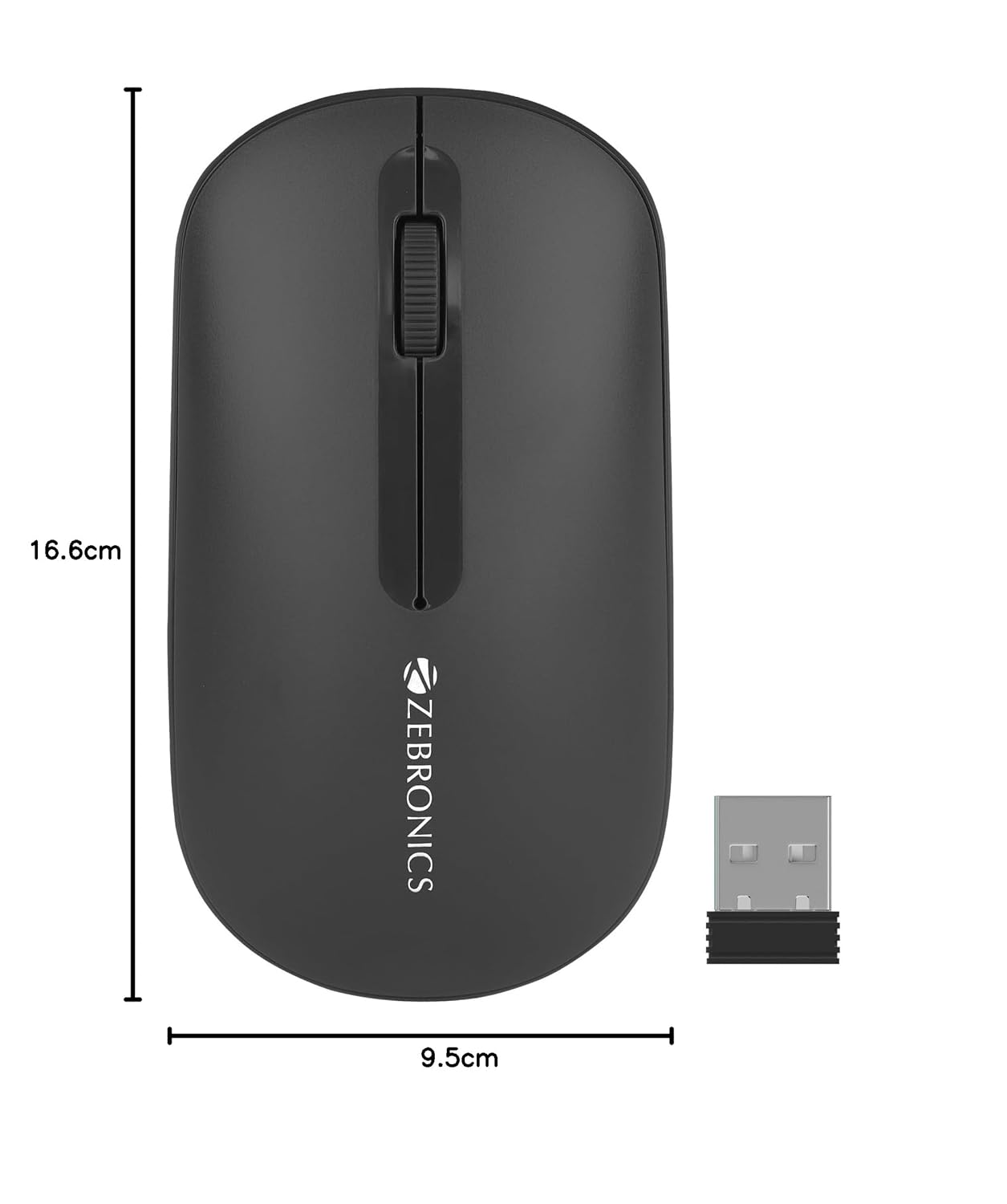
Image 8.1: Diagram showing the physical dimensions of the ZEBRONICS Pulse Wireless Mouse.
9. Garanti ve Destek
For warranty information, technical support, or service inquiries, please refer to the warranty card included with your product or visit the official ZEBRONICS webSite. Satın alma fişinizi, garanti talepleriniz için satın alma belgeniz olarak saklayın.
Official ZEBRONICS Webalan: www.zebronics.com


