1. Giriş
This manual provides detailed instructions for the safe and efficient operation of your Xprinter XP-P323B Portable Thermal Printer. Please read this manual thoroughly before using the device to ensure proper functionality and to prevent damage. The XP-P323B is designed for printing receipts and labels, offering portability and high-speed capabilities for various business needs.
2. Güvenlik Bilgileri
- Yazıcıyı suya veya aşırı neme maruz bırakmayın.
- Yazıcıyı düşürmekten veya şiddetli darbelere maruz bırakmaktan kaçının.
- Yalnızca belirtilen güç adaptörünü ve aksesuarları kullanın.
- Yazıcıyı ısı kaynaklarından ve doğrudan güneş ışığından uzak tutun.
- Yazıcıyı kendiniz sökmeye veya onarmaya çalışmayın. Yetkili servis personeliyle iletişime geçin.
- Çalışma sırasında uygun havalandırma sağlayın.
3. Paket İçeriği
Paketin içinde tüm öğelerin mevcut olduğundan emin olun:
- Xprinter XP-P323B Portable Thermal Printer
- Power Adapter (not explicitly listed but standard)
- USB Cable (not explicitly listed but standard)
- Sample Thermal Paper Roll (not explicitly listed but standard)
- Kullanım Kılavuzu (bu belge)
4. Ürün Bittiview
The Xprinter XP-P323B is a compact and efficient thermal printer designed for various printing tasks. It supports NV logo download and picture printing (BMP format), along with concentration adjustment for print quality.
4.1. Yazıcı Bileşenleri

Şekil 1: Ön view of the Xprinter XP-P323B Portable Thermal Printer, showing the power button, display, and a sample label being printed.
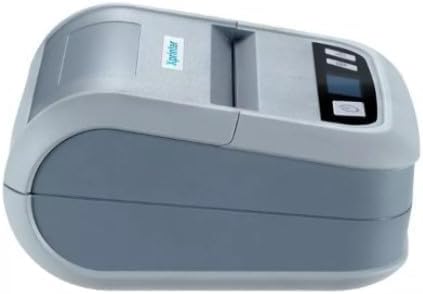
Şekil 2: Taraf view of the Xprinter XP-P323B, highlighting its compact design and the Xprinter logo.
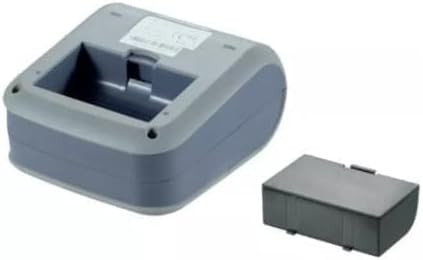
Şekil 3: Alt view of the Xprinter XP-P323B, showing the base and the removable battery compartment.
5. Kurulum
5.1. Pilin Şarj Edilmesi
- Connect the power adapter to the printer's charging port.
- Güç adaptörünü duvar prizine takın.
- The charging indicator light will illuminate. Allow the printer to charge fully before first use.
5.2. Loading Thermal Paper/Labels
- Open the paper compartment cover by gently pushing the release latch.
- Insert the thermal paper roll with the printing surface facing the print head. Ensure the roll is seated correctly.
- Yazıcı kafasının yanından az miktarda kağıdı dışarı çekin.
- Kağıt bölmesinin kapağını yerine oturana kadar sıkıca kapatın.
5.3. Bir Cihaza Bağlanma
The XP-P323B supports USB and Bluetooth connectivity.
5.3.1. USB Bağlantısı
- Sağlanan USB kablosunu kullanarak yazıcıyı bilgisayarınıza bağlayın.
- Install the necessary printer drivers (available from the Xprinter website or included software).
5.3.2. Bluetooth Connection (for Smartphones/iOS)
- Yazıcının açık olduğundan emin olun.
- On your smartphone or iOS device, go to Bluetooth settings and enable Bluetooth.
- Arama available devices and select 'XP-P323B' (or similar name).
- Enter the pairing PIN if prompted (refer to printer documentation for default PIN, often '0000' or '1234').
- Once paired, you can use a compatible printing application to send print jobs.
6. Yazıcının Çalıştırılması
6.1. Temel Baskı
- Ensure the printer is connected to your device and has paper loaded.
- Open the document or image you wish to print on your connected device.
- Select the print option within your application.
- Choose 'XP-P323B' as the printer.
- Adjust print settings as needed (e.g., paper size, print quality).
- Yazdırma işlemini başlatın.
6.2. NV Logo and Picture Printing
The printer supports downloading and printing NV (Non-Volatile) logos and BMP format pictures. This functionality typically requires specific software or commands. Refer to the advanced programming guide or software documentation for detailed instructions on how to upload and print custom logos or images.
6.3. Adjusting Print Concentration
Print concentration can be adjusted to optimize print quality. This setting is usually accessible through the printer driver software on a computer or within the settings of a compatible mobile printing application. Consult your software's help section for specific steps.
7. Bakım
7.1. Yazıcıyı Temizleme
- Dış: Yazıcının dışını yumuşak bir bezle silin.amp bez. Sert kimyasallar veya aşındırıcı temizleyiciler kullanmayın.
- Yazdırma Kafası: The thermal print head should be cleaned periodically to ensure optimal print quality. Use a cotton swab lightly dampened with isopropyl alcohol. Gently wipe the print head surface. Allow it to dry completely before closing the cover and resuming operation.
- Kağıt Yolu: Kağıt yüzeyindeki kağıt tozunu veya kalıntılarını yumuşak bir fırça veya basınçlı hava kullanarak temizleyin.
7.2. Depolama
When not in use for extended periods, store the printer in a cool, dry place, away from direct sunlight and extreme temperatures. Remove the paper roll if storing for a very long time to prevent dust accumulation.
8. Sorun Giderme
| Sorun | Olası Neden | Çözüm |
|---|---|---|
| Yazıcı açılmıyor. | Low battery; Power adapter not connected; Faulty power adapter | Charge the battery; Ensure power adapter is securely connected; Try a different power outlet or adapter |
| Yazdırma çıktısı yok | No paper; Paper loaded incorrectly; Printer not connected; Driver issue | Load paper correctly; Re-establish connection; Reinstall printer drivers |
| Düşük baskı kalitesi | Dirty print head; Low print concentration; Low battery | Clean the print head; Adjust print concentration in software; Charge the battery |
| Bluetooth bağlantısı başarısız oluyor | Bluetooth off on device; Incorrect pairing PIN; Printer out of range | Enable Bluetooth; Re-enter correct PIN; Move device closer to printer |
9. Özellikler
| Marka | X yazıcı |
| Model Numarası | XP-P323B |
| Ürün Boyutları (D x G x Y) | 15D x 7G x 10Y santimetre |
| Bağlantı Teknolojisi | USB |
| Yazıcı Teknolojisi | Termal |
| Özel Özellikler | Taşınabilir |
| Renk | Gri |
| Uyumlu Cihazlar | Akıllı telefonlar |
| Denetleyici Türü | iOS |
| Maksimum Medya Boyutu | 4 x 6 inç |
| Basılı Medya | Etiketler |
| Kağıt Boyutu | 4 x 6 inç |
| Yazıcı Çıktısı | Tek renkli |
| Maximum Print Speed (Black and White) | 40 mm/s (estimated from context) |
| Ürün Ağırlığı | 300 Gram |
10. Garanti ve Destek
For warranty information and technical support, please refer to the warranty card included with your product or visit the official Xprinter webSite. Satın alma fişinizi, garanti talepleriniz için satın alma belgeniz olarak saklayın.


