1. Ürün Bittiview
The POLONO P31S is a compact and portable thermal label printer designed for various labeling needs in home, office, and school environments. It connects wirelessly via Bluetooth to your smartphone or tablet, allowing you to design and print labels using the dedicated mobile application. This device features a built-in cutter and operates without ink, utilizing thermal printing technology for clear, durable labels.
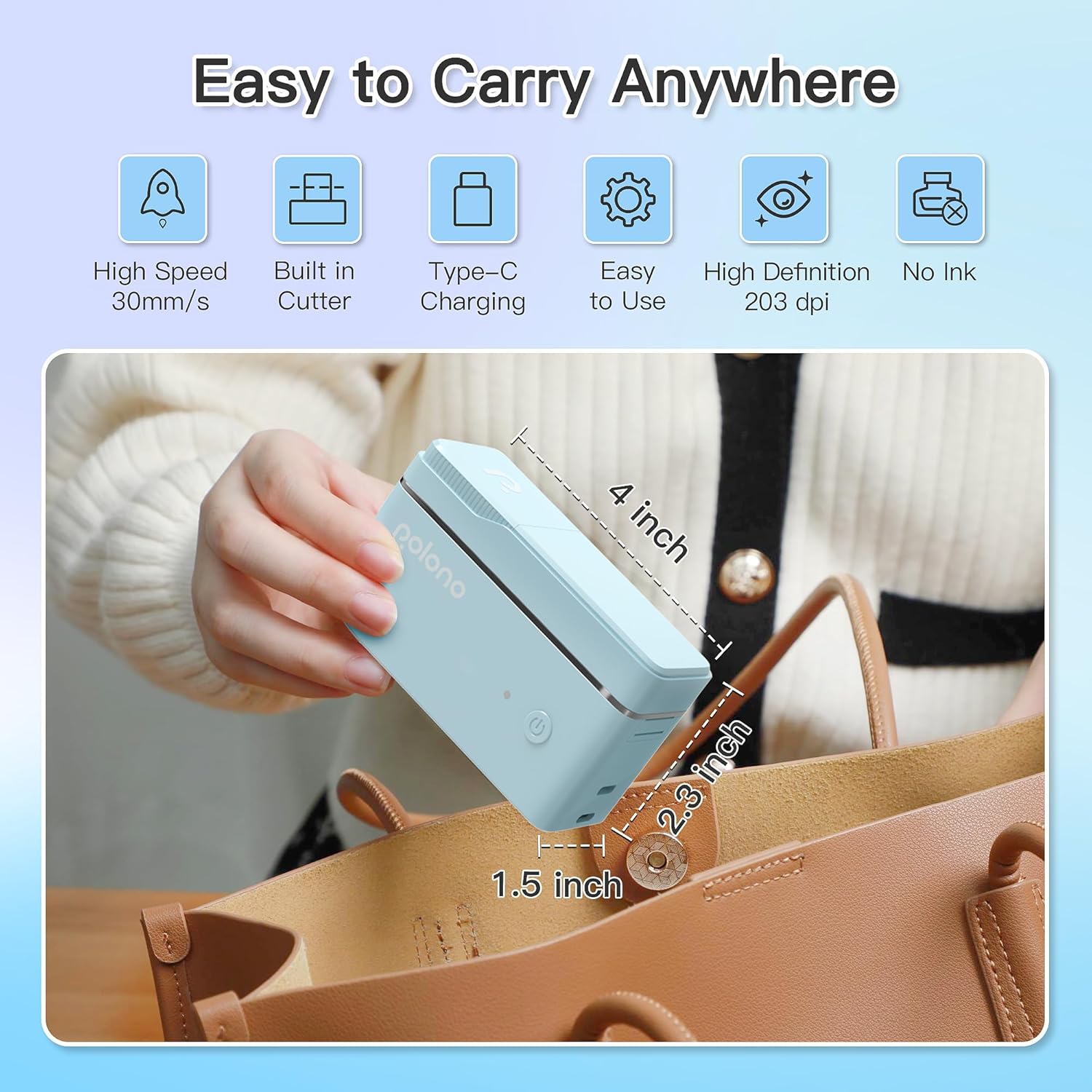
Şekil 1: POLONO P31S Label Printer highlighting its compact design and dimensions (approximately 4 inches long, 2.3 inches high, 1.5 inches wide).
Temel Özellikler:
- Taşınabilir ve hafif tasarım.
- Bluetooth connectivity for wireless printing.
- Thermal printing technology (no ink required).
- Built-in label cutter.
- Supports various label types including text, QR codes, barcodes, and images.
- Şarj edilebilir pil.
2. Güvenlik Bilgileri
Please read and understand all safety instructions before using the POLONO P31S label printer to prevent injury or damage to the device.
- Cihazı sökmeyin, tamir etmeyin veya değiştirmeyin.
- Cihazı sudan, nemden ve aşırı sıcaklıklardan uzak tutun.
- Use only POLONO-approved label tapes to ensure optimal performance and prevent damage.
- Avoid touching the print head immediately after printing, as it may be hot.
- Çocukların erişemeyeceği yerde saklayınız.
- Use the provided charging cable or a certified equivalent.
3. Paket İçeriği
Paketin içinde tüm öğelerin mevcut olduğundan emin olun:
- POLONO P31S Label Printer
- Label Tape Roll (starter roll)
- USB Şarj Kablosu
- Kullanım Kılavuzu (bu belge)
4. Kurulum
4.1 Cihazı Şarj Etme
Before first use, fully charge the label printer. Connect the provided USB charging cable to the printer's charging port and to a USB power adapter (not included) or a computer's USB port. The indicator light will show charging status.
4.2 Etiket Bandının Takılması
- Etiket bölmesinin kapağını açın.
- Insert the label tape roll with the printing surface facing up, ensuring it is properly seated.
- Pull a small portion of the label tape out, extending it past the cutter blade.
- Etiket bölmesinin kapağını sıkıca kapatın.

Şekil 2: Proper installation of POLONO P31S label tape. Ensure the green sticker on the tape is not removed or damaged, as it contains chip technology for optimal performance. Do not pull the label out directly; use the cutting blade.
4.3 Uygulama İndirme ve Bluetooth Bağlantısı
- Download the "Labelnize" app from the Apple App Store or Google Play Store.
- Turn on the POLONO P31S label printer by pressing and holding the power button.
- Akıllı telefonunuzda veya tabletinizde Bluetooth'u etkinleştirin.
- Open the "Labelnize" app. The app will prompt you to allow Bluetooth access. Grant permission.
- Within the app, search for available devices and select "P31S" to connect.
- Once connected, the app will indicate a successful connection, and you are ready to create labels.
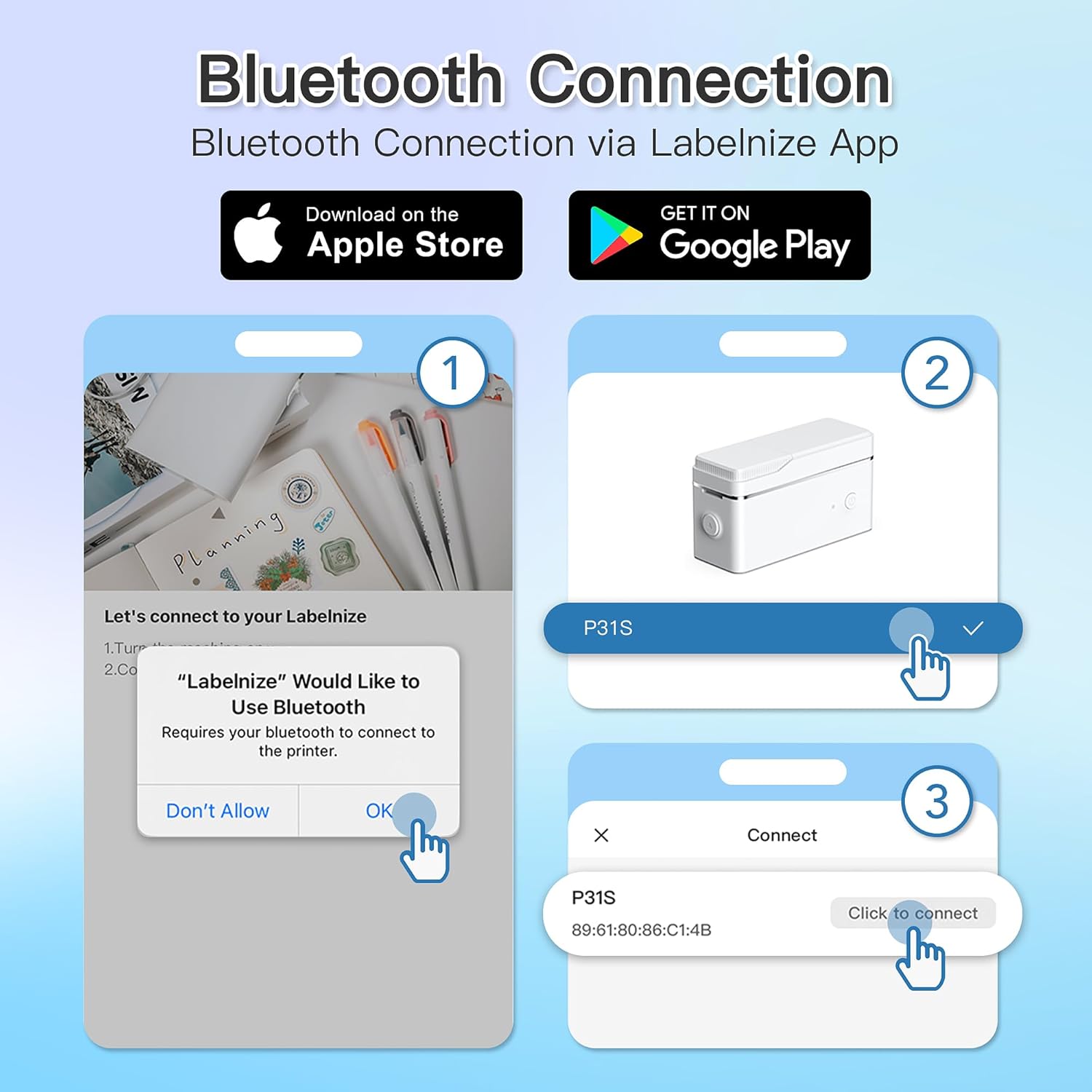
Şekil 3: Steps for Bluetooth connection via the Labelnize App. Download the app, allow Bluetooth access, select "P31S" from the device list, and click "Connect".
5. Kullanım Talimatları
5.1 Creating Labels with the Labelnize App
The Labelnize app offers a variety of tools to design your labels:
- Metin: Enter custom text, choose from over 90 fonts, adjust size, style (bold, italic), and alignment.
- Sınırlar: Select from over 95 border designs to frame your labels.
- Icons/Graphics: Access a library of over 670 tab icons and other graphics to enhance your labels.
- QR Code/Barcode: Generate QR codes or barcodes for various applications.
- Resimler: Insert images from your device's gallery.
- Şablonlar: Utilize pre-designed templates for common labeling tasks.

Şekil 4: The Labelnize app interface for creating labels, offering extensive customization options including borders, fonts, and icons. The app supports multiple languages.
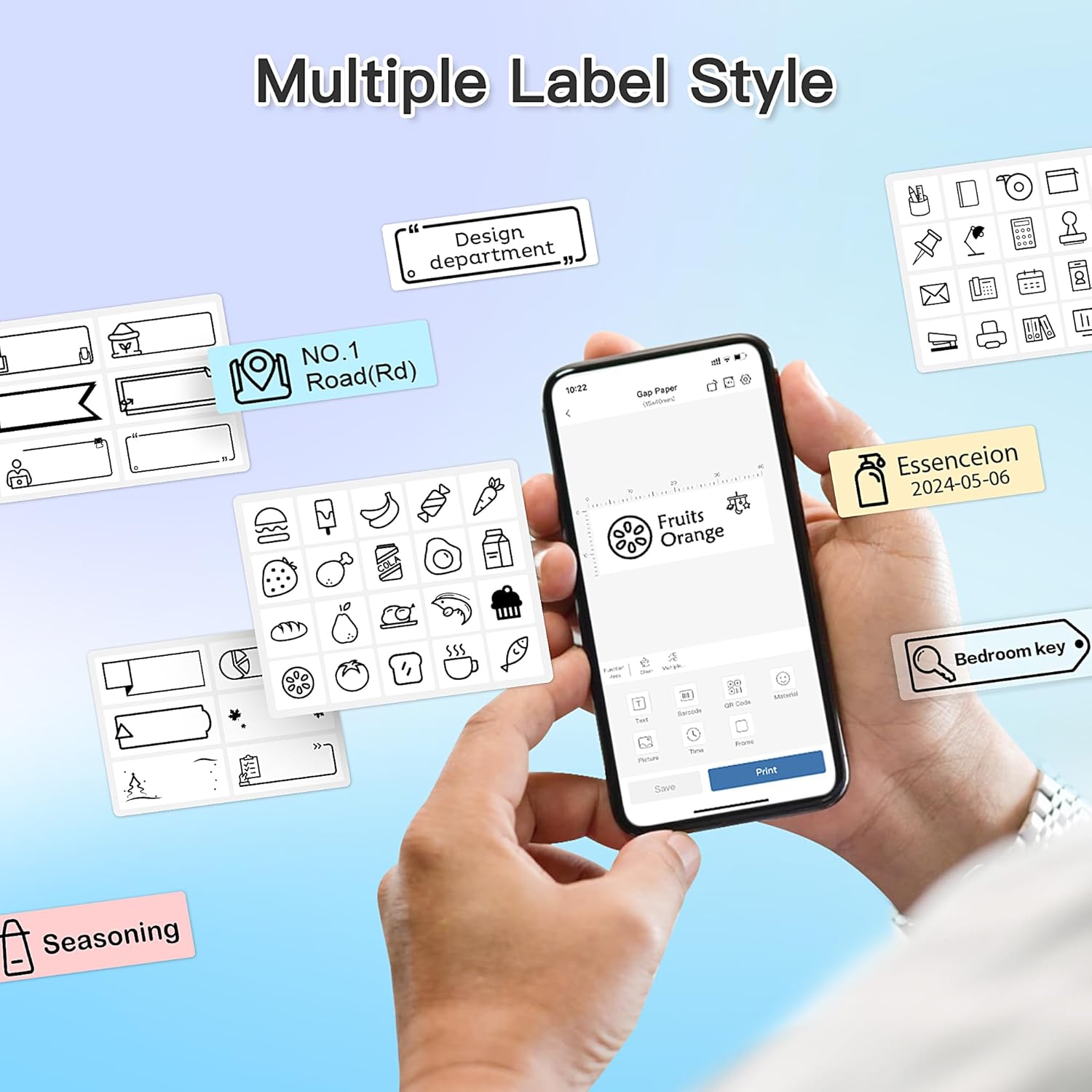
Şekil 5: Examples of diverse label styles achievable with the POLONO P31S, demonstrating the flexibility in design for different organizational needs.
5.2 Etiket Yazdırma
After designing your label in the Labelnize app:
- Review Etiket tasarımınız uygulama ekranında.
- Uygulama içindeki "Yazdır" düğmesine dokunun.
- Confirm print settings (e.g., number of copies) if prompted.
- The printer will automatically feed and print the label.
5.3 Dahili Kesiciyi Kullanma
The POLONO P31S features a built-in cutter for clean and precise label separation. After printing, gently press the cutter button or lever (depending on model variation) to cut the label. Do not pull the label manually to tear it, as this may damage the printer or result in uneven cuts.
6. Bakım
6.1 Baskı Kafasının Temizlenmesi
To maintain print quality, clean the print head periodically:
- Yazıcıyı kapatın ve güç kablosunu çıkarın.
- Etiket bölmesinin kapağını açın.
- Yazıcı kafasını pamuklu bir çubukla hafifçe silin.ampİzopropil alkol ile yıkandı.
- Allow the print head to dry completely before closing the cover and turning on the printer.
6.2 Pil Bakımı
- Charge the battery regularly, even if the printer is not used frequently, to prolong its lifespan.
- Pilin uzun süre tamamen boşalmasından kaçının.
- Yazıcıyı kullanılmadığı zaman serin ve kuru bir yerde saklayın.
7. Sorun Giderme
| Sorun | Olası Neden | Çözüm |
|---|---|---|
| Yazıcı açılmıyor. | Düşük pil veya güç yok. | Yazıcıyı verilen USB kablosunu kullanarak şarj edin. |
| Bluetooth üzerinden bağlantı kurulamıyor. | Bluetooth is off, printer is off, or app issue. | Ensure printer is on, Bluetooth is enabled on your device, and restart the Labelnize app. Try re-pairing. |
| Kötü baskı kalitesi. | Dirty print head, incorrect label tape, or low battery. | Clean the print head (Section 6.1). Ensure you are using POLONO P31S compatible label tape. Charge the printer. |
| Etiket sıkışması. | Improper tape installation or foreign object. | Turn off the printer, open the cover, carefully remove any jammed tape. Reinstall tape correctly. |
| Printer not responding. | Geçici yazılım hatası. | Restart the printer and the Labelnize app. |
8. Özellikler
| Özellik | Detay |
|---|---|
| Örnek | P31S |
| Baskı Teknolojisi | Termal |
| Bağlantı | Bluetooth |
| Baskı Çözünürlüğü | 203 x 203 DPI |
| Maksimum Baskı Hızı (Siyah Beyaz) | 15 ppm |
| Maksimum Medya Boyutu | Label rolls (2 inches / 24 millimeters) |
| Mürekkep Rengi | Black (thermal print) |
| Güç Kaynağı | 1 Lityum Polimer pil (dahil) |
| Ürün Boyutları | 7.2 x 7.4 x 12.7 cm; 260 g |
| Dahil Bileşenler | Etiketler |
9. Garanti ve Destek
For warranty information and technical support, please refer to the official POLONO webSite üzerinden satın alabilir veya müşteri hizmetleriyle iletişime geçebilirsiniz. Garanti talepleriniz için satın alma belgenizi saklayın.
Resmi Webalan: www.polono.com (Not: Bu bir yer tutucudur URL, lütfen gerçek resmi bilgiyi doğrulayın website for POLONO products.)


