1. Giriş
This manual provides detailed instructions for the installation, operation, and maintenance of your Jennov JS7015 5MP Dual-Band Wi-Fi Outdoor Security Camera. Please read this manual thoroughly before using the product to ensure correct usage and optimal performance.

Figure 1: Jennov JS7015 Outdoor Security Camera
The Jennov JS7015 is a 5-megapixel outdoor security camera featuring dual-band Wi-Fi connectivity (2.4GHz and 5GHz). It offers 360-degree viewing capabilities, PIR human detection, auto-tracking, 24/7 recording, and two-way audio for comprehensive outdoor surveillance.
2. Paket İçeriği
Lütfen paketi teslim aldığınızda içeriğini kontrol edin. Herhangi bir ürün eksik veya hasarlıysa, müşteri desteğiyle iletişime geçin.
- Jennov JS7015 5MP Dual-Band Wi-Fi Outdoor Security Camera
- Güç Adaptörü
- Montaj Vidaları ve Ankrajları
- Kullanım Kılavuzu (bu belge)
3. Ürün Bittiview
Kameranın bileşenlerini iyice tanıyın.

Figure 2: Camera Pan and Tilt Mechanism
The camera features a motorized pan and tilt mechanism, allowing for a 355° horizontal rotation (pan) and a 60° vertical rotation (tilt). This enables comprehensive coverage of the surveillance area. The camera body houses the lens, infrared LEDs, white light LEDs, microphone, and speaker. Two external antennas provide enhanced Wi-Fi signal reception.
- Kamera Lensi: Foo video yakalartage.
- Kızılötesi LED'ler: Siyah beyaz gece görüşü için aydınlatma sağlayın.
- Beyaz Işık LED'leri: Provide illumination for color night vision and act as a spotlight.
- Mikrofon: Çift yönlü iletişim ve kayıt için ses kaydı yapar.
- Konuşmacı: Çift yönlü iletişim ve alarmlar için ses çıkışı sağlar.
- Antenler: Wi-Fi bağlantısı için.
- Güç girişi: Güç adaptörüne bağlanır.
- Sıfırlama Düğmesi: Used to reset the camera to factory settings (usually located near the SD card slot or under a cover).
- SD Kart Yuvası: Yerel video depolama için (128 GB'a kadar destekler, dahil değildir).
4. Kurulum Kılavuzu
4.1 Fiziksel Kurulum
The camera is designed for outdoor use and is IP66 waterproof. Choose a suitable location for mounting, ensuring a clear view of the area you wish to monitor and proximity to a power source.
- Sondaj Noktalarını İşaretleyin: (Varsa) montaj şablonunu veya kamera tabanını kullanarak vida deliklerini duvarda işaretleyin.
- Matkap Delikleri: Drill holes at the marked positions. Insert wall anchors if mounting on masonry.
- Güvenli Kamera: Attach the camera base to the wall using the provided screws.
- Açıyı Ayarla: Loosen the adjustment screws (if any) to position the camera for optimal coverage before tightening.

Şekil 3: IP66 Su Geçirmez Tasarım
The camera is built with waterproof materials and has an IP66 rating, making it suitable for outdoor installation and resistant to dust and water jets.
4.2 Güç Bağlantısı
Connect the provided power adapter to the camera's power port and then plug it into a power outlet. The camera will power on and initiate its startup sequence.
4.3 Uygulama İndirme ve Hesap Kaydı
The Jennov JS7015 camera uses the EseeCloud application for remote access and control.
- İndir uygulaması: Arama "EseeCloud" in your smartphone's app store (Google Play Store for Android or Apple App Store for iOS) and download the application.
- Hesap Kaydı: Open the EseeCloud app and follow the on-screen instructions to register a new account using your email address or phone number.
4.4 Kamerayı Uygulamaya Ekleme
Ensure your smartphone is connected to the same Wi-Fi network (2.4GHz or 5GHz) that you intend to connect the camera to.
- Uygulamayı aç: Launch the EseeCloud app and log in.
- Cihaz Ekle: "+" simgesine veya "Cihaz Ekle" seçeneğine dokunun.
- Cihaz Türünü Seçin: Choose "Wi-Fi Camera" or similar option.
- QR Kodunu Tara: The app may prompt you to scan a QR code located on the camera or its packaging.
- WiFi Yapılandırması: Follow the app's instructions to enter your Wi-Fi network name (SSID) and password. The camera supports both 2.4GHz and 5GHz Wi-Fi bands.
- Bağlamak: The camera will attempt to connect to your Wi-Fi network. Once connected, it will appear in your device list within the app.
- Şifreyi belirle: Güvenlik amacıyla kameranız için güçlü bir parola oluşturun.
5. Kullanım Talimatları
5.1 Canlı View ve Pan/Tilt Kontrolü
From the EseeCloud app, select your camera to access the live view.
- Canlı yem: View real-time video from your camera.
- Yatay/Dikey Hareket: Use the directional controls within the app to remotely adjust the camera's horizontal (pan) and vertical (tilt) angles.
5.2 Otomatik Takip
Kamera, kendi alanı içindeki hareketli nesneleri otomatik olarak izleyebilir. view.

Figure 4: Auto Tracking in Action
Enable the auto-tracking feature in the app settings. The camera will then detect and follow moving targets until they leave the camera's view.
5.3 Hareket Algılama ve Alarmlar
The camera features advanced PIR (Passive Infrared) human detection to minimize false alarms.

Figure 5: PIR Human Detection and Alarm Options
When a human thermal profile is detected, the camera can trigger various alarms.
- PIR Algılama: Activates recording and sends notifications when a human is detected.
- Sesli Alarm: Configure the camera to emit a siren sound upon detection.
- Spotlight Alarmı: The integrated spotlight can be activated to deter intruders.
- Bildirimler: Receive instant alerts on your smartphone via the EseeCloud app.
5.4 İki Yönlü Ses
Dahili mikrofon ve hoparlör sayesinde kameranın yakınındaki kişilerle doğrudan iletişim kurun.

Şekil 6: İki Yönlü Ses İletişimi
Tap the microphone icon in the app to speak, and listen through the camera's speaker. This feature is useful for interacting with visitors or deterring unwanted guests.
5.5 Kayıt ve Depolama
The camera supports continuous 24/7 recording and offers flexible storage options.
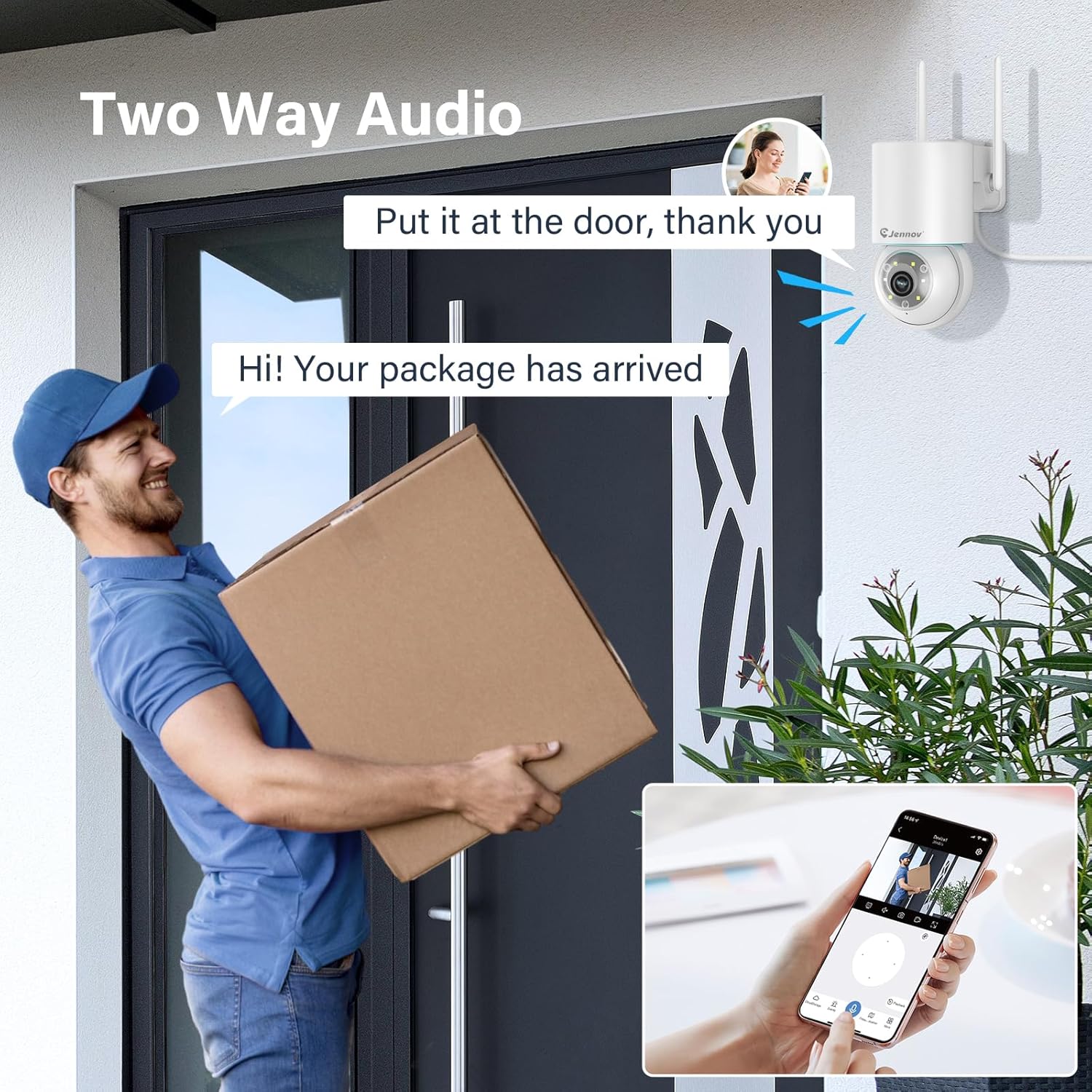
Figure 7: 24/7 Recording and Storage Options
Kayıtlı foo'ya erişintage via the app's playback function.
- 24/7 Kayıt: The camera can continuously record footage, ensuring no vital moments are missed.
- Yerel Depolama: Dahili depolama için fotoğraf makinesinin SD kart yuvasına bir microSD kart (en fazla 128 GB, pakete dahil değildir) takın.
- Bulut Depolama: Optional cloud storage service is available, often with a free trial period (e.g., 7 days). This provides off-site backup of your recordings.
5.6 Gece Görüş Modları
The camera offers three night vision modes for clear visibility in low-light conditions.

Figure 8: 5MP Color Night Vision
The camera provides clear night vision up to 65 feet (20 meters) with 5MP resolution.
- Tam Renkli Mod: Utilizes white LEDs to provide full-color video at night.
- Siyah Beyaz Modu: Uses infrared LEDs for traditional black and white night vision.
- Akıllı mod: Automatically switches between black and white and full color based on detected motion or light conditions.
You can switch between these modes within the EseeCloud mobile application.
5.7 Customized Detection Area
Kameranın görüş alanı içinde belirli alanları tanımlayın view hareket algılamanın aktif olması gereken yer.

Figure 9: Customized Detection Area Settings
This feature helps reduce unwanted alerts by focusing detection on critical zones. The app typically offers "Area mode" and "Cordon mode" for defining these zones.
6. Bakım
- Temizlik: Net görüntü kalitesi sağlamak için kamera lensini düzenli olarak yumuşak, kuru bir bezle temizleyin. Sert kimyasallar kullanmayın.
- Donanım Yazılımı Güncellemeleri: Check the EseeCloud app periodically for available firmware updates. Keeping your camera's firmware updated ensures optimal performance and security.
- SD Kart Yönetimi: If using local storage, periodically check the SD card's status in the app. Format the card as needed to maintain recording efficiency.
- Güç Kaynağı: Güç adaptörünün ve kablosunun hasarsız ve doğru şekilde bağlı olduğundan emin olun.
7. Sorun Giderme
- Kamera Çevrimdışı:
- Wi-Fi sinyal gücünü kontrol edin.
- Kameranın açık olduğundan emin olun.
- Kamerayı ve Wi-Fi yönlendiricinizi yeniden başlatın.
- If using 5GHz Wi-Fi, ensure your router supports it and the camera is connected to the correct band.
- Try re-adding the camera to the EseeCloud app.
- Kötü Görüntü Kalitesi:
- Kamera lensini temizleyin.
- Ensure sufficient lighting, especially at night.
- İnternet bağlantı hızınızı kontrol edin.
- Hareket Algılama Çalışmıyor:
- Verify motion detection settings in the app are enabled.
- Algılama hassasiyetini ayarlayın.
- Kameranın görüşünü engelleyen herhangi bir şeyin olmadığından emin olun. view.
- Check if detection areas are correctly configured.
- İki Yönlü Ses Sorunları:
- Ensure microphone and speaker permissions are granted to the EseeCloud app on your smartphone.
- Hem uygulamadaki hem de telefonunuzdaki ses ayarlarını kontrol edin.
- Kameranın mikrofonunu veya hoparlörünü engelleyen herhangi bir fiziksel engel olmadığından emin olun.
- Cannot Access SD Card Recordings:
- SD kartın doğru şekilde takıldığından emin olun.
- Check if the SD card is formatted correctly (usually FAT32).
- Verify that continuous recording or event recording to SD card is enabled in the app.
- The SD card might be full; consider formatting it or replacing it.
8. Özellikler
| Özellik | Şartname |
|---|---|
| Model Numarası | JS7015 |
| Marka | Jennov |
| Çözünürlük | 5 Megapixel (1920p video recording) |
| Pan / Eğim Açısı | Kaydırma 355°, Eğme 60° |
| Gece Görüşü | Color Night Vision, Black & White Night Vision, Smart Mode (up to 65ft/20m) |
| Wi-Fi Bağlantısı | Çift Bant (2.4GHz / 5GHz) |
| Ses | Çift Yönlü Ses (Dahili Mikrofon ve Hoparlör) |
| Hareket Algılama | PIR Human Detection, Auto Tracking |
| Depolama Seçenekleri | MicroSD Kart (128 GB'a kadar), Bulut Depolama |
| Su Geçirmezlik Derecesi | IP66 |
| Güç Girişi | 5 Volt |
| Güç Tüketimi | 24 Watt |
| Boyutlar (U x G x Y) | 12x8x16 cm |
| Malzeme | Plastik |
| Montaj Tipi | Duvara Montaj |
| Uyumlu Cihazlar | Akıllı telefon, Tablet, Bilgisayar |
| Kontrol Uygulaması | EseeCloud |
9. Garanti ve Destek
For warranty information and technical support, please refer to the warranty card included with your product or visit the official Jennov webalan.
- Müşteri Hizmetleri: Contact Jennov customer support for assistance with product issues, technical questions, or warranty claims.
- Çevrimiçi Kaynaklar: Check the Jennov webSıkça sorulan sorular, güncellenmiş kılavuzlar ve yazılım indirmeleri için site.


