1. Giriş
Thank you for choosing the ZEBRONICS K4000MW Wireless Keyboard. This manual provides essential information for setting up, operating, maintaining, and troubleshooting your new keyboard. The K4000MW offers versatile connectivity options, including 2.4 GHz wireless and dual Bluetooth, making it compatible with a wide range of devices such as laptops, desktops, tablets, and smartphones. Its compact design and integrated multimedia keys enhance productivity and user convenience.

Resim 1: Yukarıdan aşağıya view of the ZEBRONICS K4000MW Wireless Keyboard, showcasinkompakt tasarımı ve siyah kaplamasıyla.
2. Kurulum
2.1 Paket İçeriği
- ZEBRONICS K4000MW Wireless Keyboard
- USB Nano Receiver (for 2.4 GHz connection)
- Kullanıcı Kılavuzu
2.2 Pil Kurulumu
- Klavyenin alt tarafındaki pil yuvasını bulun.
- Pil bölmesinin kapağını açın.
- Insert the required batteries (not specified in JSON, typically AA or AAA) according to the polarity markings.
- Pil bölmesi kapağını sıkıca kapatın.
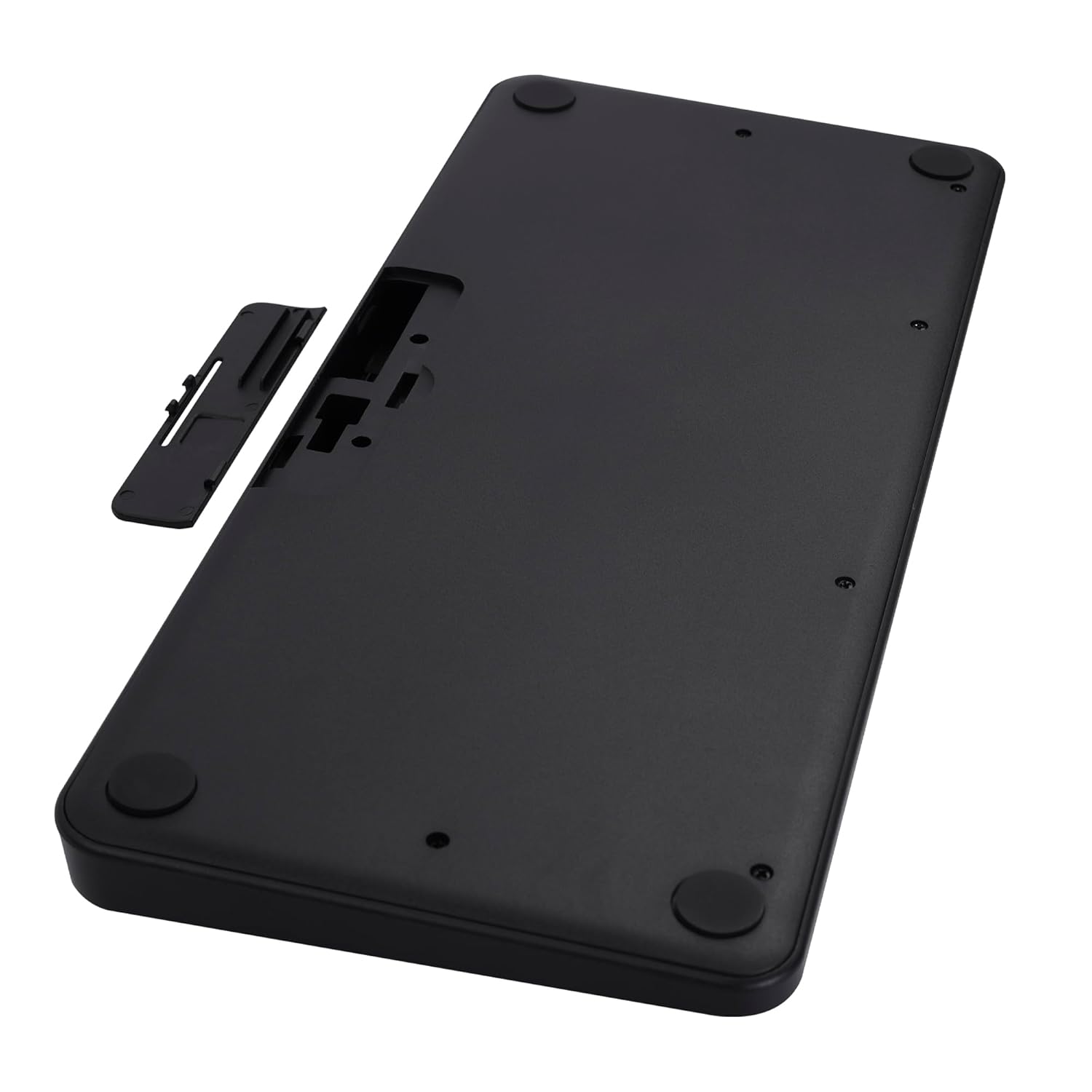
Image 2: The underside of the keyboard, showing the battery compartment and the slot for the USB nano receiver.
2.3 Connecting via 2.4 GHz Wireless
- Remove the USB nano receiver from its storage slot in the battery compartment.
- Plug the nano receiver into an available USB port on your computer or compatible device.
- The keyboard should automatically connect. The 2.4G LED indicator on the keyboard will illuminate briefly to confirm connection.
2.4 Bluetooth aracılığıyla bağlanma
The keyboard supports up to two Bluetooth connections (BT1 and BT2).
- Pairing for BT1:
A. tuşunu basılı tutun Fn + BT1 keys simultaneously for 3-5 seconds until the BT1 LED indicator starts blinking rapidly.
b. On your device (laptop, tablet, smartphone), enable Bluetooth and search for available devices.
c. Select "ZEB-K4000MW" from the list of devices to pair.
d. Once paired, the BT1 LED indicator will stop blinking and remain solid for a few seconds. - Pairing for BT2:
a. Follow the same steps as for BT1, but press and hold Fn + BT2 anahtarlar.
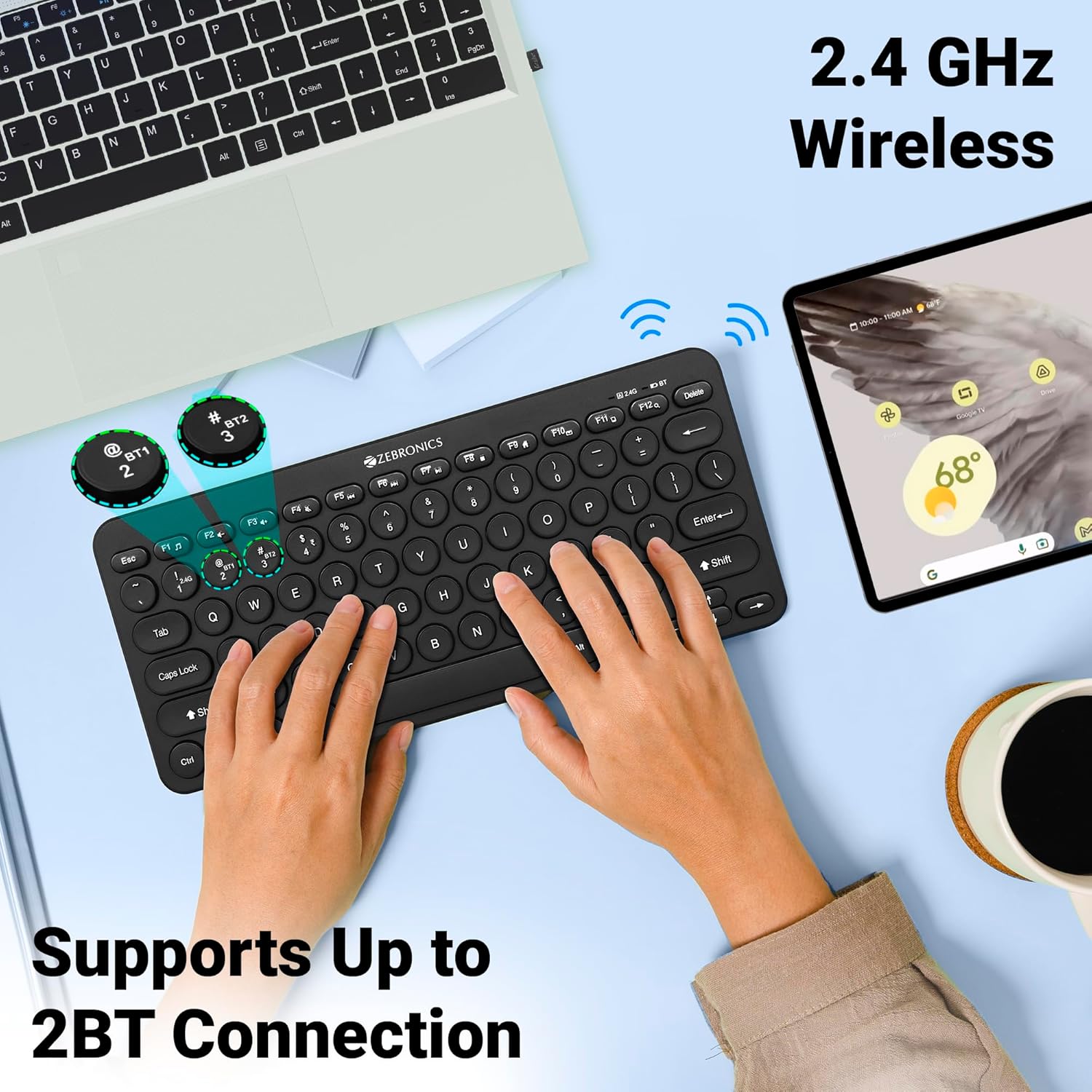
Image 3: The keyboard in use, highlighting the 2.4 GHz wireless and dual Bluetooth connection capabilities with LED indicators.
2.5 Cihazlar Arasında Geçiş Yapma
Bağlı cihazlar arasında geçiş yapmak için:
- Basmak Fn + 2.4G to switch to the device connected via the 2.4 GHz nano receiver.
- Basmak Fn + BT1 to switch to the device paired with Bluetooth 1.
- Basmak Fn + BT2 to switch to the device paired with Bluetooth 2.
3. Klavyenin Kullanımı
3.1 Temel Klavye Kullanımı
The keyboard features 78 UV-coated keys designed for comfortable and efficient typing. The layout includes standard alphanumeric keys, function keys, and navigation keys.
3.2 Multimedya Tuşu
The keyboard integrates 12 multimedia keys (F1-F12) for quick access to media controls and other functions. To use these functions, press the Fn İstenilen fonksiyon tuşuyla aynı anda tuşa basın.
- Fn+F1: Medya Oynatıcısı
- Fn+F2: Sesi Azalt
- Fn+F3: Sesi Aç
- Fn+F4: Sesini kapatmak
- Fn+F5: Önceki Parça
- Fn+F6: Oynat/Duraklat
- Fn+F7: Sonraki Parça
- Fn+F8: Durmak
- Fn+F9: Web Tarayıcı
- Fn+F10: E-posta
- Fn+F11: Bilgisayarım
- Fn+F12: Hesap makinesi
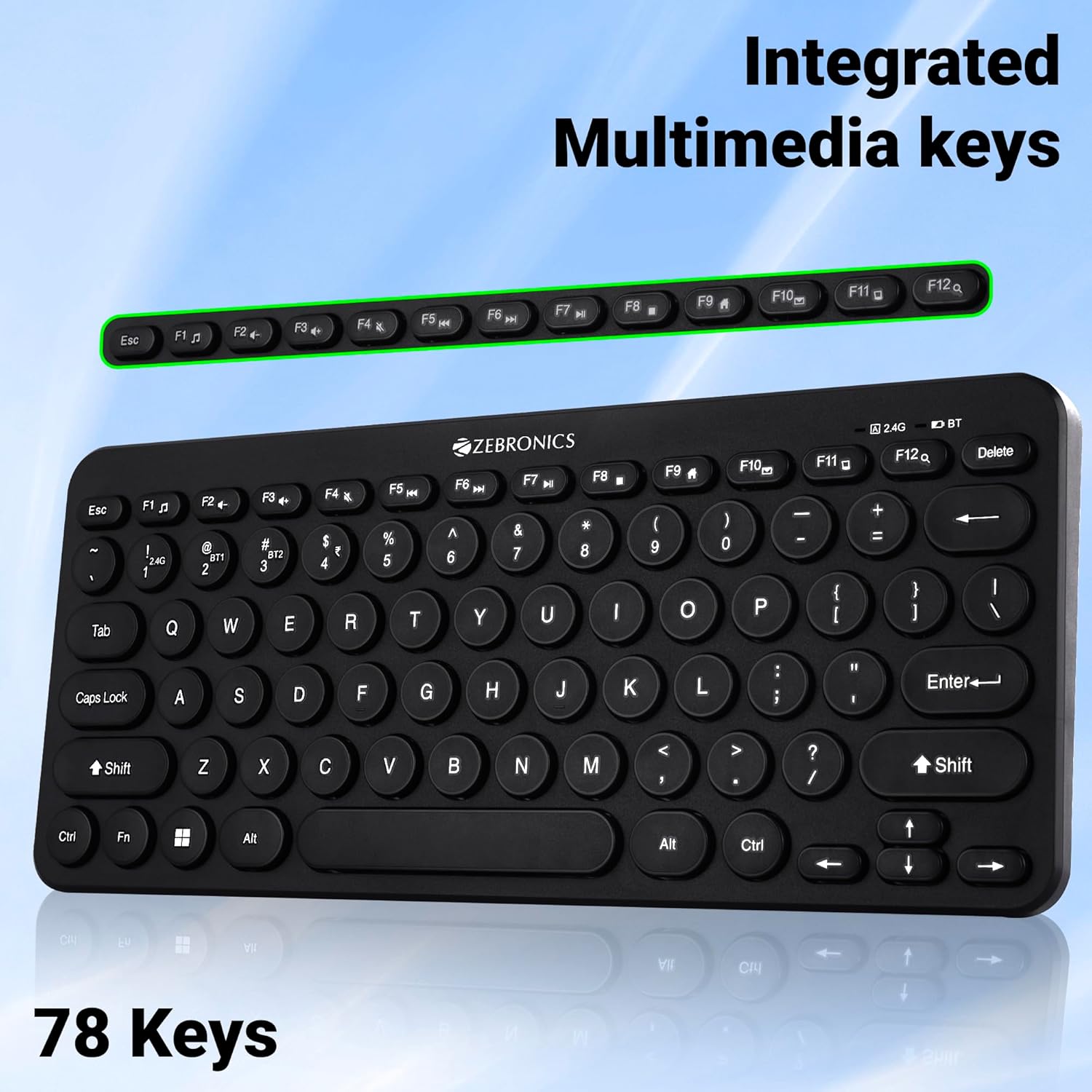
Image 4: The keyboard with the row of function keys (F1-F12) highlighted, indicating their integrated multimedia capabilities.
3.3 Rupee Key
The keyboard includes a dedicated Rupee key, indicating regional inclusivity for users.
3.4 LED Göstergeleri
The keyboard features LED indicators to provide status information:
- 2.4G LED'i: Indicates 2.4 GHz wireless connection status.
- BT1/BT2 LED: Indicates Bluetooth connection status for BT1 or BT2.
- Caps Lock LED'i: Caps Lock etkin olduğunda yanar.
- Düşük Pil LED'i: Flashes or changes color to indicate low battery power.
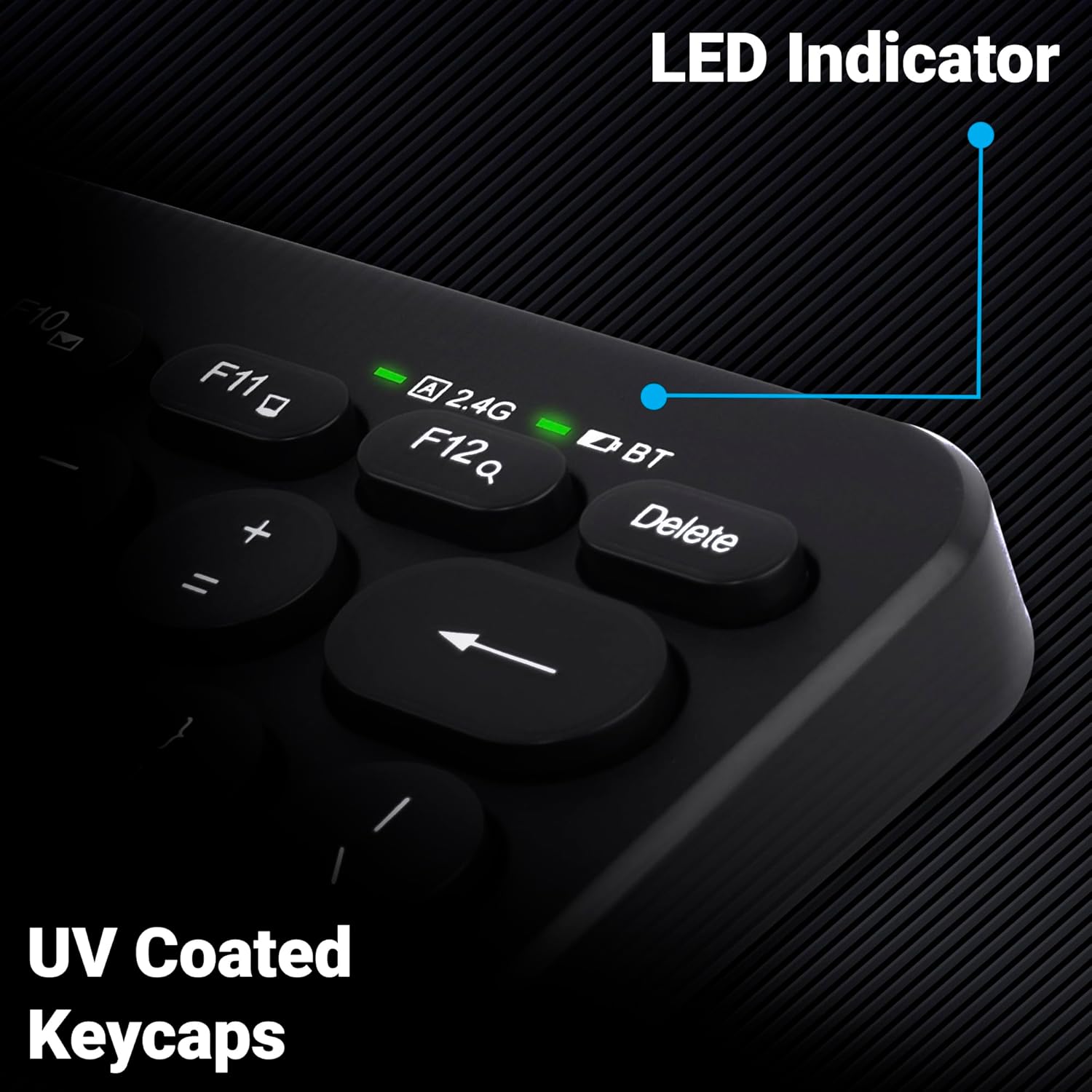
Resim 5: Yakın çekim view of the keyboard's top right corner, showing the LED indicators for 2.4G, BT, and Caps Lock, along with the UV-coated keycaps.
3.5 Cihaz Uyumluluğu
The K4000MW keyboard is designed for broad compatibility, integrating seamlessly with:
- Dizüstü bilgisayarlar
- Masaüstü bilgisayarlar
- Tabletler
- Akıllı telefonlar
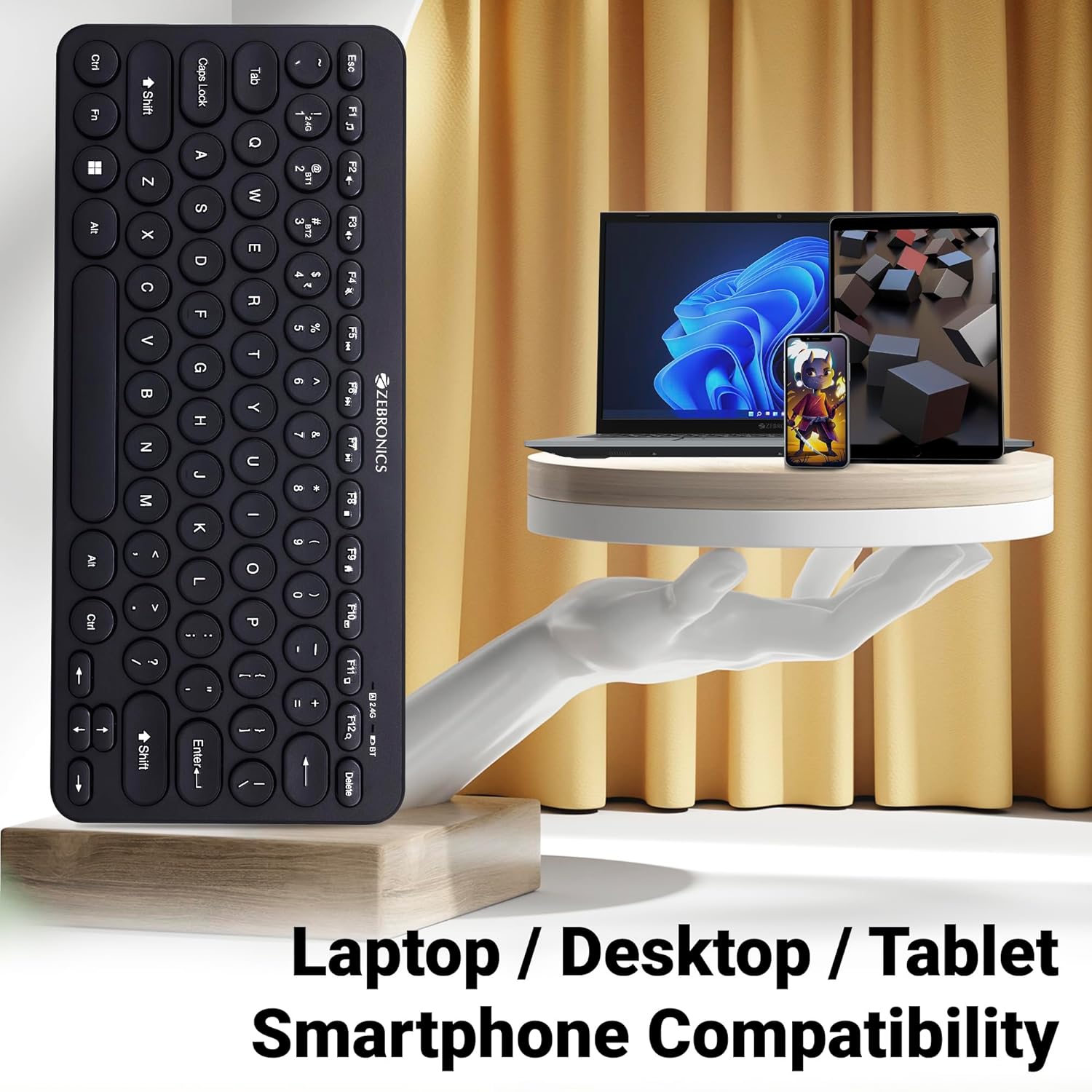
Image 6: The keyboard positioned next to a laptop, tablet, and smartphone, illustrating its multi-device compatibility.
4. Bakım
4.1 Temizlik
- Klavyenin yüzeyini silmek için yumuşak ve kuru bir bez kullanın.
- İnatçı kirler için hafifçeampBezi su veya hafif bir temizleme solüsyonuyla silin. Aşırı nemden kaçının.
- Do not use harsh chemicals or abrasive cleaners, as these can damage the keycaps and finish.
- Tuşların arasında biriken toz ve kalıntıları temizlemek için basınçlı hava kullanın.
4.2 Pil Bakımı
- Replace batteries when the low battery indicator illuminates to ensure uninterrupted operation.
- If the keyboard will not be used for an extended period, it is recommended to remove the batteries to prevent leakage.
- Klavyeyi serin ve kuru bir yerde saklayın.
5. Sorun Giderme
5.1 Klavye Yanıt Vermiyor
- Pilleri Kontrol Edin: Pillerin doğru şekilde takıldığından ve yeterli şarja sahip olduğundan emin olun. Gerekirse değiştirin.
- Bağlantıyı kontrol et: Verify that the 2.4 GHz nano receiver is securely plugged into the USB port, or that the Bluetooth connection is active and paired.
- Kanalları Değiştir: If using Bluetooth, ensure you are on the correct BT1 or BT2 channel.
- Bluetooth'u yeniden eşleştir: If connection issues persist, try unpairing and re-pairing the keyboard with your device.
- Parazit yapmak: Move the keyboard closer to the receiver/device and away from other wireless devices that might cause interference.
5.2 Keys Not Working or Lagging
- Temiz Anahtarlar: Tuşların altında herhangi bir kalıntının kalmadığından emin olun.
- Pil Seviyesi: Low battery can sometimes affect key responsiveness. Replace batteries.
- Parazit yapmak: Wireless interference can cause lag. Try moving closer to the receiver/device.
- Cihaz Uyumluluğu: Ensure your device's operating system is compatible with the keyboard.
5.3 Bluetooth Disconnection Issues
- Mesafe: Klavyenin Bluetooth cihazınızın etkili menzili içinde olduğundan emin olun.
- Parazit yapmak: Other Bluetooth or wireless devices nearby can cause disconnections.
- Device Bluetooth Driver: Update your device's Bluetooth drivers to the latest version.
- Tamirat: Klavyeyi cihazınızın Bluetooth listesinden kaldırın ve yeniden eşleştirin.
6. Özellikler
| Özellik | Detay |
|---|---|
| Marka | ZEBRONİK |
| Model Adı | K4000MW |
| Bağlantı Teknolojisi | 2.4 GHz Wireless, Bluetooth (Dual BT) |
| Anahtar Sayısı | 78 |
| Multimedya Tuşları | 12 Integrated Multimedia Keys |
| Tuş Takımı Türü | UV-Coated |
| Özel Özellikler | Rupee Key, LED Indicator (Battery, Connectivity, Caps Lock) |
| Tasarım | Slim & Minimalist |
| Uyumlu Cihazlar | Masaüstü bilgisayar, Dizüstü bilgisayar, Tablet, Akıllı telefon |
| İşletim Sistemi | Windows 10 (ve diğer uyumlu işletim sistemleri) |
| Güç Kaynağı | Pil ile çalışır |
| Ürün Boyutları (UxGxY) | 29.4x13.4x3 cm |
| Ürün Ağırlığı | 320 gr |
7. Garanti ve Destek
7.1 Garanti Bilgileri
For specific warranty terms and conditions, please refer to the warranty card included with your product or visit the official ZEBRONICS webSite. Satın alma fişinizi, garanti talepleriniz için satın alma belgeniz olarak saklayın.
7.2 Müşteri Desteği
If you encounter any issues or have questions regarding your ZEBRONICS K4000MW Wireless Keyboard, please contact ZEBRONICS customer support through their official website veya ürün ambalajınızda yer alan iletişim bilgileri.


