1. Giriş
Thank you for choosing the Trust Halyx 5-in-1 USB-C Hub. This manual provides essential information for the proper setup, operation, and maintenance of your device. This hub is designed to expand the connectivity of your PC, laptop, or MacBook Pro by adding four USB-C data ports and one USB-C Power Delivery (PD) port.
2. Ürün Bittiview
The Trust Halyx 5-in-1 USB-C Hub (Model 25136) features a durable aluminum housing and a compact design. It connects to your host device via an integrated 10cm USB-C cable.
2.1 Temel Özellikler
- 5-Port Connectivity: Adds 4 USB-C data ports and 1 USB-C Power Delivery port.
- 100W USB-C PD Power Port: Allows pass-through charging for your laptop (additional charger required).
- Yüksek Hızlı Veri Aktarımı: Supports data transfer speeds up to 5 Gbps.
- Dayanıklı Tasarım: Constructed with an aluminum housing for enhanced durability.
- Tak ve Çalıştır: Çoğu işletim sistemi için sürücü gerekmez.
2.2 Paket İçeriği
- Trust Halyx 5-in-1 USB-C Hub
- Kullanım Kılavuzu (bu belge)

Image: The Trust Halyx 5-in-1 USB-C Hub showing its five convenient ports and integrated USB-C cable.

Resim: Ayrıntılı view of the five USB-C ports on the Trust Halyx hub, including the Power Delivery port.
3. Kurulum Talimatları
Follow these steps to set up your Trust Halyx 5-in-1 USB-C Hub:
- Ana Bilgisayara Bağlan: Plug the integrated USB-C cable of the hub into an available USB-C port on your PC, laptop, or MacBook Pro.
- Güç Bağlantısı (Opsiyonel): If you wish to charge your laptop through the hub, connect your laptop's USB-C power adapter to the dedicated 100W USB-C PD port on the hub. Note: An additional charger is required for pass-through charging.
- Çevre Birimlerini Bağlayın: Plug your USB-C devices (e.g., external drives, keyboards, mice, other USB-C accessories) into the four USB-C data ports on the hub.
- Bağlantıyı Doğrulayın: Your operating system should automatically detect the hub and connected devices. No additional drivers are typically needed.

Image: The Trust Halyx hub connected to a laptop, demonstrating how to plug in additional USB-C devices.

Image: The 100W USB-C Power Delivery port on the Trust Halyx hub, with a power cable connected for laptop charging.
4. Kullanım Talimatları
Once connected, the Trust Halyx hub operates as a direct extension of your computer's USB-C capabilities.
4.1 Cihazları Bağlama
- Simply plug your USB-C peripherals into any of the four available USB-C data ports.
- The hub supports data transfer speeds of up to 5 Gbps, suitable for most external storage devices, keyboards, mice, and other accessories.
4.2 Power Delivery Functionality
- The dedicated USB-C PD port allows you to charge your laptop while using the hub. Connect your laptop's original USB-C power adapter to this port.
- The hub supports up to 100W pass-through power delivery. Ensure your power adapter is compatible with your laptop's charging requirements.

Image: A complete workstation setup utilizing the Trust Halyx hub to connect various peripherals to a laptop and external monitor.
5. Bakım ve Özen
To ensure the longevity and optimal performance of your Trust Halyx USB-C Hub, follow these guidelines:
- Temizlik: Göbek kısmını temizlemek için yumuşak, kuru bir bez kullanın. Sıvı temizleyicilerden veya aşındırıcı malzemelerden kaçının.
- Depolamak: Kullanılmadığı zamanlarda hub'ı serin ve kuru bir yerde saklayın. Kompakt boyutu sayesinde seyahat için uygundur.
- İşleme: Avoid dropping the hub or subjecting it to strong impacts. Do not bend the integrated cable excessively.
- Sıcaklık: Operate the hub within normal room temperatures. Avoid extreme heat or cold.
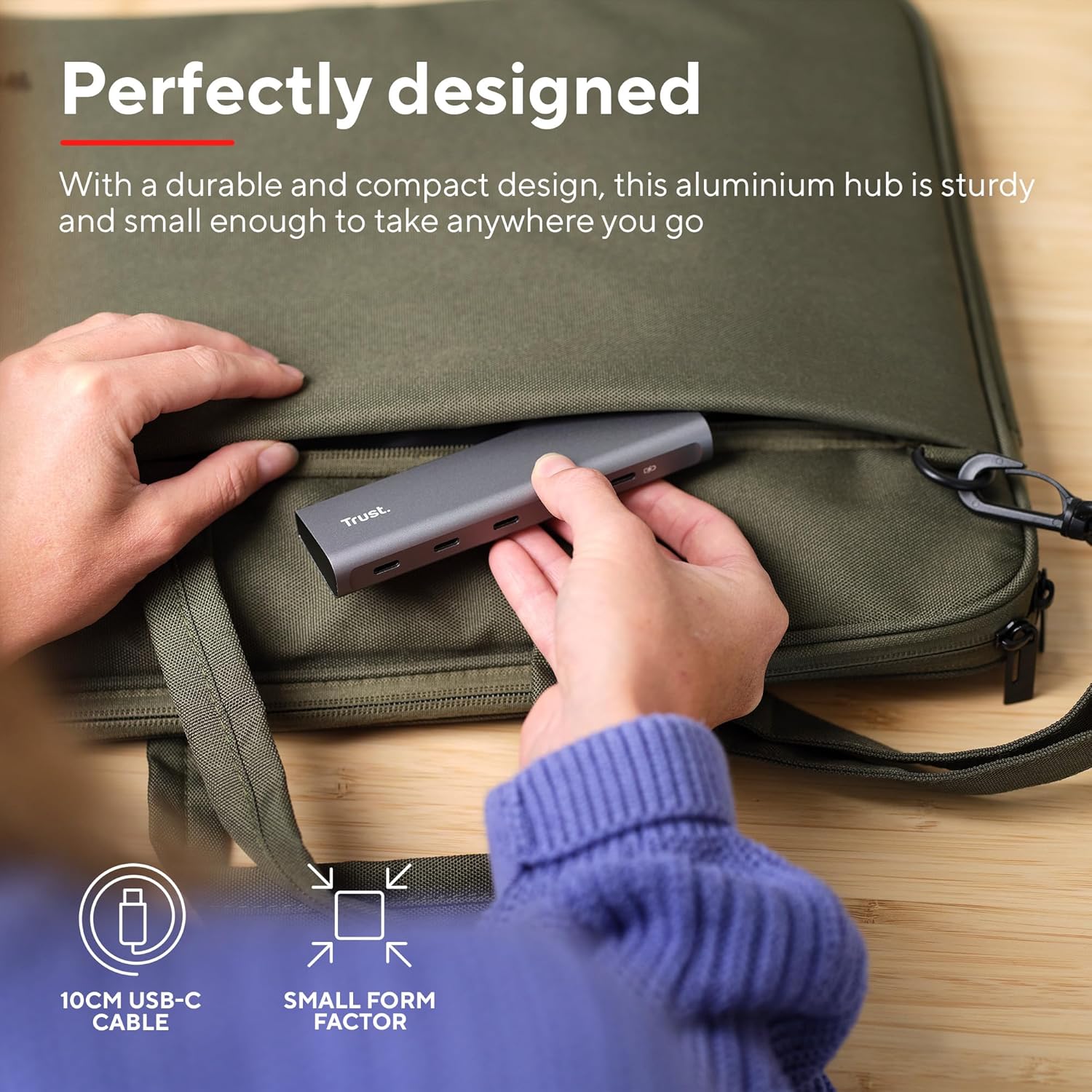
Image: The compact and durable design of the Trust Halyx hub, shown being placed into a laptop bag for portability.
6. Sorun Giderme
If you encounter issues with your Trust Halyx USB-C Hub, refer to the following common solutions:
6.1 Devices Not Detected
- Bağlantıları Kontrol Edin: Ensure the hub's USB-C cable is securely plugged into your host device and that peripherals are firmly connected to the hub.
- Restart Host Device: Sometimes, a simple restart of your computer can resolve detection issues.
- Çevre Birimlerini Doğrudan Test Edin: Connect the peripheral directly to your computer's USB-C port (if available) to confirm it is functioning correctly.
- Farklı bir bağlantı noktası deneyin: If your computer has multiple USB-C ports, try connecting the hub to a different one.
6.2 Charging Not Working
- Güç Adaptörünü Doğrulayın: Ensure your USB-C power adapter is correctly connected to the hub's PD port and is capable of providing sufficient power for your laptop.
- Check Laptop Compatibility: Confirm your laptop supports USB-C Power Delivery for charging.
- Kablo Bütünlüğü: Ensure the USB-C cable from your power adapter to the hub is not damaged.
6.3 Yavaş Veri Aktarımı
- Cihaz Uyumluluğu: Ensure the connected peripheral supports USB 3.0 (5 Gbps) speeds. Older USB 2.0 devices will operate at their native slower speeds.
- Host Port Speed: Verify that the USB-C port on your computer supports USB 3.0 or higher data transfer rates.
- Aşırı Yüklemeden Kaçının: While the hub provides multiple ports, extremely demanding devices might perform better when connected directly to the host device if possible.
7. Özellikler
| Özellik | Detay |
|---|---|
| Model Numarası | 25136 |
| Marka | Güven |
| Bağlantı | 1x USB-C Host Connector (integrated cable), 4x USB-C Data Ports, 1x USB-C Power Delivery Port |
| Veri Aktarım Hızı | 5 Gbps'ye kadar (USB 3.0) |
| Güç Dağıtımı | Up to 100W pass-through charging |
| Konut Malzemesi | Alüminyum |
| Kablo Uzunluğu | 10 cm |
| Boyutlar (UxGxY) | 1.26 x 5 x 0.63 inç (32 x 127 x 16 mm) |
| Ağırlık | 2.86 ons (81 gram) |
| Uyumlu İşletim Sistemleri | Chrome OS, Windows 10 or 11, macOS 11, 12 or 13 |
8. Garanti ve Destek
Garanti bilgileri ve teknik destek için lütfen resmi Trust web sitesine başvurun. webSite üzerinden satın alabilir veya doğrudan müşteri hizmetleriyle iletişime geçebilirsiniz. Satın alma belgenizi garanti talepleriniz için saklayın.
Çevrimiçi destek: www.trust.com/support


