1. Giriş
This manual provides detailed instructions for the safe and efficient operation of your NexiGo Aurora Pro Ultra Short Throw 4K Tri-Color Laser Projector. Please read this manual thoroughly before using the product and retain it for future reference.
The NexiGo Aurora Pro is designed to deliver a high-quality home cinema experience with its 4K resolution, tri-color laser technology, and ultra-short throw capabilities.
2. Güvenlik Bilgileri
Önemli Güvenlik Talimatları:
- Do not look directly into the projector lens when the projector is on. The laser light source is powerful and can cause eye damage.
- Projeksiyon cihazının çevresinde yeterli havalandırma olduğundan emin olun. Havalandırma açıklıklarını kapatmayın.
- Yalnızca projektörle birlikte verilen güç adaptörünü kullanın.
- Yangın veya elektrik çarpmasını önlemek için projektörü yağmura veya neme maruz bırakmayın.
- Projeksiyon cihazını radyatörler, ısıtma petekleri, sobalar veya ısı üreten diğer cihazlar gibi ısı kaynaklarından uzak tutun.
- Şimşekli fırtınalar sırasında veya uzun süre kullanılmadığında projektörün fişini çekin.
- Tüm bakımları yetkili servis personeline yaptırın.
3. Paket İçeriği
Paketinizde tüm öğelerin mevcut olduğundan emin olun:
- NexiGo Aurora Pro Projector
- Uzaktan kumanda
- Güç kablosu
- Kullanım Kılavuzu (bu belge)
- İsteğe bağlı: 100/120 Fresnel Screen (if purchased as a bundle)
- İsteğe bağlı: 3D Glasses (if purchased as a bundle)
4. Ürün Bittiview
4.1 Projeksiyon Cihazı Bileşenleri
Familiarize yourself with the main components of your NexiGo Aurora Pro projector.

Resim 1: Ön view of the NexiGo Aurora Pro projector, showcasing its sleek design and front speaker grille.

Resim 2: Arka view of the NexiGo Aurora Pro projector, highlighting the various input and output ports for connectivity.
The projector features multiple connectivity options including HDMI ports, USB ports, and an Ethernet port for network connectivity. One HDMI port supports eARC.
4.2 Uzaktan Kumanda
The included remote control allows for easy navigation and control of the projector's functions. It features backlit keys for use in dark environments.
5. Kurulum
5.1 Yerleştirme
The Aurora Pro is an Ultra Short Throw (UST) projector, designed to project a large image from a very short distance to the screen or wall. Proper placement is crucial for optimal image quality.

Resim 3: Diagram illustrating the recommended placement distances for various screen sizes (80-150 inches) for the NexiGo Aurora Pro projector.
Refer to the table below for recommended distances from the screen based on desired image size:
| Ekran Boyutu (Köşegen) | A: Screen to Front | B: Screen to Rear | C: Screen to Top | D: Screen to Foot | E: Y+D |
|---|---|---|---|---|---|
| 80" | 20.00 | 3.96 | 6.95 | 11.76 | 50.98 |
| 90" | 21.92 | 5.88 | 7.91 | 12.72 | 56.71 |
| 100" | 23.84 | 7.80 | 8.87 | 13.68 | 62.66 |
| 110" | 25.76 | 9.72 | 9.83 | 14.64 | 68.57 |
| 120" | 27.56 | 11.52 | 10.91 | 15.72 | 74.54 |
| 135" | 30.44 | 14.40 | 12.35 | 17.16 | 83.35 |
| 150" | 33.32 | 17.28 | 13.79 | 18.60 | 92.10 |
Note: The unit for values in the table is inches. Measurements do not include the screen border size.
5.2 Gücün Bağlanması
- Güç kablosunu projektörün güç giriş portuna bağlayın.
- Güç kablosunun diğer ucunu topraklı bir elektrik prizine takın.
5.3 Cihazları Bağlama
The Aurora Pro offers various ports for connecting external devices:
- HDMI: Connect Blu-ray players, gaming consoles, streaming devices, or computers. HDMI 1 supports eARC.
- USB BAĞLANTI: Connect USB drives for media playback or external accessories.
- Optik Ses: Harici ses sistemlerine bağlanın.
- Ethernet: Kablolu ağ bağlantısı için.
Projektörü çalıştırmadan önce tüm kabloların güvenli bir şekilde bağlı olduğundan emin olun.
6. Kullanım Talimatları
6.1 Açma/Kapatma
- Cihazı açmak için projektör üzerindeki veya uzaktan kumandadaki güç düğmesine basın.
- To power off, press the power button again. A confirmation prompt may appear.
6.2 İlk Kurulum Sihirbazı
Upon first power-on, the projector will guide you through an initial setup wizard to configure language, network settings, and image adjustments.
6.3 Görüntü Ayarı
The Aurora Pro features automatic screen adoption and dynamic dimming. Manual adjustments can be made via the settings menu.
- Odak: Adjust the focus using the remote control or on-screen menu to achieve a sharp image.
- Keystone Düzeltmesi: If the image is not perfectly rectangular, use keystone correction to adjust. Note that excessive keystone correction can reduce image quality.
- Ekran Hizalaması: Fine-tune the image position to fit your screen perfectly.
6.4 Giriş Kaynağı Seçimi
Press the "Input" button on the remote control to select between connected HDMI devices, USB media, or internal smart TV applications.
6.5 Ses Ayarları
The projector includes built-in 60W stereo speakers with Dolby Atmos support. You can adjust volume and audio modes through the settings menu. For external audio systems, connect via HDMI eARC or optical audio output.

Resim 4: Visual representation of the immersive sound experience provided by the projector's 60W speakers, supporting Dolby Atmos and DTS HD.
6.6 Akıllı Özellikler ve Uygulamalar
The projector includes a smart TV interface. Navigate using the remote control to access pre-installed applications or download new ones from the app store.
Not: Some streaming applications may require specific external devices for 4K content or may have compatibility limitations.
6.7 Oyun Modu
For an optimized gaming experience, enable Gaming Mode in the settings. This mode reduces input lag to 8ms (tested at 1080p 240Hz) and supports 4K@120Hz input, providing smoother motion.
Resim 5: A user engaged in gaming on a large projected screen, demonstrating the projector's low latency and 4K 120Hz input capabilities for a smooth gaming experience.
7. Bakım
7.1 Projektörün Temizlenmesi
- Dış: Use a soft, dry cloth to wipe the projector's exterior. Do not use abrasive cleaners or solvents.
- Mercek: Projeksiyon merceğini, optik yüzeyler için özel olarak tasarlanmış bir mercek temizleme beziyle nazikçe temizleyin. Merceğe doğrudan parmaklarınızla dokunmaktan kaçının.
7.2 Air Filter (if applicable)
Check the user manual for specific instructions regarding air filter cleaning or replacement, if your model is equipped with one. Regular cleaning ensures optimal performance and prevents overheating.
7.3 Firmware Güncellemesi
Periodically check for firmware updates through the projector's settings menu. Updates can improve performance, add features, and resolve issues.
8. Sorun Giderme
Projeksiyon cihazınızla ilgili sorunlarla karşılaşırsanız, aşağıdaki yaygın sorunlar ve çözümlerine göz atın:
| Sorun | Olası Neden | Çözüm |
|---|---|---|
| Resim görüntülenmiyor | Power cable loose, incorrect input source, device not connected. | Check power connections. Select correct input source. Ensure source device is on and connected. |
| Görüntü bulanık | Out of focus, dirty lens, incorrect placement. | Adjust focus. Clean the lens. Verify projector placement according to guidelines. |
| Ses yok | Volume too low, incorrect audio output setting, external audio system issue. | Increase volume. Check audio output settings on projector and source. Verify external audio system connections. |
| Uzaktan kumanda çalışmıyor | Pil zayıf, engel, uzaktan kumanda eşleştirilmemiş. | Replace batteries. Remove obstructions. Re-pair remote if necessary (refer to remote control section in full manual). |
| Smart apps not working or slow | Network connectivity issues, outdated app, insufficient memory. | Check Wi-Fi/Ethernet connection. Update the app. Restart the projector. |
For further assistance, please contact NexiGo customer support.
9. Özellikler
| Özellik | Detay |
|---|---|
| Model Numarası | PJ92 |
| Ekran Çözünürlüğü | 3840x2160 (4K UHD) |
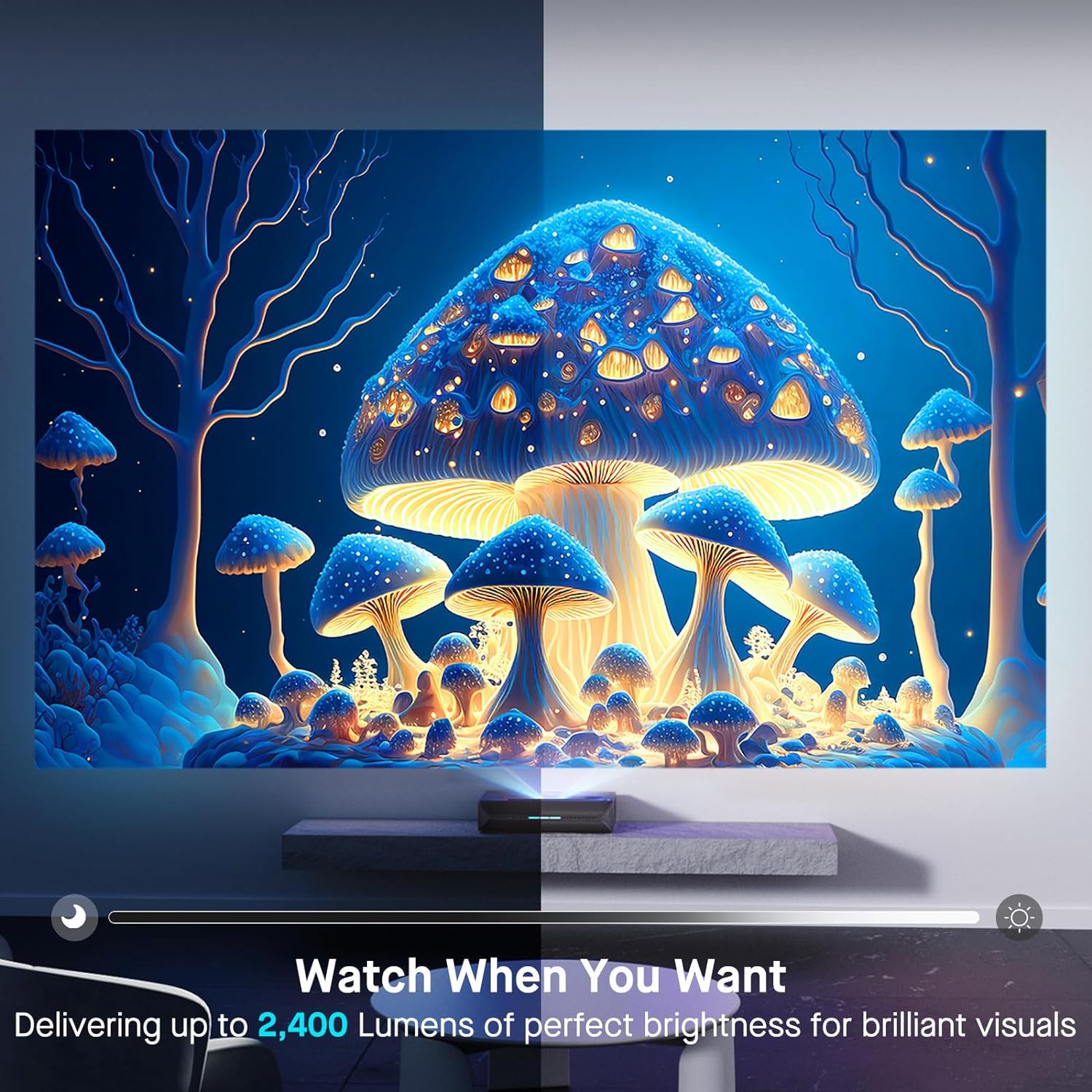
| Parlaklık | 2400 Lümen |
| Işık kaynağı | Tri-Color Laser (ALPD 4.0 RGB+) |
| Yerel Kontrast Oranı | 3000:1 |
| Dinamik Kontrast Oranı | >6000:1 (with dynamic laser dimming) |
| Renk Gamı | %107 Öneri 2020 |
| HDR Desteği | Dolby Vision, HDR10+, HLG |
| 3D Desteği | Aktif 3D |
| Giriş Gecikmesi | 8ms (tested at 1080p 240Hz) |
| Max Input Resolution/Refresh Rate | 4K@120Hz |
| MEMC | Yes (120Hz) |
| Ses Çıkışı | 60W Stereo Speakers (2x15W Woofers, 2x15W Tweeters), Dolby Atmos, eARC |
| Bağlantı | HDMI (3, one with eARC), USB, Optical Audio, Ethernet |
| Ürün Boyutları | 21.54 x 16.04 x 4.81 inç |
| Ürün Ağırlığı | 22 pound |
| Görünür Ekran Diyagonal | 80" - 150" (381 cm max) |
| Laser Lifespan | 25,000 saat |
10. Garanti ve Destek
NexiGo provides customer support and warranty services for its products. For specific warranty terms and conditions, please refer to the warranty card included with your product or visit the official NexiGo webalan.
Müşteri Desteği:
- For technical assistance, troubleshooting, or product inquiries, please contact NexiGo customer support.
- Contact information can typically be found on the NexiGo websitede veya ürün ambalajında yer almamaktadır.
- NexiGo offers 24-hour customer support and lifetime technical support.
İade ve Değişim:
- Refer to your purchase agreement or retailer's policy for details on returns and exchanges. NexiGo typically offers a 30-day return or exchange period.


