Brother MFC-L8390CDW Multifunction Color LED Printer User Manual
Model: MFC-L8390CDW
1. Giriş
The Brother MFC-L8390CDW is a high-performance multifunction color LED printer designed for efficient printing, scanning, copying, and faxing. This device offers fast print speeds, advanced duplex capabilities, and versatile connectivity options to meet various office and home office needs.
- Dakikada 30 sayfaya kadar baskı hızı.
- Duplex printing at up to 12 sides per minute.
- Single-pass duplex scanning up to 56 frames per minute.
- Features a 3.5-inch color touchscreen for intuitive control.
- Connectivity includes Gigabit Ethernet, 5GHz WiFi, and USB.
- Equipped with 512 MB of internal memory.
2. Kurulum
Follow these steps to set up your Brother MFC-L8390CDW printer.
2.1 Paketin Açılması ve İlk Yerleştirme
Carefully remove the printer from its packaging. Place the printer on a stable, level surface with adequate space for ventilation and access to power and network connections.
2.2 Installing Toner Cartridges and Drum Unit
The printer requires the installation of toner cartridges and a drum unit. Refer to the quick setup guide for detailed instructions on how to correctly install these components.
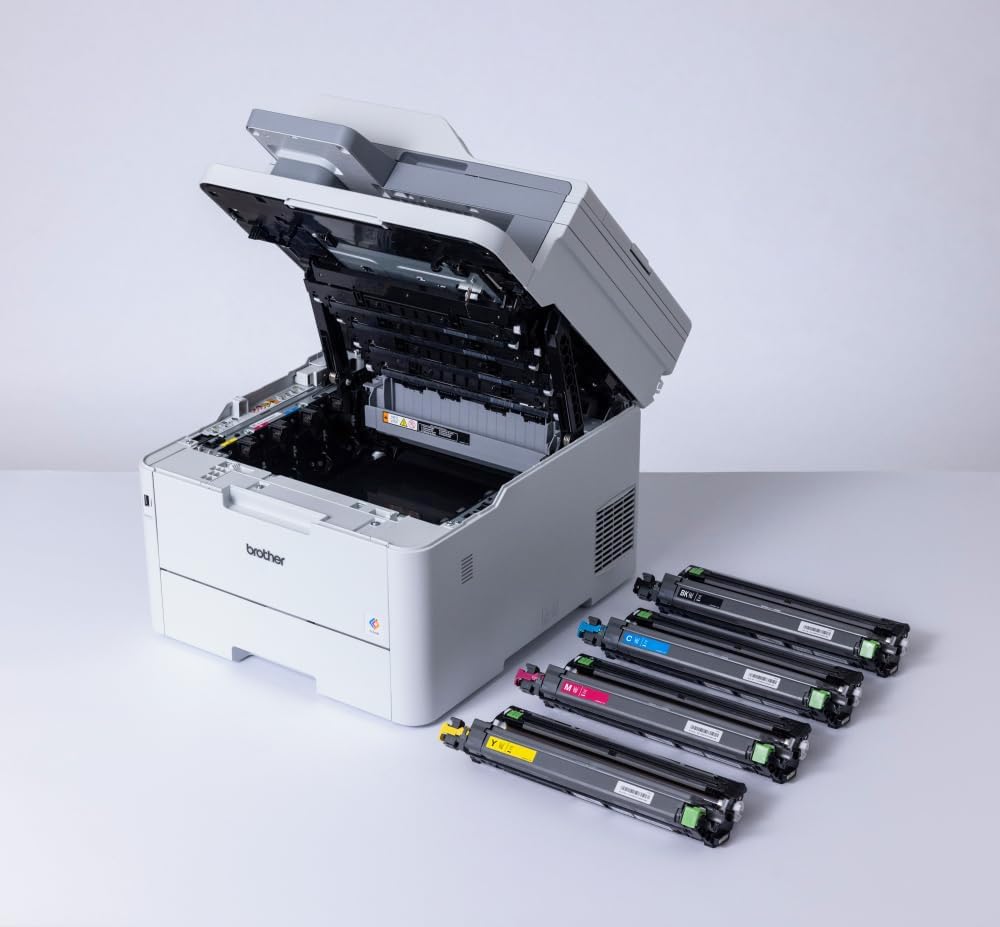
Image: The printer with its top cover open, showing the toner and drum area. Separate toner cartridges are displayed, ready for installation.
2.3 Kağıt Yükleme
Open the paper tray and adjust the paper guides to fit your paper size. Load the paper stack into the tray, ensuring it is flat and below the maximum fill line.
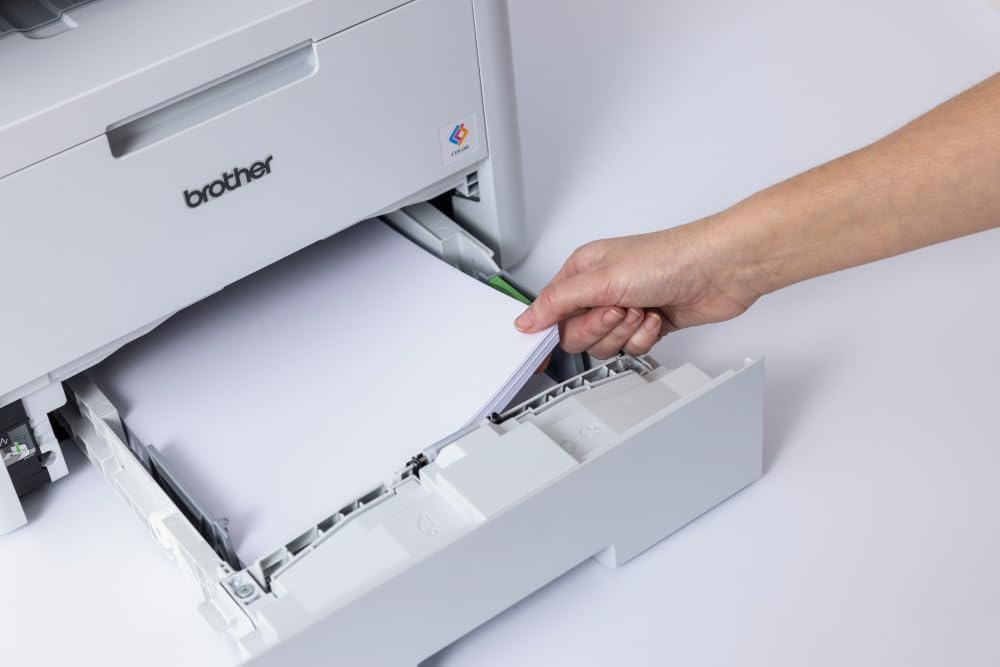
Image: A hand loading paper into the printer's paper tray.
2.4 Connecting to Power and Network
Connect the power cord to the printer and then to a power outlet. For network connectivity, you can use an Ethernet cable for a wired connection or configure the 5GHz WiFi connection through the printer's control panel. Alternatively, connect directly via USB to a computer.
3. Kullanım Talimatları
This section provides guidance on using the various functions of your multifunction printer.
3.1 Using the Touchscreen Control Panel
The 3.5-inch color touchscreen allows you to navigate menus, select functions, and adjust settings. Tap icons to access different features like Print, Scan, Copy, and Fax.

Image: A hand operating the printer's touchscreen control panel.
3.2 Belgeleri Yazdırma
To print, ensure the printer is connected to your device. Select the print option from your application and choose the Brother MFC-L8390CDW. You can configure settings such as color/monochrome, single-sided/duplex, and paper type. The printer supports various media, including A4, Legal, and Labels, with a maximum media size of A3.

Image: The printer in operation, with a document being printed.
3.3 Belgelerin Taranması
Place your document on the scanner glass or in the automatic document feeder (ADF) for single-pass duplex scanning. Use the touchscreen to select the 'Scan' function and choose your desired destination (e.g., computer, email, network folder).

Image: A hand placing a document on the scanner glass.
3.4 Belgelerin Kopyalanması
Place the document on the scanner glass or in the ADF. Select 'Copy' from the touchscreen, adjust settings like number of copies, color/monochrome, and duplex options, then press Start.
4. Bakım
Düzenli bakım, yazıcınızın en iyi performansını ve uzun ömrünü sağlar.
4.1 Replacing Toner Cartridges and Drum Unit
When a toner cartridge or the drum unit reaches the end of its life, the printer will display a notification. Follow the instructions on the touchscreen or in the detailed user guide to replace these consumables. Always use genuine Brother replacement parts.
4.2 Yazıcıyı Temizleme
Periodically clean the exterior of the printer with a soft, lint-free cloth. For internal cleaning, refer to the comprehensive user manual for specific instructions on cleaning the scanner glass, corona wire, and other components.
5. Sorun Giderme
Yazıcınızla ilgili sorunlarla karşılaşırsanız, aşağıdaki yaygın sorun giderme adımlarını göz önünde bulundurun:
- Güç Yok: Yazıcının güç kablosunun hem yazıcıya hem de çalışan bir elektrik prizine güvenli bir şekilde bağlı olduğundan emin olun.
- Kağıt Sıkışmaları: Follow the on-screen instructions to clear any paper jams. Open all access covers to locate and gently remove jammed paper.
- Baskı Kalitesi Sorunları: Check toner levels and drum unit life. Perform a print quality test from the printer's menu and clean the print head if necessary.
- Ağ Bağlantı Sorunları: Verify network cable connections or Wi-Fi settings. Restart your router and the printer.
- Hata Mesajları: Consult the detailed user manual or Brother's support webBelirli hata kodlarının açıklamaları ve çözümleri için site.
For more complex issues, contact Brother customer support or visit their official webAyrıntılı sorun giderme kılavuzları ve SSS'ler için site.
6. Özellikler
| Özellik | Şartname |
|---|---|
| Ürün Boyutları (DxGxY) | 46.2D x 40.1G x 41Y cm |
| Denetleyici Türü | Dokunmatik ekran |
| Maksimum Medya Boyutu | A3 (for scanning), A4/Legal (for printing) |
| Dahil Bileşenler | Machine, toner, drum, transfer belt, toner receptacle, power cord, quick setup guide, warranty card. (PC interface cable not included) |
| Basılı Medya Desteği | Labels, Standard Paper (up to 163g/m²) |
| Tarayıcı Türü | Yaprak beslemeli |
| Maksimum Giriş Sayfası Kapasitesi | 530 sayfa |
| Maksimum Kopyalama Hızı (Siyah Beyaz) | 30 ppm |
| Uyumlu Cihazlar | Akıllı telefonlar, Bilgisayarlar |
| Maksimum Baskı Çözünürlüğü (Renkli/Siyah Beyaz) | 600 x 600 dpi |
| Renk Derinliği | 24 bpp |
| Çift Taraflı Baskı | Evet |
| Çalıştırma Başına Maksimum Kopya Sayısı | 99 |
| Netage | 50 watt |
| Bağlantı Teknolojisi | Ethernet, USB, 5GHz WiFi |
| Baskı Teknolojisi | Lazer |
| Özel Özellikler | Ağa Hazır |
| Yazıcı Çıktısı | Renk |
| Maksimum Baskı Hızı (Renkli) | 30 ppm |
| Maksimum Siyah Beyaz Baskı Hızı | 30 ppm |
| Ürün Ağırlığı | 21.9 Kilogram |
| Dahili Bellek | 512 MB |
7. Garanti ve Destek
Your Brother MFC-L8390CDW printer comes with a warranty. Please refer to the warranty card included in the packaging for details on coverage and terms. For technical support, driver downloads, and additional resources, visit the official Brother support webalan.
Çevrimiçi destek: www.brother.com


