SHARKPOP 1080P Light Bulb Security Camera User Manual
Model: HT60-White | Brand: SHARKPOP
1. Giriş
This manual provides detailed instructions for the installation, operation, and maintenance of your SHARKPOP 1080P Light Bulb Security Camera. Please read this manual thoroughly before using the product to ensure correct usage and optimal performance. Keep this manual for future reference.
2. Güvenlik Bilgileri
- Kurulum veya bakımdan önce güç kaynağının bağlantısının kesildiğinden emin olun.
- This device is designed for use with standard E27 bulb sockets. Do not attempt to install it in incompatible sockets.
- Avoid exposing the camera to extreme temperatures, direct water immersion, or harsh chemicals. While rated for indoor/outdoor use, ensure proper protection from severe weather conditions.
- Kamerayı sökmeye veya üzerinde değişiklik yapmaya çalışmayın. Bu, garantiyi geçersiz kılacaktır.
- Fotoğraf makinesini çocukların ve evcil hayvanların erişemeyeceği bir yerde saklayın.
3. Paket İçeriği
- SHARKPOP 1080P Light Bulb Security Camera (Model HT60-White)
- E27 Bulb Socket (for convenience)
- Kullanıcı Kılavuzu
4. Temel Özellikler
- 1080P Full HD Video: Yiyeceklerin net ve ayrıntılı görüntülerini yakalar.tage.
- Wireless Wi-Fi Connectivity: Supports 2.4GHz Wi-Fi for easy connection.
- İç/Dış Mekan Kullanımı: Versatile for various surveillance needs.
- Human Detection & Tracking: Advanced AI identifies and follows human movement, reducing false alerts.
- Canlı View: Monitor your premises in real-time from your smartphone.
- Renkli Gece Görüşü: Provides bright, colorful images even in low-light conditions.
- 355° Yatay ve 95° Dikey Hareket: Offers expansive panoramic coverage for wide-area monitoring.
- İki Yönlü Ses: Dahili mikrofon ve hoparlörü kullanarak ziyaretçilerle iletişim kurun veya davetsiz misafirleri caydırın.
- Cloud Storage Options: Securely store and access recorded videos (subscription may be required).
- Kolay Kurulum: Screws directly into a standard E27 light bulb socket.
5. Kurulum Kılavuzu
5.1. Uygulama İndirme
İndir Aiwit App to your smartphone. You can find it on the App Store (iOS) or Google Play Store (Android), or by scanning the QR code on the product packaging. Alternatively, visit www.aiwit.cc/download.

Image: SHARKPOP camera and packaging, highlighting the Aiwit App download information.
5.2. Fiziksel Kurulum
- Aydınlatma armatürüne giden elektriğin devre kesiciden kapatıldığından emin olun.
- Carefully screw the SHARKPOP camera into a standard E27 light bulb socket. Ensure it is securely tightened.
- Restore power to the light fixture. The camera will power on and initiate its startup sequence.

Image: Visual guide demonstrating the simple screw-in installation of the camera into a light socket.
5.3. Cihaz Eşleştirme
- Open the Aiwit App on your smartphone.
- Follow the on-screen instructions to add a new device. This typically involves selecting your camera model and connecting it to your 2.4GHz Wi-Fi network.
- The app will guide you through scanning a QR code displayed on your phone with the camera lens to establish the connection.
- Once successfully paired, you can name your camera and begin monitoring.
6. Kullanım Talimatları
6.1. Canlı View
Open the Aiwit App and select your camera from the device list to access the live video feed. You can view your premises in real-time.

Image: The SHARKPOP camera alongside a smartphone showing its live video feed.
6.2. Pan ve Tilt Kontrolü
Canlı yayında view interface of the Aiwit App, use the directional controls to remotely pan (rotate horizontally up to 355°) and tilt (move vertically up to 95°) the camera lens to adjust your viewaçı.

Image: Diagram illustrating the 355-degree panoramic and 95-degree tilt rotation of the camera.
6.3. Çift Yönlü Ses
Uygulamanın canlı yayın bölümündeki mikrofon simgesine dokunun. view to speak through the camera's speaker. Tap the speaker icon to listen to audio from the camera's surroundings. This feature allows for real-time communication.

Image: A person interacting with a delivery driver via the camera's two-way audio feature.
6.4. Motion and Human Detection
Enable motion detection and human detection in the app's settings to receive instant alerts on your smartphone when movement is detected. Human detection filters out non-human movements, providing more relevant notifications.
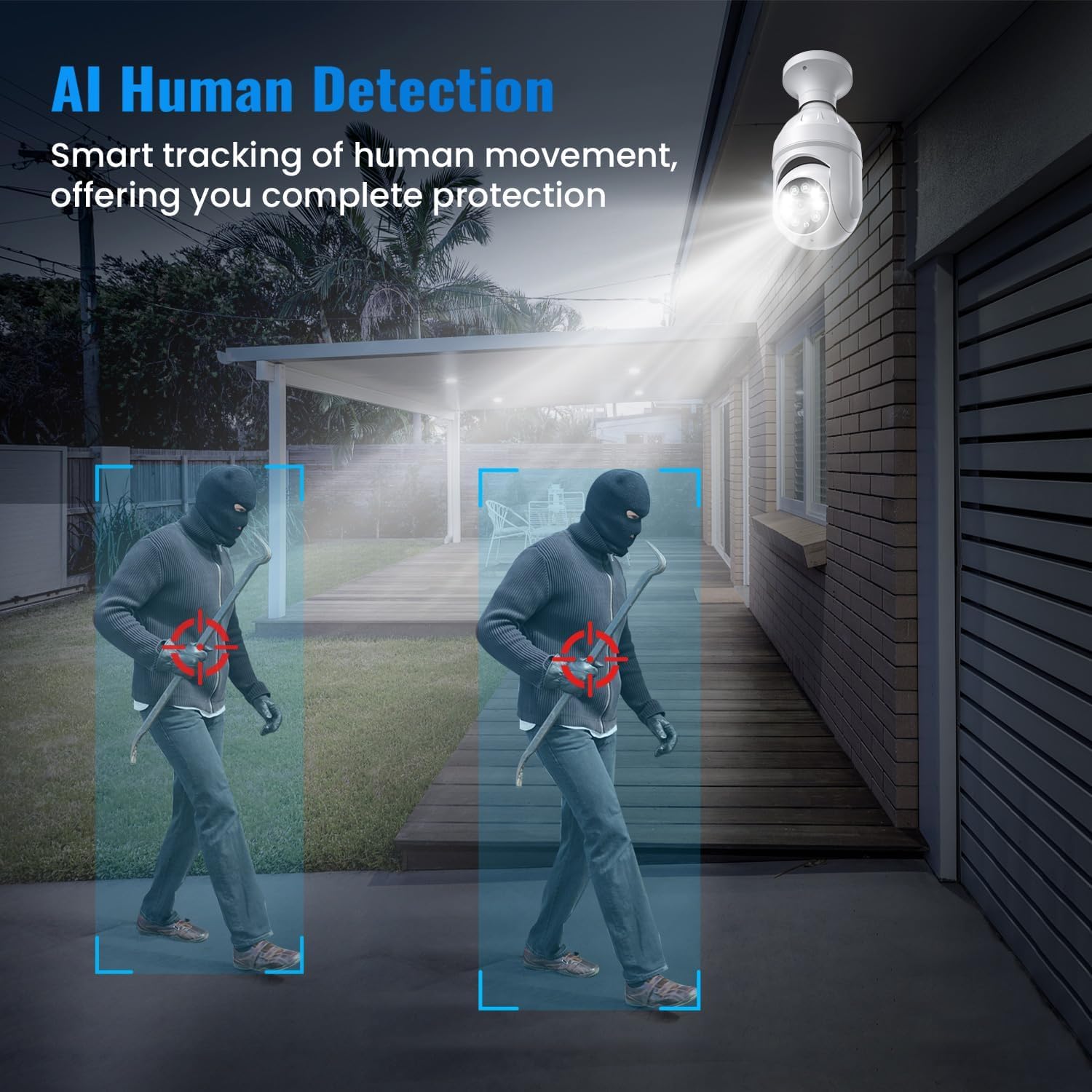
Image: The camera's AI Human Detection feature highlighting a person in the surveillance area.
6.5. Gece Görüş Modları
The camera automatically switches between Color Night Vision and Infrared Mode based on ambient light conditions. Color Night Vision provides full-color images in low light, while Infrared Mode offers clear black-and-white footage tamamen karanlıkta.
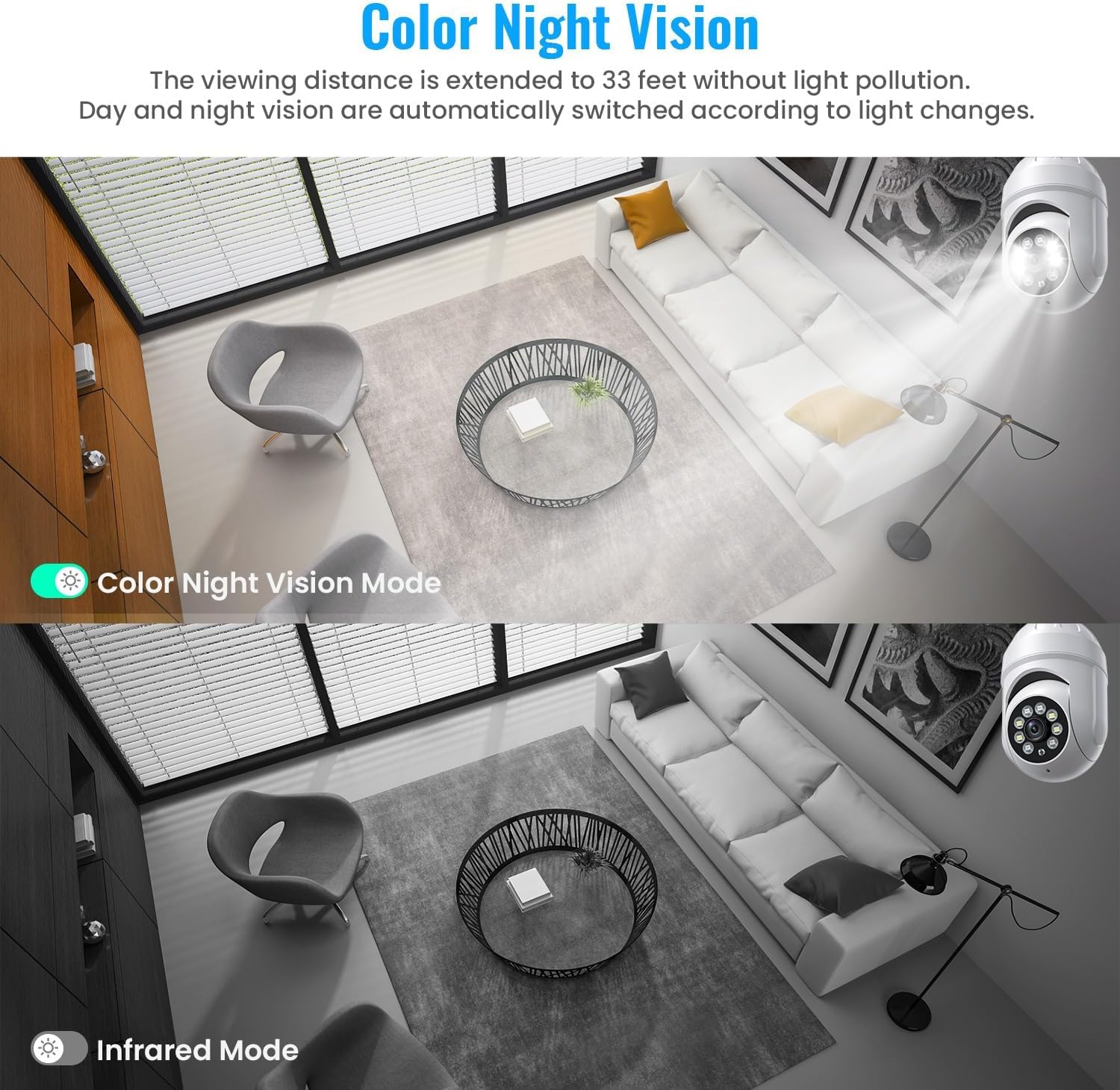
Image: A side-by-side comparison showing the difference between Color Night Vision and standard Infrared Night Vision.
6.6. Bulut Depolama
Access recorded videos and event history through the Aiwit App. Cloud storage offers secure backup and allows you to review footage from anywhere. A 30-day free trial may be available, with subscription plans for continued service.
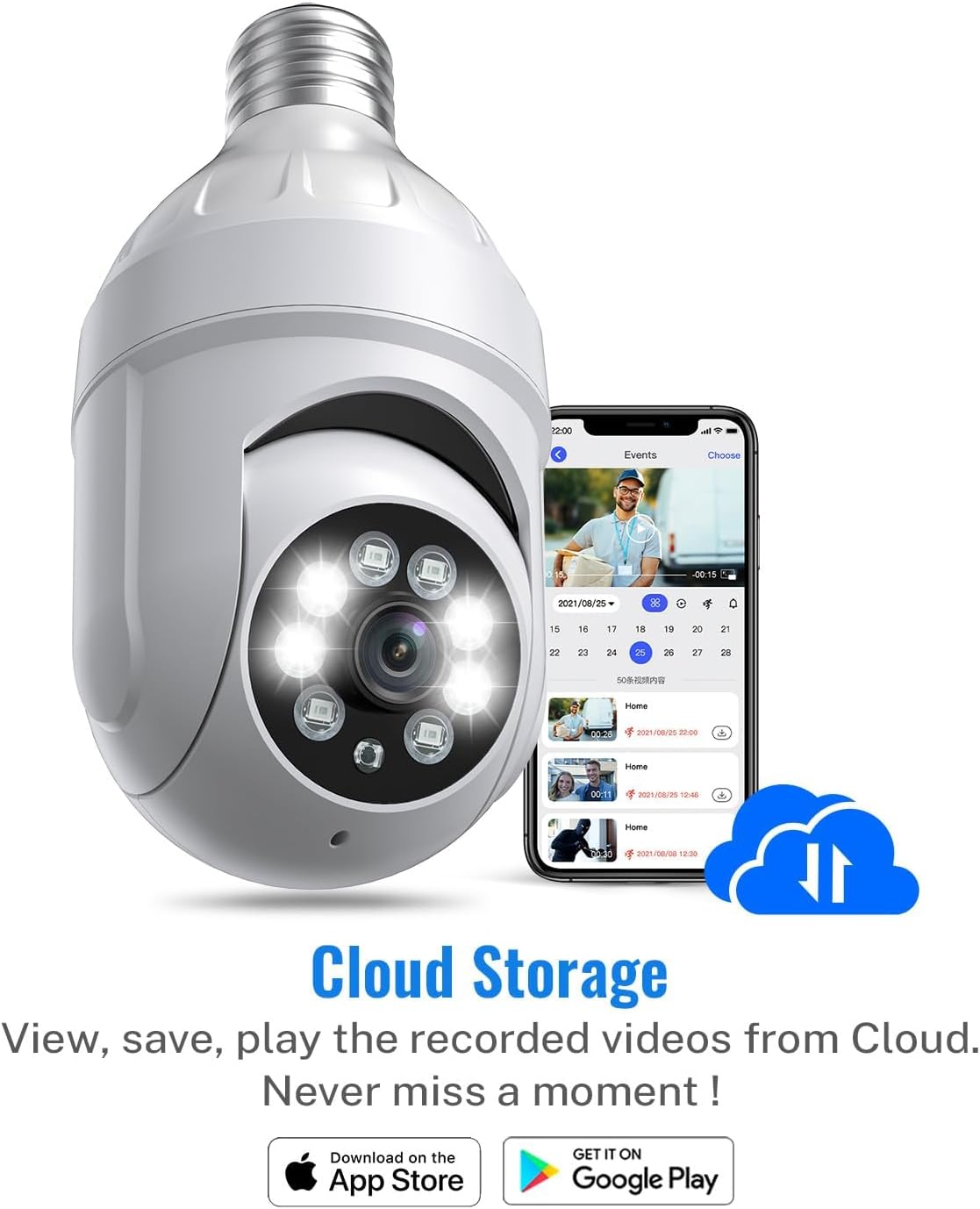
Image: Illustration of cloud storage functionality, showing recorded events accessible via the app.
6.7. Ürün Videosu Bittiview
Video: Bir yetkiliview of the SHARKPOP 1080P Light Bulb Security Camera, demonstrating its key features and functionalities. Closed captions are available for this video.
7. Bakım
- Temizlik: Fotoğraf makinesinin objektifini ve gövdesini yumuşak, kuru bir bezle nazikçe silin. Aşındırıcı temizleyiciler veya çözücüler kullanmayın.
- Donanım Yazılımı Güncellemeleri: Periodically check the Aiwit App for available firmware updates. Keeping your camera's firmware up-to-date ensures optimal performance and security.
- Güç Döngüsü: If the camera experiences issues, try turning off the power at the circuit breaker for 10 seconds, then restoring it.
8. Sorun Giderme
- Kamera Çevrimdışı: Ensure your Wi-Fi network is stable and the camera is within range. Check if the camera's power supply is secure. Restart your router and the camera.
- Kötü Görüntü Kalitesi: Ensure the lens is clean and free from obstructions. Check your Wi-Fi signal strength; a weak signal can affect video streaming quality.
- Hareket Uyarısı Yok: Verify that motion detection and human detection are enabled in the app settings. Adjust sensitivity levels if necessary.
- Camera Not Working in Cold Weather: Some users have reported issues with the camera going offline in very cold temperatures. If this occurs, consider relocating the camera to a more sheltered area or ensuring it is not exposed to extreme cold.
- İki Yönlü Ses Sorunları: Check your phone's volume settings and ensure the app has microphone permissions. Ensure there are no obstructions blocking the camera's microphone or speaker.
9. Özellikler
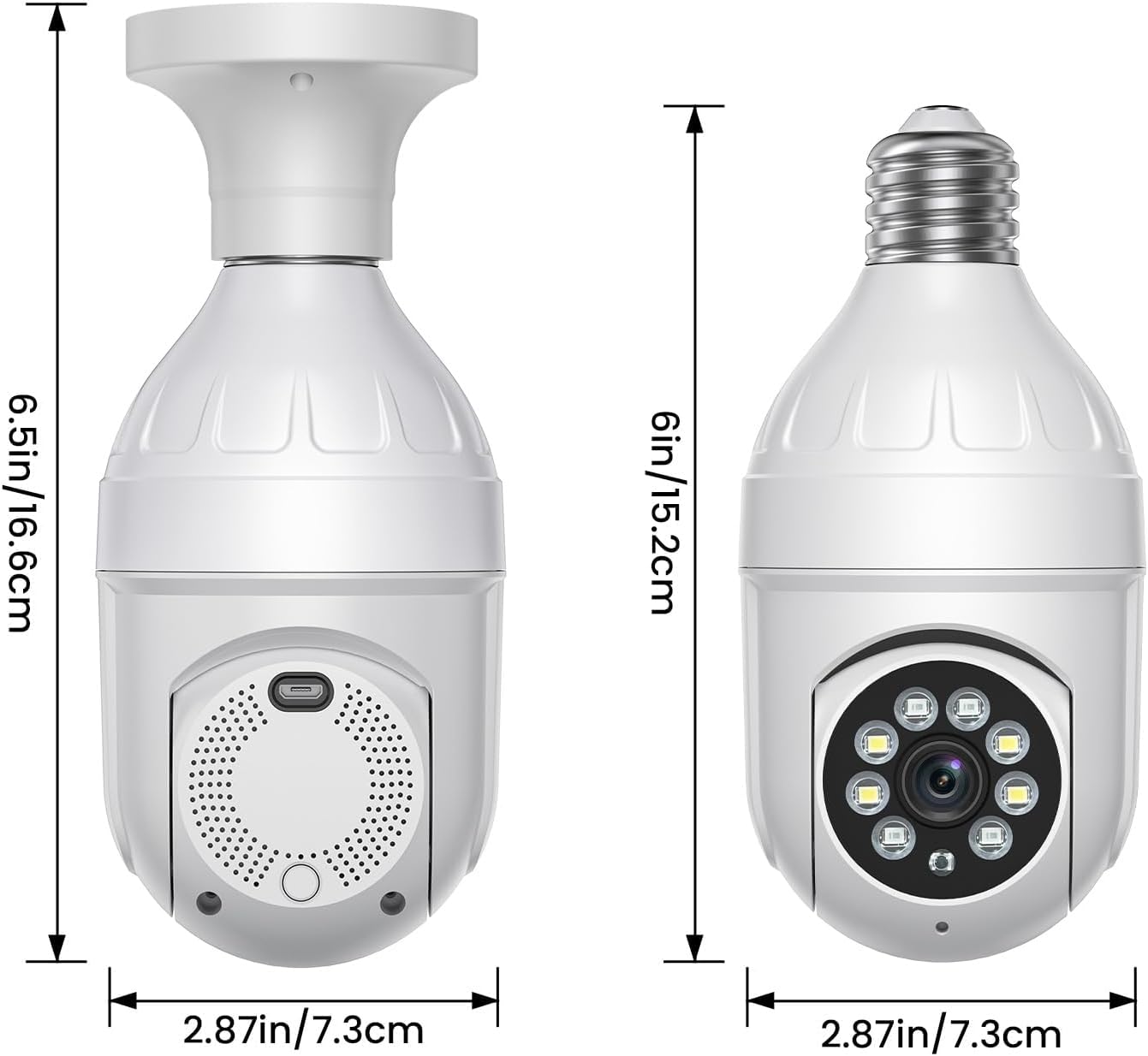
Image: Detailed dimensions of the SHARKPOP Light Bulb Security Camera.
| Özellik | Detay |
|---|---|
| Model Adı | HT60-White |
| Video Yakalama Çözünürlüğü | 1080p |
| Bağlantı Protokolü | Kablosuz (2.4GHz) |
| Güç Kaynağı | Kablolu Elektrik |
| Montaj Tipi | Ceiling Mount (E27 Screw-in) |
| Pan/Tilt Aralığı | 355° Döndürme, 95° Eğme |
| Gece Görüşü | Color Night Vision, Infrared Mode |
| Uyarı Tipi | Motion Only (with Human Detection) |
| Çift Yönlü Ses | Evet |
| Kontrol Yöntemi | App (Aiwit) |
| Ürün Boyutları | 2.87 x 2.87 x 6 inç (7.3 x 7.3 x 15.2 cm) |
| Ürün Ağırlığı | 9.1 ons |
| Malzeme | Akrilonitril Bütadien Stiren (ABS) |
| İç/Dış Mekan Kullanımı | İç mekan, dış mekan |
10. Garanti ve Destek
SHARKPOP products are designed for reliability and performance. For specific warranty details, please refer to the product packaging or contact SHARKPOP customer support. If you encounter any issues or have questions not covered in this manual, please reach out to our support team for assistance.


