GooDee Akıllı 4K Projeksiyon Cihazı Kullanım Kılavuzu
Model: YG600-Movin
giriiş
Thank you for choosing the GooDee Smart 4K Projector. This projector is designed to provide an immersive home theater experience with its advanced features, including 5G WiFi, Bluetooth 5.2, Netflix/Prime Video certification, Dolby Audio, and 4K support. This manual will guide you through the setup, operation, and maintenance of your new projector to ensure optimal performance and longevity.
Güvenlik Bilgileri
Yaralanma veya hasarı önlemek için lütfen bu ürünü kullanmadan önce tüm güvenlik uyarılarını ve talimatlarını okuyun. Bu kılavuzu ileride başvurmak üzere saklayın.
- Havalandırma açıklıklarını kapatmayın. Projektörün etrafında yeterli hava akışı sağlayın.
- Elektrik çarpması veya yangın riskini önlemek için projektörü yağmur veya neme maruz bırakmayın.
- Yalnızca üretici tarafından belirtilen aparatları/aksesuarları kullanın.
- Şimşekli fırtınalar sırasında veya uzun süre kullanılmadığında projektörün fişini çekin.
- Tüm bakımları yetkili servis personeline yaptırın.
- Projeksiyon cihazının merceğine doğrudan göz temasından kaçının.amp Açık.
Kutuda Neler Var?
Tüm öğelerin ambalajda mevcut olduğunu doğrulayın:
- GooDee Smart 4K Projector (Model: YG600-Movin)
- Güç Kablosu
- Uzaktan kumanda
- HDMI Kablosu
- Projektör Lens Kapağı
- Temizlik Kiti
- Kullanım Kılavuzu (bu belge)
Ürün Bittiview
Familiarize yourself with the main components of your GooDee Smart 4K Projector.
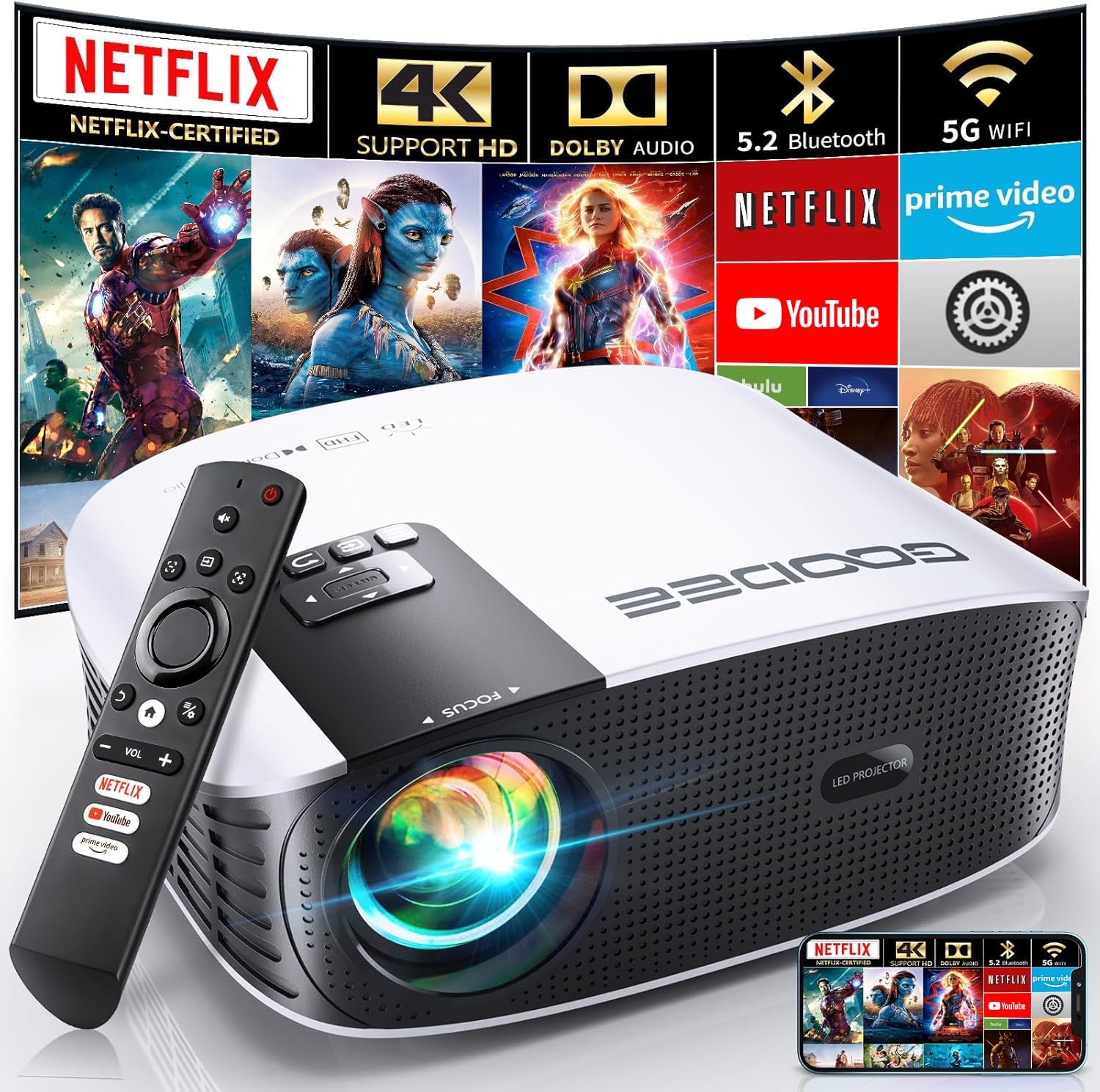
The GooDee Smart 4K Projector and its included remote control. The projector features a sleek white and black design with a prominent lens and control panel.

Ayrıntılı view of the projector's front and side, highlighting the lens and ventilation grilles.

The rear panel of the projector, displaying various input and output ports for connectivity.
Kurmak
1. Yerleşim
Place the projector on a stable, flat surface. Ensure there is sufficient space around the projector for proper ventilation. The optimal projection distance varies based on desired screen size (up to 400 inches diagonal).
2. Güç Bağlantısı
Güç kablosunu projektörün güç girişine ve ardından bir elektrik prizine bağlayın.
3. İlk Güç Açma
Press the power button on the projector or the remote control to turn on the device. The GooDee logo will appear, followed by the smart OS interface.
4. Ağ Bağlantısı (WiFi)
Navigate to the settings menu on the projector's interface. Select "Network" or "WiFi" and choose your desired network. Enter the password if prompted. The projector supports both 2.4G and 5G WiFi connections for stable and fast streaming.

Illustration demonstrating the difference in stability and speed between 2.4G and 5G WiFi connections, with 5G offering a faster experience.
5. Odak ve Trapez Düzeltme
The GooDee YG600-Movin features electric focus and electric keystone correction. Use the remote control to adjust the focus until the image is clear and sharp. For keystone correction, adjust until the projected image forms a perfect rectangle. This eliminates trapezoidal distortion.

Visual representation of the electric focus and keystone correction functions, showing how the remote can be used to achieve a clear and rectangular image.

A detailed diagram showing the remote control's buttons for electric focus and keystone correction, simplifying screen adjustment.
Kullanım Talimatları
1. Navigating the Smart OS
The projector runs on a smart operating system, providing direct access to various applications. Use the remote control's directional buttons and OK button to navigate through menus and select apps. The home screen provides quick access to certified streaming services.

The projector's smart interface showing pre-installed applications like Netflix, Prime Video, and YouTube, ready for direct streaming.
2. Using Certified Streaming Apps
The GooDee YG600-Movin is certified for Netflix, Amazon Prime Video, and YouTube. Simply select the app from the home screen and log in with your credentials to start streaming content directly. Due to copyright restrictions, direct mirroring or casting from mobile devices for these apps is not supported.
3. Kablosuz Ekran Yansıtma
For other content, the projector supports wireless screen mirroring for iOS, Android, and Windows devices. Ensure your device and the projector are connected to the same WiFi network. Follow the on-screen instructions for your specific device (e.g., AirPlay for iOS, Miracast for Android/Windows).
This video demonstrates how to use the DLNA Wireless Simultaneous function for screen mirroring with your GooDee Smart Projector.
4. Audio Output (Dolby Audio & Bluetooth)
The projector features built-in 2*5W speakers with genuine Dolby Audio for a rich sound experience. For enhanced audio, connect external Bluetooth speakers or soundbars using the latest Bluetooth 5.2 technology. Navigate to the Bluetooth settings, enable Bluetooth, and pair with your desired audio device.

An image highlighting the projector's Dolby Audio capabilities and Bluetooth 5.2 connectivity for external sound systems.
5. Yakınlaştırma İşlevi
The projector offers a 50%-100% zoom function, allowing you to adjust the screen size without physically moving the projector. Use the remote control to fine-tune the image size to fit your projection surface.

This graphic illustrates the projector's ability to adjust screen size from 50% to 100% and apply keystone correction for an optimal view400 inçe kadar deneyim.
Bakım
Düzenli bakım, projektörünüzün uzun ömürlü olmasını ve en iyi performansı göstermesini sağlar.
1. Lensin Temizlenmesi
Use the provided cleaning kit or a soft, lint-free cloth specifically designed for optical lenses. Gently wipe the lens in a circular motion. Avoid using abrasive cleaners or excessive force.
This video from GooDee-US demonstrates recommended methods for cleaning your smart projector screen.
2. Dış Cephenin Temizlenmesi
Projektörün dış yüzeyini yumuşak, kuru bir bezle silin. İnatçı lekeler için, hafifçe kuru bir bez kullanın.amp cloth can be used, followed by a dry wipe. Do not use harsh chemicals.
3. Toz Önleme
The projector is designed with imported high-tech materials to block dust and prolong its life. However, it is still recommended to keep the projector in a clean environment and use the lens cover when not in use.
Sorun giderme
| Sorun | Olası Neden | Çözüm |
|---|---|---|
| Görüntü yansıtılmıyor. | Power cable loose, projector off, input source incorrect. | Check power connection, turn on projector, select correct input source. |
| Görüntü bulanık | Out of focus, incorrect keystone. | Use electric focus and keystone correction on the remote control. |
| Ses yok | Ses seviyesi çok düşük, harici ses aygıtı bağlı/eşleştirilmiş değil. | Increase volume, check Bluetooth connection, ensure external device is on. |
| Kablosuz ağa bağlanılamıyor | Incorrect password, out of range, network issue. | Verify password, move closer to router, restart router and projector. |
| Streaming apps not working | Network issue, app error, copyright restriction for mirroring. | Check internet connection, restart app, remember certified apps cannot be mirrored. |
Özellikler
| Özellik | Detay |
|---|---|
| Model Numarası | YG600-Movin |
| Ürün Boyutları | 7.5 x 3.6 x 9.6 inç |
| Ürün Ağırlığı | 4.53 pound |
| Ekran Çözünürlüğü | Yerel çözünürlük 1920 x 1080 (4K desteği) |
| Parlaklık | 800 ANSI Lümen |
| Bağlantı Teknolojisi | Bluetooth 5.2, Wi-Fi (2.4G+5G WIFI6), HDMI, IR, USB |
| Maksimum Ekran Boyutu | 400 inç |
| Özel Özellikler | Internet Built-In, Portable, Speakers, Built-In Wi-Fi, Electric Focus, Electric Keystone Correction, Netflix/Prime Video/YouTube Certified |
| Ses | Dolby Audio, 2*5W Built-in Speakers |
| Yakınlaştırma İşlevi | %50-%100 |
Garanti ve Destek
GooDee provides lifetime technical support for your projector. If you encounter any issues or have questions regarding your product, please do not hesitate to contact GooDee customer service. Refer to the contact information provided in your product packaging or on the official GooDee webyardım için site.
For common issues, please refer to the Troubleshooting section of this manual.


