1. Giriş
This manual provides detailed instructions for the setup, operation, and maintenance of your Logitech POP Mouse. The POP Mouse is a compact, wireless mouse designed for multi-device use with customizable features.

Image: The Logitech POP Mouse in Graphite, showcasinKompakt ve ergonomik tasarımıyla öne çıkıyor.
2. Paket İçeriği
- Logitech POP Wireless Mouse
- 1x AA Battery (pre-installed)
- Kullanıcı belgeleri

Image: The Logitech POP Mouse and a single AA battery, representing the items included in the product package.
3. Kurulum Talimatları
3.1. Pil Kurulumu
- Gently remove the top cover of the mouse. The cover is magnetically attached.
- Insert the included AA battery, ensuring correct polarity (+/-).
- Üst kapağı yerine takın ve iyice oturduğundan emin olun.
3.2. Bluetooth ile bağlanma
- Alt tarafta bulunan güç düğmesini kullanarak fareyi açın.
- Press and hold one of the Easy-Switch buttons (1, 2, or 3) on the bottom of the mouse until the LED indicator starts blinking rapidly. This indicates pairing mode.
- On your device (computer, tablet, or phone), open Bluetooth settings.
- Select "Logitech POP Mouse" from the list of available devices to complete the pairing process.
- The LED indicator will glow solid for a few seconds, then turn off, confirming a successful connection.

Image: The underside of the POP Mouse, highlighting the Easy-Switch buttons for multi-device pairing.
4. Kullanım Talimatları
4.1. Temel İşlevler
- Sol tık: Birincil seçim ve etkileşim.
- Sağ tık: Bağlamsal menülere erişim sağlar.
- Kaydırma tekerleği: Belgeler arasında dikey olarak gezinir ve web sayfalar.
4.2. SilentTouch Teknolojisi
The POP Mouse features SilentTouch Technology, which significantly reduces click noise, providing a quieter user experience without compromising tactile feedback.

Image: A hand operating the POP Mouse, illustrating the quiet operation provided by SilentTouch Technology.
4.3. Akıllı Tekerlek Kaydırma
SmartWheel otomatik olarak iki mod arasında geçiş yapar:
- Kesinlik Modu: For detailed, line-by-line navigation.
- Speed Scroll Mode: For rapid scrolling through long documents or web sayfalar.

Image: A user's hand demonstrating the use of the SmartWheel for efficient navigation.
5. Özelleştirme
5.1. Customizable Top Button (Emoji Button)
The top button, located below the scroll wheel, is customizable. By default, it can be configured to open an emoji menu or assign other shortcuts.
- Download and install the Logitech Options+ Software from the official Logitech webalan (logitech.com/optionsplus).
- Open the Logitech Options+ Software.
- Select your POP Mouse from the detected devices.
- Düğme özelleştirme ayarlarına gidin.
- Assign your desired function to the top button, such as an emoji shortcut, Snip Screen, Mic Mute, or Voice-to-Text.
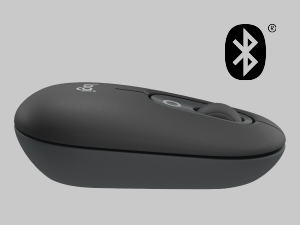
Image: A visual representation of the customizable top button on the POP Mouse, showing its function to access an emoji menu on a connected computer.
6. Çoklu Cihaz Bağlantısı
The Logitech POP Mouse can connect to up to three different devices simultaneously using Bluetooth. You can easily switch between these devices.
6.1. Cihazları Değiştirme
To switch between paired devices, press the Easy-Switch button (1, 2, or 3) on the bottom of the mouse corresponding to the desired device. The LED indicator will briefly light up to confirm the selected channel.
6.2. Logitech FLOW (Advanced Feature)
For seamless control across multiple computers, install Logitech Options+ Software on all devices. With Logitech FLOW enabled, you can move your mouse cursor across screens as if they were a single desktop, even copying and pasting text, images, and filearalarında s.
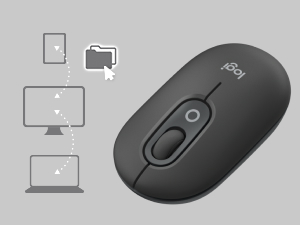
Image: A diagram showing how the POP Mouse can control multiple devices, illustrating the FLOW feature for cross-device interaction.
7. Bakım
7.1. Pil Değişimi
The POP Mouse operates on a single AA battery with an estimated life of up to 24 months. When the battery is low, the LED indicator on the bottom of the mouse may flash. Replace the battery by following the steps in Section 3.1.
7.2. Temizlik
Farenizi temizlemek için yumuşak, tüy bırakmayan bir bez kullanın. İnatçı kirler için hafifçe ovun.ampBezi suyla yıkayın. Sert kimyasallar veya aşındırıcı malzemeler kullanmaktan kaçının.
8. Sorun Giderme
| Sorun | Çözüm |
|---|---|
| Fare açılmıyor. | Ensure the power switch on the bottom of the mouse is in the 'ON' position. Check and replace the AA battery if necessary. |
| Mouse not connecting via Bluetooth. |
|
| İmleç hareketi düzensiz veya tepkisiz. |
|
| Custom button not working. | Ensure Logitech Options+ Software is installed and running on your computer, and the button is correctly configured. |
9. Özellikler
| Özellik | Detay |
|---|---|
| Model Numarası | 910-007165 |
| Bağlantı | Bluetooth 5.1 |
| kablosuz Menzil | 10 metreye (32.81 ft) kadar |
| Sensör Teknolojisi | Logitech High Precision Optical Tracking |
| Düğme Sayısı | 4 (Left/Right click, Scroll wheel click, Top customizable button) |
| Pil Türü | 1 adet AA pil |
| Pil Ömrü | 24 aya kadar (kullanıma bağlı olarak değişebilir) |
| Boyutlar (UxGxY) | 14.12 x 2.34 x 1.38 inç (35.86 x 5.94 x 3.51 cm) |
| Ağırlık | 2.89 ounces (82g with battery) |
| İşletim Sistemi Uyumluluğu | Windows 10 or later, macOS 10.15 or later, iPadOS, Chrome OS, Android |

Image: Technical drawing displaying the length, width, and height measurements of the Logitech POP Mouse.
10. Garanti ve Destek
Garanti bilgileri ve teknik destek için lütfen resmi Logitech destek sayfasını ziyaret edin. website or refer to the user documentation included in your product package.
- Çevrimiçi destek: destek.logi.com
- Ürün kaydı: Registering your product can help you receive faster support and updates.


