giriiş
Welcome to the user manual for your new TECLAST F16 Plus 15.6-inch Laptop. This guide provides essential information to help you set up, operate, maintain, and troubleshoot your device. Please read this manual carefully to ensure proper use and to maximize the performance and lifespan of your laptop.
Kurmak
Kutunun Açılması ve İlk Kurulum
Carefully remove the laptop and all accessories from the packaging. Ensure all components are present: the TECLAST F16 Plus laptop, power adapter, and this user manual. Connect the power adapter to the laptop's charging port and then to a power outlet. Allow the laptop to charge for at least 30 minutes before its first use.
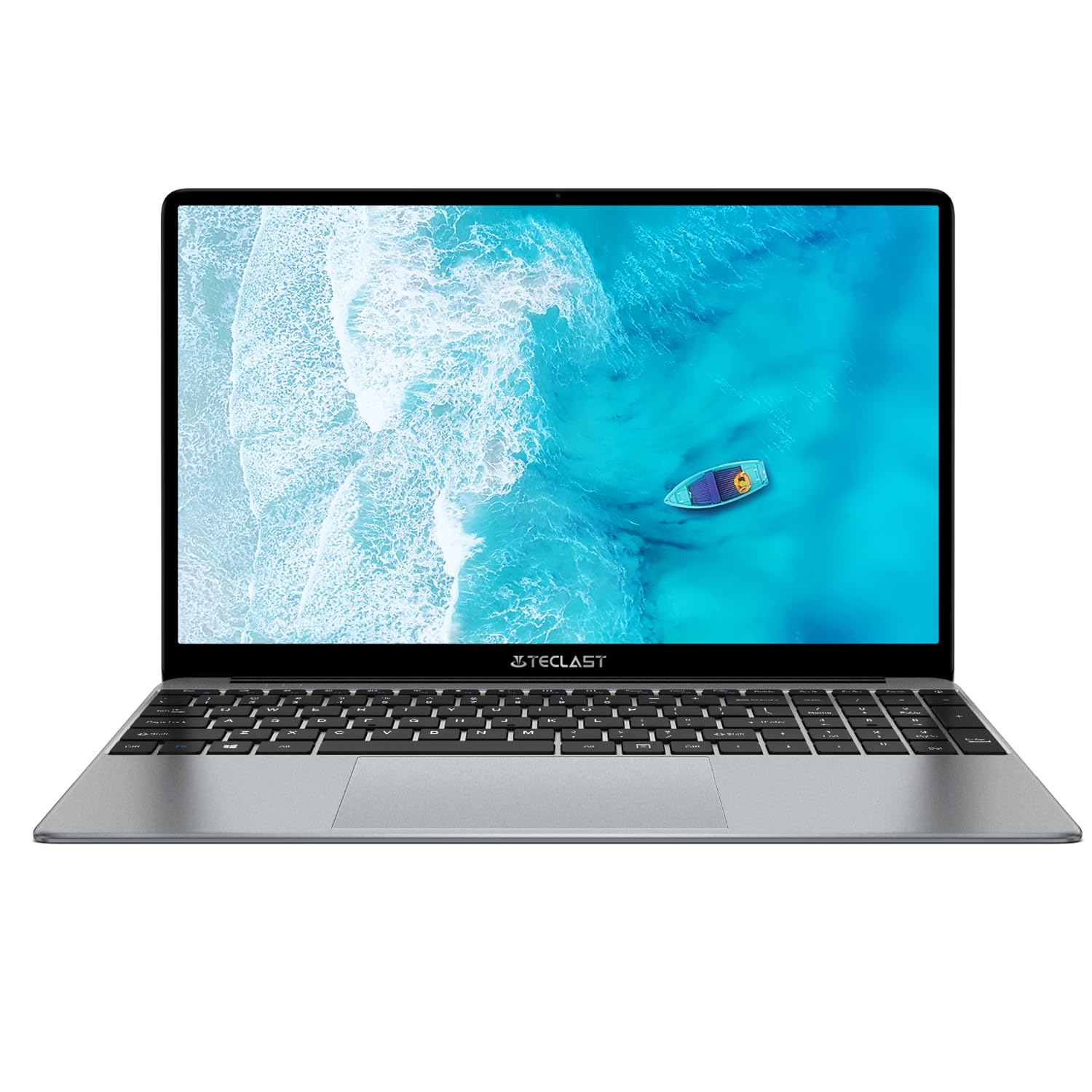
Image: The TECLAST F16 Plus laptop, showcasing its sleek design and 15.6-inch display with the Windows 11 operating system interface.
Açma/Kapatma
- Açmak İçin: Press and hold the power button located on the top right of the keyboard until the screen illuminates.
- Kapatmak için: Click the Start button in Windows 11, then select the Power icon, and choose 'Shut down'.
- Yeniden başlatmak: Click the Start button, select the Power icon, and choose 'Restart'.
Çevre Birimlerini Bağlama
Your TECLAST F16 Plus laptop is equipped with multiple ports for connecting external devices. Insert USB devices such as mice, keyboards, or external storage drives into the available USB ports. For external displays, use the appropriate video output port (e.g., HDMI) if available, and configure display settings in Windows.
İşletim
Klavye ve Dokunmatik Yüzey
The laptop features a full-sized keyboard and a responsive touchpad. Use the touchpad for navigation and gestures. Many function keys (F1-F12) have secondary functions, activated by pressing the 'Fn' key simultaneously. For example, 'Fn + F5' may control keyboard backlighting.
Görüntü Ayarları
Adjust screen brightness using the dedicated function keys (often Fn + F5/F6 or similar). To change display resolution or scaling, right-click on the desktop, select 'Display settings', and make your adjustments.
Ses Ayarları
Control volume using the dedicated function keys (often Fn + F2/F3 or similar) or through the sound icon in the Windows taskbar. Connect headphones or external speakers to the audio jack for private listening or enhanced sound.
Ağ Bağlantısı
To connect to Wi-Fi, click the network icon in the taskbar, select your desired network, enter the password, and click 'Connect'. Bluetooth devices can be paired via 'Settings > Bluetooth & devices'.
Windows 11 Temelleri
Your laptop runs on Windows 11. Familiarize yourself with the Start menu, taskbar, and File Explorer for efficient navigation and file management. Regular Windows updates are crucial for security and performance.
Bakım
Dizüstü Bilgisayarı Temizleme
Yumuşak, tiftiksiz bir bez kullanın ve hafifçe kurulayın.ampened with water or a screen cleaner to clean the display. For the keyboard and chassis, use a soft brush or compressed air to remove dust. Avoid harsh chemicals or abrasive materials.
Pil Bakımı
Pil ömrünü uzatmak için pili sık sık tamamen boşaltmaktan kaçının. Mümkün olduğunca pil şarjını %20 ile %80 arasında tutmanız önerilir. Dizüstü bilgisayarı uzun süre kullanılmadığı zamanlarda serin ve kuru bir yerde saklayın.
Yazılım Güncellemeleri
Regularly check for and install Windows updates and driver updates to ensure your system has the latest security patches and performance enhancements. This can be done through 'Settings > Windows Update'.
Depolama Yönetimi
The 256GB SSD provides fast storage. To maintain optimal performance, regularly delete unnecessary files, empty the recycle bin, and consider using cloud storage for large fileYerel alanı boşaltmak için.
Sorun giderme
Yaygın Sorunlar ve Çözümleri
- Dizüstü bilgisayar açılmıyor: Güç adaptörünün güvenli bir şekilde bağlı olduğundan ve pilin yeterli şarjı olduğundan emin olun. Sert sıfırlama için güç düğmesini 15-20 saniye basılı tutmayı deneyin.
- Ekranda görüntü yok: Connect an external monitor to check if the issue is with the laptop's display. Ensure brightness is not set to minimum.
- Wi-Fi bağlanmıyor: Windows ayarlarında Wi-Fi'nin etkinleştirilmiş olup olmadığını kontrol edin. Yönlendiricinizi ve dizüstü bilgisayarınızı yeniden başlatın. Wi-Fi şifresini doğrulayın.
- Yavaş performans: Close unnecessary applications. Check for background processes in Task Manager. Ensure sufficient free storage space.
- USB aygıtları tanınmıyor: Try connecting the device to a different USB port. Ensure device drivers are installed. Restart the laptop.
Burada ele alınmayan kalıcı sorunlarla karşılaşırsanız, daha fazla yardım için lütfen destek bölümüne bakın.
Özellikler
Teknik Detaylar
| Özellik | Detay |
| Marka | TEKLAST |
| Örnek | F16 Plus |
| Ekran Boyutu | 15.6 inç |
| İşlemci | Intel Celeron N (4 Cores) |
| Veri deposu | 12 GB |
| Depolamak | 256 GB SSD |
| İşletim Sistemi | Pencereler |
| Renk | New Gray |
| Pil Bileşimi | Lityum-polimer |
| giriş Arabirim | Klavye |
| Paket Boyutları | 50.79x29.2x7.9 cm |
| Paket Ağırlığı | 2.62 Kilogram |
Garanti ve Destek
Your TECLAST F16 Plus laptop comes with a standard manufacturer's warranty. Please refer to the warranty card included in your product packaging for specific terms and conditions. For technical support, driver downloads, or service inquiries, visit the official TECLAST webSitelerini ziyaret edin veya müşteri hizmetleri departmanıyla iletişime geçin. Destek ararken satın alma fişinizi ve ürün seri numaranızı elinizin altında bulundurun.


