1. Ürün Bittiview
The Logitech MK955 Signature Slim Wireless Keyboard and Mouse Combo provides a versatile and efficient input solution for multiple devices. This combo includes the K950 Signature Slim Keyboard and the M750L Signature Plus Mouse, designed for comfortable and quiet operation across various operating systems.

Image: The Logitech MK955 Signature Slim Wireless Keyboard and Mouse Combo, featuring a graphite-colored keyboard with a full numeric keypad and a matching ergonomic mouse, alongside a Logi Bolt USB receiver.
Kutuda Neler Var?
- Logitech K950 Signature Slim Wireless Keyboard
- Logitech M750L Signature Plus Wireless Mouse
- Logi Bolt USB Alıcı
- AAA Batteries (pre-installed or included)

Resim: Bir üstten görünüm view showing the contents of the product packaging, including the keyboard, mouse, Logi Bolt USB receiver, and AAA batteries.
2. Kurulum Talimatları
2.1 Pil Kurulumu
The keyboard and mouse are battery-powered. Ensure batteries are correctly installed before first use. The Logi Bolt USB receiver is typically found inside the mouse's battery compartment or within the product packaging.
2.2 Cihazlarınızı Bağlama
The MK955 combo offers two primary connection methods: Bluetooth and the Logi Bolt USB receiver.
- Using the Logi Bolt USB Receiver:
- Locate the Logi Bolt USB receiver.
- Alıcıyı bilgisayarınızdaki kullanılabilir bir USB bağlantı noktasına takın.
- Klavyeyi ve fareyi açın. Otomatik olarak alıcıya bağlanmaları gerekir.
- Bluetooth'u kullanma:
- Klavyeyi ve fareyi açın.
- On the keyboard, press and hold one of the Easy-Switch keys (1, 2, or 3) until the LED indicator blinks rapidly, indicating pairing mode.
- On your computer or device, navigate to Bluetooth settings and select "Logitech K950" or "Logitech M750L" from the list of available devices to pair.
- Repeat for the other device if necessary.

Resim: Yakın çekim view of the Logitech K950 keyboard's Easy-Switch buttons labeled 1, 2, and 3, used for switching between paired devices.
2.3 Installing Logi Options+ App
For enhanced customization and productivity features, download and install the Logi Options+ App from the official Logitech website. This application allows you to personalize keys, buttons, and shortcuts for both the keyboard and mouse.

Image: A computer screen displaying the Logi Options+ application interface, showing options for customizing Logitech devices.
3. Kullanım Talimatları
3.1 Multi-Device Switching
The K950 keyboard and M750L mouse can be paired with up to three different devices. Use the Easy-Switch buttons (1, 2, 3) on the keyboard and the corresponding button on the mouse to seamlessly switch between connected computers, tablets, or smartphones.

Image: A user efficiently working across a desktop computer and a laptop using the Logitech MK955 combo, demonstrating multi-device capability.
3.2 Klavye Özellikleri
- Sessiz Yazma: The keyboard is designed for a quiet typing experience, minimizing noise in shared workspaces.
- Özelleştirilebilir Tuşlar: Utilize the Logi Options+ App to assign custom functions and shortcuts to various keys.
- Çoklu İşletim Sistemi Düzeni: The keyboard supports Mac, Windows, and Chrome OS layouts, with dedicated keys for each.
- Eğimli Bacaklar: Adjust the keyboard angle for ergonomic comfort using the integrated tilt legs (+4°).

Image: A close-up of hands typing on the Logitech K950 keyboard, highlighting its slim profile and quiet keys.
3.3 Fare Özellikleri
- Sessiz Tıklama: The M750L mouse features SilentTouch technology for significantly reduced click noise.
- Akıllı Tekerlek: The scroll wheel allows for precise line-by-line scrolling or rapid, free-spinning scrolling for long documents.
- Contoured Shape: Designed for larger hands, the ergonomic shape provides comfortable use over extended periods.
- Özelleştirilebilir Düğmeler: Program side buttons and other controls using the Logi Options+ App.

Image: A hand operating the Logitech M750L mouse, focusing on the SmartWheel and ergonomic design.
4. Bakım
4.1 Pil Ömrü ve Değişimi
The K950 keyboard offers up to 36 months of battery life, while the M750L mouse provides up to 24 months, depending on usage. When batteries are low, replace them with new AAA batteries for the keyboard and AA batteries for the mouse (check device for specific battery type if different from included).
4.2 Temizleme Talimatları
- Temizlemeden önce cihazlarınızın bilgisayarınızla olan bağlantısını kesin.
- Hafifçe yumuşak, tüy bırakmayan bir bez kullanın.ampened with water or an approved electronics cleaner.
- Sert kimyasallardan, aşındırıcı malzemelerden veya aşırı nemden kaçının.
- For the keyboard, use compressed air to remove debris from between keys.
5. Sorun Giderme
5.1 Bağlantı Sorunları
- Bağlantı yok: Ensure batteries are charged and correctly installed. Verify the Logi Bolt USB receiver is securely plugged in, or that Bluetooth is enabled on your device and the keyboard/mouse are in pairing mode.
- Aralıklı Bağlantı: Move the keyboard and mouse closer to the receiver or Bluetooth-enabled device. Avoid placing large metal objects between the devices and the receiver/computer.
- Bluetooth Wake-up: When connected via Bluetooth, the keyboard and mouse may not wake your computer from sleep. You might need to use your computer's power button or an existing wired input device to wake it.
- BIOS Access: Bluetooth connections typically do not function during system boot-up. If you need to access BIOS/UEFI settings, a wired keyboard is usually required. The Logi Bolt receiver may offer better compatibility for pre-OS functions.
5.2 Logi Options+ App Functionality
- Özel Tuşlar Çalışmıyor: After waking your computer from sleep, custom key assignments from the Logi Options+ App may take a few moments to become active. If they remain unresponsive, try manually launching the Logi Options+ App.
- App Not Detecting Devices: Ensure the Logi Options+ App is up to date. Re-pair your devices if they are not detected by the software.
6. Özellikler
| Özellik | Detay |
|---|---|
| Marka | Logitech |
| Model Adı | MK955 Signature Slim Combo (K950 Keyboard, M750L Mouse) |
| Ürün Model Numarası | 920-012469 |
| Bağlantı Teknolojisi | Bluetooth, Logi Bolt USB Receiver |
| Uyumlu Cihazlar | PC, Laptop, Linux, Mac, iPadOS, iOS, Android, Chrome OS |
| İşletim Sistemi | Windows 10/11, macOS, Chrome OS, Linux, iPadOS, iOS, Android |
| Güç Kaynağı | Battery Powered (AAA for keyboard, AA for mouse - check device for specifics) |
| Klavye Pil Ömrü | 36 aya kadar |
| Fare Pil Ömrü | 24 aya kadar |
| Malzeme | Made with certified post-consumer recycled plastic (minimum 48% for keyboard; 25% for mouse) |
| Renk | Grafit |
| Ürün Ağırlığı | Approximately 2.42 pounds (combo) |
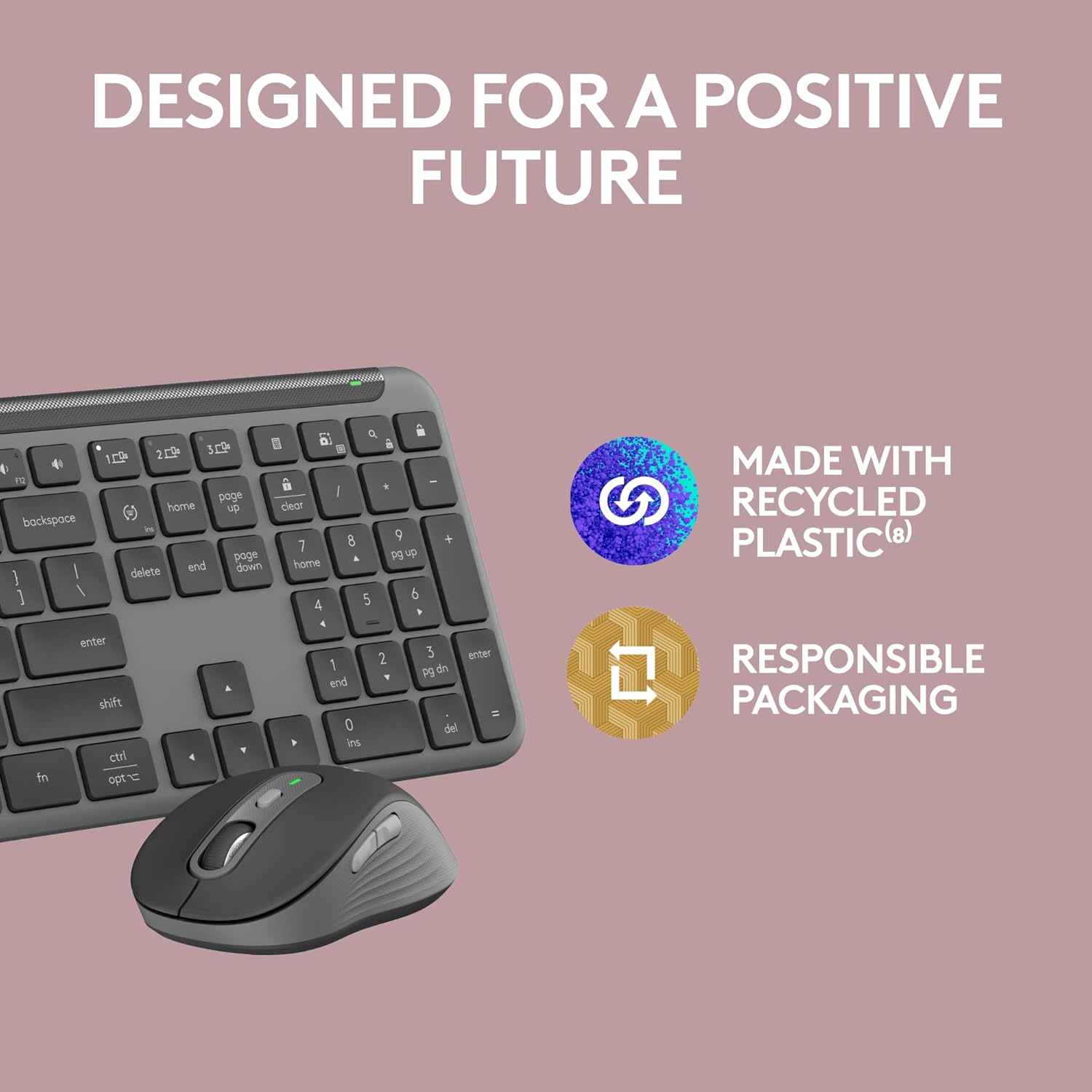
Image: An annotated diagram highlighting key features of the Logitech K950 keyboard, including tilt legs, shortcuts, media keys, multi-device connectivity, and multi-OS layouts.
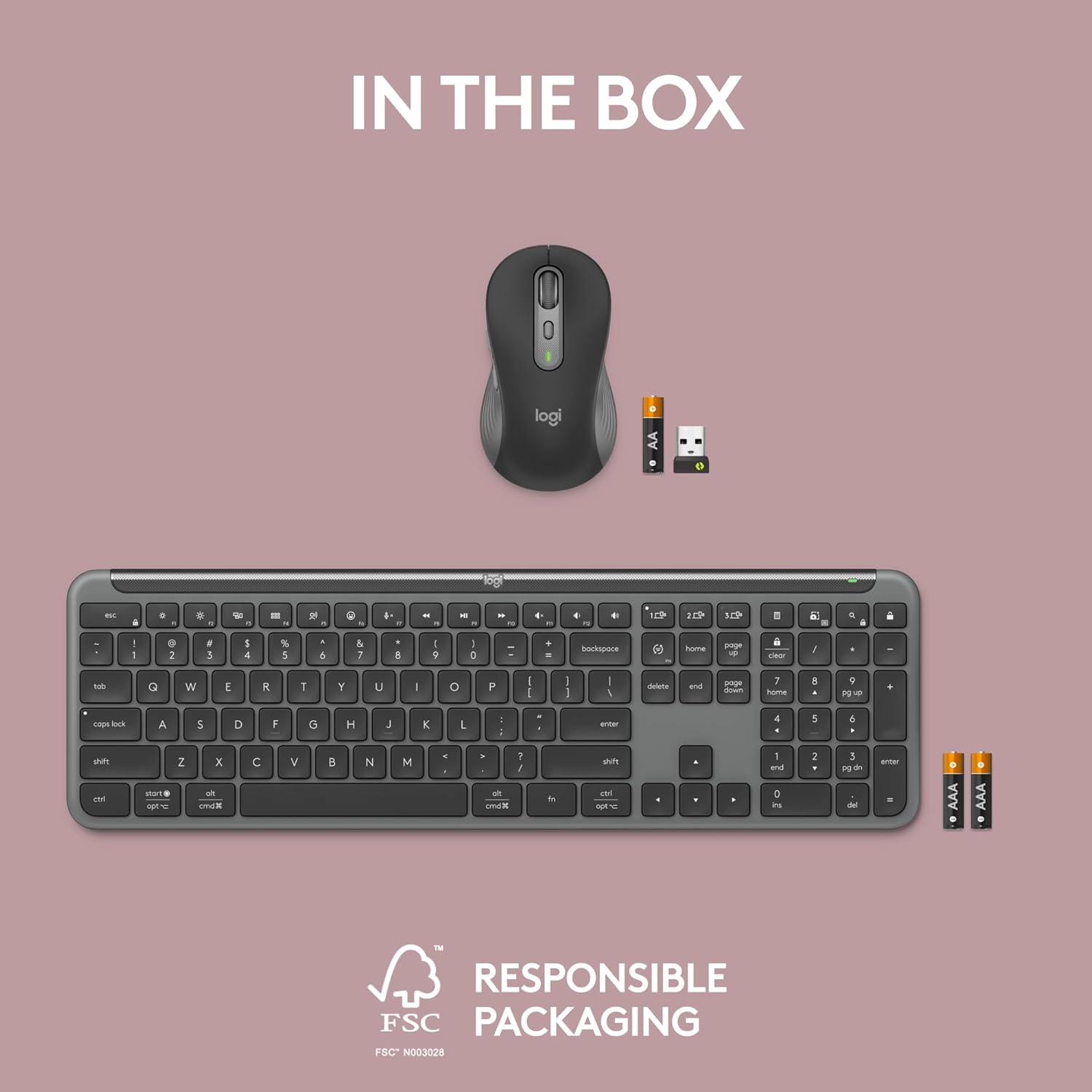
Image: An annotated diagram highlighting key features of the Logitech M750L mouse, including silent click, SmartWheel, DPI button, customizable buttons, contoured shape, and multi-OS connectivity.

Image: An illustration emphasizing the use of recycled plastic in the product and responsible packaging, reflecting Logitech's commitment to sustainability.
7. Garanti ve Destek
7.1 Ürün Garantisi
Logitech products typically come with a limited hardware warranty. Please refer to the warranty information included with your product packaging or visit the official Logitech website for specific terms and conditions applicable to your region and product model.
7.2 Müşteri Desteği
For further assistance, technical support, or to download the latest version of the Logi Options+ App, please visit the official Logitech support webSitede sıkça sorulan soruları, sorun giderme kılavuzlarını ve müşteri hizmetleri iletişim bilgilerini bulabilirsiniz.
Logitech Desteği Webalan: www.logitech.com/support


