1. Ürün Bittiview
The Logitech Signature K650 is a full-size wireless ergonomic keyboard designed for all-day comfort with an integrated soft palm rest and quiet keys. The Logitech Lift Vertical Ergonomic Mouse promotes a more natural forearm posture with its 57-degree vertical angle, ideal for small to medium-sized hands. Both devices offer flexible connectivity options via Bluetooth Low Energy or the included Logi Bolt USB receiver.

Image: The Logitech Signature K650 wireless ergonomic keyboard and the Logitech Lift vertical ergonomic mouse.
2. Kutuda Neler Var?
- Logitech Signature K650 Kablosuz Klavye
- Logitech Lift Dikey Ergonomik Fare
- Logi Bolt USB Alıcı
- 1 x AA battery (for mouse)
- 2 x AA batteries (for keyboard)
- Kullanıcı belgeleri

Image: The Logitech Lift mouse, a AA battery, and the Logi Bolt USB receiver, representing typical box contents.
3. Kurulum Kılavuzu
3.1. Pil Kurulumu
- Klavye: Open the battery compartment on the underside of the keyboard. Insert two AA batteries, ensuring correct polarity. Close the compartment.
- Fare: Open the battery compartment on the underside of the mouse. Insert one AA battery, ensuring correct polarity. Close the compartment.
3.2. Cihazlarınızı Bağlama
You can connect your keyboard and mouse using either the Logi Bolt USB receiver or Bluetooth Low Energy.
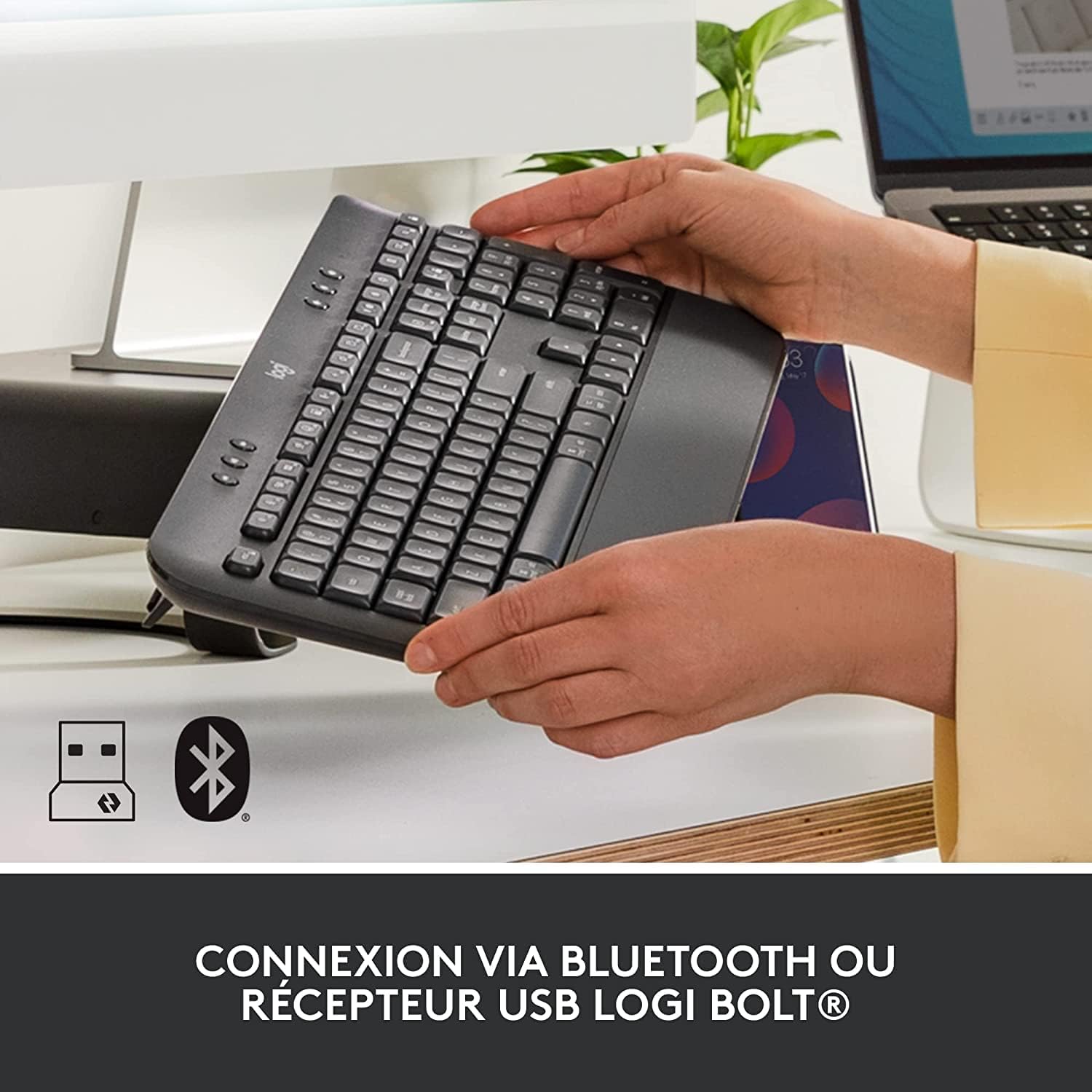
Image: The Logitech K650 keyboard with icons indicating USB and Bluetooth connectivity options.
Seçenek A: Logi Bolt USB Alıcı (İstikrarlı bağlantı için önerilir)
- Logi Bolt USB alıcısını bilgisayarınızdaki kullanılabilir bir USB bağlantı noktasına takın.
- Turn on the keyboard and mouse using their respective power switches (located on the underside).
- The devices should automatically connect to the receiver. If not, press and hold the Easy-Switch button on the keyboard (F1, F2, or F3) or the channel button on the mouse (bottom) until the LED blinks rapidly, then follow on-screen prompts if any.
Seçenek B: Bluetooth Düşük Enerji
- Klavye ve fareyi ilgili güç anahtarlarını kullanarak açın.
- On the keyboard, press and hold one of the Easy-Switch keys (F1, F2, or F3) for 3 seconds until the LED above the key starts blinking rapidly. This indicates it's in pairing mode.
- On the mouse, press the channel button on the bottom until the LED starts blinking rapidly.
- Bilgisayarınızda Bluetooth ayarlarını açın ve yeni cihazları arayın.
- Select "Signature K650" and "Lift" from the list of available devices to pair.
- Eşleştirme işlemini tamamlamak için ekrandaki talimatları izleyin.
For multi-device pairing, repeat the Bluetooth pairing steps for each device you wish to connect, using a different Easy-Switch key (F1, F2, F3) on the keyboard and the channel button on the mouse to switch between paired devices.
4. Cihazlarınızı Çalıştırma
4.1. Keyboard Features (Signature K650)
- Entegre Avuç İçi Dayanağı: The soft, integrated palm rest provides comfortable support for your wrists during long typing sessions.
- Sessiz Tuşlar: Designed for a familiar and pleasant typing experience with reduced noise.
- Kısayol tuşları: Access common functions quickly with dedicated shortcut keys for mute/unmute, screen capture, web navigation, and more.

Image: The soft-touch palm rest of the Logitech Signature K650 keyboard.

Image: A hand demonstrating the use of the dedicated shortcut keys on the Logitech K650 keyboard.
4.2. Mouse Features (Lift Vertical Ergonomic Mouse)
- Ergonomik Tasarım: The 57-degree vertical angle promotes a natural handshake posture, reducing wrist strain and promoting a more natural forearm position.
- Akıllı Tekerlek: Enjoy precise line-by-line scrolling or switch to super-fast free spin mode for long documents.
- Özelleştirilebilir Düğmeler: Program the side buttons and other controls using the Logi Options+ software for personalized shortcuts.
- Sessiz Tıklamalar: Experience significantly reduced click noise for a quieter work environment.

Image: A hand comfortably gripping the Logitech Lift vertical ergonomic mouse, showcasing its natural 57-degree angle.
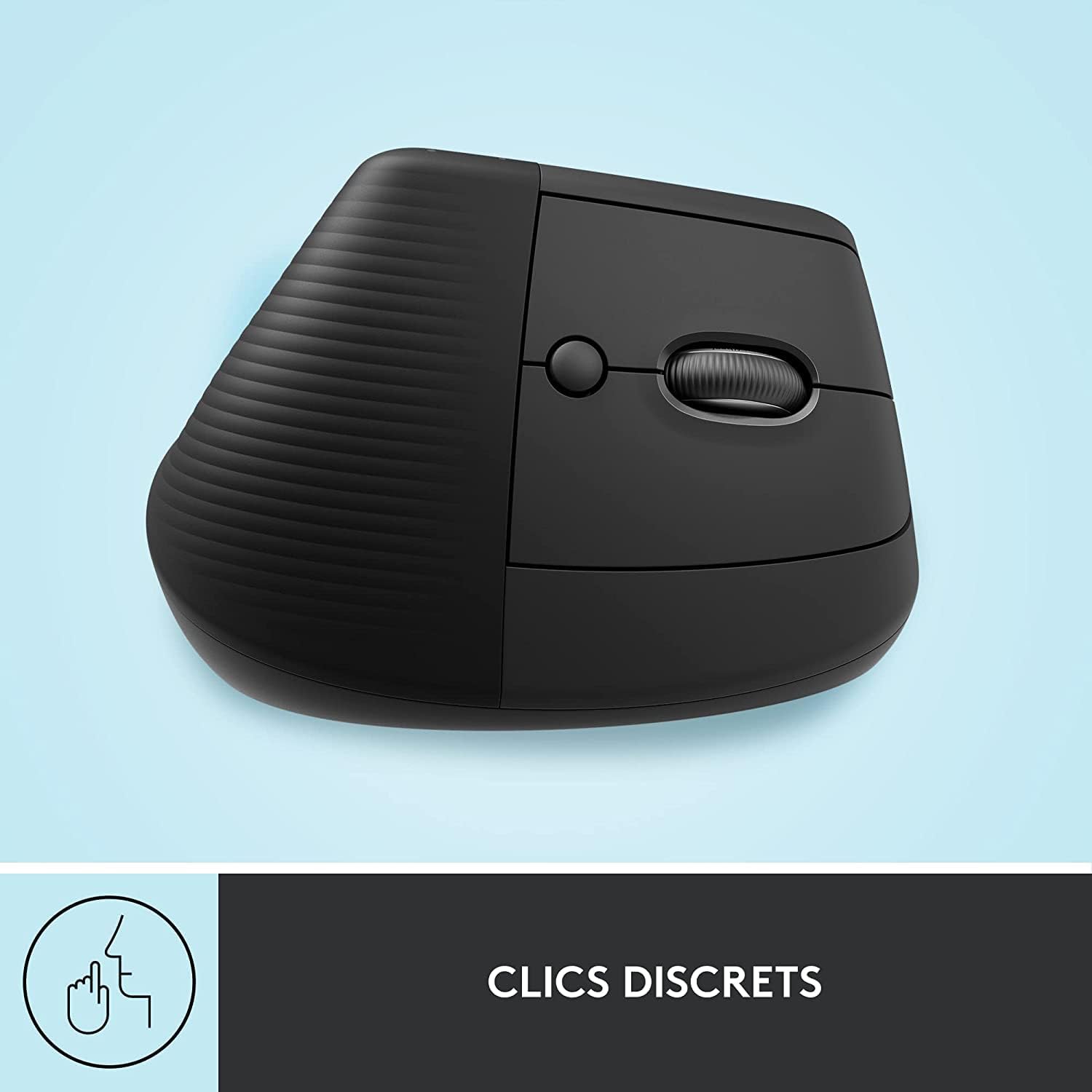
Image: The Logitech Lift mouse highlighting its quiet click feature.

Image: A detailed diagram illustrating the SmartWheel, customizable button, multi-device connectivity, and battery life of the Logitech Lift mouse.
4.3. Software (Logi Options+)
Download the Logi Options+ software from the official Logitech website to unlock the full potential of your devices. This software allows you to:
- Customize keyboard shortcut keys.
- Program mouse buttons and adjust pointer speed.
- Birden fazla cihazı aynı anda yönetmenizi sağlayan bağlantıları kontrol edin.
- Yazılım güncellemelerini alın.
4.4. Uyumluluk
The Logitech Signature K650 Keyboard and Lift Mouse are compatible with multiple operating systems:
- Pencereler
- macOS
- Chrome İşletim Sistemi
- iPadOS

Image: The Logitech K650 keyboard demonstrating compatibility with Windows, Apple (macOS/iPadOS), and Chrome OS.
5. Bakım
5.1. Pil Ömrü
- Klavye: Up to 36 months (3 years) on two AA batteries.
- Fare: Up to 24 months (2 years) on one AA battery.
Battery life may vary based on user and computing conditions. Replace batteries when the low battery indicator light illuminates.
5.2. Temizlik
Klavyenizi ve farenizi temizlemek için:
- Yumuşak, tüy bırakmayan bir bez kullanın.
- İnatçı kirler için hafifçeampBezi su veya aşındırıcı olmayan yumuşak bir temizleme solüsyonuyla yıkayın.
- Avoid spraying liquids directly onto the devices.
- The keyboard is spill-resistant, meaning it can withstand minor liquid spills, but it is not waterproof.

Image: A hand wiping down the Logitech K650 keyboard, demonstrating its spill resistance and ease of cleaning.
6. Sorun Giderme
6.1. Bağlantı Sorunları
- Bağlantı yok: Ensure the devices are turned on and batteries are correctly installed and charged.
- Aralıklı bağlantı: Try moving the devices closer to the receiver or computer. Avoid placing them near other wireless devices that might cause interference.
- Yeniden eşleştirme: If connection is lost, try re-pairing the devices as described in the
İlgili Belgeler - Signature K650 Keyboard + Lift Mouse

Logitech Lift Dikey Ergonomik Fare: Kullanım Kılavuzu ve Özellikleri
Logitech Lift Vertical Ergonomic Mouse için kapsamlı bir kullanım kılavuzu. Ergonomik tasarımı, bağlantı seçenekleri (Bluetooth, Logi Bolt), SmartWheel işlevselliği, Logitech Options+ yazılımı ve Windows, macOS ve iPadOS için nasıl kurulacağı hakkında bilgi edinin. Hem standart hem de sol el kullananlar için olan modelleri kapsar.
Logitech Lift Dikey Ergonomik Fare Kullanım Kılavuzu
Logitech Lift Vertical Ergonomic Mouse için kurulum, bağlantı (Bluetooth, Logi Bolt), SmartWheel gibi özellikler, ergonomik tasarım ve Logitech Options+ yazılımı hakkında bilgi içeren kullanım kılavuzu.
Logitech LIFT Dikey Ergonomik Fare Kullanım Kılavuzu ve Kurulumu
Logitech LIFT Dikey Ergonomik Farenin kurulumu, bağlantısı ve kullanımı hakkında kapsamlı kılavuz. SmartWheel, Easy-Switch ve Logitech Flow gibi özelliklerini öğrenin.
Logitech K650 Signature Kablosuz Klavye ve Bilek Desteği Kullanım Kılavuzu
Bluetooth ve Logi Bolt eşleştirmesi, klavye fonksiyonları ve yazılım özelleştirmesi de dahil olmak üzere, bilek desteği bulunan Logitech K650 Signature Kablosuz Klavyenin kurulumu ve kullanımı için kapsamlı bir kılavuz.
Logitech MX Ergo S Kurulum Kılavuzu | Ergonomik Trackball Fare
Logitech MX Ergo S ergonomik trackball farenizi kurun ve bağlayın. Ayarlanabilir açı, hassas kaydırma tekerleği, kolay geçiş ve sorunsuz çoklu cihaz verimliliği için Logitech Flow teknolojisi gibi özellikleri keşfedin. Bluetooth ve Logi Bolt kurulum talimatları dahildir.
Logitech MX Ergo S Trackball Kurulum Kılavuzu ve Ürün Genel Bakışıview
Logitech MX Ergo S kablosuz trackball fareyi nasıl kuracağınızı ve kullanacağınızı öğrenin. Ergonomik özelliklerini, bağlantı seçeneklerini ve Logitech Flow teknolojisini keşfedin.