1. Önemli Güvenlik Bilgileri
Please read all safety instructions carefully before using the BYINTEK P70 Smart WiFi Projector. Keep this manual for future reference.
- Güç Kaynağı: Yalnızca kutu içeriğinde bulunan güç adaptörünü kullanın. Ses seviyesinin doğru ayarlandığından emin olun.tage, projektörün gereksinimlerini karşılıyor.
- Pil Güvenliği: The projector contains a built-in lithium-ion battery. Do not expose to extreme temperatures, puncture, or disassemble.
- Havalandırma: Projektörün aşırı ısınmasını önlemek için çevresinde yeterli havalandırma olduğundan emin olun. Havalandırma açıklıklarını kapatmayın.
- Sıcaklık: The projector may become warm during operation. This is normal. Avoid touching the lens or vents immediately after use.
- Işık Pozlaması: Projektör lensine doğrudan bakmayın.amp Parlak ışık göz yorgunluğuna veya hasarına neden olabileceğinden, ışık açık bırakılmalıdır.
- Su ve Nem: Projeksiyon cihazını sudan, yağmurdan ve aşırı nemden uzak tutun. Islak ellerle çalıştırmayın.
- Temizlik: Temizlemeden önce elektriği kesin. Yumuşak, kuru bir bez kullanın. Sıvı veya aerosol temizleyiciler kullanmayın.
- Çocuklar: Keep the projector and its accessories out of reach of children.
2. Ürün Bittiview
The BYINTEK P70 is a portable smart DLP projector designed for versatile entertainment and presentation needs. It features an 8000mAh built-in battery, Android 9.0 operating system, auto-focus, and 3D support.
2.1 Paket İçeriği
- BYINTEK P70 Projector x 1
- Uzaktan Kumanda x 1
- Güç Adaptörü x 1
- Mini Tripod x 1
- saklama çantası x 1
- Kullanıcı Kılavuzu x 1
2.2 Temel Özellikler
- Taşınabilir Tasarım: Kolay taşıma için kompakt ve hafif.
- Dahili Pil: 8000mAh battery provides 1.5 to 3 hours of playback.
- Smart Android OS: Android 9.0 for app downloads, online streaming, and gaming.
- Otomatik Odaklama: Automatic focus adjustment for clear images.
- 6D Keystone Düzeltmesi: Advanced keystone correction for flexible placement.
- 3D Desteği: Enjoy immersive 3D content.
- Kablosuz bağlantı: Supports wireless screen mirroring from Android, iOS, and PC devices.
- Kablolu Bağlantı: USB data cable sync for iOS and select Android devices.
- Büyük Projeksiyon Boyutu: Up to 200 inches.
- 4K Oynatma: Supports up to 4K video input.
- Uzun LED Lamp Hayat: 30,000 saat.
- Çift Stereo Hoparlör: Integrated 2x5W speakers for clear audio.

Image: Infographic detailing the BYINTEK P70's features including 4K support, DLP display, 6D keystone, 8000mAh battery, 3D, Type-C charge, 2G+32G memory, Android OS, and stereo speakers.
3. Kurulum
3.1 Projektörün Şarj Edilmesi
Before first use, fully charge the projector. Connect the provided power adapter to the projector's Type-C port and plug it into a power outlet. The charging indicator will show the charging status.

Image: The BYINTEK P70 projector connected to a power bank via a Type-C cable, illustrating its portable charging capability.
3.2 İlk Yerleştirme
Projektörü sabit, düz bir yüzeye yerleştirin. En iyi sonuçlar için. viewing, position it directly in front of your projection screen or wall. The included mini tripod can be used for angle adjustments.
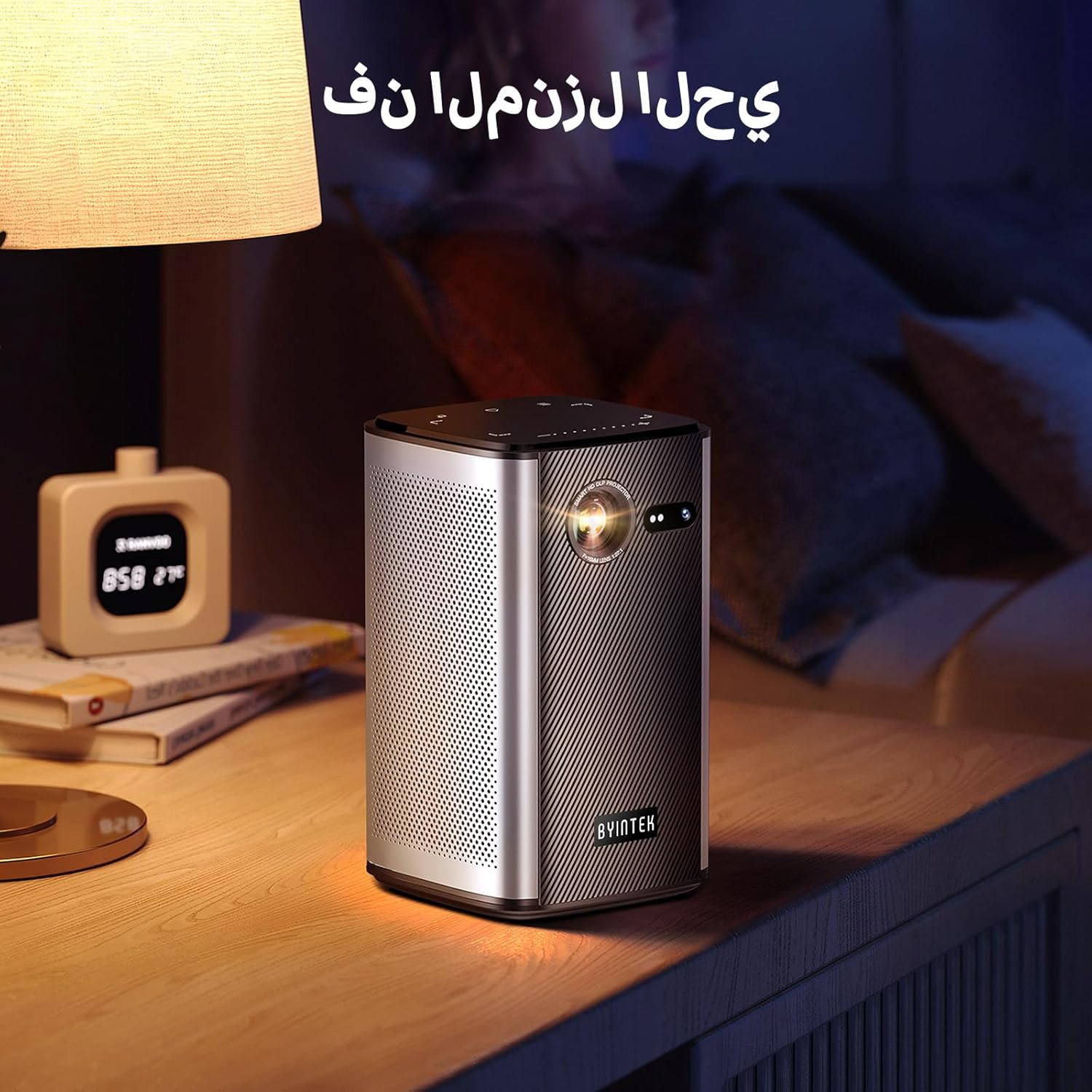
Image: The BYINTEK P70 projector placed on a bedside table, ready for indoor use.
3.3 Açma/Kapatma
Press and hold the power button on the projector or remote control to turn the device on or off.
3.4 Odak ve Trapez Düzeltme
The BYINTEK P70 features automatic focus. For keystone correction, navigate to the settings menu using the remote control. The 6D keystone correction allows for precise image adjustment, even with side projection.

Image: A visual representation of the projector's auto-focus feature, showing a clear image projected onto a wall.
4. Kullanım Talimatları
4.1 Android İşletim Sisteminde Gezinme
Use the remote control to navigate the Android 9.0 interface. The home screen provides access to pre-installed apps and settings. You can download additional applications from the app store.

Image: The projector displaying its Android operating system interface with various application icons like Miracast, Settings, AirPlay, Market, File Explorer, YouTube, and Netflix.
4.2 Kablosuz Ekran Yansıtma
The projector supports wireless screen mirroring for Android, iOS, and PC devices. Access the 'Miracast' or 'AirPlay' app on the projector's home screen and follow the on-screen instructions to connect your device.
4.3 Wired Screen Mirroring
For iOS devices and some Android devices, you can use a USB data cable for wired screen synchronization. Connect your device to the projector's USB port using its original data cable.
4.4 3D Oynatma
The BYINTEK P70 supports 3D content. To enjoy 3D movies, ensure your media file is in a compatible 3D format (e.g., Blu-ray 3D, SBS, TNB) and use active shutter 3D glasses (sold separately).

Image: A family wearing 3D glasses, enjoying a 3D movie projected by the BYINTEK P70, showcasing its 3D capability.
4.5 Dijital Zoom
Adjust the image size from 50% to 100% using the digital zoom function on the remote control. This allows you to fit the image perfectly to your screen without moving the projector.
5. Bakım
5.1 Lensin Temizlenmesi
Projeksiyon merceğini nazikçe silmek için optik lensler için özel olarak tasarlanmış, yumuşak ve tüy bırakmayan bir bez kullanın. Aşındırıcı malzemeler veya sert kimyasallar kullanmaktan kaçının.
5.2 Dış Cephenin Temizlenmesi
Wipe the exterior of the projector with a soft, dry cloth. Do not use liquid cleaners or sprays directly on the device.
5.3 Depolama
When not in use, store the projector in a cool, dry place, away from direct sunlight and extreme temperatures. Use the provided storage bag to protect it from dust and scratches.
5.4 Pil Bakımı
Pil ömrünü uzatmak için pili sık sık tamamen boşaltmaktan kaçının. Uzun süre saklayacaksanız, pili yaklaşık %50'ye kadar şarj edin ve birkaç ayda bir yeniden şarj edin.
6. Sorun Giderme
| Sorun | Olası Neden | Çözüm |
|---|---|---|
| Görüntü yansıtılmıyor. | Projector not powered on; input source not selected; cable not connected. | Ensure projector is on. Select correct input source (HDMI, USB, Wireless). Check cable connections. |
| Görüntü bulanık | Out of focus; projector too close/far from screen; lens dirty. | Allow auto-focus to adjust. Adjust projector distance. Clean the lens. |
| Uzaktan kumanda çalışmıyor | Batteries low/dead; remote not paired; obstruction. | Replace remote batteries. Ensure line of sight to projector's IR receiver. Re-pair remote if necessary (refer to specific pairing instructions in the full manual). |
| Ses yok | Ses seviyesi çok düşük; harici ses aygıtı bağlı; ses formatı desteklenmiyor. | Increase projector volume. Disconnect external audio devices. Check audio format compatibility. |
| Wireless mirroring issues | Poor Wi-Fi signal; device compatibility; firewall settings. | Ensure strong Wi-Fi signal. Check device compatibility with Miracast/AirPlay. Disable firewalls temporarily for testing. |
| Projektör aşırı ısınıyor | Blocked ventilation; prolonged use in hot environment. | Havalandırma deliklerinin açık olduğundan emin olun. İyi havalandırılan bir alanda çalıştırın. Projektörün soğumasını bekleyin. |
7. Özellikler
| Özellik | Şartname |
|---|---|
| Marka | BYINTEK |
| Model Numarası | P70 |
| Ürün Boyutları | 8.2x8.2x14.2 cm |
| Ürün Ağırlığı | 1.58 Kilogram |
| Pil | 1 Lithium Ion battery (included), 8000mAh, 29.6 Wh |
| İşletim Sistemi | Android |
| Ekran Çözünürlüğü | 960x540 |
| Maksimum Ekran Çözünürlüğü | 4K Ultra HD Megapixel |
| Bağlantı Teknolojisi | Wifi |
| Özel Özellikler | Auto-focus, 3D Ready, Built-in Wi-Fi Receiver |
| Önerilen Kullanımlar | Ev Sineması |
| Görüntü Türü | DLP |
| Form Faktörü | Taşınabilir |
| Montaj Tipi | Tripod Montajı |
| USB 3.0 Bağlantı Noktaları | 1 |
| HDMI Bağlantı Noktaları | 1 |
| Cilttage | 12 Volt |
| Netage | 25 Watt |
| Güç Kaynağı | AC ve Pil |
8. Garanti ve Destek
The BYINTEK P70 Smart WiFi Projector comes with a standard manufacturer's warranty. For specific warranty details, please refer to the warranty card included in your product packaging or contact BYINTEK customer support.
If you encounter any issues or have questions regarding your projector, please contact BYINTEK customer support through their official website or the contact information provided in your product documentation. Please have your model number (P70) and purchase details ready when contacting support.


