giriiş
This manual provides detailed instructions for the operation and maintenance of the EXFO MAX-730C Optical Time Domain Reflectometer (OTDR), specifically the MAX-730C-SM2-IO-EI-EUI-91 model. This compact and lightweight device is designed for efficient fiber optic network testing, featuring OTDR and IOLM functions with 1310/1550/1625nm wavelengths and dynamic ranges of 39/38/39dB. Its rugged design ensures reliable performance in challenging environments.
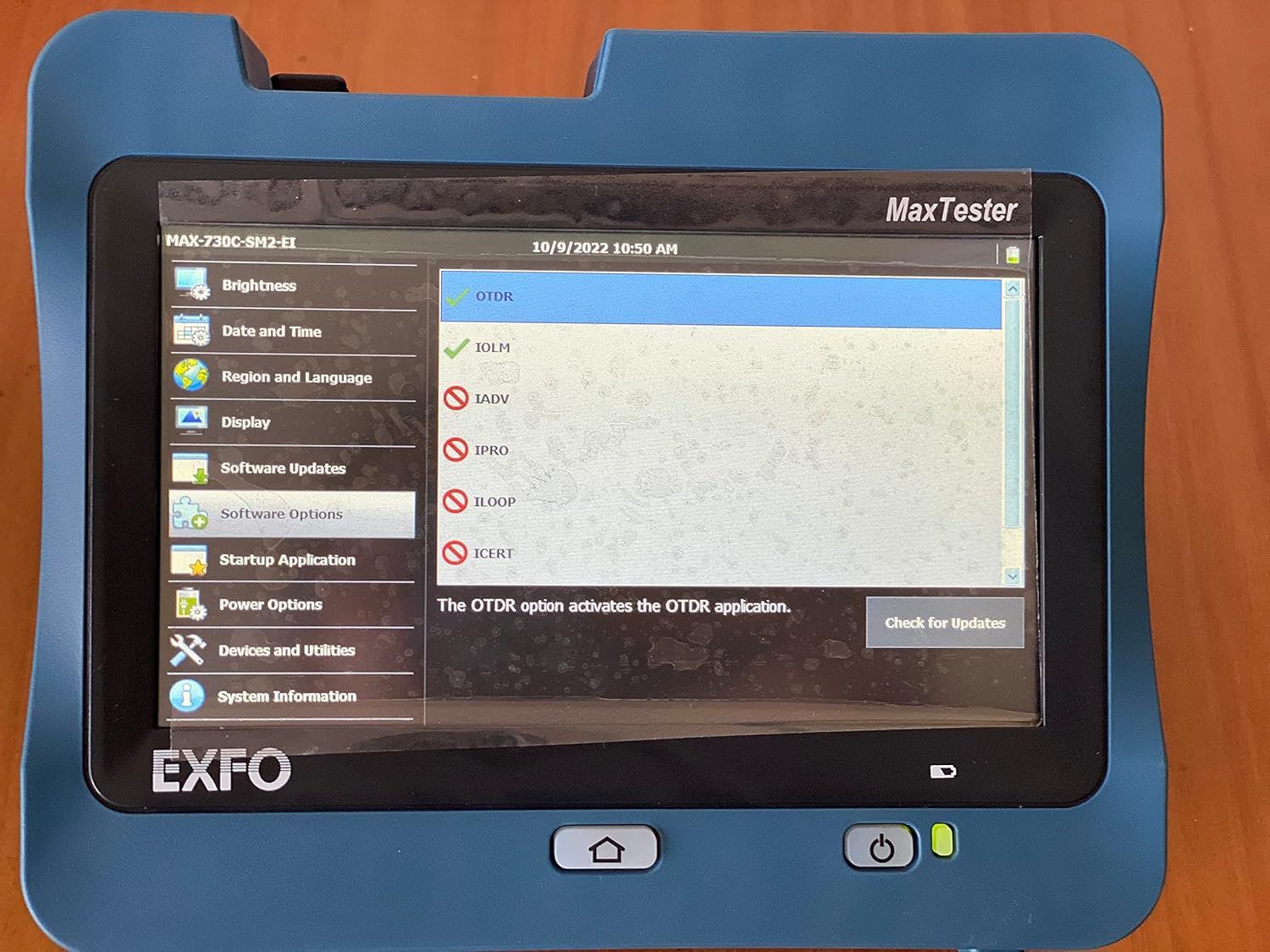
Figure 1: The EXFO MAX-730C OTDR device, displaying its main MaxTester interface with various application options.
Kurmak
Paketten Çıkarma ve İlk Kontrol
Carefully unpack the EXFO MAX-730C OTDR and all accessories. Inspect the device for any signs of damage during transit. Report any damage to your supplier immediately.
Güç Açık
The device is battery-powered. Ensure the battery is sufficiently charged before first use. Connect the provided power adapter to charge the unit if needed. Press and hold the power button located on the front panel to turn on the device.
İlk Yapılandırma
Upon first power-on, you may be prompted to set basic configurations such as date, time, and language. Navigate through the touchscreen interface to set these parameters.

Figure 2: The device's screen displaying the 'Region and Language' settings, allowing users to select display language, keyboard layout, and date/time formats.
Connecting to Fiber
Locate the fiber optic ports on the device. These are typically located on the top or side of the unit. Carefully connect your fiber optic cables to the appropriate ports (e.g., SM LIVE, SM). Ensure connectors are clean before insertion to prevent damage and ensure accurate readings.

Şekil 3: Üst view of the EXFO MAX-730C, highlighting its connectivity options including USB ports, an Ethernet port, and dedicated fiber optic connectors for SM LIVE and SM testing.
İşletim
Arayüzde Gezinme
The EXFO MAX-730C features a high-resolution, 4.3-inch widescreen color touchscreen. Navigate through menus and applications by tapping on icons and options. The main screen provides access to various functions.

Figure 4: The main application screen of the EXFO MAX-730C, displaying icons for various functions such as OTDR, IOLM, ConnectorMax2, File Manager, and Configuration.
Using OTDR Function
To perform an OTDR test:
- From the main screen, tap the 'OTDR' icon.
- Select the desired test parameters (e.g., wavelength, pulse width, range).
- Ensure the fiber is properly connected.
- Initiate the test. The device will display the fiber trace and event table.
Using IOLM Function
The Intelligent Optical Link Mapper (IOLM) function simplifies fiber testing by providing a clear, icon-based view of the fiber link. To use IOLM:
- Tap the 'IOLM' icon from the main screen.
- Follow the on-screen prompts to set up the test.
- The IOLM will automatically detect and characterize events on the fiber, presenting them in an easy-to-understand graphical format.
Veri Yönetimi
The device allows for saving test results. Use the 'File Manager' application to organize, view, and transfer your test data. Data can be transferred via USB or Ethernet.
Bakım
Cihazın Temizlenmesi
Regularly clean the touchscreen with a soft, lint-free cloth. For stubborn marks, use a screen cleaner designed for electronic displays. Keep the device free from dust and debris.
Fiber Connector Care
Clean fiber optic connectors before each use to ensure accurate measurements and prevent damage to the device's ports. Use appropriate fiber cleaning tools and methods.
Pil Bakımı
Pil ömrünü uzatmak için pili sık sık tamamen boşaltmaktan kaçının. Cihaz uzun süre kullanılmadığında serin ve kuru bir yerde saklayın. Uzun süre saklanacaksa pili düzenli olarak şarj edin.
Yazılım Güncellemeleri
Check for software updates periodically via the 'Software Updates' option in the settings menu. Keeping the software updated ensures optimal performance and access to new features.
Sorun giderme
Cihaz Açılmıyor
- Pilinin dolu olduğundan emin olun. Güç adaptörünü bağlayın ve tekrar deneyin.
- Güç düğmesinin birkaç saniye basılı tutulduğundan emin olun.
Hatalı Test Sonuçları
- Clean fiber optic connectors thoroughly.
- Check for proper connection of the fiber to the device.
- Verify test parameters are correctly set for the fiber being tested.
Dokunmatik Ekran Tepki Vermiyor
- Restart the device by holding the power button until it shuts down, then power it back on.
- Ekranın temiz ve kalıntılardan arınmış olduğundan emin olun.
For persistent issues, contact EXFO customer support.
Özellikler
| Özellik | Detay |
|---|---|
| Model Numarası | MAX-730C-M2 |
| Ürün Boyutları | 19.29 x 11.42 x 15.35 inç |
| Ürün Ağırlığı | 12 Pound |
| Güç Kaynağı | Pil ile çalışır |
| Görüntülemek | Dokunmatik ekran, renkli, 800 x 480 TFT, 178 mm (7 inç) |
| Limanlar | İki USB 2.0 portu |
| OTDR Wavelengths | 1310/1550/1625nm |
| Dinamik Aralık | 39/38 / 39dB |
| Kutu İçeriği | Pil |
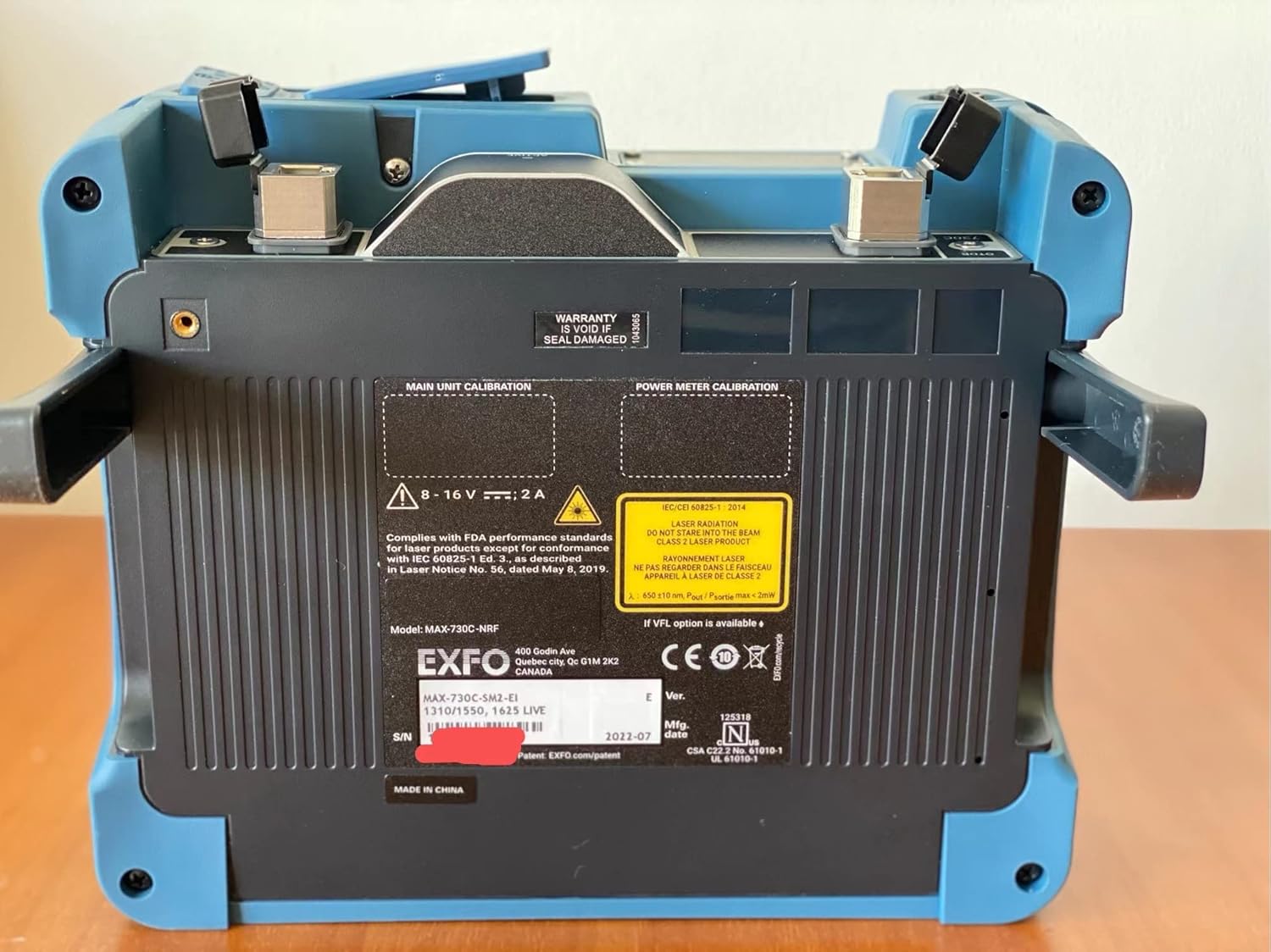
Şekil 5: Arka view of the EXFO MAX-730C, displaying the product label with essential information such as model number (MAX-730C-M2), serial number, manufacturing date, and compliance markings.
Garanti
The EXFO MAX-730C OTDR comes with a manufacturer's warranty. Please refer to the warranty card included with your product or visit the official EXFO website for detailed warranty terms and conditions. Note that the warranty may be void if the seal is damaged, as indicated on the device.
Destek
For technical assistance, service, or further inquiries regarding your EXFO MAX-730C OTDR, please contact EXFO customer support through their official website or the contact information provided in your product documentation. Ensure you have your model number (MAX-730C-M2) and serial number ready when contacting support.