1. Ürün Bittiview
The ProtoArc K100-A is an ultra-slim wireless Bluetooth keyboard specifically designed for Mac devices. It features a full-size layout with a numeric keypad, responsive scissor-switch keys for quiet typing, and adjustable white LED backlighting. This keyboard supports connection to up to three devices simultaneously, allowing for seamless switching between your MacBook, iMac, iPad, or iPhone. Its built-in rechargeable battery ensures long-lasting use.

Image: The ProtoArc K100-A keyboard connected to a MacBook, iPad, and iPhone, showcasing çoklu cihaz uyumluluğu.
2. Paket İçeriği
- ProtoArc K100-A Arkadan Aydınlatmalı Bluetooth Klavye
- USB-C Şarj Kablosu
- Kullanım Kılavuzu (bu belge)
3. Başlarken
3.1 Klavyeyi Şarj Etme
Before first use, fully charge the keyboard. Connect the provided USB-C charging cable to the keyboard's Type-C port and the other end to a USB power source (e.g., computer USB port, USB wall adapter). A full charge takes approximately 4-5 hours. The built-in 1200mAh lithium-ion battery provides a standby time of 3-4 months.

Image: The keyboard's Type-C charging port with the charging cable inserted.
3.2 Güç Açma/Kapatma
Locate the power switch on the side or back of the keyboard. Slide it to the "ON" position to power on the keyboard. Slide it to "OFF" when not in use to conserve battery.
4. Bluetooth Bağlantısı
The ProtoArc K100-A keyboard supports connection to three different devices via Bluetooth. Follow these steps to pair your devices:
- Klavyenin açık olduğundan emin olun.
- Bluetooth kanal tuşlarından birine basılı tutun (BT1, BT2, veya BT3) İlgili gösterge ışığı hızla yanıp sönene kadar 3-5 saniye basılı tutun. Bu, klavyenin eşleştirme modunda olduğunu gösterir.
- On your Mac device (MacBook, iMac, iPad, iPhone), go to Sistem Ayarları (veya Sistem Tercihleri) > Bluetooth.
- Bluetooth’u açın ve kullanılabilir cihazları arayın.
- Seçme "ProtoArc K100-A"Cihazlar listesinden."
- Follow any on-screen prompts to complete the pairing process. The indicator light will stop flashing and remain solid for a few seconds, then turn off, indicating successful pairing.
- Diğer Bluetooth kanal tuşlarını kullanarak bu adımları en fazla iki ek cihaz için tekrarlayın.

Image: The dedicated Bluetooth channel keys (BT1, BT2, BT3) on the keyboard.
4.1 Cihazlar Arasında Geçiş Yapma
Eşleştirilmiş cihazlar arasında geçiş yapmak için ilgili Bluetooth kanal tuşuna basmanız yeterlidir (BT1, BT2, veya BT3) once. The keyboard will connect to the selected device within a few seconds.
5. Kullanım Talimatları
5.1 Arka Işık Kontrolü
The keyboard features soft white LED backlighting with three adjustable brightness levels (low, medium, high). To adjust the backlight brightness, press the backlight key (often indicated by a sun icon or similar) located on the top right of the keyboard. Pressing it repeatedly cycles through the brightness levels and turns the backlight off.

Image: The keyboard with its white adjustable backlight at different brightness levels.
5.2 Kısayol Tuşu
The keyboard includes 12 shortcut keys for enhanced productivity on Mac devices. These keys provide quick access to functions such as brightness adjustment, mission control, media playback, volume control, and more. Refer to the key labels for specific functions.

Image: Detail of the keyboard's silent scissor-switch keys, designed for quiet and responsive typing.
6. Bakım ve Özen
- Keep the keyboard clean by wiping it with a soft, dry cloth. Avoid using harsh chemicals or abrasive materials.
- Klavyeyi aşırı sıcaklıklara, neme veya doğrudan güneş ışığına maruz bırakmayın.
- Avoid spilling liquids on the keyboard. If a spill occurs, immediately power off the keyboard and allow it to dry completely before use.
- When not in use for extended periods, power off the keyboard to preserve battery life.
- The keyboard automatically enters sleep mode after 30 minutes of inactivity to save power. Press any key to wake it up.
7. Sorun Giderme
- Keyboard not connecting/disconnecting frequently:
- Klavyenin tam şarjlı olduğundan emin olun.
- Verify Bluetooth is enabled on your device and the keyboard is within range (up to 10 meters).
- Klavyeyi cihazınızla yeniden eşleştirmeyi deneyin.
- Başka güçlü kablosuz sinyallerin parazit oluşturmadığından emin olun.
- Keys not responding or delayed response:
- Pil seviyesini kontrol edin ve gerekirse şarj edin.
- Klavyenin Bluetooth üzerinden doğru şekilde bağlandığından emin olun.
- If the keyboard has entered sleep mode, press any key and wait a few seconds for it to reconnect.
- Arka ışık çalışmıyor:
- Klavyenin açık olduğundan emin olun.
- Press the backlight key to cycle through brightness levels and turn it on.
- If the battery is very low, the backlight may not function to conserve power. Charge the keyboard.
8. Özellikler
| Model Numarası | K100-A |
| Marka | Protoarc |
| Bağlantı Teknolojisi | Bluetooth |
| Uyumlu Cihazlar | Mac OS 12.2 or higher (MacBook, MacBook Pro, MacBook Air, iMac, iMac Pro, Mac Pro/Mini, iPad, iPhone) |
| Özel Özellikler | Backlit, Rechargeable, Multi-Device Connection (3 devices) |
| Pil Kapasitesi | 1200 mAh Lityum İyon |
| Şarj Süresi | 4-5 saat |
| Bekleme Süresi | 90-120 gün |
| Ürün Boyutları | 16.79" U x 4.78" G x 0.57" Y |
| Ürün Ağırlığı | 1.59 pound |
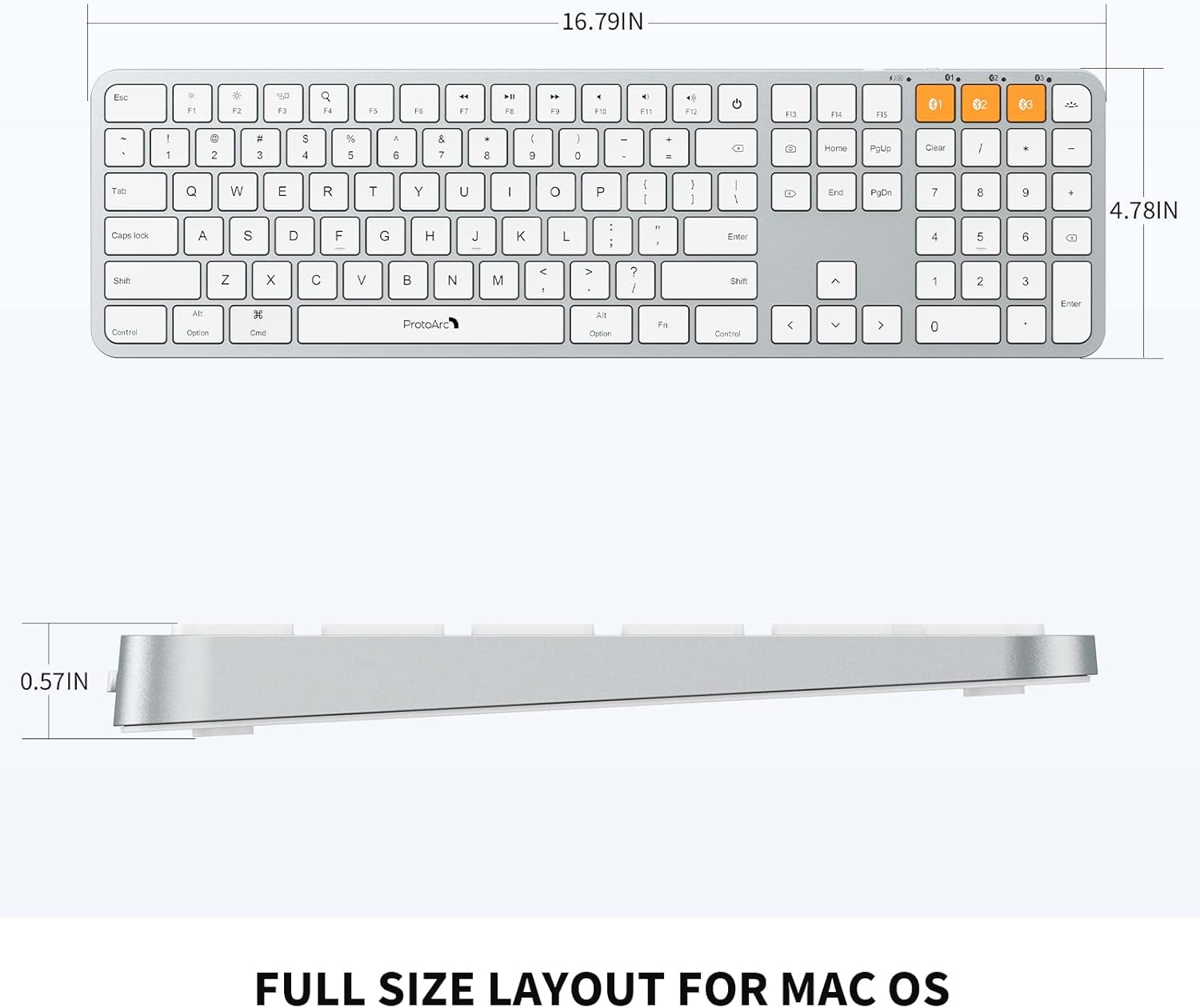
Image: Dimensional diagram of the ProtoArc K100-A keyboard.
9. Garanti ve Destek
For warranty information and technical support, please refer to the official ProtoArc webSite üzerinden satın alabilir veya doğrudan müşteri hizmetleriyle iletişime geçebilirsiniz. Garanti talepleriniz için satın alma fişinizi saklayın.


