MUNBYN Wi-Fi Thermal Label Printer User Manual
Model: MU-ITPP129S-GY-EU | Brand: MUNBYN
1. Giriş
The MUNBYN Wi-Fi Thermal Label Printer is a high-performance device engineered for efficiency and convenience in label printing. Ideal for small businesses, e-commerce sellers, and individuals, this printer offers wireless connectivity, high-speed output, and crisp print quality. It is compatible with various operating systems and platforms, making your label printing tasks seamless and productive.

Figure 1: MUNBYN Wi-Fi Thermal Label Printer overview.
2. Temel Özellikler
- Multi-Task Printing: Connect up to 5 devices simultaneously (phones, tablets, laptops, computers) for efficient printing without switching devices.
- Truly Wireless: Wi-Fi connectivity eliminates the need for data cables, offering flexible placement and usage. (Note: Supports Wi-Fi/USB connection only, not 5G).
- Yüksek Hız: Prints up to 4800 labels per hour using an external paper bin, significantly boosting productivity.
- Net Baskı: Equipped with a ROHM printhead, ensuring stable and clear 203 DPI print quality even at high speeds.
- Mürekkepsiz Termal Teknoloji: No need for ink or cartridge purchases, reducing operational costs.
3. Kurulum Kılavuzu
3.1 Kutudan Çıkarma ve İlk Yerleştirme
Carefully remove the printer and all accessories from the packaging. Place the printer on a stable, flat surface with adequate space for label feeding and output.
3.2 Etiketleri Yükleme
Ensure the labels are thermal labels compatible with the printer. Open the printer cover, align the labels with the guides, and feed them into the printer until they are properly seated. The printer will automatically detect the label size and calibrate.
3.3 Wi-Fi'ye Bağlanma
For truly wireless operation, connect the printer to your Wi-Fi network. This typically involves connecting the printer to your computer via USB first to configure the Wi-Fi settings through the printer's utility software. Ensure your computer and printer are connected to a 2.4GHz Wi-Fi network, as 5G is not supported.

Figure 2: Wireless connectivity setup for the printer.
3.4 USB üzerinden bağlantı
Alternatively, you can connect the printer directly to your computer using the provided USB cable. This connection method is straightforward and often used for initial setup or if Wi-Fi is not available.
3.5 Sürücü Kurulumu
Install the necessary drivers for your operating system (Windows, macOS, Chrome OS) from the included USB drive or the official MUNBYN website. Follow the on-screen instructions to complete the installation. For detailed steps, refer to the User Guide PDF available online.
4. Yazıcının Çalıştırılması
4.1 Printing from Multiple Devices
The MUNBYN RealWriter 129 supports multi-task printing, allowing up to five devices (smartphones, PCs, tablets, laptops) to send print jobs simultaneously. This feature is ideal for busy environments where multiple users need to print labels.
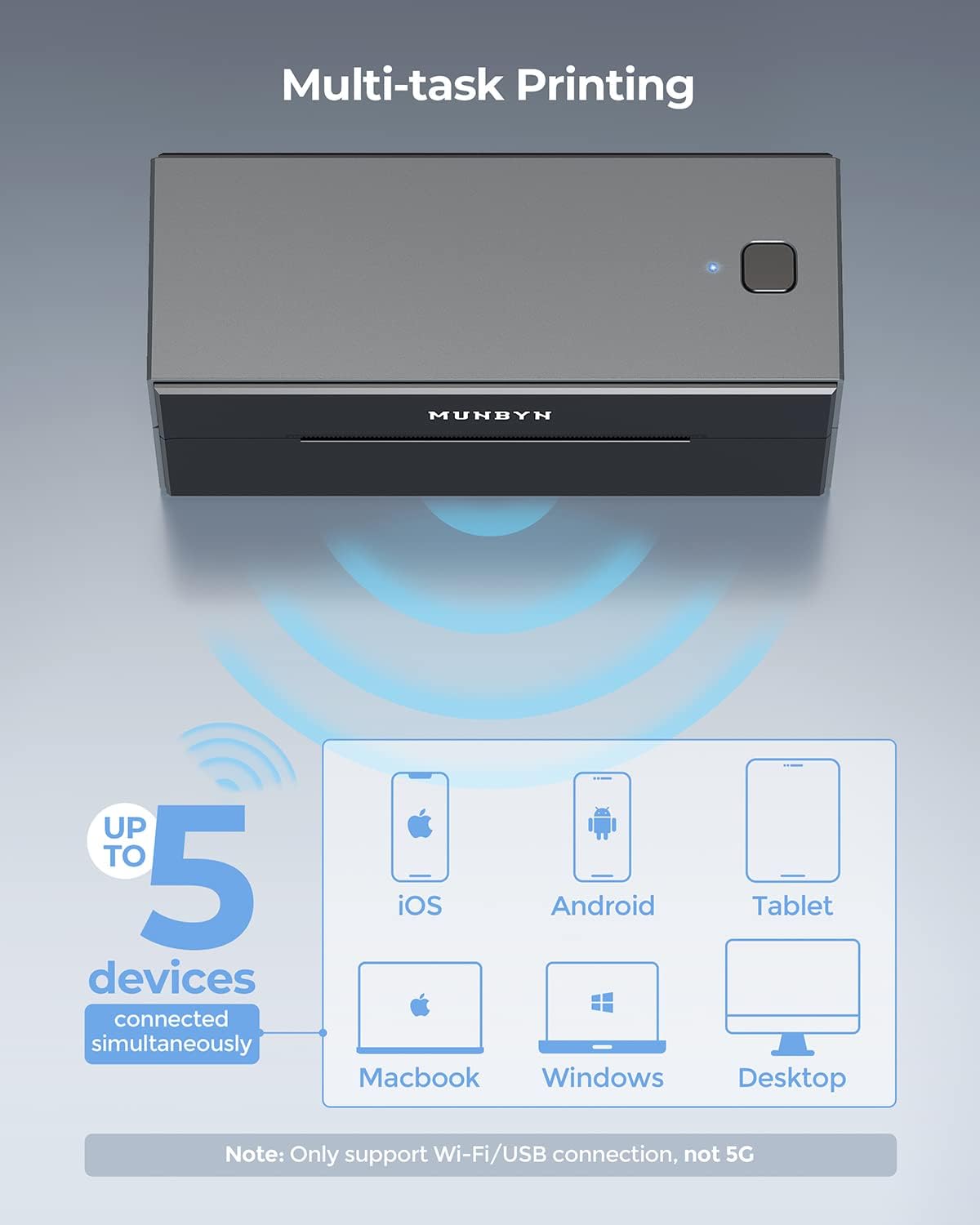
Figure 3: Multi-task printing capability.
4.2 Yüksek Hızlı Baskı
Experience rapid label printing with speeds up to 4800 labels per hour. This high output is perfect for large volume shipping and business operations.

Figure 4: High-speed label output.
4.3 Baskı Kalitesi
The ROHM printhead ensures consistently clear and sharp prints at 203 DPI resolution, making barcodes scannable and text easily readable.

Figure 5: Ensuring clear print quality.
4.4 Supported Label Types
The printer is compatible with various thermal label types, including standard white, silver, holographic, and colored thermal stickers, allowing for diverse applications.
Silver Thermal Labels
Video 1: Demonstrates the use of MUNBYN Silver Thermal Labels for various applications like product packaging and organization.
Holographic Labels
Video 2: Shows the application of MUNBYN Holographic Labels with the printer, highlighting their unique visual appeal.
Holographic Labels (Alternate)
Video 3: Another demonstration of MUNBYN Holographic Labels, showcasing their versatility for product branding.
Color Thermal Stickers
Video 4: Illustrates the use of MUNBYN Color Thermal Stickers for various labeling needs, including product identification and gift packaging.
5. Bakım
5.1 Baskı Kafasının Temizlenmesi
Regularly clean the print head to ensure optimal print quality and prolong printer life. Use an alcohol swab or a specialized print head cleaning pen. Power off the printer and allow the print head to cool before cleaning.
5.2 Dış Temizlik
Yazıcının dışını yumuşak bir bezle silin.amp bez. Yüzeye zarar verebilecek sert kimyasallar veya aşındırıcı malzemeler kullanmaktan kaçının.
5.3 Etiket Depolama
Store thermal labels in a cool, dry place away from direct sunlight and heat to prevent discoloration and maintain adhesive quality.
6. Sorun Giderme
6.1 Wi-Fi Bağlantı Sorunları
- Yazıcı Wi-Fi'ye bağlanmıyor: Ensure the printer is within range of your 2.4GHz Wi-Fi router. Re-enter Wi-Fi credentials via USB connection if the printer loses its saved password.
- Aralıklı bağlantı: Check for network interference or move the printer closer to the router. Restarting both the printer and router can often resolve temporary issues.
6.2 Baskı Kalitesi Sorunları
- Soluk veya eksik baskılar: Clean the print head as described in the Maintenance section. Ensure you are using high-quality thermal labels.
- Misaligned prints: Perform a label calibration. Ensure labels are loaded correctly and the guides are adjusted snugly.
6.3 Paper Feeding Issues
- Labels getting stuck or bent: Verify that labels are loaded straight and not creased. Check for any obstructions in the paper path.
- Printer not feeding labels: Ensure the labels are properly seated and the printer is powered on. Try feeding a few labels manually to check the sensor.
7. Özellikler
| Özellik | Şartname |
|---|---|
| Marka | MÜNBYN |
| Model Adı | ITPP129S |
| Bağlantı Teknolojisi | Wi-Fi, USB |
| Baskı Teknolojisi | Termal |
| Yazıcı Çıktısı | Tek renkli |
| Maksimum Baskı Hızı Tek Renkli | 72 ppm (4800 labels/hour) |
| Maksimum Medya Boyutu | 4 x 6 inç |
| Maksimum Baskı Çözünürlüğü | 203 DPI |
| Uyumlu Cihazlar | Akıllı Telefonlar, PC'ler, Tabletler, Dizüstü Bilgisayarlar |
| Ürün Boyutları | 8.66 x 4.53 x 6.3 inç |
| Ürün Ağırlığı | 2.94 pound |
8. Garanti ve Destek
MUNBYN offers lifetime technical support for any issues you may encounter with your label printer. Support is available via live chat, phone calls, and emails. Remote-desktop operations support can also be provided if needed to assist with complex issues.
For further assistance, please refer to the official MUNBYN websiteye gidin veya doğrudan müşteri destekleriyle iletişime geçin.