1. Giriş
This manual provides detailed instructions for the setup, operation, and maintenance of your Logitech MK670 Comfort Wave Wireless Keyboard and Mouse Combo, along with the included Mini Bluetooth Speaker, Gel Wrist Pad, and Gel Mouse Pad. Please read this manual thoroughly before using the products to ensure optimal performance and longevity.

Image 1.1: Complete bundle including the Logitech MK670 keyboard, mouse, mini Bluetooth speaker, and gel pads.
2. Ürün Bileşenleri
Paketiniz aşağıdaki öğeleri içermelidir:
- Logitech MK670 Comfort Wave Wireless Keyboard
- Logitech Kablosuz Fare
- Logitech Unifying USB Alıcısı
- Mini Taşınabilir Kablosuz Bluetooth Hoparlör
- Gel Wrist Pad
- Gel Mouse Pad
- Micro USB Charging Cable (for speaker)
- Kullanıcı Dokümantasyonu (bu kılavuz)
3. Kurulum Talimatları
3.1. Logitech Keyboard and Mouse Setup
- Paketi aç: Carefully remove the keyboard and mouse from their packaging.
- Pilleri Takın: The keyboard and mouse typically come with pre-installed batteries or require standard AA/AAA batteries. Open the battery compartments (usually on the underside of each device) and ensure batteries are correctly inserted.
- Locate Unifying Receiver: The small USB Unifying receiver is often stored inside the mouse's battery compartment for safekeeping. Remove it.
- Alıcıyı Bağlayın: Plug the Logitech Unifying USB receiver into an available USB port on your computer.
- Güç Açık: Turn on the keyboard and mouse using their respective power switches (usually located on the underside or side). The devices should automatically connect to your computer.

Image 3.1: The Logitech MK670 wireless keyboard and mouse, ready for connection via the Unifying receiver.
3.2. Mini Bluetooth Speaker Setup
- Sorumlu Konuşmacı: Before first use, fully charge the mini Bluetooth speaker using the provided Micro USB charging cable. Connect the Micro USB end to the speaker and the USB-A end to a power source (e.g., computer USB port, USB wall adapter). The charging indicator light will typically turn off or change color when fully charged.
- Güç Açık: Press and hold the power button on the speaker until you hear an audible prompt or see an indicator light flash, indicating it is in pairing mode.
- Bluetooth ile eşleştirin:
- Cihazınızda (akıllı telefon, tablet, dizüstü bilgisayar) Bluetooth ayarlarına gidin.
- Bluetooth'un etkinleştirildiğinden emin olun.
- Arama available devices. The speaker will typically appear as a name like "Mini Speaker" or similar.
- Eşleştirmek istediğiniz hoparlörü seçin. Eşleştirme tamamlandığında bir onay sesi duyacaksınız.
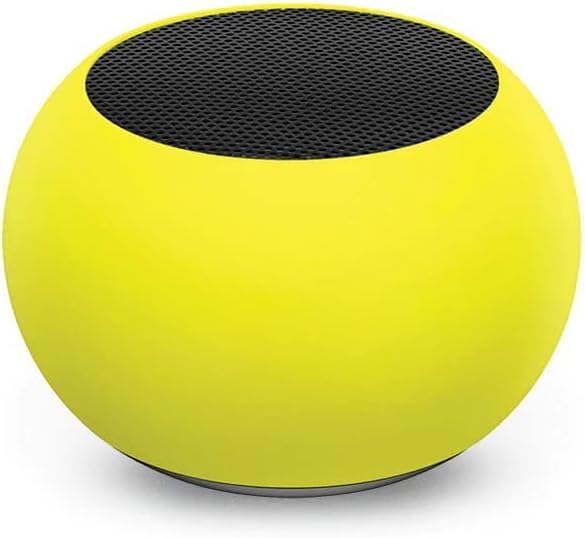
Resim 3.2: Yakın çekim view of the compact mini Bluetooth speaker, highlighting its design.
3.3. Gel Pads Placement
- Keyboard Wrist Rest: Place the longer gel wrist pad directly in front of your Logitech MK670 keyboard, aligning it to support your wrists while typing.
- Mouse Pad with Wrist Rest: Position the gel mouse pad on your desk where you typically use your mouse. Ensure the integrated wrist rest provides comfortable support for your mousing hand.

Image 3.3: The ergonomic gel wrist pad and gel mouse pad, designed for comfort and support.
4. Kullanım Talimatları
4.1. Klavye Kullanımı
- Yazma: The Comfort Wave design provides an ergonomic layout for natural hand and wrist positioning.
- Sayısal tuş takımı: Utilize the full-size numeric keypad for efficient data entry.
- Kısayol tuşları: Access common functions quickly using the dedicated shortcut keys (e.g., media controls, volume, application launch). Refer to the key legends for specific functions.
- Ayarlanabilir Eğimli Ayaklar: Flip out the tilt legs on the underside of the keyboard to adjust the typing angle for personalized comfort.

Resim 4.1: Yan view of the Logitech MK670 keyboard, illustrating the adjustable tilt legs for ergonomic customization.
4.2. Fare Kullanımı
- Pointing and Clicking: Use the mouse for precise cursor control, left-clicks, and right-clicks.
- Kaydırma: The scroll wheel allows for smooth navigation through documents and web sayfalar.
- Çok Yönlü Tasarım: The mouse is designed for comfortable use by both left and right-handed users.
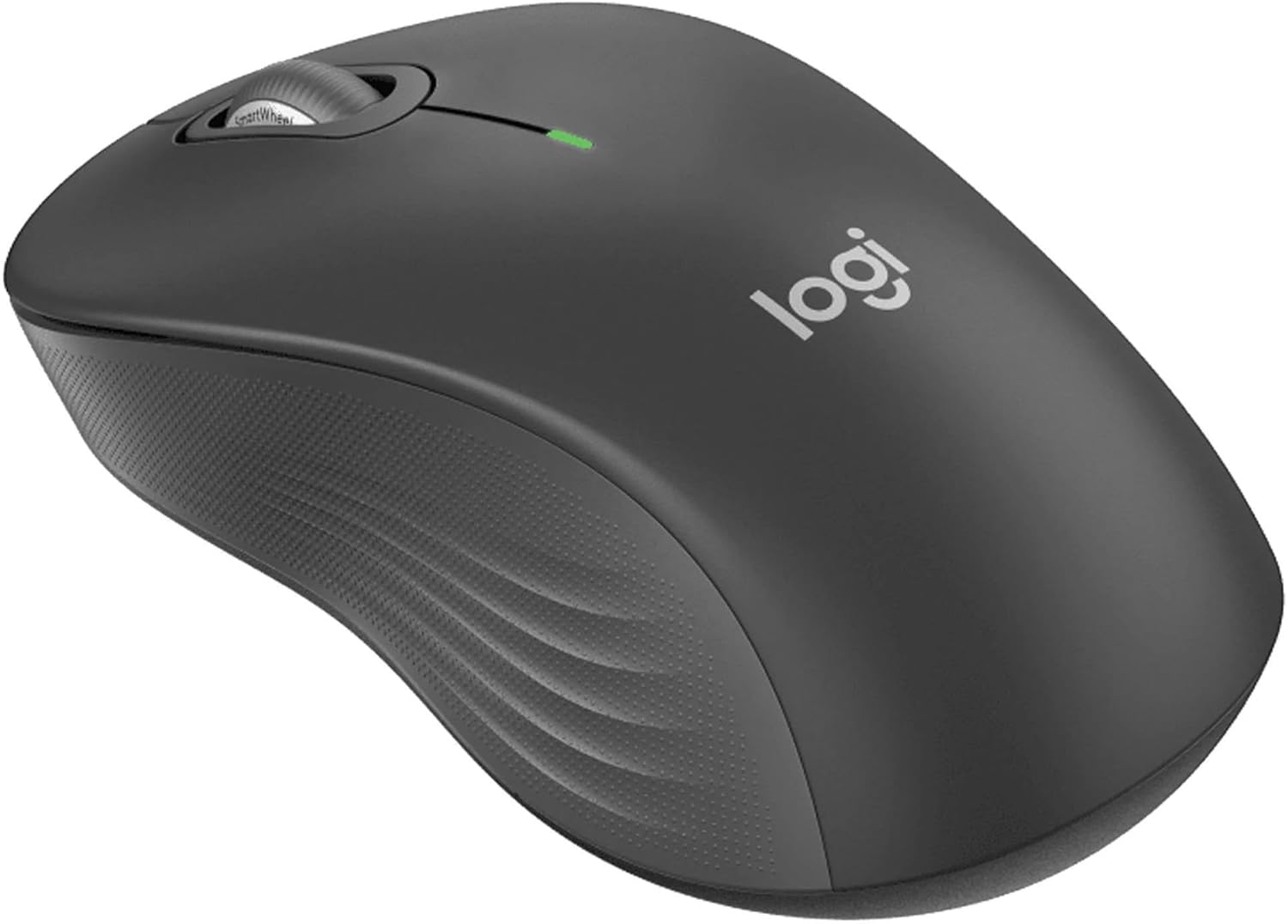
Resim 4.2: Ayrıntılı view of the Logitech wireless mouse, showcasing its ergonomic shape.
4.3. Mini Bluetooth Speaker Usage
- Güç Açma/Kapatma: Hoparlörü açmak veya kapatmak için güç düğmesini basılı tutun.
- Bluetooth Eşleştirme: Once powered on, the speaker will automatically attempt to connect to the last paired device. If not, it will enter pairing mode for new connections (refer to Section 3.2).
- Ses Kontrolü: Volume is typically controlled via the connected device. Some speakers may have integrated volume buttons.
- Selfie Remote: The speaker may feature a remote selfie button. Consult the speaker's specific instructions for activation and use with your device's camera.
- Eller Serbest Arama: With its built-in microphone, the speaker can be used for hands-free calls when connected to a smartphone.
5. Bakım
5.1. Temizlik
- Klavye ve Fare: Yumuşak, tiftiksiz bir bez kullanın ve hafifçe kurulayın.ampened with water or a mild cleaning solution. Avoid harsh chemicals or abrasive materials. For dust between keys, use compressed air.
- Mini Bluetooth Speaker: Wipe the exterior with a soft, dry cloth. Do not immerse in water.
- Gel Pads: Reklamla silamp cloth and mild soap if necessary. Allow to air dry completely before reuse.
5.2. Battery Replacement (Keyboard and Mouse)
When the battery indicator light on your keyboard or mouse signals low power, replace the batteries with new ones of the same type (e.g., AA or AAA). Ensure correct polarity when inserting new batteries.
6. Sorun Giderme
6.1. Keyboard/Mouse Not Responding
- Pilleri Kontrol Edin: Pillerin doğru takıldığından ve yeterli şarja sahip olduğundan emin olun. Gerekirse değiştirin.
- Güç Anahtarları: Verify that both the keyboard and mouse power switches are in the 'ON' position.
- USB Alıcı: Ensure the Logitech Unifying USB receiver is securely plugged into a working USB port on your computer. Try a different USB port.
- Yakınlık: Ensure the keyboard and mouse are within the operational range (up to 33 feet) of the USB receiver.
- Tamirat: If issues persist, you may need to re-pair the devices using Logitech's Unifying software (downloadable from the Logitech support webalan).
6.2. Mini Bluetooth Speaker Connection Issues
- Hoparlör Gücü: Ensure the speaker is charged and powered on.
- Bluetooth Açık: Verify Bluetooth is enabled on your source device.
- Cihazı Unut: On your source device, 'forget' or 'unpair' the speaker from your Bluetooth device list, then attempt to pair again.
- Yakınlık: Keep the speaker and source device within close range (typically 10 meters or 33 feet) for stable connection.
- Parazit yapmak: Parazite neden olabilecek diğer kablosuz cihazlardan uzaklaşın.
6.3. No Sound from Speaker
- Ses Seviyeleri: Check the volume on both the speaker and the connected device.
- Kaynak Aygıt Çıkışı: Ensure your device's audio output is set to the Bluetooth speaker.
- Medya Oynatma: Verify that media is playing on your source device.
7. Özellikler
| Özellik | Detay |
|---|---|
| Marka | Logitech |
| Örnek | MK670 (Keyboard & Mouse Combo) |
| Bağlantı Teknolojisi | 2.4GHz Wireless (Keyboard & Mouse), Bluetooth 5.0 (Speaker) |
| kablosuz Menzil | 33 feet'e (10 metre) kadar |
| Klavye Özellikleri | Ergonomic Comfort Wave design, Full-size with numeric keypad, Shortcut keys, Cushioned palm rest, Adjustable tilt legs |
| Fare Özellikleri | Ambidextrous design, Precise tracking |
| Hoparlör Boyutları | 45.45 mm x 33 mm (1.75” x 1.3”) |
| Hoparlör Ağırlığı | 2.46 ons |
| Hoparlör Pil Kapasitesi | 400mAh |
| Speaker Playback Time | 4 saate kadar |
| Speaker Special Features | Magnetic base, Built-in mic, Remote selfie button, Glow in the Dark (Yellow variant) |
| Uyumlu Cihazlar | Laptops, Gaming Consoles (for keyboard/mouse functionality), Bluetooth-enabled devices (for speaker) |
| Ürün Ağırlığı (Paket) | 4 pound |
| Paket Boyutları | 23 x 10 x 10 inç |
8. Garanti Bilgileri
Logitech products are typically covered by a limited hardware warranty. For specific warranty terms and conditions, including duration and coverage details, please refer to the warranty card included with your product or visit the official Logitech webSite. Satın alma belgenizi garanti talepleriniz için saklayın.
9. Destek
For further assistance, technical support, or to download the latest drivers and software for your Logitech products, please visit the official Logitech support webSiteye göz atabilirsiniz. Ayrıca orada sıkça sorulan soruları ve topluluk forumlarını da bulabilirsiniz.
Logitech Desteği Webalan: https://support.logi.com/


