1. Giriş
Thank you for choosing the Cherry KW 9100 Slim Wireless Rechargeable Keyboard. This extra-slim, low-profile keyboard is designed for Mac computers, offering versatile connectivity options and a comfortable typing experience. This manual provides essential information for setting up, operating, maintaining, and troubleshooting your new keyboard.
The keyboard features dual wireless connectivity (Bluetooth and 2.4 GHz wireless USB receiver), allowing you to easily switch between devices. It incorporates high-quality CHERRY SC scissor technology for quiet and precise keystrokes, and includes AES-128 encryption for secure data transmission. The integrated rechargeable battery provides weeks of use on a single charge, and the keyboard can be charged while in use via the included USB-A to USB-C cable.

Image 1.1: The Cherry KW 9100 Slim Wireless Rechargeable Keyboard, showcasing tam düzeni ve ince profile.
2. Güvenlik Bilgileri
- Do not expose the keyboard to liquids, excessive moisture, or extreme temperatures.
- Klavyeyi düşürmekten veya sert darbelere maruz bırakmaktan kaçının.
- Klavyeyi güçlü manyetik alanlardan uzak tutun.
- Klavyeyi sökmeye veya üzerinde değişiklik yapmaya çalışmayın. Bu, garantiyi geçersiz kılacaktır.
- Şarj işlemi için yalnızca ürünle birlikte verilen USB-A - USB-C kablosunu kullanın.
3. Paket İçeriği
Paketinizde tüm öğelerin mevcut olduğundan emin olun:
- Cherry KW 9100 Slim Wireless Rechargeable Keyboard
- USB-A - USB-C Kablosu
- 2.4 GHz Wireless USB Receiver
- Magnetic Strip (for angle adjustment)
- Kullanım Kılavuzu (bu belge)
4. Kurulum
4.1. Klavyeyi Şarj Etme
Before first use, or when the battery indicator shows low power, connect the keyboard to a USB power source (e.g., computer USB port, USB wall adapter) using the provided USB-A to USB-C cable. The keyboard can be used while charging.
4.2. Connecting via 2.4 GHz Wireless USB Receiver
- Locate the 2.4 GHz wireless USB receiver.
- Insert the USB receiver into an available USB-A port on your Mac computer.
- On the keyboard, slide the connectivity switch (located on the side) to the 'RF' position.
- Klavyenin bilgisayarınıza otomatik olarak bağlanması gerekir.
4.3. Bluetooth ile bağlanma
Ensure your Mac computer has Bluetooth 4.0 or higher.
- On the keyboard, slide the connectivity switch (located on the side) to the 'BT' position.
- Mac'inize gidin Sistem Ayarları (veya Sistem Tercihleri) > Bluetooth.
- Bluetooth'un açık olduğundan emin olun.
- The keyboard should appear in the list of discoverable devices (e.g., "CHERRY KW 9100"). Select it to pair.
- Eşleştirme işlemini tamamlamak için ekrandaki talimatları izleyin.

Resim 4.1: Yan view of the keyboard, highlighting the RF/BT connectivity switch and the USB-C charging port.
4.4. Klavye Açısını Ayarlama
The keyboard includes a removable magnetic strip that can be attached to the underside to adjust the typing angle for improved ergonomics. Simply attach the strip to the designated area on the bottom of the keyboard.
5. Klavyenin Kullanımı
5.1. Switching Between Connectivity Modes
Use the slide switch on the side of the keyboard to toggle between 'RF' (2.4 GHz wireless) and 'BT' (Bluetooth) modes. This allows you to seamlessly switch between two connected devices, for example, a laptop via Bluetooth and a desktop PC via the USB receiver.
5.2. Key Functions and Mac Layout
The keyboard features a Mac-specific layout, including Command, Option, and Control keys. The function keys (F1-F15) provide quick access to various system functions such as brightness, media control, and volume. Some function keys may require pressing the 'Fn' key simultaneously depending on your Mac's system settings.
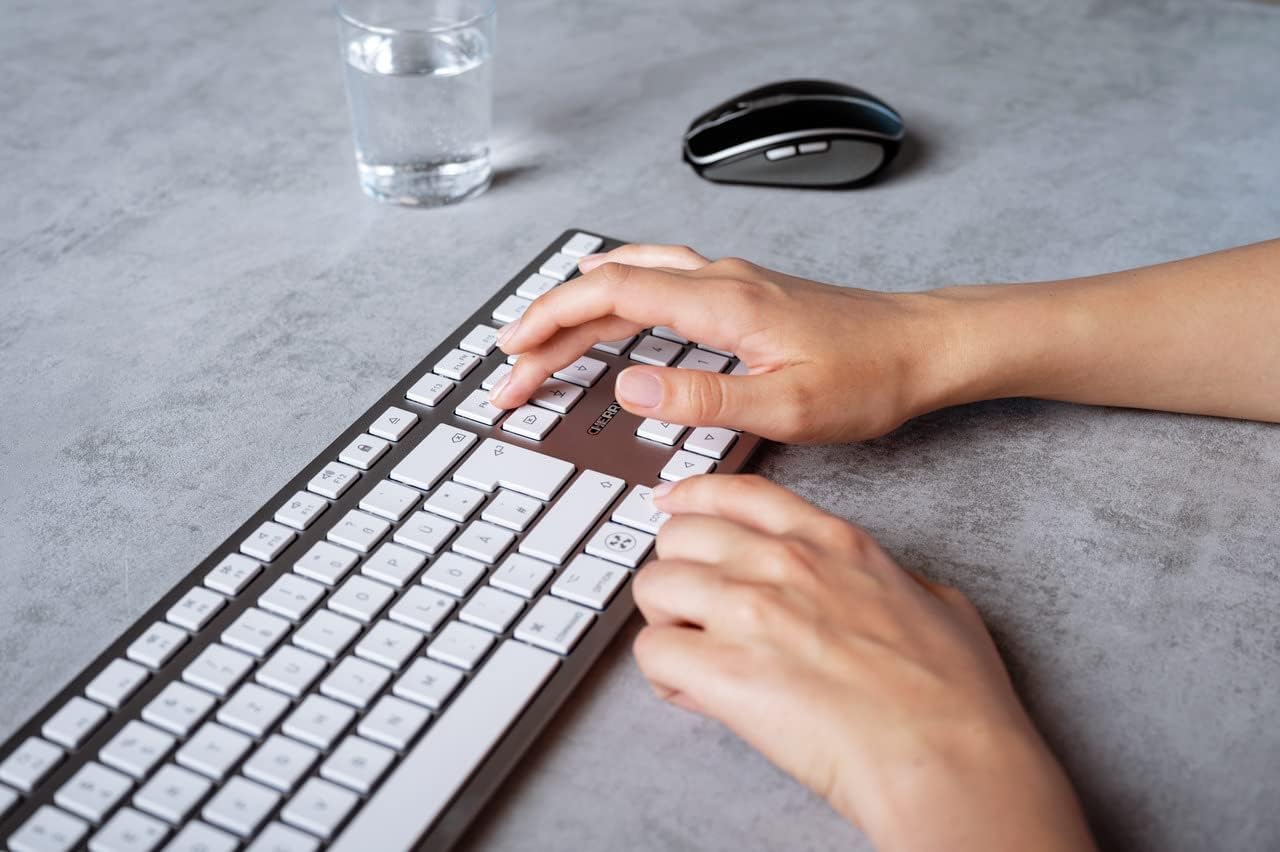
Image 5.1: A user typing on the Cherry KW 9100 keyboard, demonstrating its ergonomic design and key spacing.
5.3. Güç Yönetimi
To conserve battery life, the keyboard will enter a sleep mode after a period of inactivity. To wake it up, simply press any key. The keyboard will reconnect automatically to the last active device.
6. Bakım
6.1. Temizlik
Klavyeyi temizlemek için yüzeyi yumuşak, tüy bırakmayan bir bezle nazikçe silin. İnatçı kirler için hafifçe ovalayın.ampen the cloth with water or a mild, non-abrasive cleaning solution. Ensure no liquid enters the keyboard. Do not use harsh chemicals or abrasive materials.
6.2. Depolama
When not in use for extended periods, store the keyboard in a dry, cool place. It is recommended to fully charge the battery before long-term storage.
7. Sorun Giderme
| Sorun | Olası Neden | Çözüm |
|---|---|---|
| Keyboard not connecting via 2.4 GHz. | USB receiver not properly inserted; keyboard switch in 'BT' mode; low battery. | Ensure receiver is fully inserted. Slide keyboard switch to 'RF'. Charge the keyboard. Try a different USB port. |
| Klavye Bluetooth üzerinden bağlanmıyor. | Keyboard switch in 'RF' mode; Bluetooth off on Mac; low battery; pairing issue. | Slide keyboard switch to 'BT'. Ensure Bluetooth is enabled on your Mac. Charge the keyboard. Remove and re-pair the keyboard in Mac's Bluetooth settings. |
| Tuşlar yanıt vermiyor veya gecikmeli çalışıyor. | Low battery; interference; keyboard in sleep mode. | Charge the keyboard. Move closer to the receiver/Mac. Press any key to wake the keyboard. |
| Function keys (F1-F15) not working as expected. | System settings; 'Fn' key usage. | Check your Mac's Keyboard settings (System Settings > Keyboard) for function key behavior. Try pressing the 'Fn' key simultaneously with the desired function key. |
| Pil çabuk bitiyor. | Frequent use; keyboard not entering sleep mode. | Ensure the keyboard is allowed to enter sleep mode when idle. Fully charge the keyboard. |
8. Özellikler
| Özellik | Detay |
|---|---|
| Model Numarası | JK-9110US-1 |
| Marka | Kiraz |
| Bağlantı Teknolojisi | Bluetooth, USB-A (for receiver), USB-C (for charging) |
| Uyumlu Cihazlar | Mac computers with Bluetooth 4.0 or higher and USB-A connections |
| Klavye Açıklaması | Düşük profesyonelfile, extra-slim, wireless, scissor-switch keyboard with adjustable angle and rechargeable battery |
| Özel Özellik | Magnetic (for angle adjustment), Travel |
| Renk | Gümüş |
| Malzeme | Metal, Plastik |
| Ürün Boyutları | 17.32 x 5.12 x 0.59 inç (44 x 13 x 1.5 cm) |
| Ürün Ağırlığı | 1.94 pound (0.88 kg) |
| Üretici | KİRAZ |
9. Garanti ve Destek
Your Cherry KW 9100 Slim Wireless Rechargeable Keyboard is covered by a manufacturer's warranty. For detailed warranty information, technical support, or service inquiries, please visit the official Cherry webSiteyi ziyaret edin veya doğrudan müşteri hizmetleriyle iletişime geçin. Satın alma belgenizi garanti talepleriniz için saklayın.
Çevrimiçi destek: www.kiraz.de


